

Linux, the open-source operating system darling, has long captivated the hearts of developers, programmers, and tech enthusiasts alike. Its versatility and stability present a tantalizing alternative to Windows.
However, not everyone is prepared to make the switch from Windows. This is where Linux emulators for Windows come into the picture, offering the benefits of Linux without departing from your Windows comfort zone.
In this article, we’ll look into some of the best Linux emulators for Windows users looking to sample the Linux experience without fully committing to it.
First Thing’s First: These Are Not Emulators
We know that you typed the term “Linux Emulator” into the search engine of your choice to get here, but the truth is that none of the software packages we’re going to discuss in this article are actually examples of Linux emulation.
Rather, they’re mostly examples of “virtualization” technology with some examples of “compatibility layers”. Virtualization is where a virtual computer (the guest system) is emulated on a real computer (the host system) so that you can run another (or even the same) operating system on the virtual machine, separated from the host system.
However, Linux emulation isn’t really what people are looking for when searching for “Linux Emulators”. Instead, they want to run a Linux system from within another OS, such as Windows. Virtual Machines are the best way to do that, and so that’s what we’re covering here. To that end, we’ll be using the term “Linux Emulator” in this article, but you should be aware that this is a technically inaccurate way to describe this software.
Before diving into the world of Linux virtualization, it’s essential to understand why you might want to use this technology. A VM is a software application that replicates the Linux environment on your Windows system, allowing you to run Linux applications and command-line tools without actually installing a full-fledged Linux operating system. It acts as a bridge, combining the benefits of both worlds: the powerful and flexible nature of Linux, and the familiar and user-friendly Windows environment.
There are several reasons why one might want to use a Linux emulator:
- Exploration: Curiosity may have you itching to explore the world of Linux without leaving Windows. A Linux emulator is the perfect way to dip your toes into the world of open-source operating systems and learn the ins and outs of the dreaded terminal that’s so beloved by hardcore Linux users.
- Compatibility: While the front end of the computer world might be Windows (and, to an increasing degree, macOS), Linux rules the roost behind the scenes. So if you’re getting into the backroom technology world as a system admin or you want to develop Linux software, an emulator lets you do that with ease.
- Education and Skill Development: Learning Linux is more valuable than ever, especially if you’re in the tech industry. Using a Linux emulator can help you learn and hone your Linux skills, making you a more versatile and marketable professional.
A Linux emulator is a flexible, low-commitment, and cost-efficient way to expand your computing experience and broaden your horizons. Before you take your first step with a Linux emulator, here are some of the best Linux emulators to get you started.
1. VirtualBox: The Open-Source Juggernaut
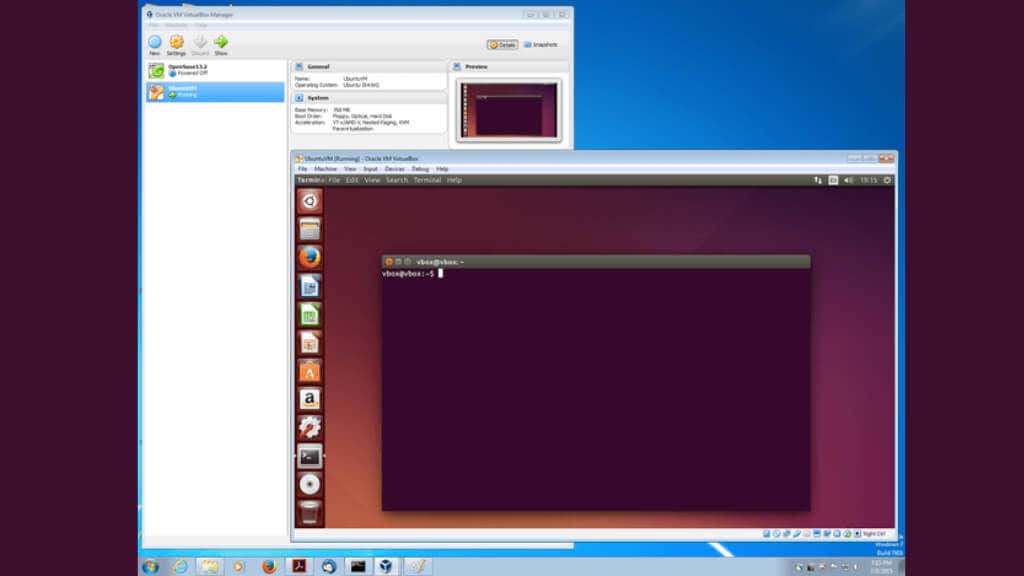
VirtualBox, a widely-adopted open-source virtualization software package, lets you run multiple operating systems, such as Linux, as virtual machines on Windows computers. It accommodates an extensive range of Linux distributions, including Ubuntu, Debian, and Linux Mint.
VirtualBox has excellent and seamless integration with USB devices, letting you use peripherals like printers, scanners, and webcams without any hassle. Additionally, VirtualBox also supports Intel’s hardware-assisted virtualization technology, making it a top choice for users with compatible CPUs.
2. VMware Workstation Player: The Feature-Loaded Virtualizer
VMware Workstation Player is another formidable virtualization software that facilitates running Linux operating systems on Windows computers. It offers broad compatibility with Linux distributions, USB devices, and 3D graphics acceleration for Windows hosts.
3. QEMU: The Swift and Adaptable Emulator
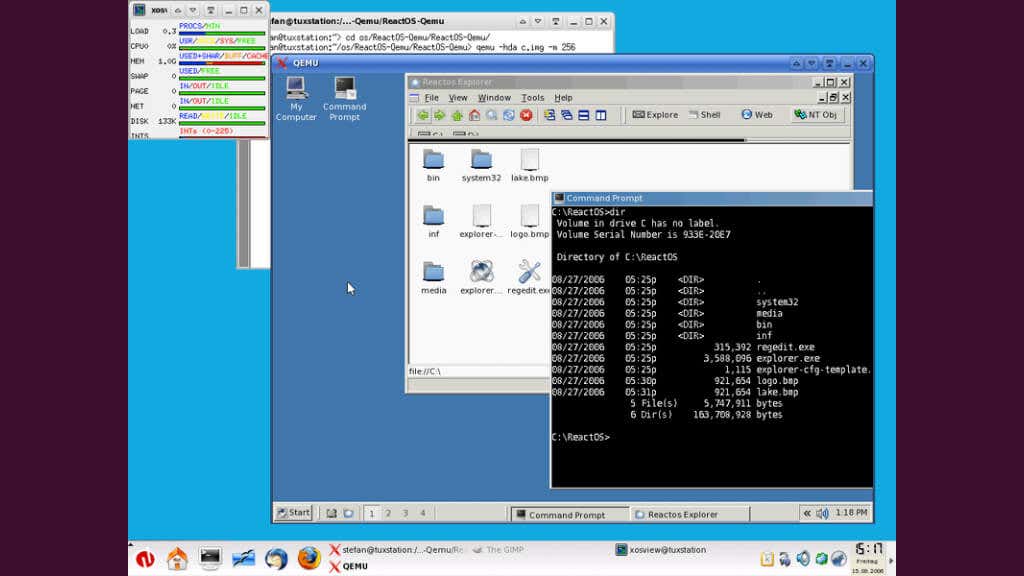
QEMU (Quick Emulator) is an agile, open-source emulator and virtualizer supporting various guest OS options, including Linux, BSD, and macOS. Compatible with Windows, Linux, and macOS hosts. QEMU can emulate different CPU architectures, making it a prime choice for users interested in exploring various hardware configurations, particularly for development uses.
4. Hyper-V: Microsoft’s Native Hypervisor
Microsoft’s Hyper-V, a native hypervisor that can be activated in “Pro” or better versions of the Windows OS, empowers users to run virtual machines directly on their Windows computers. Primarily targeting Windows Server environments, Hyper-V is also accessible on Windows 10 Pro and Enterprise editions.
Hyper-V accommodates various Linux distributions as guest operating systems, with integration services that boost performance and offer superior hardware compatibility. However, Hyper-V’s Linux support doesn’t quite measure up to other options on this list, and certain features may not be available for all Linux distributions.
5. Cygwin: The POSIX-Compatible Powerhouse
Cygwin diverges from traditional emulators or virtualization software by providing a POSIX-compatible environment within Windows. This enables users to run Linux applications and command-line tools directly on their Windows system, making it perfect for users mainly requiring access to Linux command-line utilities or specific Linux applications without setting up a full virtual machine.
Cygwin boasts a rich package manager, allowing users to install various Linux applications, libraries, and utilities. While it doesn’t offer full Linux desktop environments like GNOME or KDE, it does support X Window System applications and desktop environments such as XFCE, enabling users to run graphical Linux apps on their Windows host. However, you’ll have to add a few packages to Cygwin (e.g. Cygwin/X) to get graphical apps running.
6. WSL (Windows Subsystem for Linux): Microsoft’s Linux Bridge
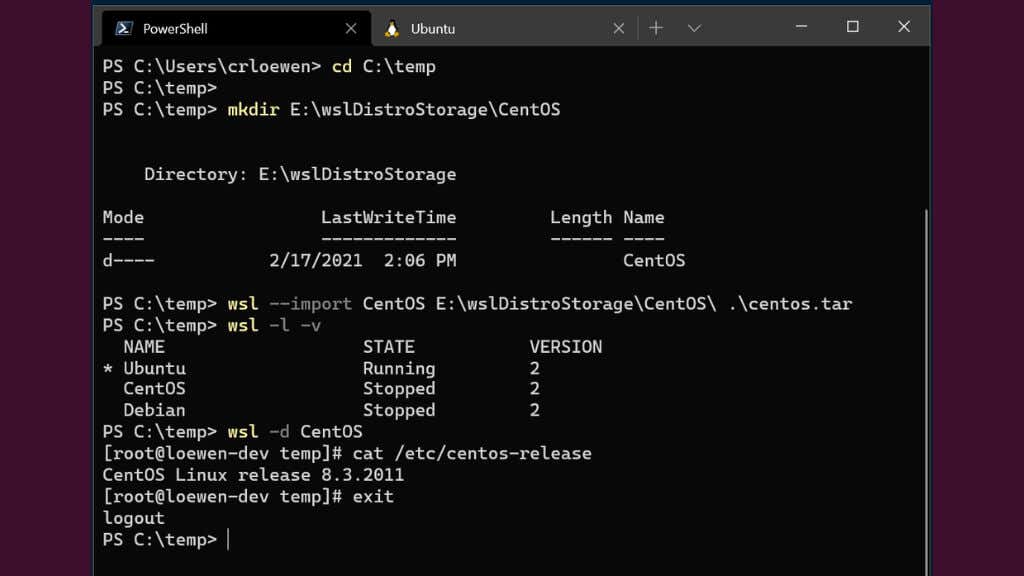
WSL, a Microsoft creation, is an exceptional option for running Linux applications and command-line utilities directly on a Windows system. Unlike Cygwin, WSL facilitates running native Linux executable files by implementing a compatibility layer between the Windows kernel and the Linux kernel.
WSL accommodates multiple Linux distros, including Ubuntu, Debian, and Fedora, which can be installed directly from the Microsoft Store. Although it doesn’t provide full Linux desktop environments, it boasts compatibility with various command-line tools, programming languages, and server applications. If you’re comfortable with Windows Powershell, you can quickly spool up all sorts of Linux goodness in minutes.
With the introduction of WSL 2, Microsoft has implemented a lightweight virtual machine (rather than a compatibility layer) that enhances performance, compatibility, and resource usage. Furthermore, WSL 2 supports Docker and Kubernetes, making it an appealing option for developers and IT professionals alike.
Beyond Virtualization
When it comes to experiencing the world of Linux on your Windows machine, virtualization software is just the tip of the iceberg. There’s a vast array of methods you can use to try Linux without taking the full plunge. Let’s take a look at a few of them.
Dual Booting: One of the go-to ways to experience Linux while keeping your Windows setup intact is dual booting. Think of it like partitioning your hard drive into separate rooms, one for Windows, one for Linux. Every time you fire up your computer, you get to pick which room to enter. Dual booting gives you a closer encounter with Linux, tapping into your hardware’s full potential. That said, setting up and maintaining a dual boot system can feel like juggling chainsaws sometimes, particularly if you often swap between the two operating systems.
Live CDs or USBs: If you’re not ready to tinker with your hard drive, why not boot Linux from a live CD or USB? Several Linux distributions, including the likes of Ubuntu, Fedora, and Linux Mint, offer these live versions. You get to test the waters, exploring Linux, trying out apps and getting a feel for the whole thing without making any lasting changes to your computer. Do remember though, a live environment might feel a bit sluggish compared to a full installation, given it runs entirely off the CD or USB without fully leveraging your computer’s resources. Additionally, any changes you make to the live OS are lost when you reboot, so it’s not a permanent solution.
Portable Linux: Portable Linux versions allow you to carry an entire operating system right in your pocket, on a USB stick. That’s right, imagine having the power of Linux at your fingertips, anywhere, anytime!
Several Linux distributions, such as Ubuntu, Fedora, and Puppy Linux, offer portable versions. The process is as straightforward as downloading the Linux distro of your choice, loading it onto a USB stick using tools like Rufus or UNetbootin, and voila! You’ve got yourself a mobile Linux workstation.
A portable Linux OS doesn’t wipe your changes when the session ends. It’s just like having Linux installed on an internal hard drive, except running from a USB device like a flash drive.
