

You opened Task Manager and found one or more COM Surrogate processes with no icon and no explanation. It’s a legitimate Windows process called dllhost.exe, but malware sometimes borrows its name, so it’s worth two minutes to confirm yours is the real one.
How to check whether COM Surrogate is safe
Fix #1: Confirm the process is dllhost.exe in the right folder
- Press
Ctrl + Shift + Escto open Task Manager. - On the Processes page, find COM Surrogate. Seeing two or more is normal.
- Right-click COM Surrogate and select Go to details. The highlighted process should be
dllhost.exe.

- Right-click
dllhost.exeand select Open file location. Depending on your Windows build and Task Manager view, this option can also appear directly on the COM Surrogate context menu.
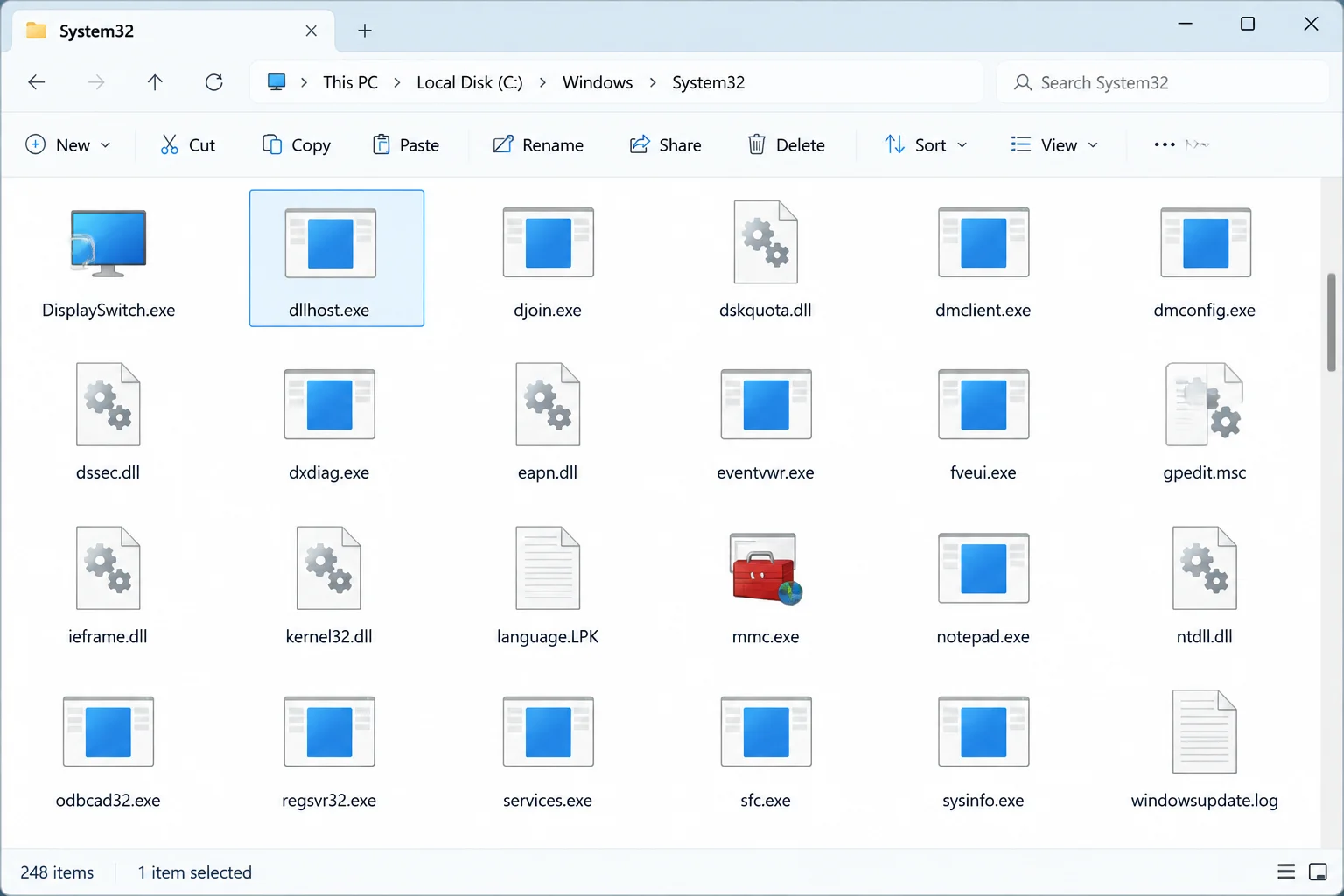
The legitimate file lives in one of these two folders:
C:\Windows\System32\dllhost.exeC:\Windows\SysWOW64\dllhost.exe(the 32-bit copy)
If File Explorer opens your Downloads folder, a temp folder, somewhere under C:\Users, or an app’s install folder, treat it as suspicious and jump to Fix #3.
A correct path is a good sign. It doesn’t prove anything by itself, though, because malware can drop a file with the same name in a folder that looks official.
Fix #2: Verify the digital signature
- In the folder from Fix #1, right-click
dllhost.exeand select Properties. - Open the Digital Signatures tab.
- Check the signer name. It should show Microsoft Windows or another Microsoft publisher.
- Select the signature, click Details, then View Certificate if it’s available. The certificate should show as valid.
A missing signature, an invalid certificate, or a non-Microsoft publisher means you should scan right away. Don’t delete dllhost.exe yourself. It’s a protected system file, and removing the real copy breaks thumbnails, previews, and other parts of Windows.
Fix #3: Scan with Microsoft Defender
Start with a quick scan of the file itself:
- Right-click
dllhost.exein File Explorer. - On Windows 11, select Show more options if you don’t see the scan command.
- Choose Scan with Microsoft Defender.
If anything looks off, run a deeper scan:
- Open Windows Security from the Start menu.
- Select Virus & threat protection > Scan options.
- Choose Full scan and click Scan now.
- If you still suspect an infection, come back to Scan options and run Microsoft Defender Offline scan. Your PC restarts and scans before Windows loads, which catches malware that hides while Windows is running.
These signs point to a fake dllhost.exe:
- It runs from a user profile, Temp, Downloads, or an unrelated app folder
- It has no valid Microsoft signature
- It keeps using heavy CPU, memory, or disk with nothing obvious triggering it
- It comes straight back after you end it, alongside pop-ups, browser redirects, unknown startup entries, or disabled security software
Don’t add dllhost.exe to your antivirus exclusions. That weakens your protection and never fixes the real cause.
If you’re still on Windows 10, take this check more seriously. Windows 10 reached end of support on October 14, 2025, so unless your PC is enrolled in Extended Security Updates (ESU), it no longer gets security patches and is an easier target.
How to fix COM Surrogate high CPU, memory, or disk usage
Short bursts of activity are normal while Windows builds thumbnails or reads file metadata. Sustained high usage usually comes from the component COM Surrogate is hosting, such as a codec or a preview handler, though damaged system files or malware can also cause it (Fixes #3 and #7 cover those).
Fix #4: Find the file or folder that triggers it
- Note what you were doing when usage spiked: opening a folder, scrolling through photos, previewing a video, or opening an archive.
- Close File Explorer windows one at a time and watch Task Manager. Usage should drop when you close the culprit.
- Restart Windows and open the suspected folder again.
- If one file triggers it every time, move it to another folder or rename it temporarily.
A corrupted video or image file is a classic cause. This happens a lot with media copied off a camera’s SD card or an old USB flash drive, where a half-written file can choke the thumbnail generator.
To check the process from PowerShell instead, run:
Get-Process dllhost -ErrorAction SilentlyContinue |
    Select-Object Id, Path, CPU
You should see each dllhost.exe instance with its path. If the Path column comes back blank for some instances, close PowerShell, reopen it with Run as administrator, and run the command again.
Fix #5: Check Reliability Monitor for the faulting module
Reliability Monitor handles this better than Task Manager because it records exactly which component crashed.
- Search for Reliability Monitor in Start and open View reliability history.
- Click the day the problem happened.
- Double-click the COM Surrogate or
dllhost.exefailure in the list. - Look at Fault Module Name in the technical details.
The module name usually points at the codec, shell extension, or app responsible. Event Viewer shows the same information under Windows Logs > Application as an Application Error event.
Fix #6: Update or remove the codec, extension, or app causing it
Common offenders:
- Video and image codec packs
- Thumbnail and preview handlers
- Cloud storage integrations
- Archive utilities
- Photo and media apps
- Right-click menu (shell) extensions
- Update the app you identified in Fix #5 from its official website or the Microsoft Store.
- If the problem started right after installing or updating something, open Settings > Apps > Installed apps.
- Click the three dots next to that app and select Uninstall.
- Restart and open the problem folder again.
If you can’t tell which extension is loading, Microsoft’s Sysinternals Autoruns lists every codec and shell extension that loads automatically. Download it only from Microsoft’s official Sysinternals page, and never download a “replacement” dllhost.exe from a third-party site.
Fix #7: Repair Windows system files with DISM and SFC
This one takes the longest, so save it for when nothing above worked. Back up anything important to an external hard drive first, just in case.
- Install any pending Windows updates and restart.
- Search for Terminal or Command Prompt, right-click it, and select Run as administrator.
- Run this command and wait for it to reach 100%:
DISM.exe /Online /Cleanup-image /Restorehealth- Once DISM finishes, run:
sfc /scannow- Restart your PC.
DISM repairs the Windows component store, and SFC then fixes protected system files. Neither one repairs a buggy third-party codec, so if Fix #6 found a culprit, deal with that first.
What COM Surrogate actually does
COM stands for Component Object Model, Microsoft’s framework for reusable software components. File Explorer uses COM objects for thumbnails, previews, file properties, and codecs.
When one of those components crashes inside Explorer, it takes Explorer down with it. Windows addresses this by running the component inside a separate surrogate process, dllhost.exe, which is what shows up as COM Surrogate. If the component fails, only COM Surrogate crashes and Explorer keeps running.
That’s also why you’ll often see several instances. Each app or Explorer task gets its own. The count alone tells you nothing about an infection.
To see exactly which component an instance is hosting, install Process Explorer from Microsoft Sysinternals and hover over a dllhost.exe entry. You’ll often see the COM class listed as Microsoft Thumbnail Cache, which is the component building thumbnails in File Explorer.
It’s the same idea as svchost.exe, which hosts Windows services instead of COM objects.
Quick answers
Can I end COM Surrogate? Yes, from Task Manager. Windows or the app that needed it will usually start it again, and ending it can interrupt whatever Explorer was doing.
Can I disable COM Surrogate permanently? No. There’s no supported switch for it. Repair or remove the component that’s misbehaving instead.
Is dllhost.exe always safe if it’s in System32? Usually, but no single check is definitive. Confirm the Microsoft signature and run a scan if the PC acts strangely.
Why does COM Surrogate crash when I open a folder? A damaged media file or a faulty thumbnail or preview component is the usual cause. Fixes #4 through #6 track it down.
The fix that usually works
For the “is it a virus?” question, Fixes #1 and #2 answer it for most people: a signed dllhost.exe in System32 or SysWOW64 is almost certainly the real thing. If the PC still acts strangely, run the Defender scans in Fix #3 anyway. For high CPU, Reliability Monitor (Fix #5) is the step I’d reach for first, since it names the codec or extension to blame. If a Defender Offline scan finds something, or dllhost.exe keeps showing up outside the Windows folders after you’ve cleaned it, treat the whole PC as compromised and consider a clean Windows reinstall.