

Have you stopped receiving Facebook notifications on your smartphone or desktop web browser? You may have disabled the app’s alerts in your phone’s settings or browser configuration. There are other causes, too, and we’ll show you how to fix the problem.
Often, Facebook can’t send notifications because you’ve enabled DND or low power mode, the Facebook app has problems, or your browser restricts alert permissions. You’ll learn how to resolve these issues in this guide.
Turn Off Your Android or iPhone’s DND Mode
Your iPhone or Android’s Do Not Disturb mode blocks all notifications from being displayed on your screen. This may be the reason Facebook can’t send you alerts.
To resolve that, turn off DND mode on your phone as follows.
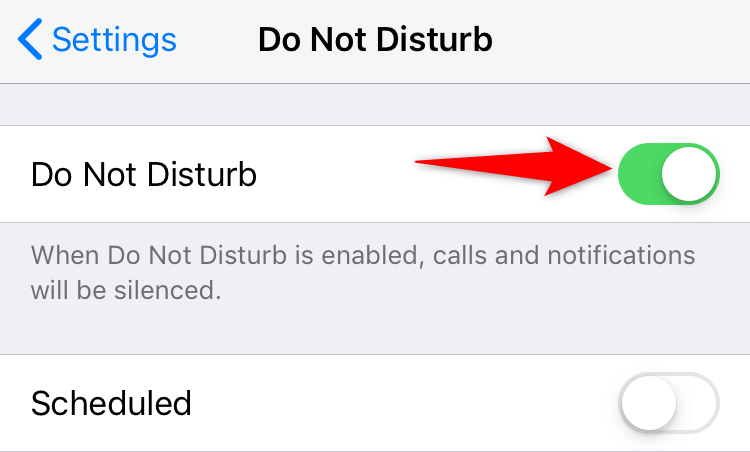
Disable DND on iPhone
- Launch Settings on your iPhone.
- Tap Do Not Disturb.
- Turn off the Do Not Disturb option.
Disable DND on Android
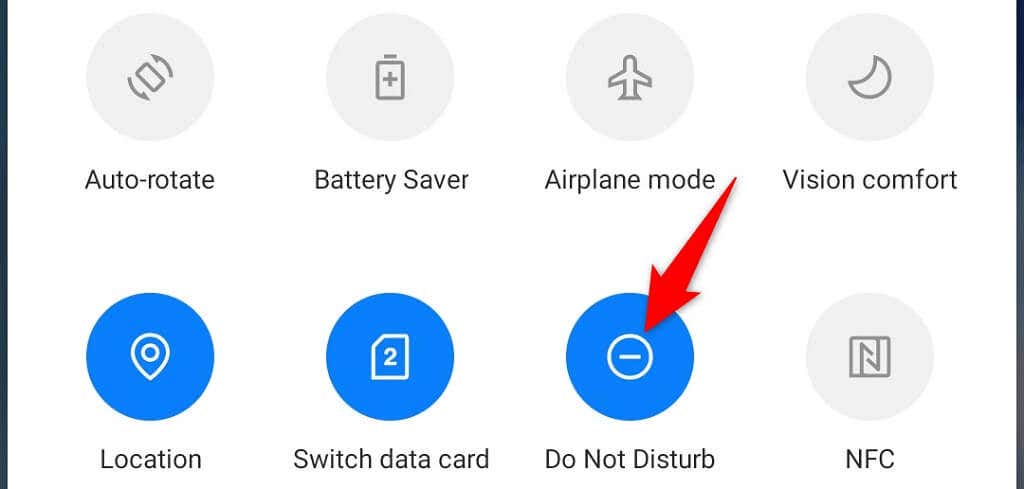
- Pull down from the top of your phone’s screen.
- Tap the Do Not Disturb tile to disable the mode.
Disable Battery Saver Mode on Your Phone
Battery saver mode on both iPhone and Android tries to make your phone use as less energy as possible. This usually comes at the cost of restricting your apps’ features.
It’s worth toggling off this option to see if you start receiving Facebook notifications.
Turn Off Battery Saver on iPhone
- Open Settings on your iPhone.
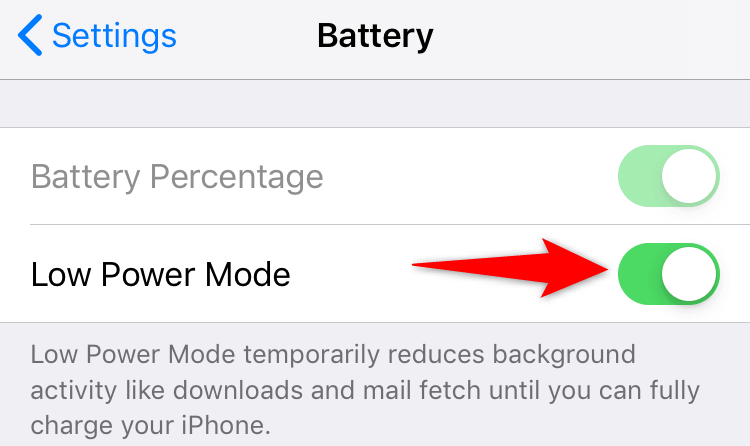
- Tap Battery.
- Toggle off the Low Power Mode option.
Turn Off Battery Saver on Android
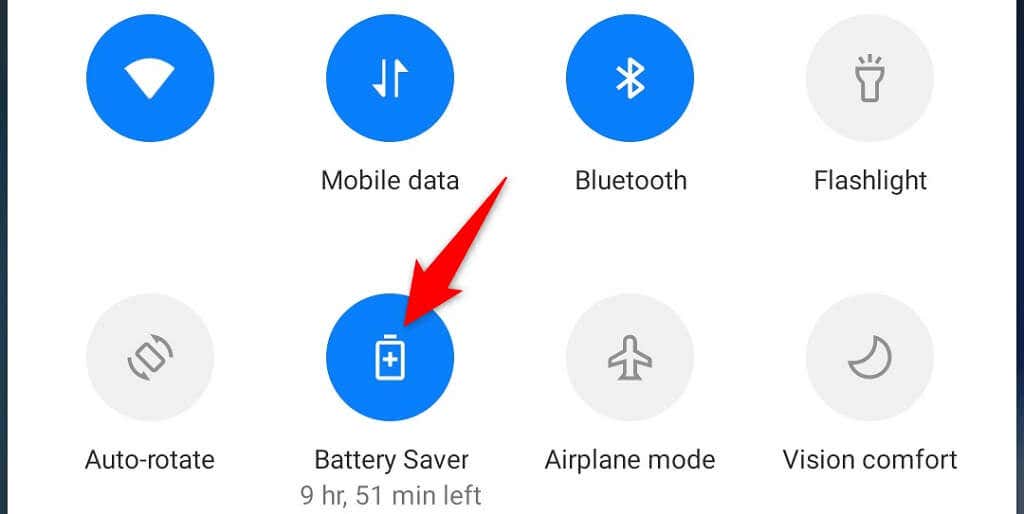
- Pull down from the top of your device’s screen.
- Tap Battery Saver to turn off the mode.
Enable Facebook Notifications on Android, iPhone, and Desktop
Your Apple iPhone, Android device, and desktop web browsers allow you to choose the sites you want to receive alerts from. You or someone else may have changed a setting on your phone or web browser, blocking Facebook alerts.
Tweak that alert option on your phone or browser, and your notifications will resume. Here’s how.
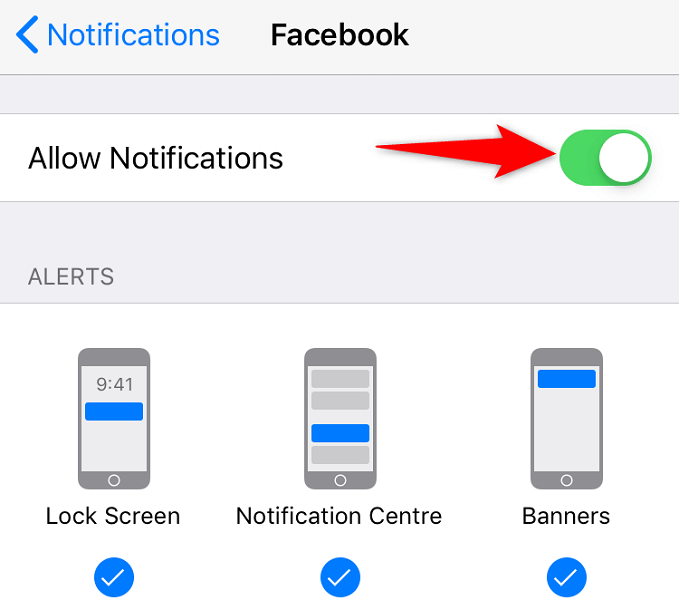
Activate Facebook Notifications on iPhone
- Access Settings on your iPhone.
- Select Notifications.
- Tap Facebook on the list.
- Enable the Allow Notifications option.
Enable Facebook Notifications on Android
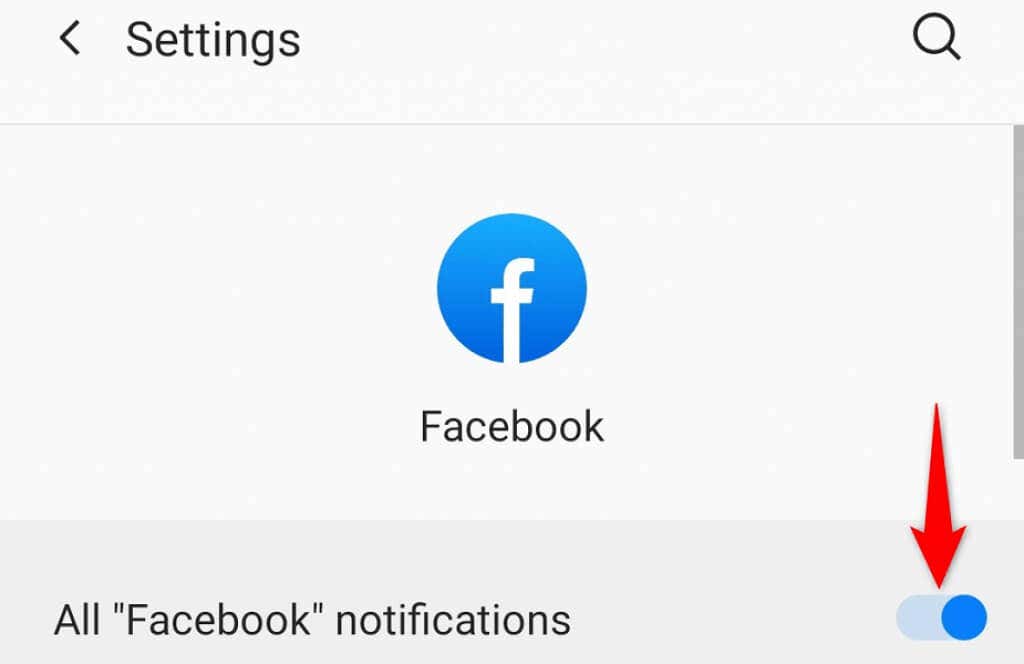
- Open Settings on your Android phone.
- Navigate to Apps & notifications > Facebook. If you don’t find this app on the list, tap See all X apps (where X is the number of your apps) to find the app.
- Tap Notifications on Facebook’s app page.
- Toggle on the All “Facebook” notifications option.
Unblock Facebook Alerts on Your Desktop Web Browser
The steps to enable notification permission vary by browser. Here, we’ll show you how to activate Facebook alerts in Google Chrome.
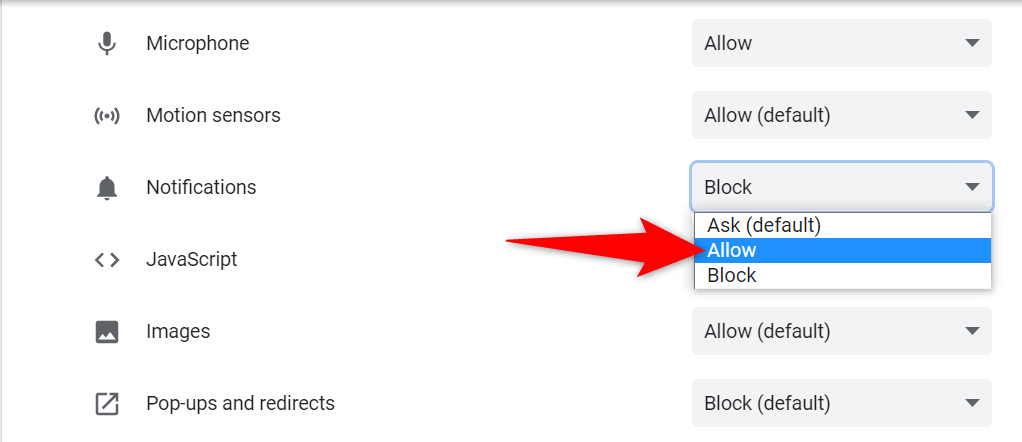
- Launch Chrome, access the Facebook site, and log in to your account.
- Select the padlock icon beside the address bar in Chrome.
- Choose Site settings in the menu that opens.
- Select Allow from the drop-down menu next to Notifications.
Turn On Notifications in the Facebook Mobile App
Facebook’s mobile app has built-in notification settings that you can customize. It’s possible one or more of these options are disabled, preventing you from getting certain notifications.
You can toggle on all alert options in the app, which should fix your issue.
- Launch the Facebook app on your phone and tap your profile icon at the top-right corner.
- Navigate to Settings & privacy > Settings > Profile settings > Notification settings.
- Tap the type of notification you aren’t receiving.
- Toggle on the Push option to enable push notifications for the selected type. Feel free to enable other options as well if you want.
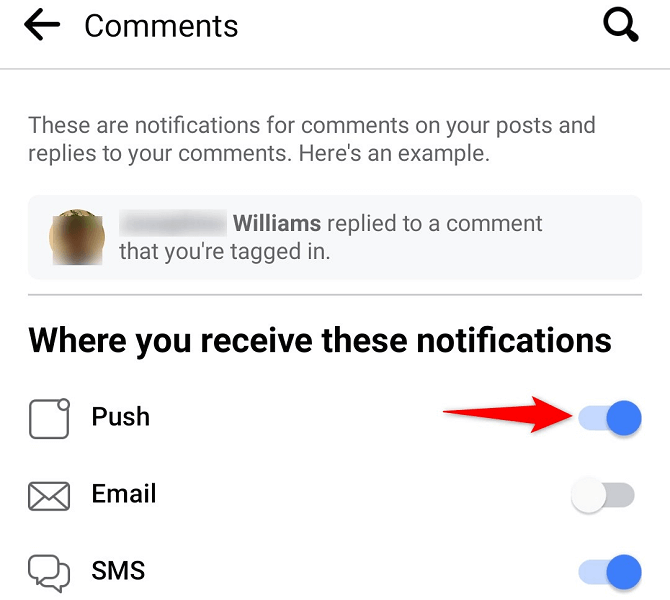
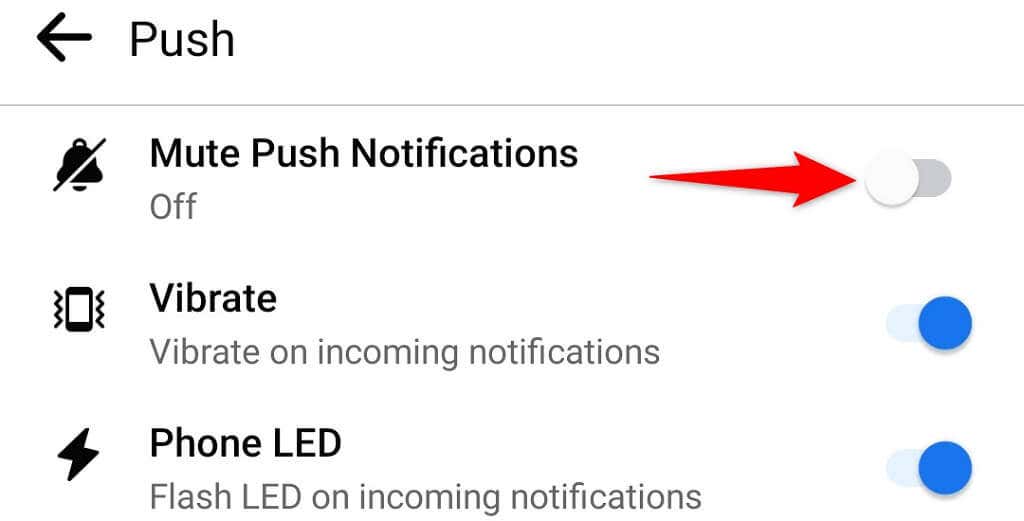
- Select Push on the Notification Settings page and toggle off Mute Push Notifications if it’s enabled.
Allow the Facebook App to Use the Internet in the Background
Facebook’s mobile app requires a constant connection to the internet to send you timely updates. For that to work, your iPhone or Android phone must allow the app to use your internet connection in the background.
Luckily, both iOS and Android have options in their respective Settings apps to toggle on background data for the installed apps. Here’s how to turn on that feature for Facebook.
Enable Background Data for Facebook on iPhone
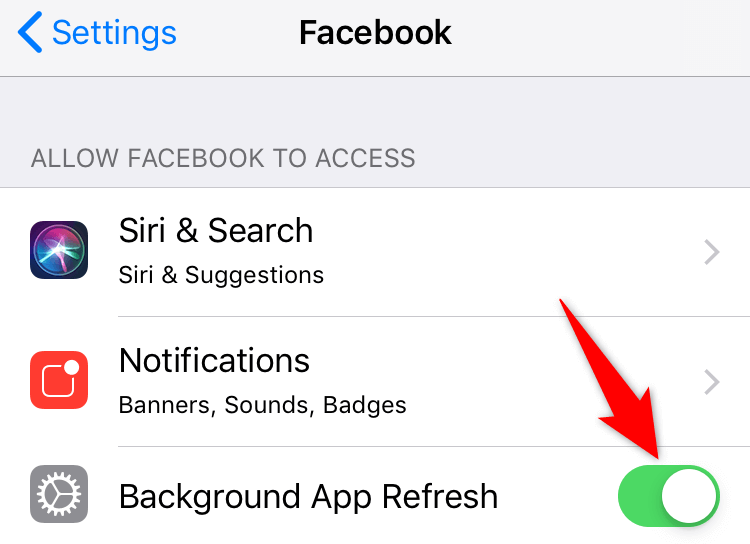
- Open Settings and tap Facebook.
- Toggle on the Background App Refresh option.
Activate Background Data for Facebook on Android
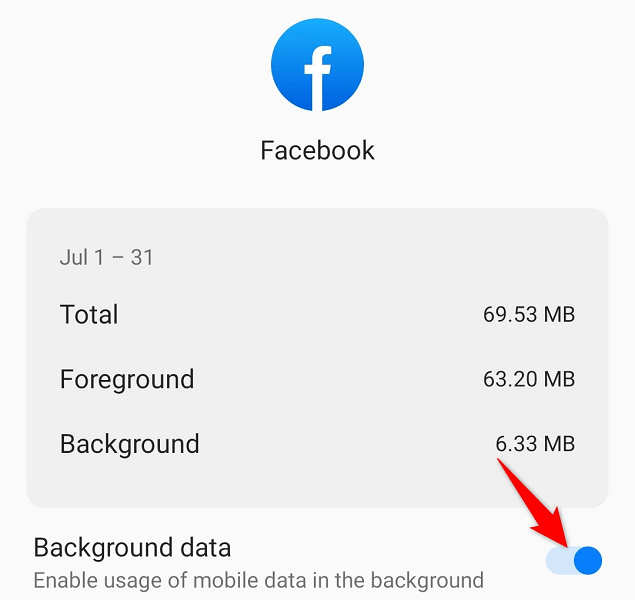
- Launch Settings and navigate to Apps & notifications > Facebook > Mobile data & Wi-Fi.
- Turn on the Background data option.
Clear the Facebook App’s Cache on Android
Cache files help your apps be faster and more efficient. Sometimes, these files go corrupt, causing various issues. Your Facebook notification problem may be the result of the Facebook app’s problematic cache.
Luckily, you can fix the issue by deleting the app cache on your phone. Note that you can only do this on Android as iPhone doesn’t allow you to clear the app cache. Also, you don’t lose your account data when you remove the cache.
- Access Settings and head to Apps & notifications > Facebook.
- Tap Storage & cache on the app page.
- Select Clear cache to remove the app’s cache files.
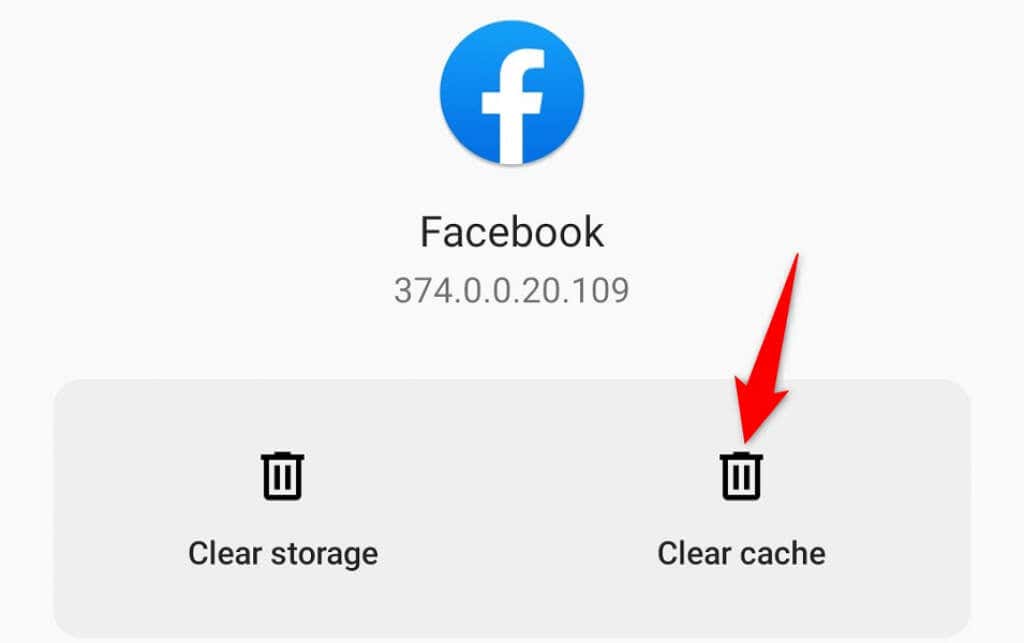
- If your issue persists, delete the app’s storage by tapping Clear storage. Note that this will log you out of your Facebook account in the app.
Update the Facebook App on iPhone and Android
App updates often resolve many existing bugs and issues in your applications. Facebook’s alert issue may be a core problem, which you can fix by getting the latest version of the app from your respective app store.
It’s quick, easy, and free to download and install app updates on both iPhone and Android.
Update Facebook on iPhone
- Open the App Store on your iPhone.
- Tap the Updates tab at the bottom.
- Select Update next to Facebook.
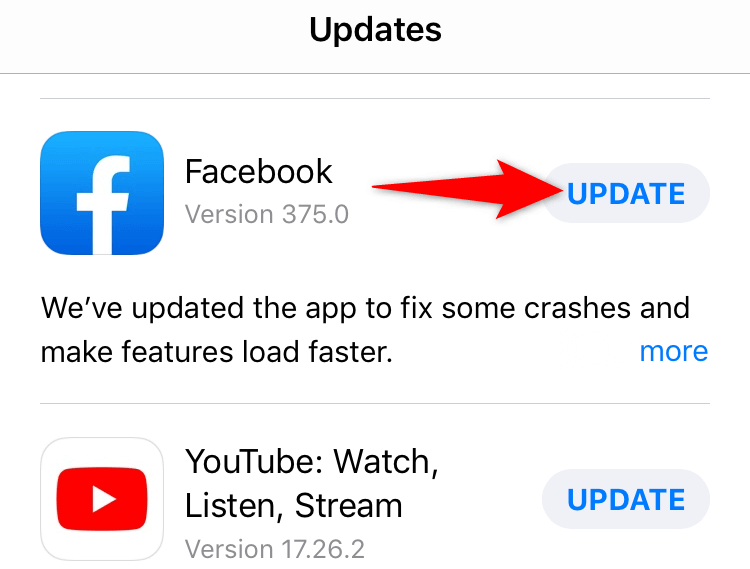
You’re already running the latest app version if you don’t see Facebook on the Updates page.
Update Facebook on Android
- Open the Google Play Store on your phone.
- Search for Facebook and tap the app on the list.
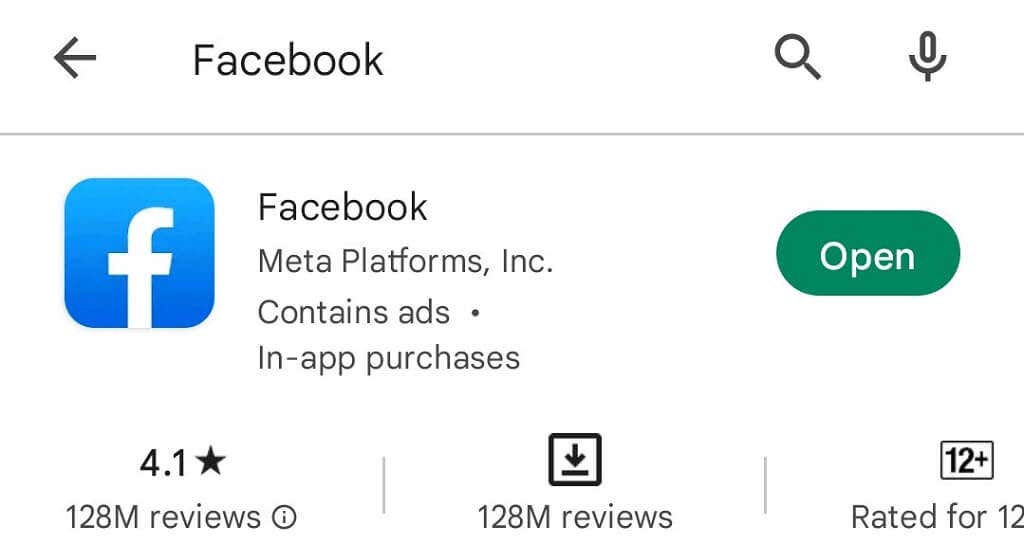
- Choose Update to update the app.
The Update button won’t appear if your Facebook app is already up to date.
Reinstall the Facebook App on iPhone and Android
Updating the app won’t resolve your notification issue if the issue is caused by the app’s core files. In this case, you’ll have to remove and reinstall the app on your iPhone or Android phone. This deletes all the app files from your phone and brings in working new files.
Reinstall Facebook on iPhone
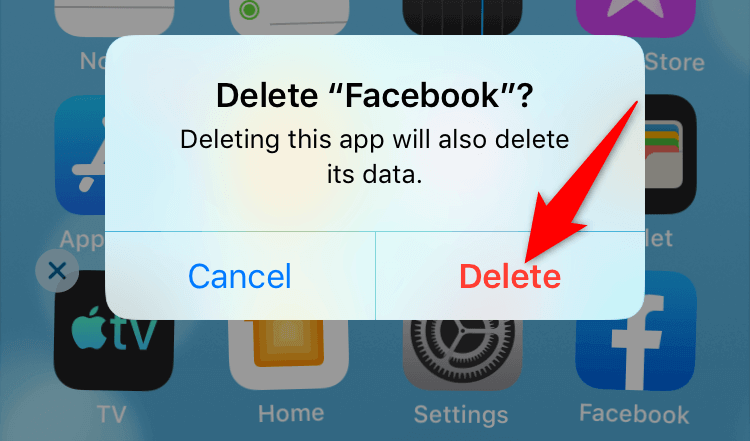
- Tap and hold Facebook on your home screen until your app icons start jiggling.
- Select X in Facebook’s top-left corner and choose Delete in the prompt.
- Open the App Store, search for Facebook, and tap the download icon.
Reinstall Facebook on Android
- Tap and hold Facebook in your app drawer.
- Select Uninstall in the menu that opens.
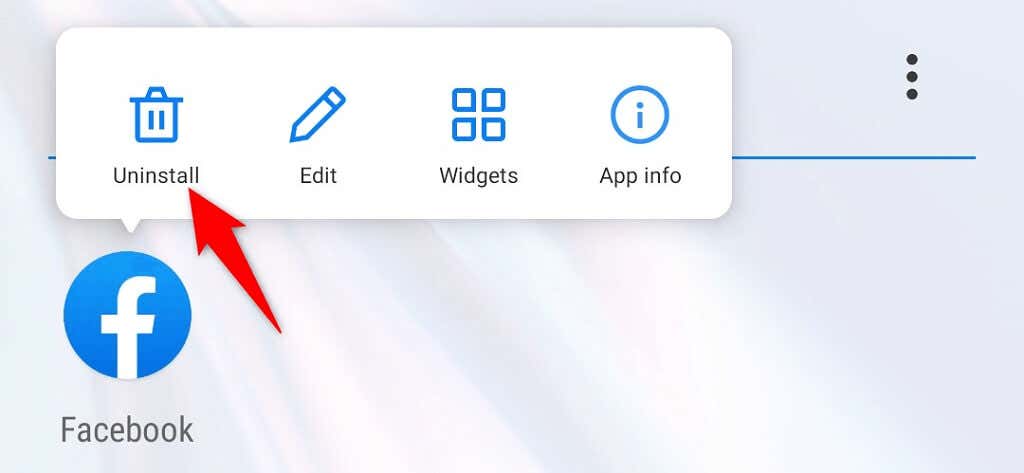
- Choose OK in the prompt.
- Open the Play Store, search for Facebook, and tap Install.
Fix Facebook Notifications and Start Getting Timely Updates
If you’re an avid Facebook user and rely on the platform for your tasks, missing even a single important notification can cost you quite a lot. Luckily, you can resolve most alert problems by tweaking options on your smartphone or desktop web browser, as explained above.
Once your notifications resume, you’ll be able to jump on those last-minute events, wish someone on their birthday, and do more.
