

Do you see a yellow border around your screen when you share your screen with Discord? A third-party app may be interfering with Discord, or an option on your PC may be causing the border to appear. We’ll show you how to fix these as well as other items to resolve your problem.
A few other reasons Discord users see a yellow border in the app are that Discord’s cache is corrupt, the Windows or macOS version is outdated, Discord doesn’t have full permissions to run, and more.
Close Other Apps and Restart Discord
One reason you see a yellow border in Discord is that your other installed apps are interfering with Discord. These may be apps related to taking screenshots or recording your screen. In this case, closing all these other apps and restarting Discord should fix your issue.
On Windows
- Close all open apps on your PC.
- Select X in Discord’s top-right corner to close the app.
- Right-click Discord’s icon in your system tray and choose Quit Discord.

- Open Discord using your preferred way.
On macOS
- Close all running apps on your Mac. If an app refuses to close, press Option + Command + Esc at the same time, choose the app on the list, and select Force Quit.
- Close Discord by choosing Discord > Quit Discord in the app’s menu bar.
- Relaunch Discord using your preferred method.
Turn Off the Screenshot Border Option in Microsoft Windows 11
Windows 11 has a feature that adds a border to your screenshots. It’s worth toggling off this feature when you see an unwanted border in your Discord app. You can turn this option back on at any time you want.
- Open Windows Settings by pressing Windows + I.
- Select Privacy & security in the left sidebar.
- Choose Screenshot borders on the right pane.

- Turn on the Let apps turn off the screenshot border option.

- Open Discord and share your screen.
Update Discord on Your Windows or Mac Computer
Whether it’s Discord or any other app, you can resolve most issues with your apps by simply updating your apps to the latest version. You may be using an outdated version of Discord, causing problems with your screen sharing.
Installing Discord updates should resolve your problem, as newer updates often come with many bug fixes, which patch the issues in your app.
One way to update Discord on both Windows and Mac is by pressing Ctrl + R (Windows) or Command + R (macOS) while inside the app. Note that you’ll have to close and relaunch the app to install the found updates.
Another way to update the app on Windows is by right-clicking the app’s icon in your system tray and choosing Check for Updates.
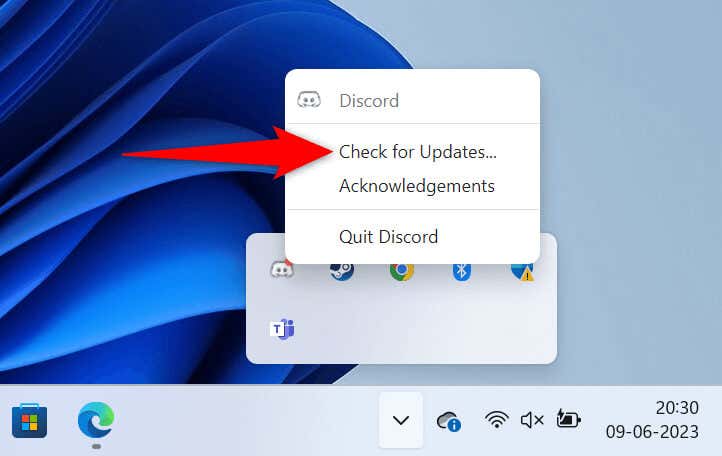
The third way to update Discord on both Windows and Mac is by closing and relaunching the app. Doing so forces Discord to find and install the latest update.
Fix Discord Yellow Border Issue Using Admin Mode
If you still see an unwanted yellow border while sharing your screen, Discord may not have full permissions to function on your PC. In this case, you can run the app with admin rights to possibly fix your issue.
- Open the Start menu and find Discord.
- Right-click the app in the search results and choose Run as administrator.

- Select Yes in the User Account Control prompt.
- Start your screen sharing in the app.
Update Your Windows or macOS to the Latest Version
Updating your computer’s operating system is as important as updating your Discord app. Your Windows or macOS system may have minor bugs, causing Discord to display a yellow border. Updating your OS should resolve that issue.
On Windows
- Open Settings by pressing Windows + I.
- Select Windows Update in the left sidebar.
- Choose Check for updates on the right pane.

- Download and install the available updates.
- Reboot your PC by opening the Start menu, selecting the Power icon, and choosing Restart.

- Launch Discord.
On macOS
- Select the Apple logo in your Mac’s top-left corner and choose System Settings.
- Choose General in the left sidebar and Software Update on the right pane.
- Find and install all the available updates.
Disable Hardware Acceleration to Remove the Discord Yellow Border
Discord uses hardware acceleration to offload some tasks to your computer’s GPU, speeding up your overall experience with the app. Sometimes, this feature doesn’t work well, causing random issues with the app.
Turn off hardware acceleration in Discord and see if that fixes your issue.
- Launch Discord on your computer.
- Select User Settings (a gear icon) at the bottom-left corner.

- Choose Advanced in the left sidebar.
- Disable the Hardware Acceleration option on the right.

- Choose Okay in the prompt.
- Allow Discord to reopen.
Clear Discord’s Cache Files
Discord uses cache files to improve your overall experience with the app. These cache files allow the app to provide you with the requested content quicker as opposed to delivering the content from scratch.
These cache files sometimes go corrupt, causing issues with the app. In this case, the good news is you can delete your app’s cache files and resolve your issue. You don’t lose your personal data when you do this.
On Windows
- Quit Discord if the app is running on your PC.
- Open Run by pressing Windows + R.
- Type the following in the Run box and press Enter: %appdata%discord
- Find and delete the following three folders to clear Discord’s cache:
Cache
Code Cache
GPUCache

- Launch the Discord app.
On macOS
- Close Discord if the app is running on your Mac.
- Open a Finder window and select Go > Go to Folder in the menu bar.
- Type the following path in the open box and press Enter:
~/Library/Application Support/discord/ - Delete the following three folders by right-clicking each folder at a time and choosing Move to Trash.
Cache
Code Cache
GPUCache - Close Finder and launch Discord.
Remove the Unwanted Yellow Border From Your Discord App
Having unwanted items, like a yellow border, appear in your screen sharing is annoying. Luckily, your issue doesn’t have to last long, as there are several ways to fix the problem. Use the methods outlined above, from top to bottom, and your border issue will be resolved in your Discord app.
Once you’ve done that, Discord will only display your chosen items in your screen sharing. Enjoy!
