Skip to content
HELP 101010 DESK 010101 GEEK
  • How-To
  • Social Media
  • Streaming
  • Reviews
  • How-To
  • Social Media
  • Streaming
  • Reviews
  1. Home/
  2. Social Media/
  3. How to Use Archived Messages in Facebook Messenger

How to Use Archived Messages in Facebook Messenger

Jake Harfield
July 9, 2022
4 min read

Help Desk Geek is reader-supported. We may earn a commission when you buy through links on our site. Learn more.

If you’ve been using social media for a while, your inboxes are probably packed with old conversations, many of which you likely haven’t touched for ages. Facebook Messenger lets you delete or archive these old messages.

In this article, we’ll explain the difference between deleting and archiving messages. Then, we’ll cover how you can archive your messages, see archived messages, and unarchive them.

Table of Contents

    What Is the Difference Between Archiving and Deleting Messages?

    You can delete individual messages to prevent your conversation partner from seeing them, and you can also delete entire conversations if they’re no longer needed. You cannot retrieve deleted messages—they’re gone for good.

    Archiving, on the other hand, lets you hide a conversation but preserve its contents in case you need to access or reactivate it later. You can only archive conversations (including group chats)—not individual messages.

    Archiving helps organize your inbox and make sure that important conversations are saved. If you archive a conversation, you will still receive notifications (unless you ignore or block that person). Any new messages from that person will appear as a new conversation in your inbox.

    How to Archive a Conversation in Facebook Messenger

    It’s easy to archive a conversation in Messenger, but the process is slightly different depending on whether you use the web or app version.

    How to Archive a Conversation on the Messenger Website

    If you’re on a Mac or PC, you’ll need to use the website to archive a conversation. You can also use the website instructions on iPhone or Android if you prefer it to using the app.

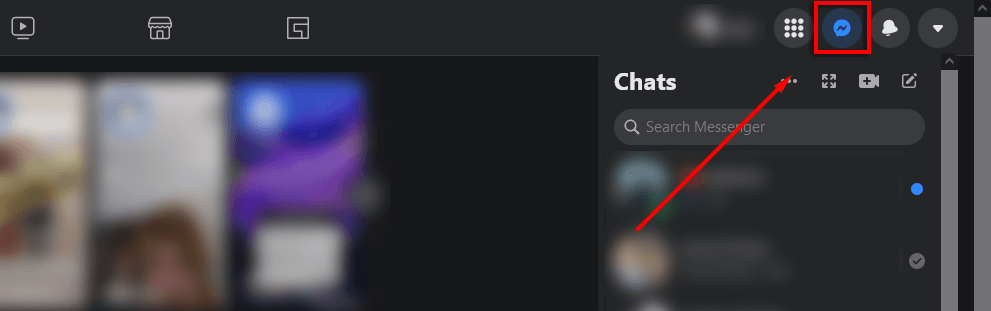
    1. Open the Messenger.com website and log into your Facebook account if you haven’t already. Alternatively, you can access this by clicking the Messages icon in the top-right of the Facebook homepage and selecting See all in Messenger.
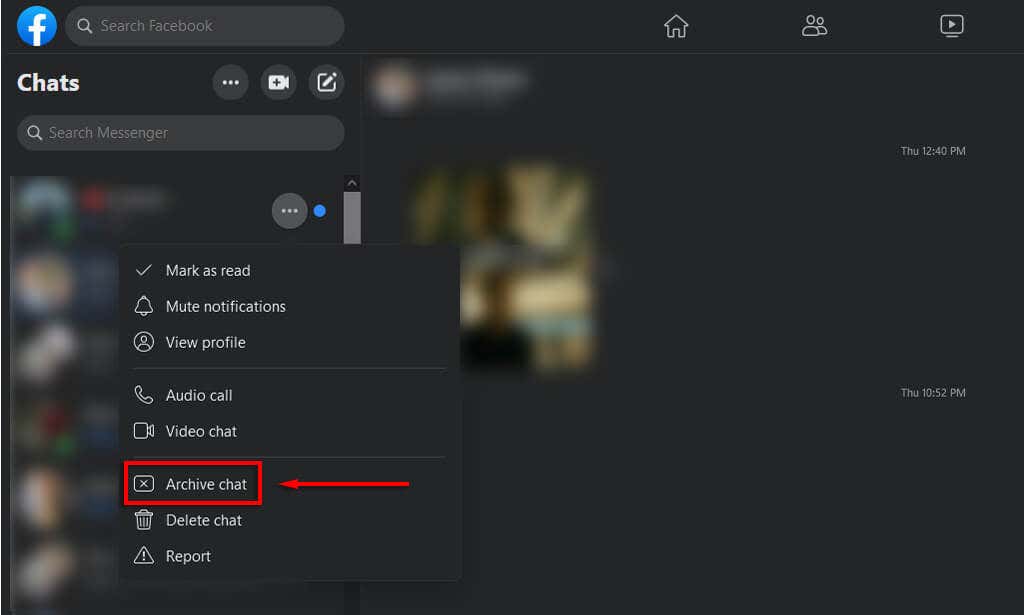
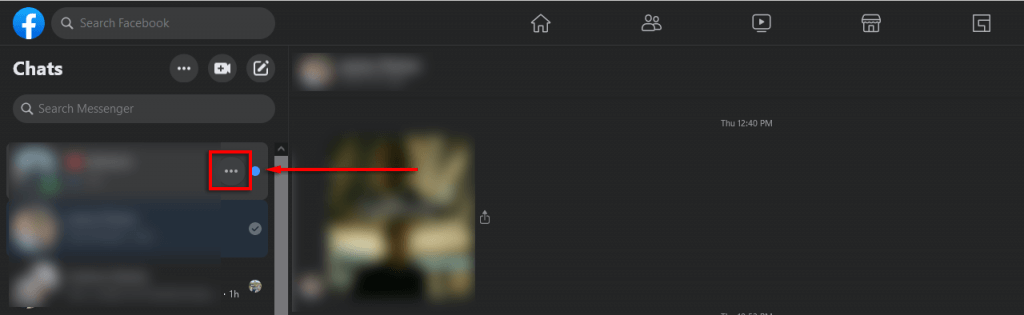
    1. In the left-hand chat list, hover your pointer over the conversation you want to archive. Select the icon with three dots.
    1. Select Archive chat.

    How to Archive a Conversation on the iOS or Android App

    If you’ve got the Messenger app installed on your iPhone or Android, you can archive conversations that way.

    1. Open Messenger.
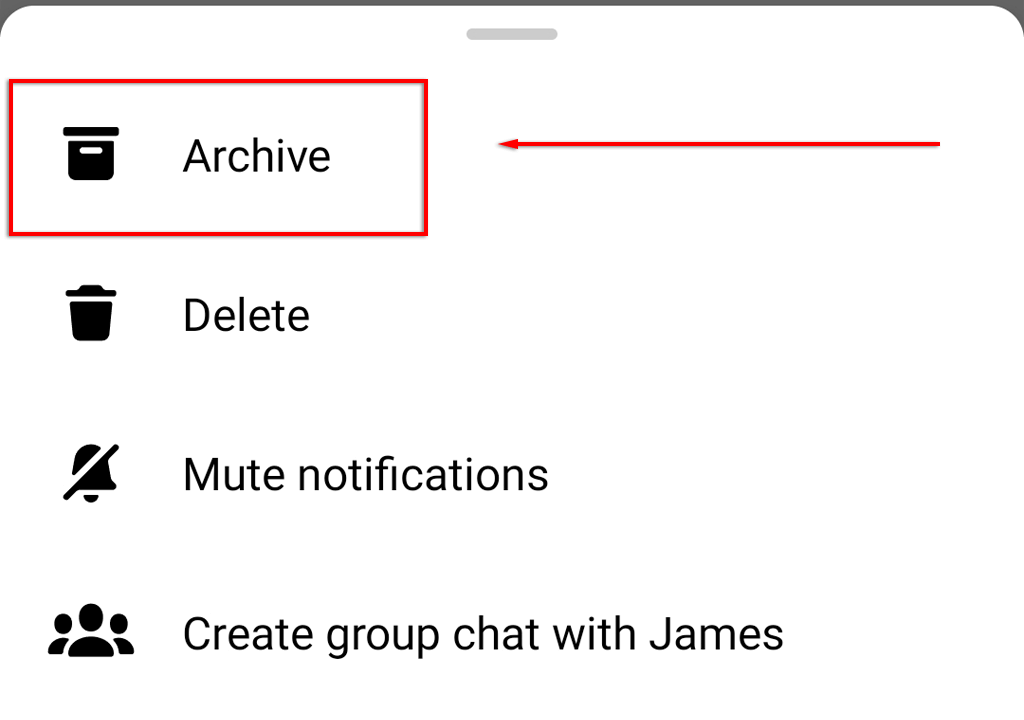
    2. Find the conversation you want to archive. Tap and hold your finger on it.
    3. On the menu that appears, tap Archive.
    How to See and Unarchive Conversations in Facebook Messenger

    Once you’ve archived a conversation, it’s easy to find and access.

    How to See and Unarchive a Conversation on the Website

    To view archived messages from your web browser:

    1. Open the Messenger website.
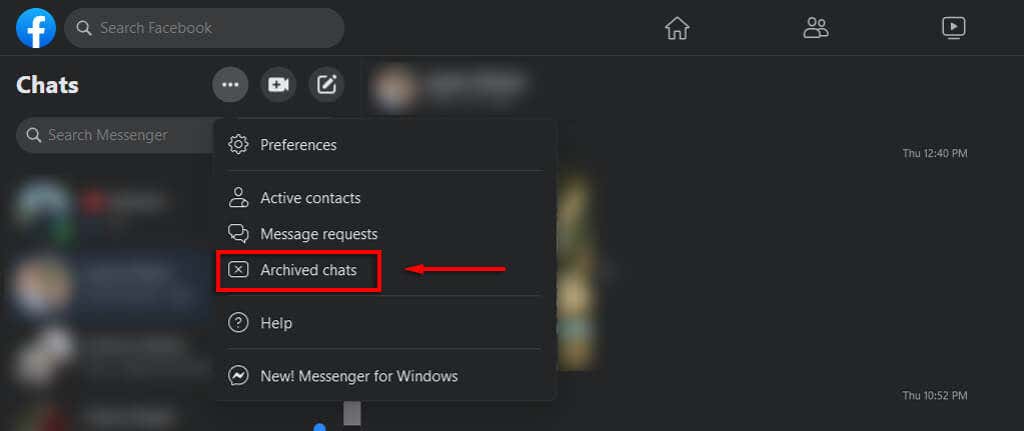
    2. Tap the three dots at the top-left of the screen and select Archived chats.
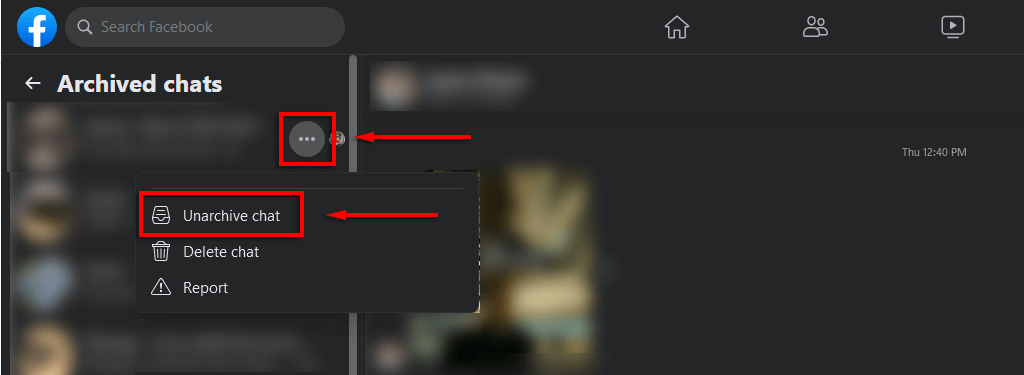
    1. To unarchive a conversation, in the left sidebar, hover your cursor over the person’s name you want to unarchive. Select the icon with three dots. In the drop-down menu, click Unarchive chat.
    How to See and Unarchive a Conversation on the Mobile App

    To see your archived text messages from your mobile device:

    1. Open the Facebook Messenger app.
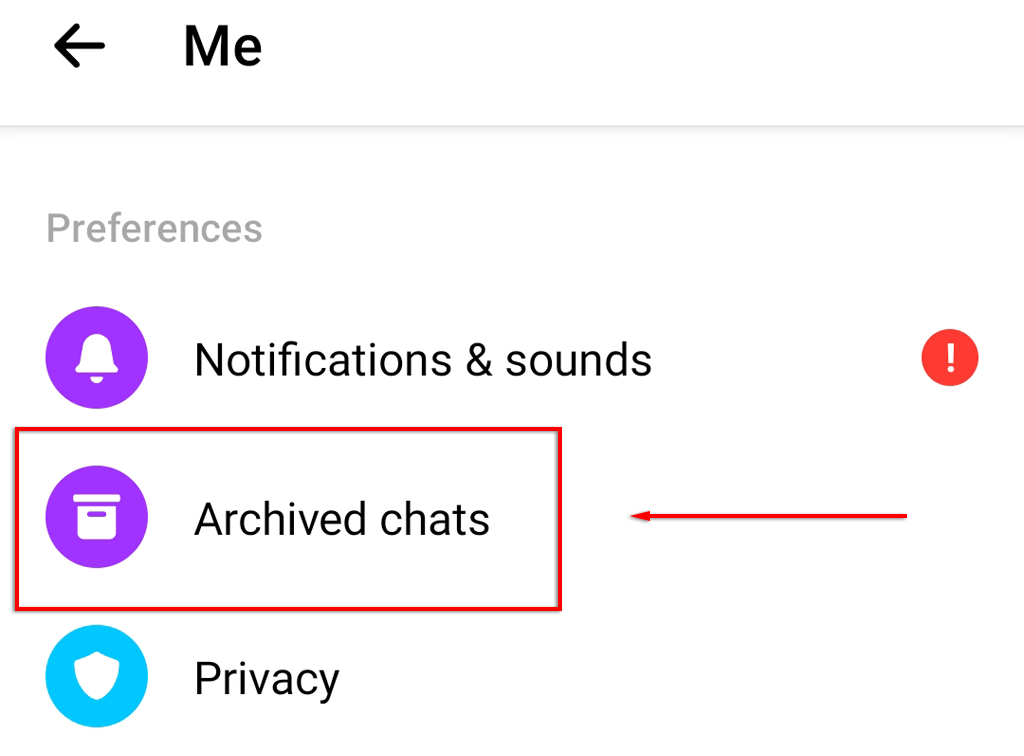
    2. Tap your profile picture in the top-left corner.
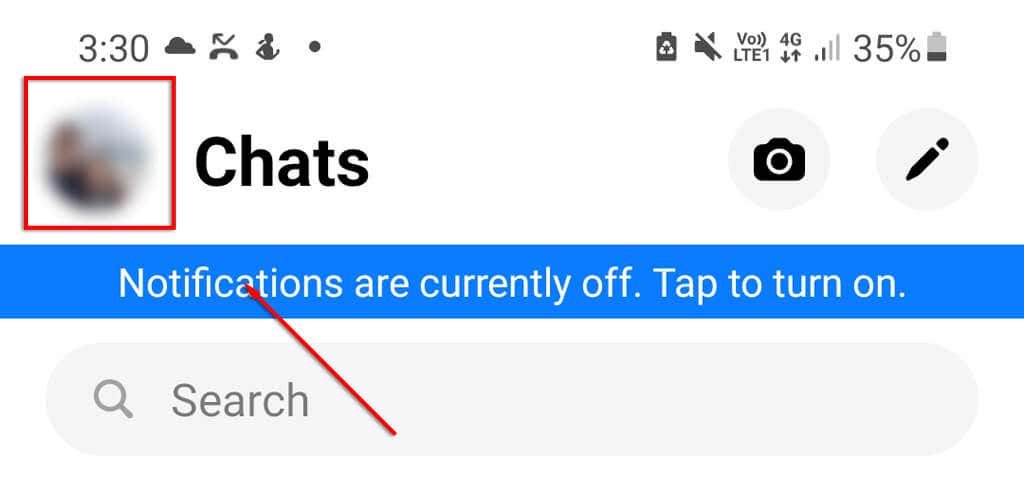
    1. Tap Archived chats.

    To unarchive your chats in the app:

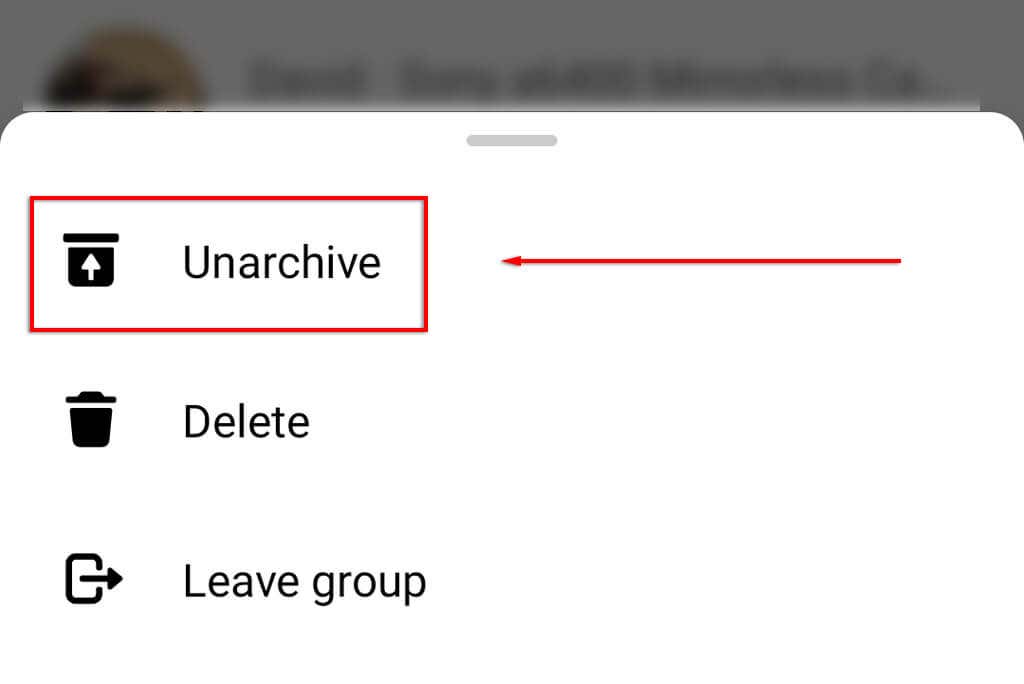
    1. Find the conversation you want to unarchive and then tap and hold your finger on it.
    2. On the menu that appears, tap Unarchive.
    Note: If you have a lot of archived threads, you can use the search bar to find a specific conversation.

    Freshen Up Your Inbox

    Archiving chats in FB Messenger is a great way to organize your inbox and remove unnecessary conversations. This is particularly useful if you have many short-term conversations (for example, if you buy/sell on Marketplace or use Facebook to run a business).

    Tags: Facebook
    Share
    Written by

    Jake Harfield

    Jake Harfield is an Australian freelance writer whose passion is finding out how different technologies work. He has written for several online publications, focusing on explaining what he has learned to help others with their tech problems. He’s an avid hiker and birder, and in his spare time you’ll find him in the Aussie bush listening to the birdsong. Read Jake's Full Bio

    View Jake's Profile

    Recent Posts

    • How to Fix "Windows Cannot Connect to This Network" Error in Windows 11
      How to Fix “Windows Cannot Connect to This Network” Error in Windows 11Apr 20, 2026
    • How to Fix App Notifications in Windows?Feb 27, 2026
    • Using an Old Device? 5 Account Security Settings You Should EnableFeb 26, 2026
    • How to Find Features Moved from Control Panel to Settings in Windows 11?Feb 26, 2026

    Ready for the best newsletter in tech?

    Get daily tips, tricks, guides, and special offers delivered right to your inbox.

    Thanks! Check your inbox for the next issue.

    Search

    Categories

    • Announcements (1)
    • Gaming (51)
    • How-To (2,934)
    • News (12)
    • Reviews (294)
    • Social Media (96)
    • Streaming (37)

    Popular Tags

    Adobe Amazon Android Antivirus Buying Guides Chrome Chromebook Discord Explainer Facebook Firefox Gadget Reviews Google Google Docs Google Drive Hardware Home Networking Internet iPhone Linux macOS Microsoft Excel Microsoft Office Microsoft Outlook Microsoft PowerPoint Microsoft Surface Microsoft Teams Microsoft Word OneDrive Printers Roundups Software Reviews Steam Ubuntu Virtualization WhatsApp WiFi Windows 7 Windows 8 Windows 10 Windows 11 Windows Vista Windows XP Wordpress YouTube

    Our Publishing Family

    Help Desk Geek is part of the AK Internet Consulting publishing family.

    • ONLINE TECH TIPS
    • THE BACK ROOM TECH
    • SWITCHING TO MAC
    • XBOX ADVISOR

    Daily Email Newsletter

    CONNECT WITH US

    About Help Desk Geek

    Help Desk Geek has published practical troubleshooting guides, Windows and Office tutorials, and hardware fixes since 2009 — helping millions of readers solve tech problems and get more from their devices.

    Learn More →

    © 2009-2026 Help Desk Geek.com, LLC.
    All Rights Reserved.

    • Home
    • About Us
    • Editorial Standards
    • Contact Us
    • Terms of Use
    • Privacy Policy
    Online
    Tired of Googling Tech Problems?

    Tired of Googling Tech Problems?

    Get step-by-step fixes from Help Desk Geek so the answer is already in your inbox next time.

    By signing up, you agree to the Terms of Service and Privacy Policy.

    Subscribed! Next Tech Headache: Handled.

    Stay tuned for our step-by-step fixes, actionable guides, tech how-tos, and clear, practical advice for real-world problems.

    Thank you!

    Subscribed! Next Tech Headache: Handled.

    Stay tuned for our step-by-step fixes, actionable guides, tech how-tos, and clear, practical advice for real-world problems.