

Since the pandemic, remote working has become a part of many people’s lives. With that, the manufacturers started developing new gadgets to improve your working-from-home setup and raise your productivity levels.
Mobile Pixels offers its solution to people who do most of their work on a laptop and need an extra screen without using a separate full-sized monitor. Duex Max – a portable monitor attaches to your computer’s back via magnets. This sounds almost too good to be true. Check out our 14.1″ Duex Max monitor review to see whether you should buy one as your next portable monitor.
Mobile Pixels Duex Max Portable Monitor: First Impressions & Specs
If you’re used to multiple monitor setups, switching to work from a single laptop may be a nightmare. Luckily, there’s no shortage of portable monitors on the market. Mobile Pixels alone has multiple series of portable monitors, including the Glance series (a separate portable monitor that connects to your laptop via a USB-C cable), Duex series (for a double monitor setup), and Trio series (for a triple monitor setup).
The Duex series comprises 12.5″ Duex Lite, 13.3″ Duex Plus, and 14.1″ Duex Max monitors. I’ve been testing the 14.1″ Duex Max portable monitor suitable for 14″ and larger laptops. While you can use the Duex Max with a smaller laptop as a separate portable monitor, you won’t be able to mount it onto your laptop properly because of the size of the panel construction.
Mobile Pixels also sells different accessories with Duex Max. You can buy the monitor on its own, Productivity Bundle ($305.97) that includes the Duex Max monitor, monitor kickstand, and extra laptop magnets, and an extensive Mobility Bundle ($390.95) with the Duex Max monitor, privacy filter, levstand, mini mouse, foldable keyboard, and a sleeve for your laptop.

Before we move on to discussing the monitor’s design and the setup process, here’s the full list of the Duex Max’s tech specs:
- Dimensions: 12.6 x 8.9 x 0.25 in (32 x 22.6 x 0.6 cm)
- Weight: 1.8 lbs (816g)
- Material: PC-ABS plastic & robust aluminum alloy
- Display: 1080p full HD dual-screen display
- Screen size: 14.1″
- Connectivity: two USB-C ports
- Signal type: hybrid, DisplayPort Alt, and USB video signals can be used
- Compatibility: Windows, macOS, Nintendo Switch, Dex, select Android phones
- Colors: gunmetal grey, rio rouge, mallard green, set sail blue
- Warranty: one-year limited warranty
- Price: $279.99 on Amazon and Mobile Pixels website (monitor only).
Design and Unpacking
When you first take the Duex Max out of the box, you’ll first notice the sturdy plastic casing. It doesn’t feel flimsy but solid instead while also not being too much on the heavy side.
What’s in the Box
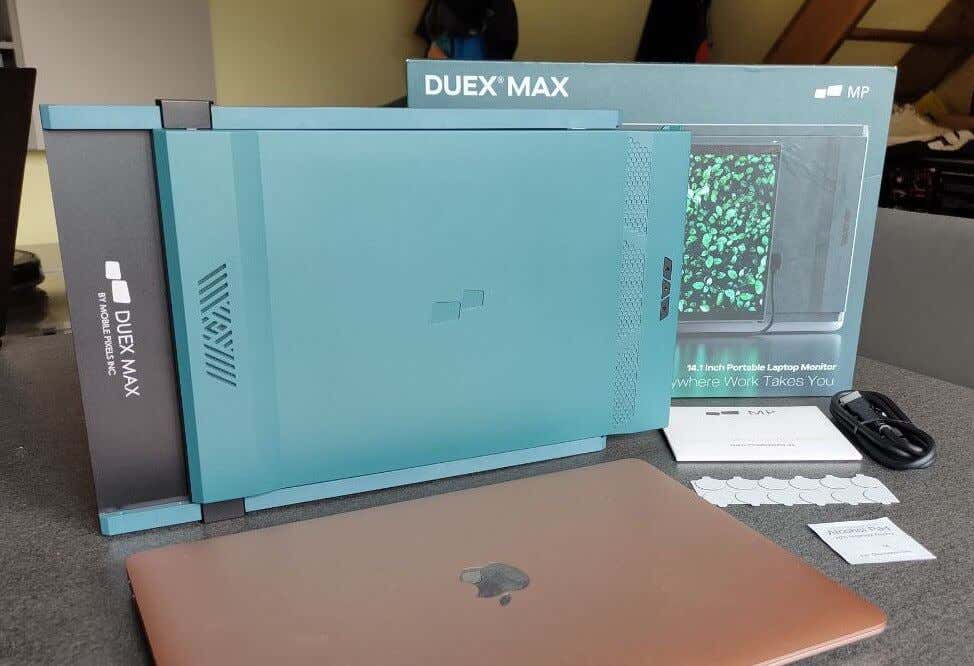
Here’s everything you’ll find when unboxing your Mobile Pixels Duex Max:
- 14.1″ Duex Max portable laptop monitor
- USB-C cable with a USB-A adapter
- Extra adhesives
- Alcohol pad for cleaning your laptop
- User manual
- Setup and attachment guide
- Magnets locations template
I had the monitor-only Duex Max version in a mallard green color. The monitor is a 14.1-inch matte panel with 1080p resolution and IPS technology capable of 300 nits. The aspect ratio is 16:9 with a 60 Hertz maximum refresh rate. For a device that turns your computer into a dual-screen laptop, the 1.8 lbs weight doesn’t seem like a lot.
However, if you own a smaller laptop like a 13″ MacBook Pro/Air, the Duex Max model will be too big and a wrong choice. The casing will extend outside your laptop’s main screen and will likely tilt your laptop’s back because of the weight. If you’re set on trying the Mobile Pixels monitor as a second screen, consider going for a different model. Both Mobile Pixels Duex Lite and Mobile Pixels Duex Plus portable monitors are smaller screens that will fit better.
Back to the Duex Max monitor that I had for testing. That 1.8 lbs weight is achieved by using lighter plastic materials in the construction instead of metal. It’s an absolute necessity, as your laptop’s hinges will need to support the extra weight of the added monitor.
Duex Max has a rectangular shape with curved edges on both sides of the screen, making it easier to grab on the sides and slide the display out. On the right side of the Duex Max, you’ll find two USB-C ports.

The back of the monitor also features an innovative magnetic mount and hinge system. Thanks to this system, you can attach this portable display to your laptop and carry the two devices together without bringing any additional equipment or extra laptop bags.

On the backside of the Duex Max, you’ll also find three buttons. You can use these to tweak the picture quality by adjusting backlight, contrast, saturation, color temperature, and more.
Setup Process
One of my favorite parts about the Duex Max is the setup process, or, more specifically, how simple it is.
The back of the monitor has a track-style mount system with four magnetic platforms. The four magnets attach to your laptop’s back using the 3M adhesives. Duex Max comes with a magnets locations template that you can use to effortlessly place the magnets on your laptops in the right positions.
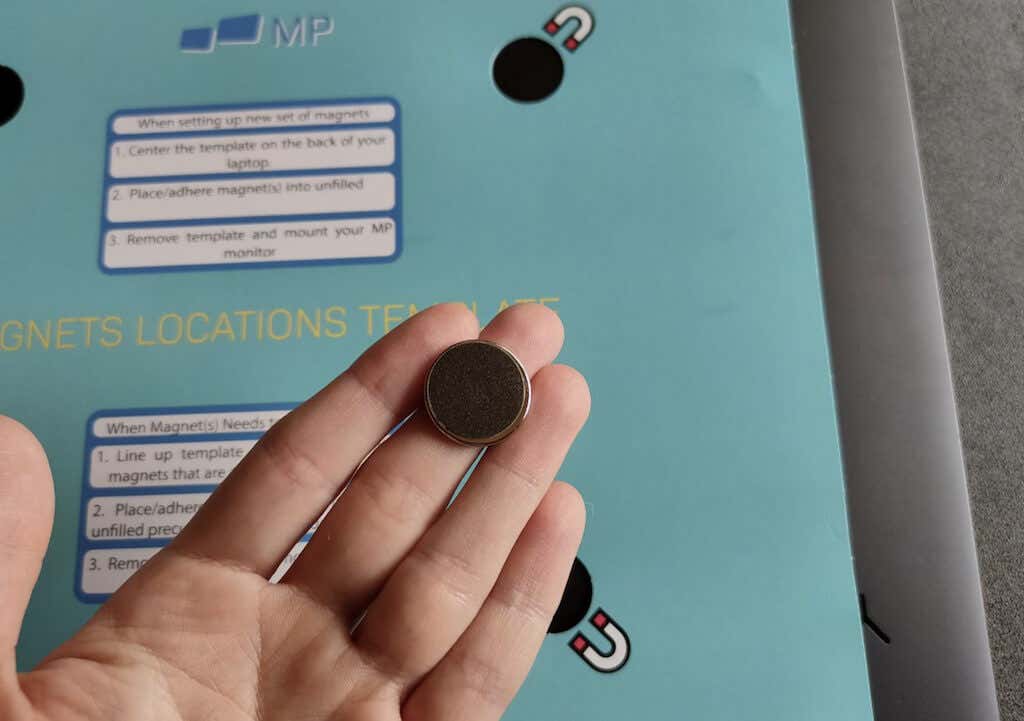
Once the magnets are in place, simply attach the monitor to the back of your laptop, and it’ll slide out to align next to your laptop’s screen.
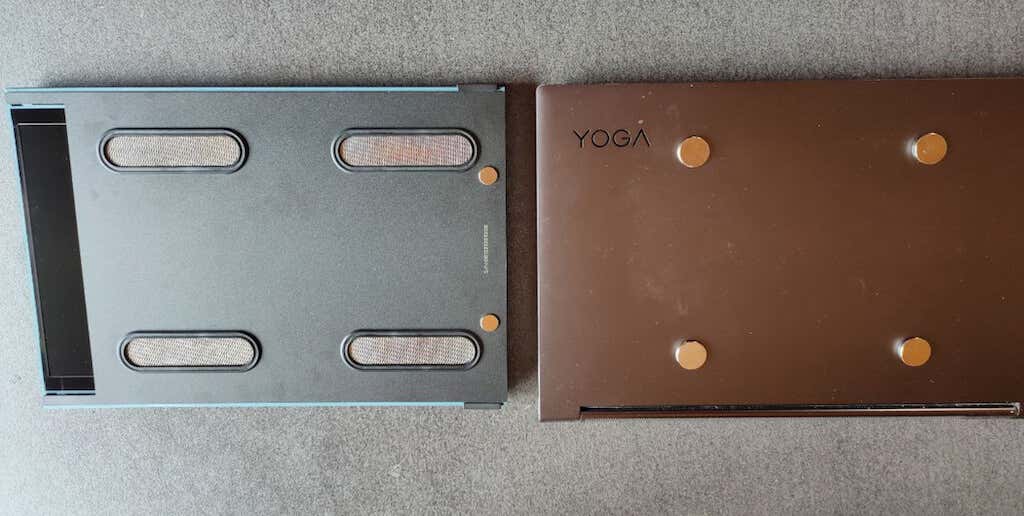
When the monitor’s fully extended, you can also move the panel to pivot for the best positioning. However, that’s all the adjustments you can make. You can’t tilt or swivel the monitor.
That’s it! Plug the monitor into your laptop using the USB-C cable and get your dual monitor to work. The display is compatible with Windows and macOS operating systems and requires no additional apps to work.
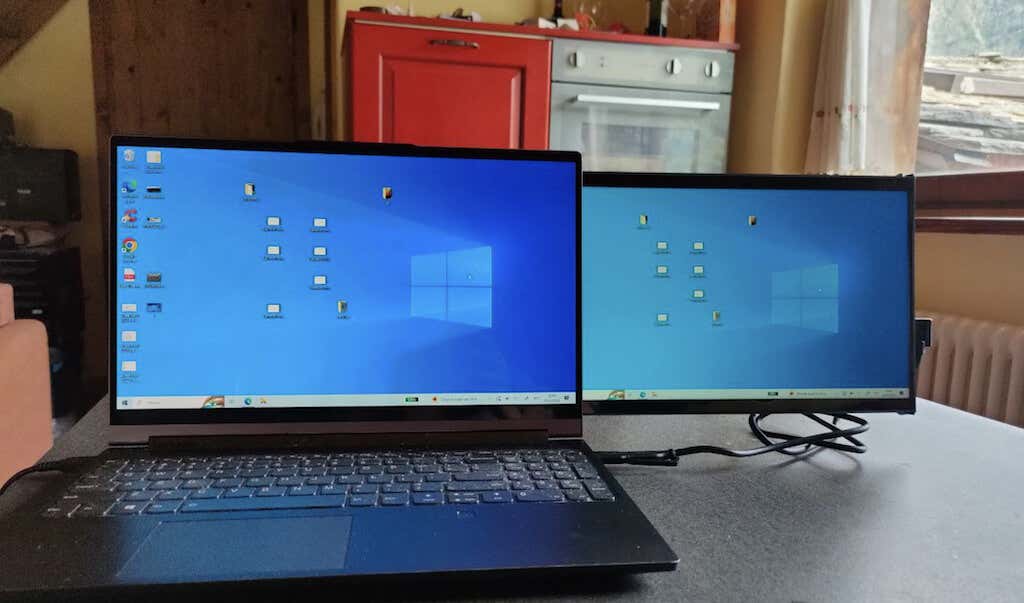
Duex Max monitor is plug-and-play if your laptop uses USB-C ports. If you have an older laptop with USB-A ports only, you’ll additionally need to install the Mobile Pixels proprietary driver. Since Duex Max uses a single cable for power and data, it’s a solely USB-powered screen with no HDMI port.

Different Modes
Duex Max pleasantly surprised me in terms of the different modes that you can use.
At first, I tested the Duex Max with a 15″ Lenovo Yoga laptop, and the monitor fits perfectly on the back of the computer. I immediately felt like I had more space to do my work and focus on different projects simultaneously.
However, my main laptop is a 13″ MacBook Air, and in order to get the Duex Max to work with it, I started exploring other monitor modes. If your laptop is too small for the magnets setup, or if you simply don’t like sticking anything on the back of your laptop, you can always use the Duex Max as a separate portable monitor. You can use any kickstand you have at home to put the monitor next to your laptop. Thanks to the auto-rotation feature, you can place it on either side of the laptop, and the screen will automatically flip.
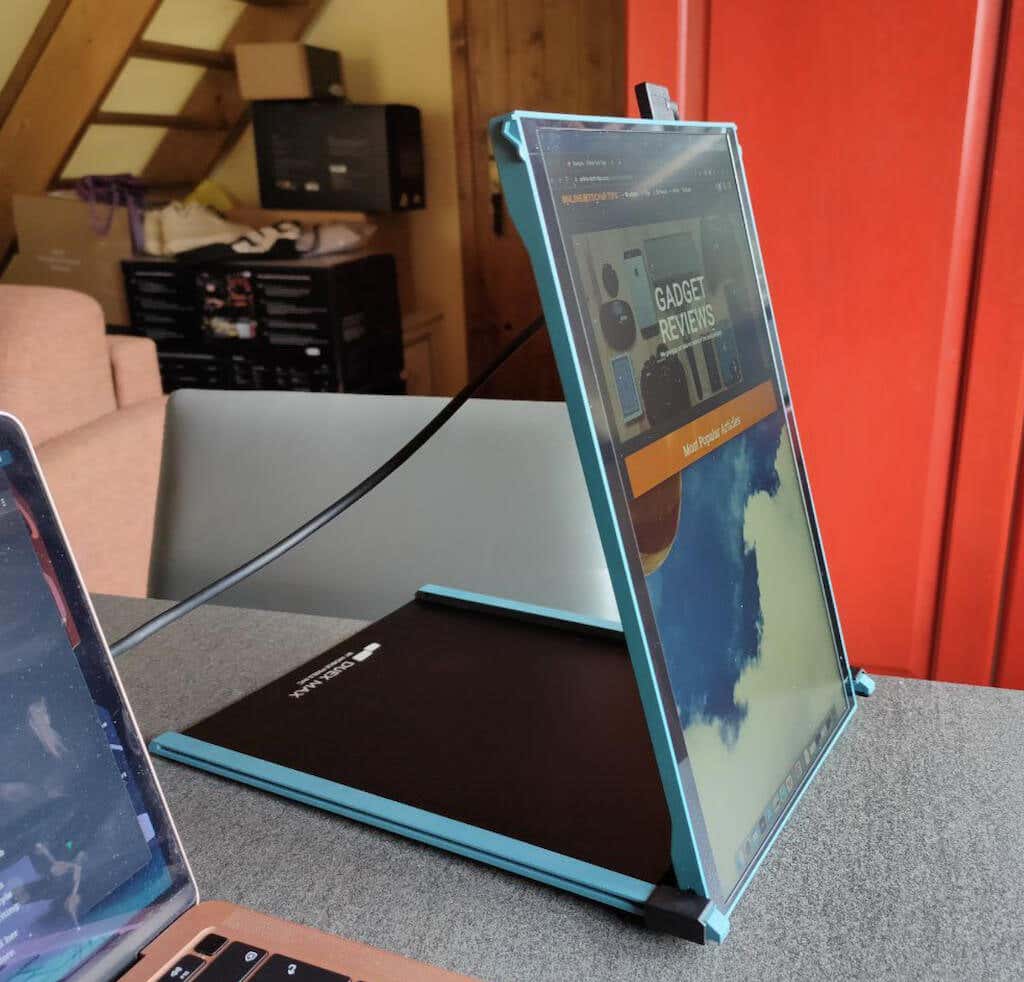
The mode I enjoyed most was probably the portrait mode. You can use the Duex Max casing to prompt the monitor next to your laptop in a vertical position. The auto-rotation won’t help you there, but you can manually switch the Duex Max screen on your laptop and put it into portrait mode.
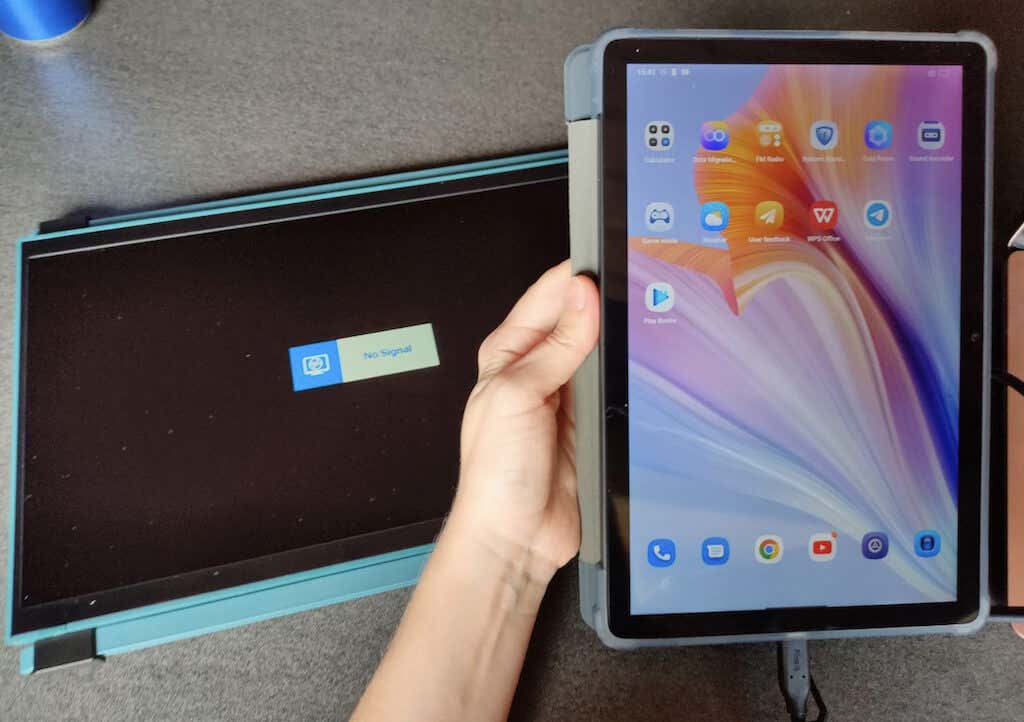
According to Mobile Pixels, Duex Max works with almost any laptop or device, including select Android phones, as long as you can pair the monitor with them via USB-C or USB-A connection. However, I tried to pair Duex Max with multiple Android smartphones and an Android tablet and failed. All I got was the No Signal error message. The Duex Max went into power-saving mode soon after.
Performance & Features
The Duex Max LCD screen has a 1080p resolution, 60Hz refresh rate, and 16:9 aspect ratio. It provides decent screen quality and brightness for a portable monitor. When you put it next to a modern laptop, the difference is apparent, like some colors will be washed out, and brightness isn’t quite on the same level even at 100, but it’s nothing extreme.
If you’re wondering whether you can use Duex Max as a gaming monitor, the answer is negative. With the 60Hz cap for the refresh rate, this screen won’t be great for gaming. The same could be said for heavy photo and video editing. Besides that, the Duex Max is a perfectly suitable monitor for all types of computer work.
Regarding the features, Duex Max has a few that pleasantly surprised me. When you press the center button on the back of the monitor’s case, it brings up the menu you can use to tweak the picture settings. Besides the usual settings, Mobile Pixels included two interesting options: EyeCareMode and G-Sensor.
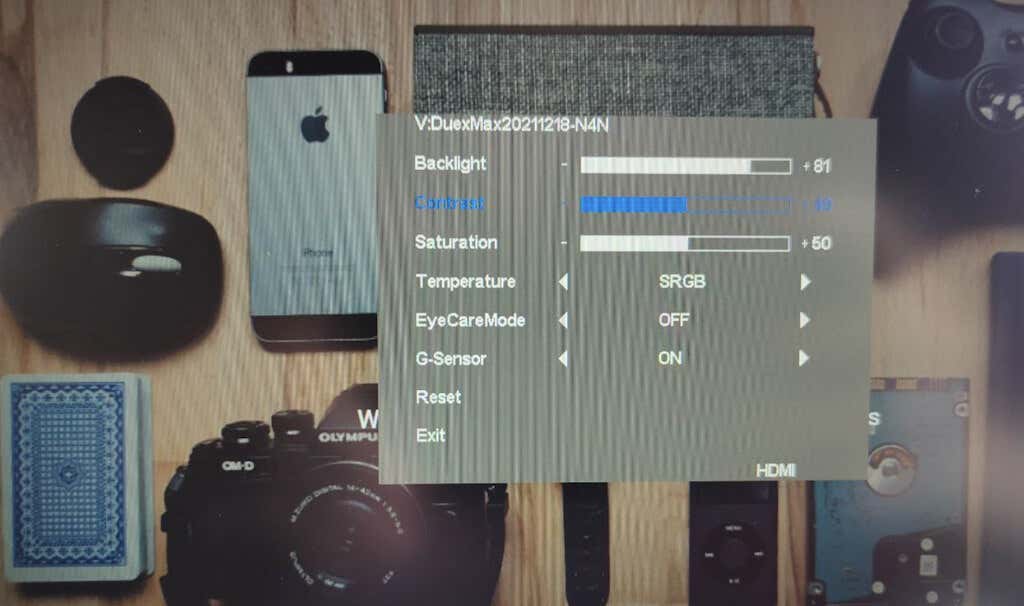
The EyeCareMode is in charge of the temperature of the screen. When enabled, it automatically makes the temperature warmer, which in turn reduces the blue light that can affect your eyes negatively.
The G-Sensor is a more innovative feature. This sensor controls the auto-rotation function. It flips the screen image when you rotate the monitor to slide it out on the opposite side or stand it up next to your laptop.
Should You Buy the 14.1″ Duex Max Portable Monitor by Mobile Pixels?
The Mobile Pixels Duex Max is a good choice if you want to experiment with a second screen and don’t mind sticking a bunch of magnets on your laptop. You can even one up and get a Mobile Pixels Trio Max if you want to have not two but three screens in front of you.
However, if you’re looking for a second monitor with a specific goal in mind (i.e., gaming or video editing), there are other choices on the market to consider, many of them more budget-friendly than the Duex Max.
