

Does Snapchat get stuck on a black screen on your smartphone? Does the app crash when launched? We’ll show you what to do when Snapchat doesn’t work on your iPhone or Android device.
Before anything, use DownDetector to verify that Snapchat is working correctly. Contact Snapchat Support if DownDetector and other Snapchat users report problems with the social media app. If Snapchat’s working for everyone but you, the recommendations in this troubleshooting guide should resolve the issue.
Although it’s unlikely for network connectivity issues to prevent Snapchat from opening, ensure your device has an internet connection. Connect your phone to a Wi-Fi network or use mobile data and try the fixes below.
1. Close Other Applications
Snapchat won’t open if your phone doesn’t have enough memory to run the app. Open your phone’s app switcher and close applications running in the background. You can free up memory and improve your phone’s performance.
2. Force Close Snapchat
Force closing an unresponsive or frozen app can get the app working correctly again. Force close and reopen Snapchat if the app won’t open on your device.

Force Close Snapchat in iOS
- Swipe up from the bottom or double-click your iPhone’s Home button to reveal the App Switcher.
- Swipe up on Snapchat to force close the app on your iPhone.
Force Close Snapchat in Android
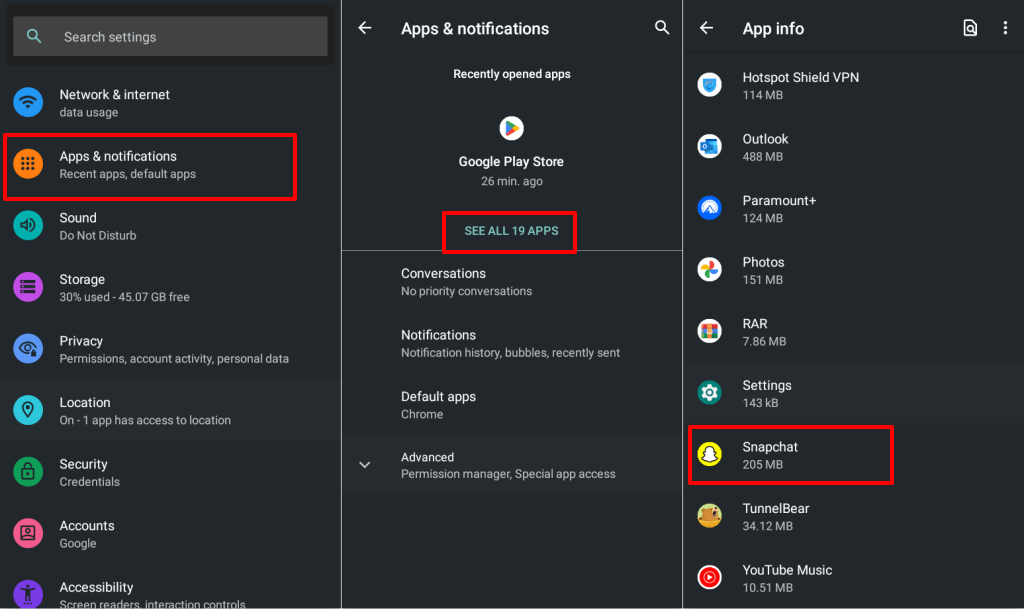
- Go to Settings > Apps & notifications > App info (See All Apps) and tap Snapchat.
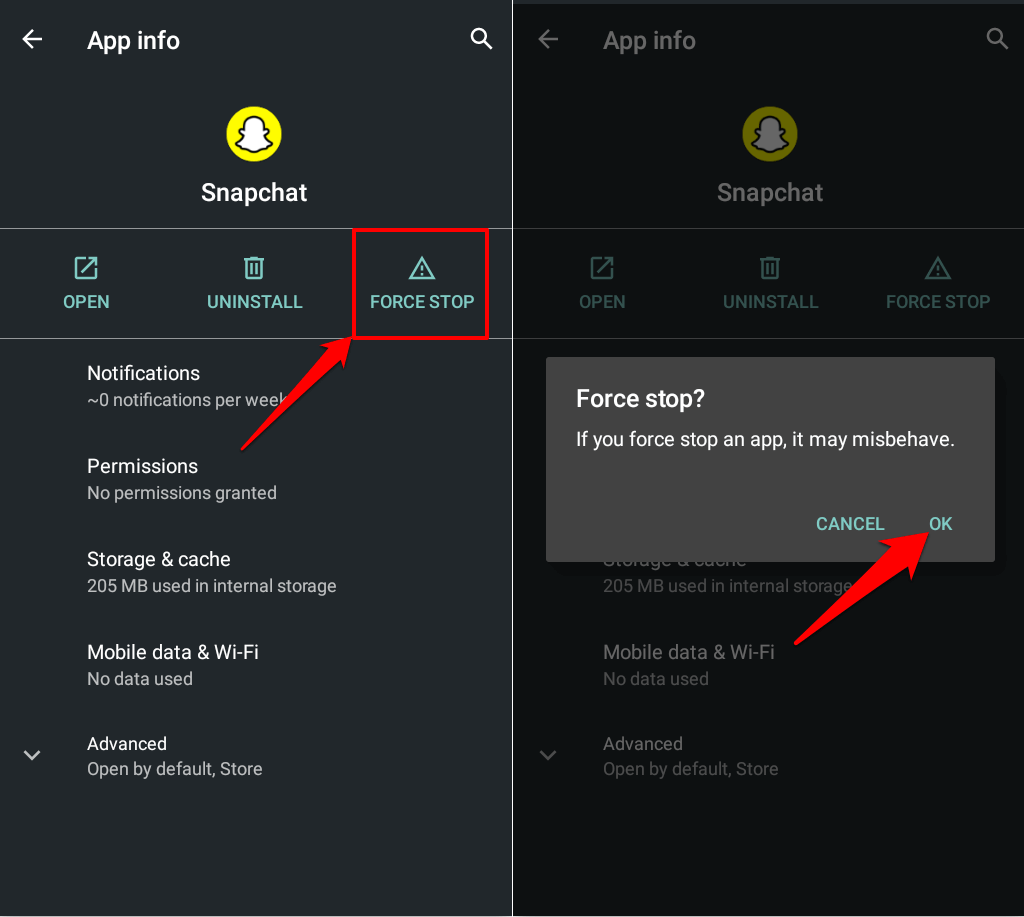
- Tap Force Stop and select OK on the confirmation. Reopen Snapchat and check if your phone works.
3. Check Snapchat’s Permissions
If you haven’t used Snapchat in a few months, Android will revoke the app’s permissions. Verify that Snapchat has access to essential system components it needs to work correctly. Force close Snapchat and follow the steps to adjust its permissions.
Adjust Snapchat Permission on Android Devices
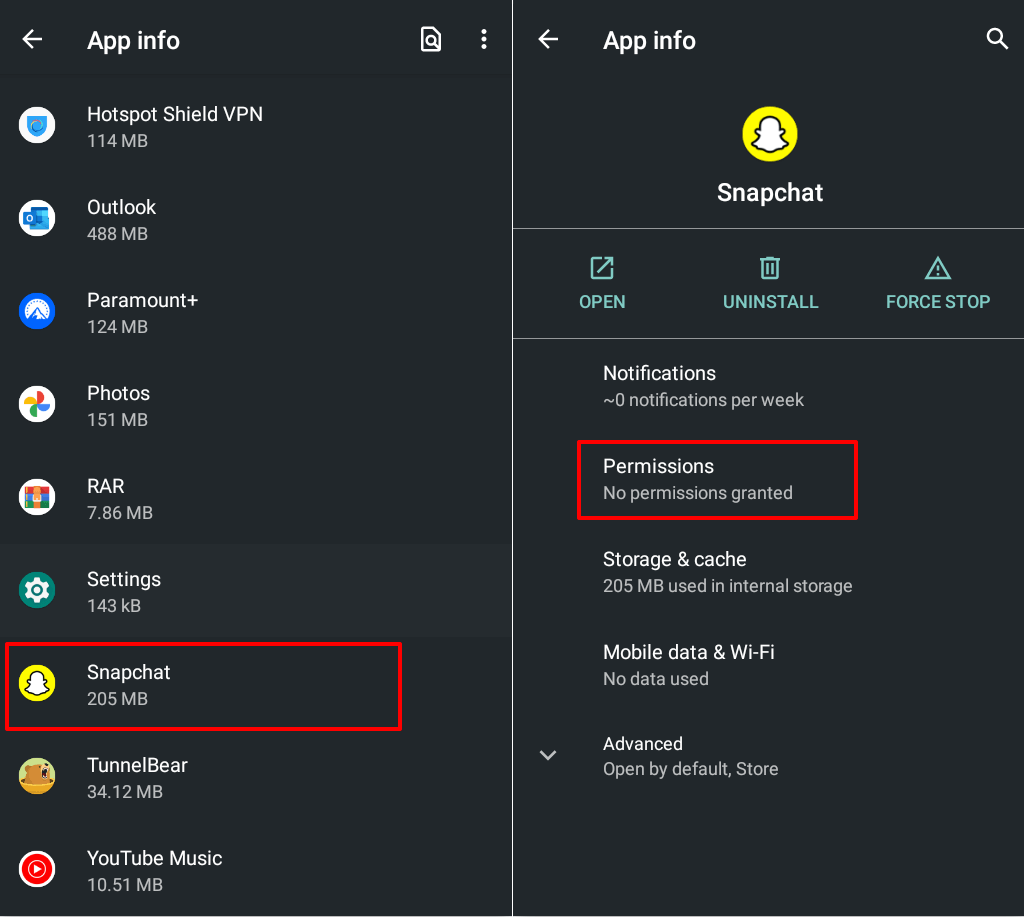
- Head to Settings > Apps & notifications > See All Apps (App info) > Snapchat and tap Permissions.
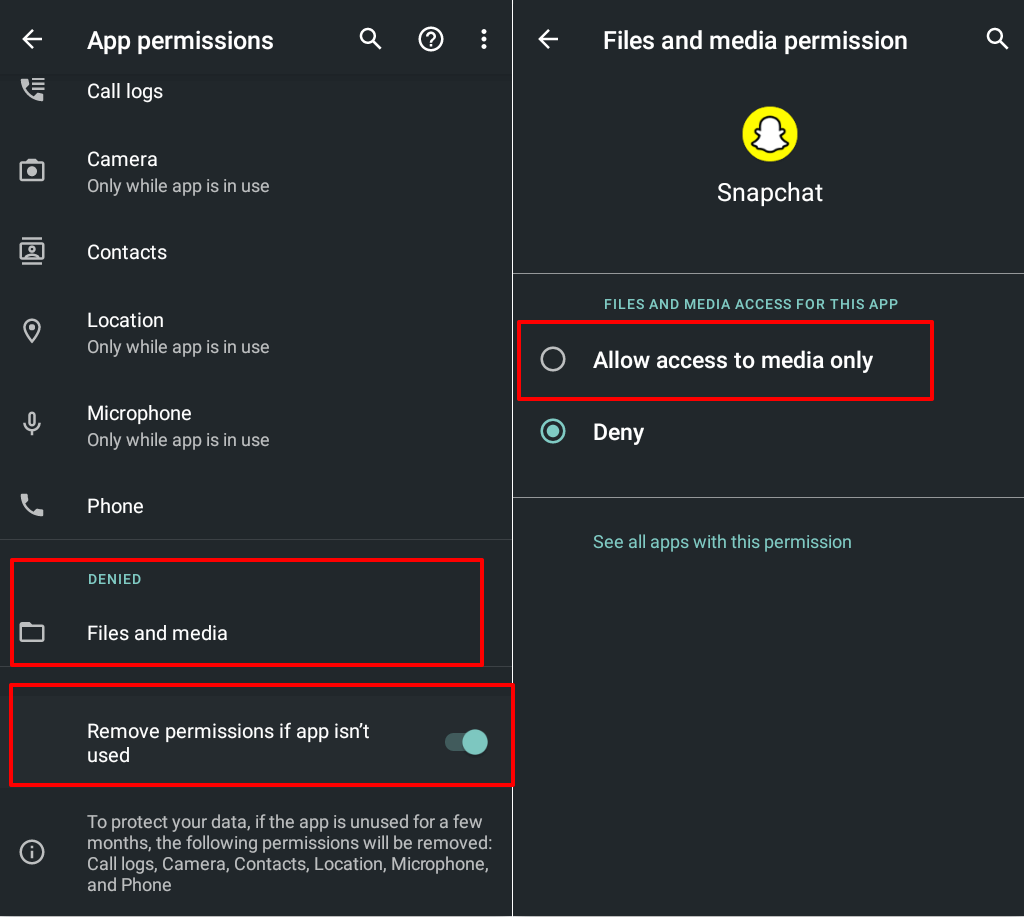
- If there’s an item in the “Denied” section, tap the permission, and select Allow.
- Return to the app permissions page and disable Remove permission if app isn’t used.
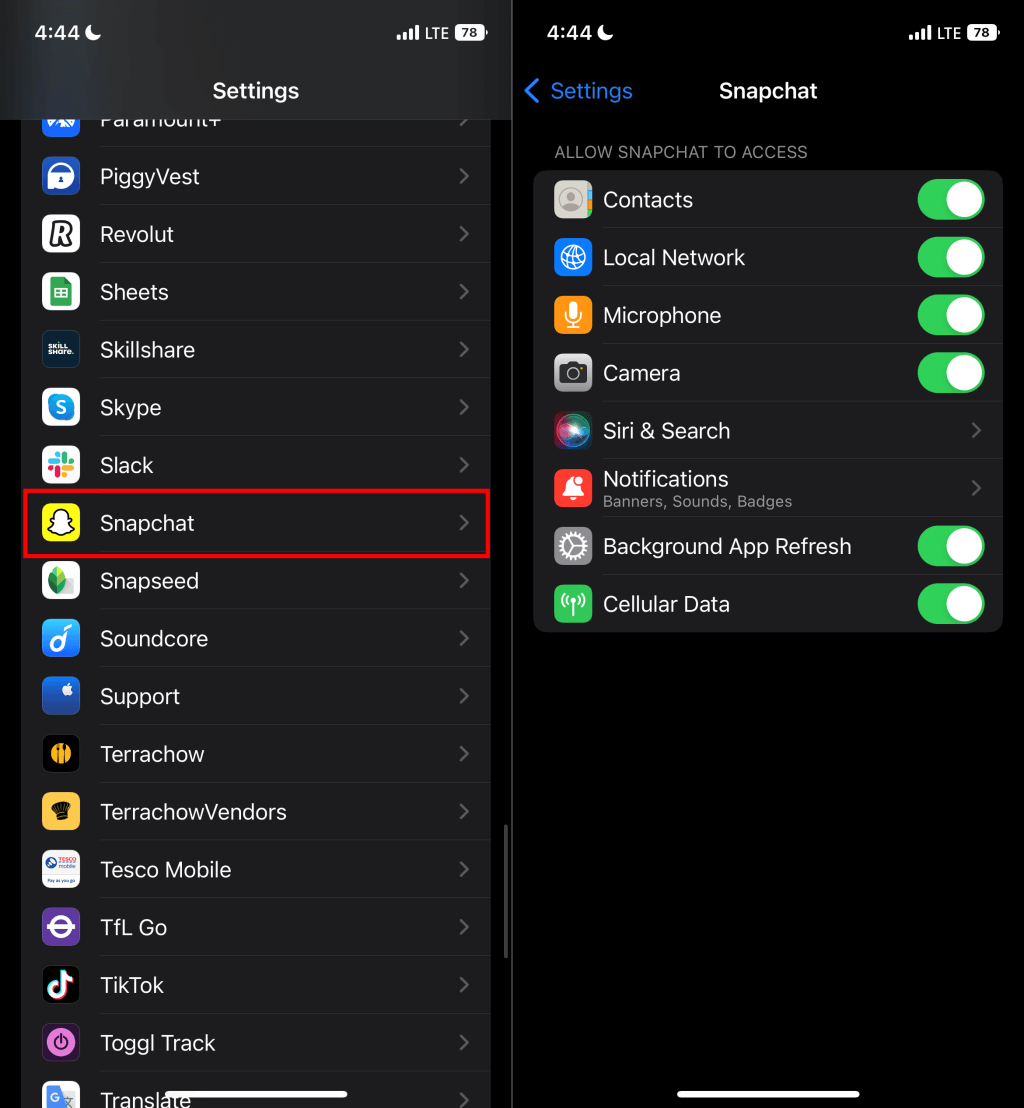
Adjust Snapchat Permission on iOS Devices
Go to Settings > Snapchat and grant Snapchat the necessary permissions—Contacts, Local Network, Microphone, Camera, and Cellular Data.
4. Clear Snapchat’s App Cache and Storage Data
Snapchat stores temporary or cache files in your device’s storage. Cache files help Snapchat run smoothly but can also cause the app to malfunction. Your phone may fail to run Snapchat if the app’s cache data gets corrupted.
Deleting Snapchat’s cache files and storage data can get the app working again.
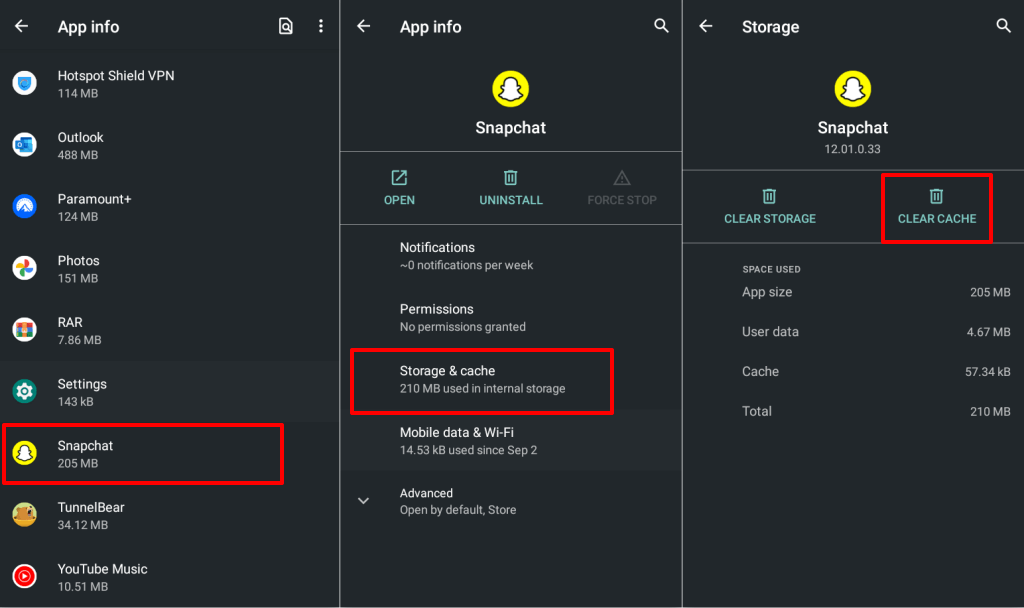
- Go to Settings > Apps & notifications > App info (See All Apps) > Snapchat and tap Storage & cache.
- Select Clear Cache and open Snapchat again. Delete Snapchat’s storage data if the problem persists.
- Select Clear Storage and select OK on the confirmation prompt.
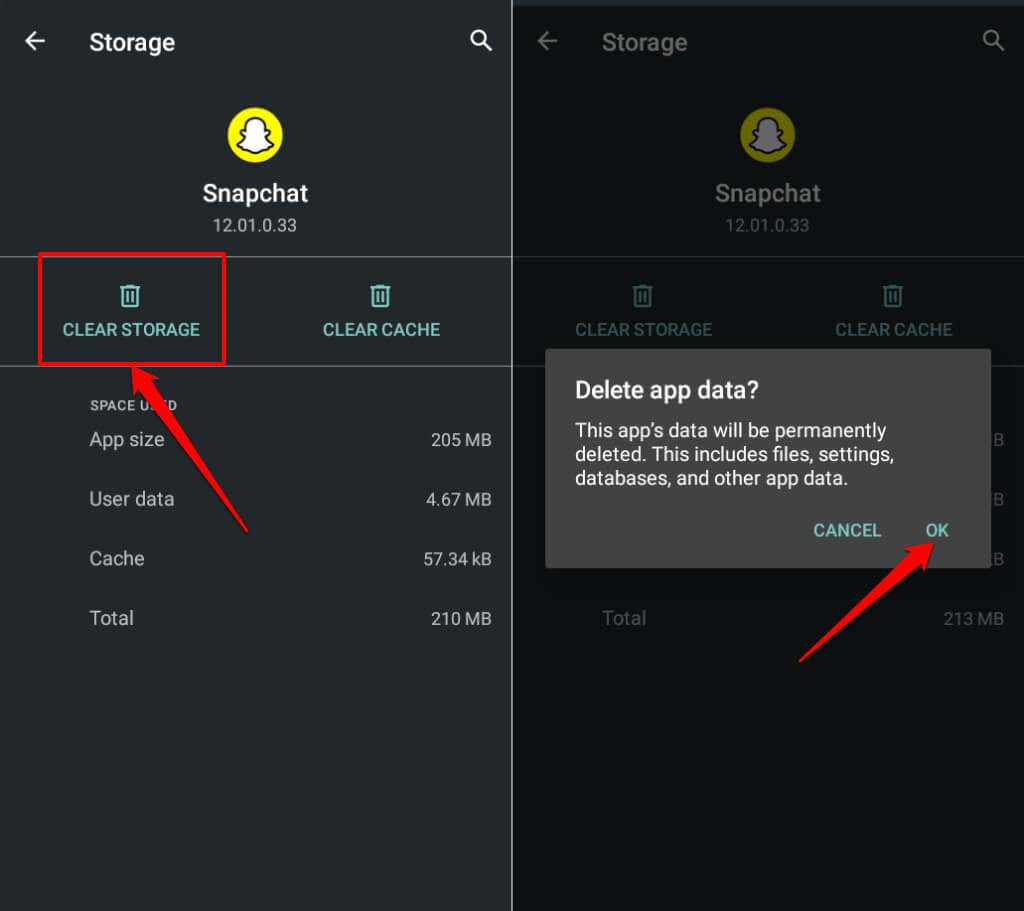
Clearing Snapchat’s storage signs you out of the app, but it won’t delete your snaps, memories, streaks, or saved messages. Open Snapchat and sign in to your Snapchat account to access your snaps.
5. Update Snapchat
Snapchat may not open if you’re using an older app version that’s no longer compatible with your device’s operating system. Head to your device’s app store and install the latest version of Snapchat.
Open the Google Play store (on Android) or App Store (on iPhone), search for snapchat, and tap Update.

6. Use an Older Version
Installing an unstable or buggy Snapchat update can cause the app to malfunction. If Snapchat stops opening after updating the app, sideload the version that worked before the update. Download older Snapchat app versions from trusted APK websites like APKMirror.com, APK4Fun.com, or APKPure.com.
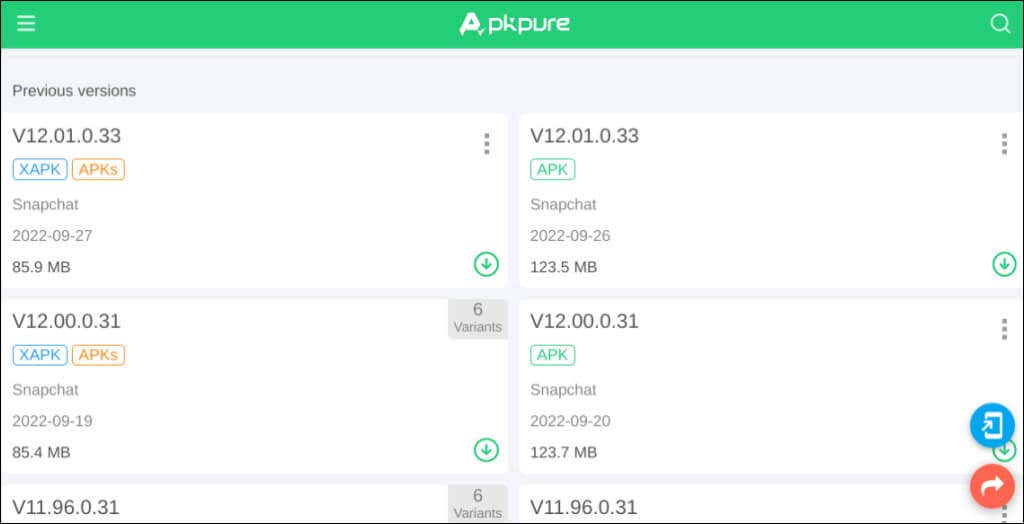
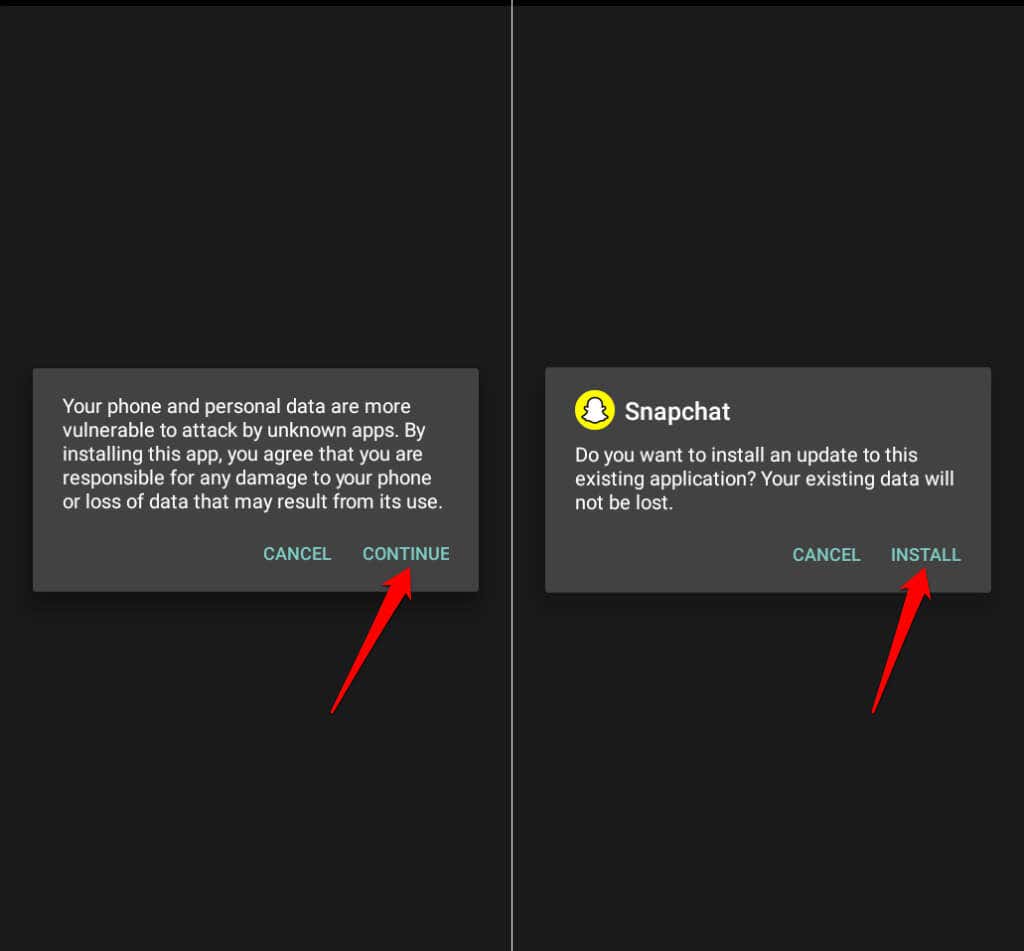
Open the Snapchat APK file, tap Continue, and select Install.
7. Restart Your Phone
Performing a device reboot can fix temporary system glitches on Apple and Android phones. Reboot your phone if Snapchat still won’t open after trying the fixes above.
8. Reinstall Snapchat
Delete Snapchat from your device if the app still won’t open. Doing so will remove any corrupt
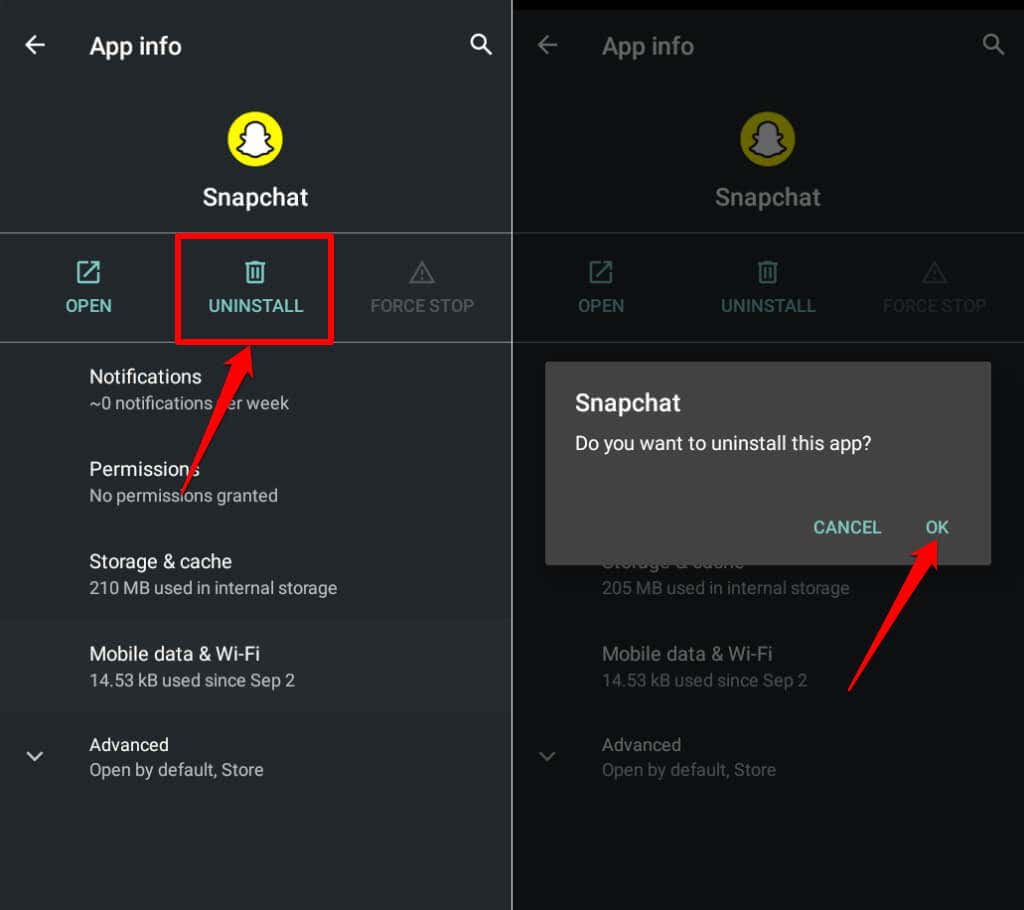
Go to Settings > Apps & notifications > Snapchat, tap Uninstall and select OK.
Reboot your device and reinstall Snapchat from the Google Play Store or App Store.
Fix Snapchat and Get Snapping!
Update your device’s operating system if Snapchat’s still not working. Snapchat for Android requires Android 5.0 or later, while the iOS app supports iPhones running iOS 12.0 or later. Snapchat won’t work if you use an unsupported device.
