

If you run your games or apps with the default settings, you might not be aware of multiple display modes. For example, most PC games are set to fullscreen mode, but you can change it to windowed or borderless mode. Also, you can view your web browser in fullscreen mode and improve your multitasking skills with the right mode.
In this article, you will learn about the differences between windowed, fullscreen, and borderless modes. So let’s see what they are and when you should use them.
What’s Windowed Mode?
Windowed mode is exactly what it sounds like. The app or game is running inside a window that doesn’t cover your whole screen. You can clearly see a well-defined border that separates the window from the rest of the environment.
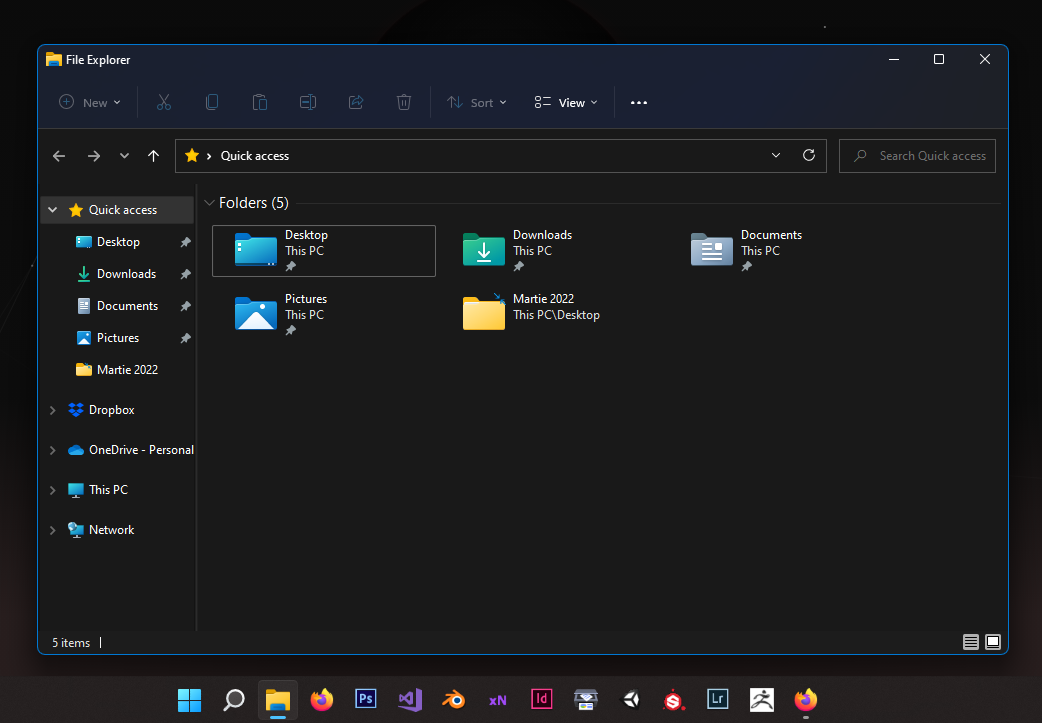
In windowed mode, you can drag the app around the screen, resize it, and quickly have access to other applications. It’s easy to launch many apps or games and switch between them, especially if you have a multi-monitor setup.
What’s Fullscreen Mode?
When you’re running a game or app in fullscreen mode, it covers the entirety of your display. The whole focus is on the game, image, or program. You won’t be distracted by other apps or by the taskbar.
Fullscreen mode is usually the default display mode for most games that you play on your PC, Mac, Android, or iOS device. However, switching between tasks isn’t as quick and smooth since the computer prioritizes whatever is in fullscreen mode.
What’s Borderless Windowed Mode?
Borderless windowed mode, also known as borderless fullscreen mode, combines fullscreen and windowed mode to give you the best of both worlds. The game or app you’re running will look like it’s running in fullscreen mode since it’s covering your entire screen, but it’s actually a borderless window.
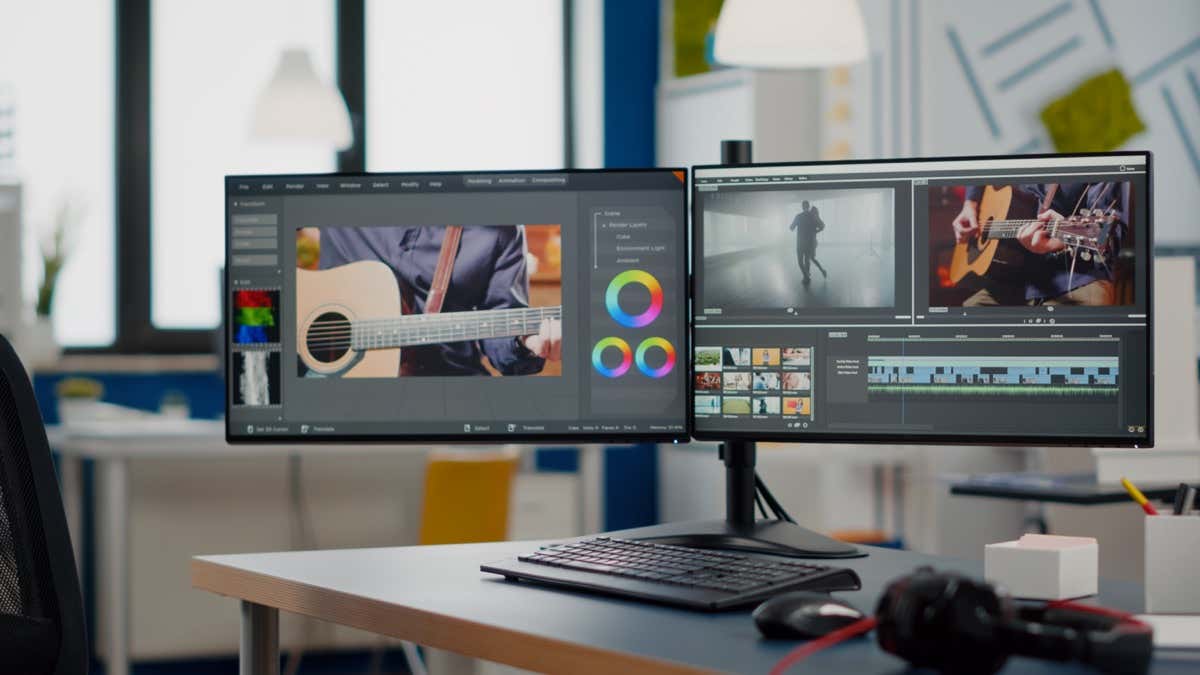
Essentially, you get the illusion of fullscreen mode and can still quickly switch to other programs. This is the best alternative to fullscreen mode particularly if you’re using more than one monitor. Borderless mode allows you to move your mouse seamlessly from one monitor to another, even when playing computer games.
When to Use Fullscreen Mode
Run your apps and games in fullscreen mode when you want to focus all your attention and computer resources on that one program. Windows, Mac, and other operating systems will prioritize whatever is running in fullscreen mode. So if your PC or mobile device needs a bit of extra juice to run a game, stick to the fullscreen view.
The major downside of fullscreen mode is that it’s not that great for multitasking. It locks you into whatever game or program you’re running. You’ll have to use the Alt + Tab keyboard shortcut and wait for the computer to minimize your app. This can be a pain if you’re running a demanding game, and it gets even worse if you’re running a dual-monitor setup.
When your app or game is in fullscreen view, your mouse cursor is stuck on the main display. You can’t just move it from one monitor to another, so you won’t be able to watch a YouTube video while waiting to get through a loading screen unless you tab out of the game. This is where borderless mode comes in.
When to Use Borderless Mode
As mentioned earlier, borderless mode looks like fullscreen mode. You can’t tell the difference visually. However, stick to borderless mode over fullscreen mode if you use multiple monitors. You can access your displays and launch various apps while your game or work stays on the main display. But, there is a downside to borderless mode, depending on your device.
Most operating systems like Windows, for example, will continue dedicating resources to all background processes. This means you might get less performance and experience input lag if you’re running a game or a demanding app. If you need to squeeze some extra FPS for your game, try fullscreen mode to see if it makes a difference. The frame rate might improve depending on how the game is optimized.
When to Use Windowed Mode
Windowed mode is usually used when working with apps or switching between folders and browser pages. It’s efficient and allows you to resize all the windows and fit them on your screen. It’s great for multitasking, especially in Windows 10 and 11 with snap layouts.
You might want to avoid windowed mode when you run games because of frame rate drops and even input lag, but that doesn’t mean it’s useless for gaming. If you’re a fan of retro games, you’ll sometimes have to use windowed mode. Old PC games don’t work well in fullscreen mode on high-resolution monitors, but they can work in windowed mode.
How to Switch Between Display Modes
You can’t use a single display mode for everything because it’s not practical. Each mode has its strengths and weaknesses. Fortunately, changing the display mode is simple.
When it comes to most games, you can change the display mode from its settings menu. Just look for “Display Mode” in the Graphics or Game section and change the parameter from the dropdown menu.
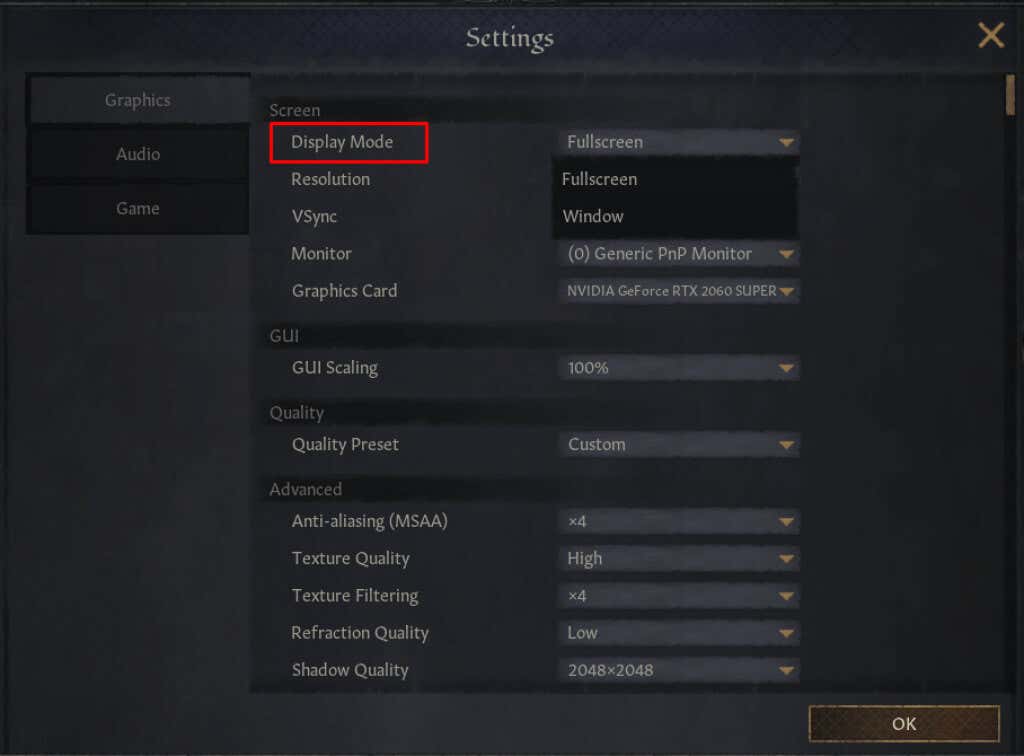
You can even change the display mode for some games before running the actual game. This is usually the case with MMORPGs because they have a launcher that gives you access to most game settings.
Sometimes, you might want to quickly change between fullscreen and windowed mode without going through various menus. On a Windows PC, you can do this easily with the Alt + Enter keyboard shortcut, although it doesn’t work in all games and apps. As for browsers, you can press F11 instead.
Each Mode Has Its Uses
Whether you’re a hardcore gamer or a multitasker, you’ll find all display modes useful. Each of them excels somewhere, so set your display settings based on your requirements.
