
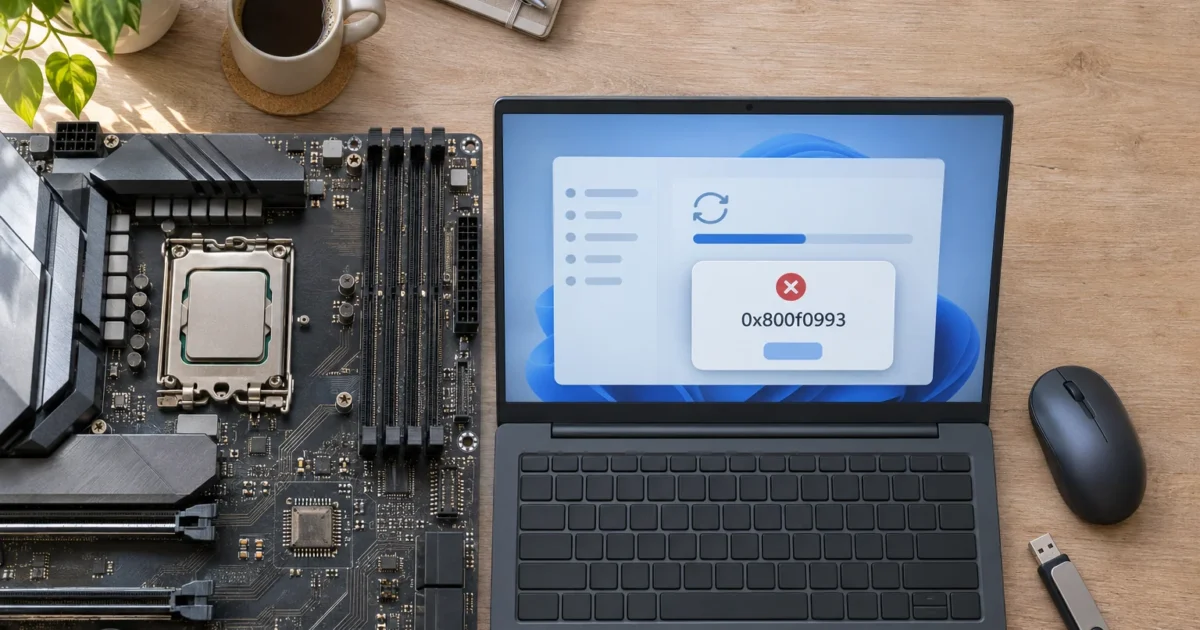
On November 10, 2026, Microsoft shipped the Windows 11 security update KB5132061 through Windows Update. Microsoft’s support article lists a known issue: some devices can’t complete the installation and may retry repeatedly or show “0x80070306,” “0x800f0989,” or “0x800f0993.” Microsoft says an automatic repair began rolling out on November 11, 2026, at 10 a.m. PT and should reach all affected devices within 24 to 48 hours.
What Happened
KB5132061 is the November Patch Tuesday release. It moves PCs to OS builds 26100.9974, 26200.9974, and 26300.9974, per Microsoft’s support article. Microsoft last updated that article November 12, 2026.
It applies to:
- Windows 11 version 25H2, all editions
- Windows 11 version 26H2, all editions
- Windows 11 version 24H2 Enterprise and Education
Besides security fixes, Microsoft’s support article lists changes including Secure Boot certificate updates, fixes for USB audio and printer setup, and PowerShell script-signing validation.
The “Known issues” section of Microsoft’s KB5132061 article documents the failure and the three error codes. Its symptom text calls the November security update “KB5127936,” which appears to be a documentation slip: KB5127936 is the October 28 non-security preview, while the page title, error codes and resolution all concern KB5132061, the update people are trying to install. Microsoft Q&A answers link the failure to devices that installed the KB5127936 preview.
Microsoft says the repair runs automatically on affected devices that are connected to the internet and use Windows Update in Settings, with no manual action required. Once a device gets the repair, it downloads and installs the November update through Windows Update. A Microsoft Q&A answer describes the same rollout.
How It Stacks Up
The fault sits in the October-to-November servicing chain. Several earlier updates factor into this scenario, based on Microsoft Q&A discussions:
| Update | Date | Type | Status for this bug |
|---|---|---|---|
| KB5127648 | Oct 13, 2026 | Security update | Earlier in the servicing chain |
| KB5134133 | Oct 26, 2026 | Out-of-band | Earlier in the servicing chain |
| KB5127936 | Oct 28, 2026 | Non-security preview | Linked to the failure in Q&A reports |
| KB5132061 | Nov 10, 2026 | Security update | Fails to install on some devices |
Your options range from automatic to manual. The automatic repair is Microsoft’s official resolution, and Microsoft’s page also links its own manual install instructions. The Reinstall now and DISM/SFC rows come from Microsoft Q&A community answers:
| Option | Source | Effort |
|---|---|---|
| Stay online and let the automatic repair land | Microsoft Q&A | None |
| Settings > System > Recovery > Fix problems with Windows Update > Reinstall now | Microsoft Q&A guidance | Medium |
DISM /Online /Cleanup-image /Restorehealth, then sfc /scannow | Microsoft Q&A guidance | Low |
| Download the matching package manually from the Microsoft Update Catalog, after confirming the exact prerequisite update, edition, and architecture on Microsoft’s support page | Microsoft Support | High |
The Reaction
Social reaction is still forming, and no specific posts were verified for citation. Most visible discussion sits in the Microsoft Q&A thread. There, theories run ahead of evidence.
One Q&A contributor blames an ftpsvc.dll component failure, but Microsoft hasn’t confirmed that root cause.
Windows Latest reported installs stalling partway through in its own testing. That’s the outlet’s own observation, and Microsoft hasn’t said the same.
Microsoft’s support article says the issue affects some devices and gives no count. Complaints on Microsoft Q&A and other forums show the failure is real, but they don’t establish how widespread it is.
Our Take
Verdict: Install it. If it fails, give the automatic repair time before troubleshooting further.
Start with diagnosis. Open Settings > Windows Update > Update history and look for KB5127936. If it’s there, your PC matches the documented pattern, though that alone doesn’t confirm it’s affected. If it’s missing and KB5132061 still fails, the known issue may not explain your failure, though its absence doesn’t prove a different cause. In that case, DISM and SFC are reasonable first checks.

If your PC is affected, Microsoft says no manual action is needed: keep it connected to the internet and using Windows Update, and the repair arrives on its own. Microsoft’s stated window was 24 to 48 hours starting November 11 at 10 a.m. PT. If your PC still can’t install the update after that, Microsoft says to use Windows help and learning or contact Microsoft Support.
I’d skip the manual catalog route unless you manage a 24H2 Enterprise or Education fleet and can’t wait. It adds steps that can go wrong, and the exact prerequisite package, servicing-stack update, and architecture vary by edition and build.
Check Microsoft’s support page for your specific release before attempting a manual install. Reinstall now is a community suggestion, not part of Microsoft’s KB5132061 resolution, so first confirm the option appears in your Settings. Before you run it, back up your files; it’s meant to keep apps and files, but a backup costs little.
Worry level is low for home users and moderate for admins. This is a security patch. Pausing it for good leaves real holes open.
Wrapping Up
For most people, the automatic repair is the answer, and Microsoft expected it to reach affected devices within 24 to 48 hours of November 11. If KB5132061 keeps failing after that, or with no KB5127936 in your history, the cause may lie elsewhere; DISM, SFC and Microsoft Support are the next steps.
Confirm the fix stuck by running winver after a reboot. It should report build 26100.9974, 26200.9974, or 26300.9974, depending on your version.