

YouTube TV is an excellent replacement for your cable TV. It offers popular TV network programming, movies, news, and more. However, there are times when you’ll find YouTube TV is not working. This can be frustrating, especially when it’s one of your prime sources of entertainment.
Thankfully, nearly any issue that can lead to YouTube TV not working is fixable. In this article, you’ll find a troubleshooting process that will take you from the most common and likely scenario to the less common and more complex ones. By the end of this article, YouTube TV should be working for you again.
Note: The following fixes apply to the mobile, desktop, and browser-based versions of YouTube TV. Where fixes apply to only one platform, that will be noted.
1. Is YouTube TV Down?
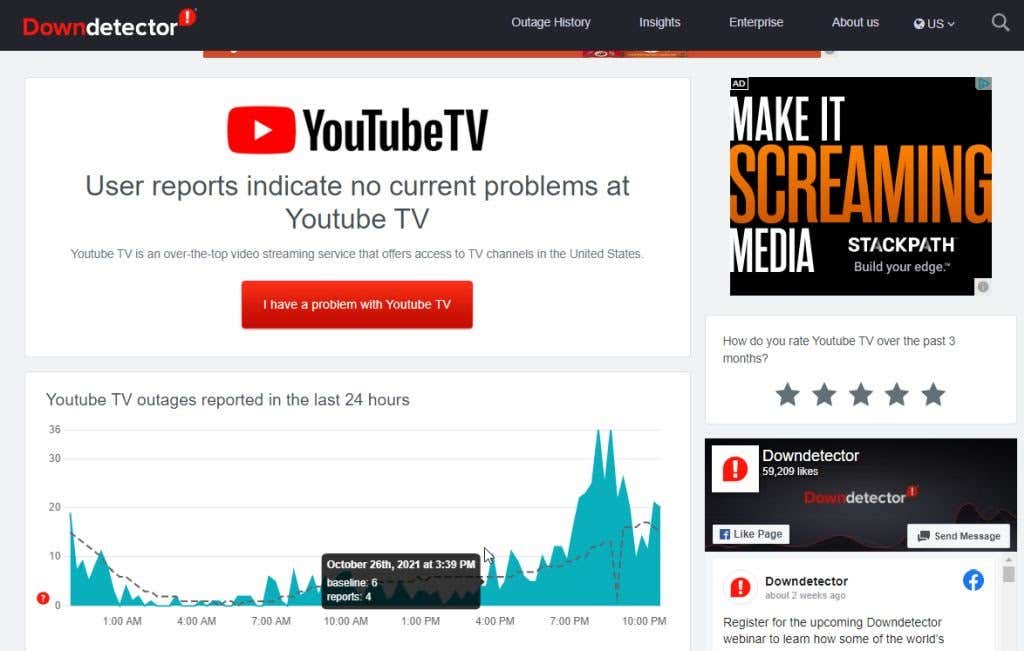
Check if the YouTube TV site is completely down for all users. You can check this using popular services like Downdetector or Outage Report.
If these services show a YouTube TV outage, there’s nothing you can do. The issue is on YouTube’s end, and you’ll just need to wait for the service to come back online.
There are plenty of alternative video streaming sites you can enjoy while you’re waiting.
2. Make Sure You Haven’t Exceeded Your Device Limit
If you have a YouTube Family plan, multiple users in your house can watch YouTube TV using their own Google account. However, whether or not you have this plan, you can only watch YouTube TV simultaneously on up to three devices on your account.
The following activities count as one device actively streaming:
- Casting a YouTube TV show from a laptop to a TV
- Watching YouTube TV on either a laptop or desktop computer
- Watching a movie from your YouTube TV library on your mobile device
Regardless of your YouTube TV activity, every device you use with the service will count toward your device limit. If you’re blocked from using your YouTube TV account, make sure there aren’t already other family members using three devices with the service.
3. Restart YouTube TV
The fastest solution to get YouTube TV working again is to restart your connection to the service. If you’re accessing YouTube TV via your web browser, close out the browser entirely. Restart a new browser window and access only YouTube TV (and no other websites).
If you’re streaming YouTube TV via your mobile device, you’ll need to close the app and then restart it.
On Android, just swipe up from the bottom of the main screen, search for yt tv, and long-press on the app icon. Tap App info on the pop-up menu.
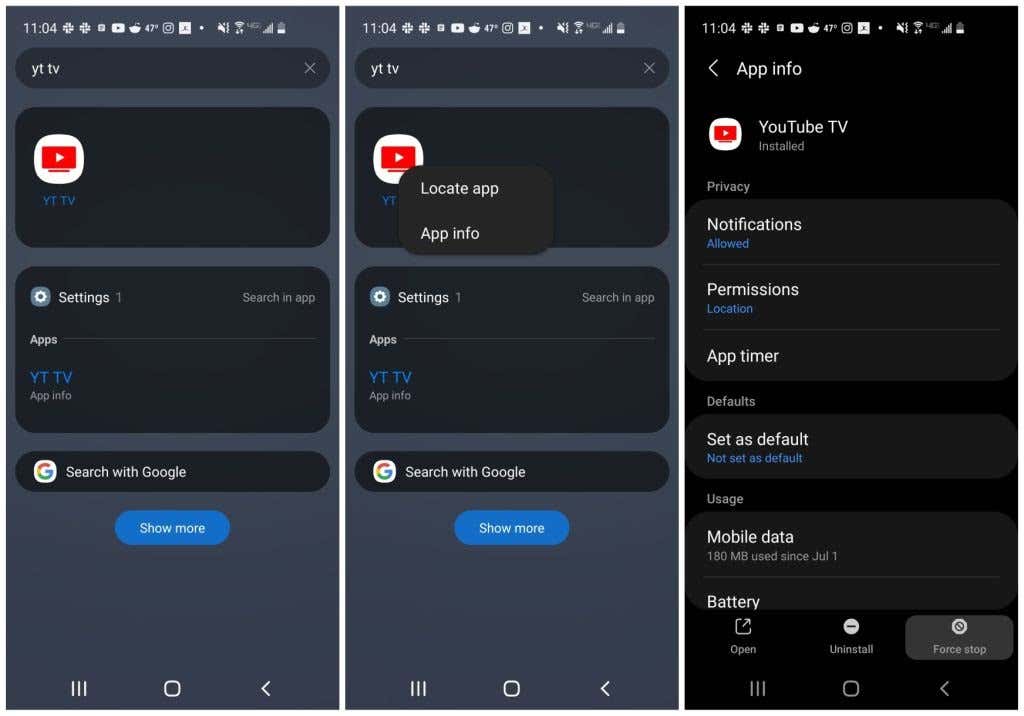
Select Force stop at the bottom of the App info window.
On the iPhone, this is even easier. Just swipe up from the bottom of the Home screen and swipe right or left to find the YouTube TV app. Swipe up on the app’s preview window to close the app. On iPad, just swipe up on the app in the App Switcher.
If you’re using the desktop YouTube TV app on Mac or Windows, just close the app as you normally would any other app.
Once you’ve closed YouTube TV, reopen the browser or app and check if YouTube TV is working.
4. Update the Mobile YouTube TV App
YouTube frequently updates the YouTube TV app. Users commonly report that when YouTube TV is not working on their mobile device, it’s often because there’s a pending update for the YouTube TV app.
You can quickly check if this is the case by opening Google Play or the Apple Store and checking if there’s an update available for the app.
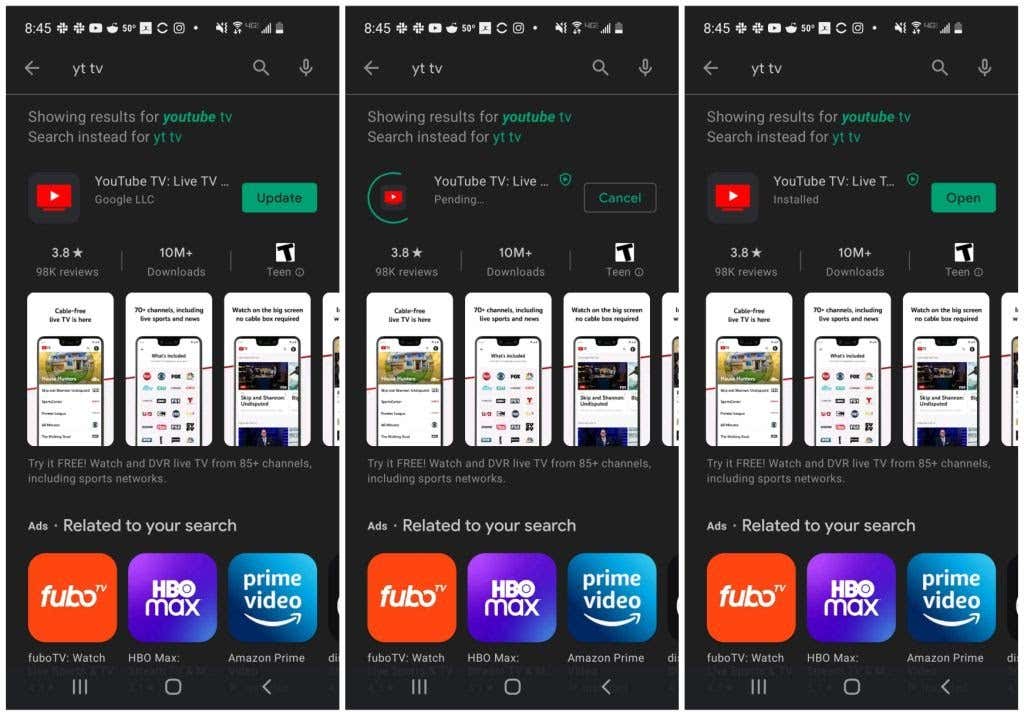
If there is, run the update and then restart the YouTube TV app. Check if this resolved the issues you were having with YouTube TV.
5. Enable Location Permissions
YouTube tracks users’ location closely to ensure that specific households use the account without sharing it with people in other places. If you’ve turned off the location setting on your mobile device, YouTube TV may not work.
Note: YouTube allows you to travel to other locations and still use the service at that location for a limited time, but you still need to have Location turned on for the service to work.
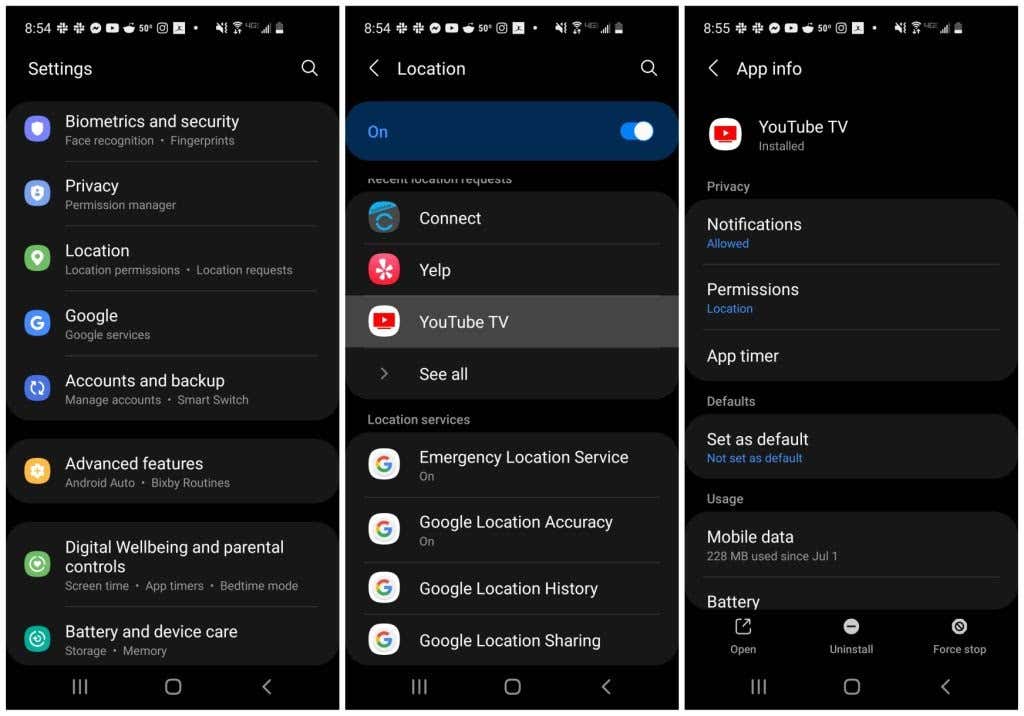
Enable the location on your specific device to see if it resolves the issues you’re having with YouTube TV.
- On Android: In Settings, select Location, and ensure the On toggle is enabled. Tap the YouTube TV app to ensure the app has Location listed under Permissions.
- On iPhone or iPad: In Settings, select Privacy and Location Services. Make sure Location Services is enabled. Next, tap the YouTube TV app and select While Using the App for the location permission.
If you’re using Google Chrome on a desktop computer or laptop, you’ll need to adjust Chrome’s location settings for Google.
1. In Chrome, select the three dots at the upper right to open the menu, select Settings, select Privacy and Security from the left menu, and choose Site Settings.

2. On the next screen, under the Permissions section, select Location.
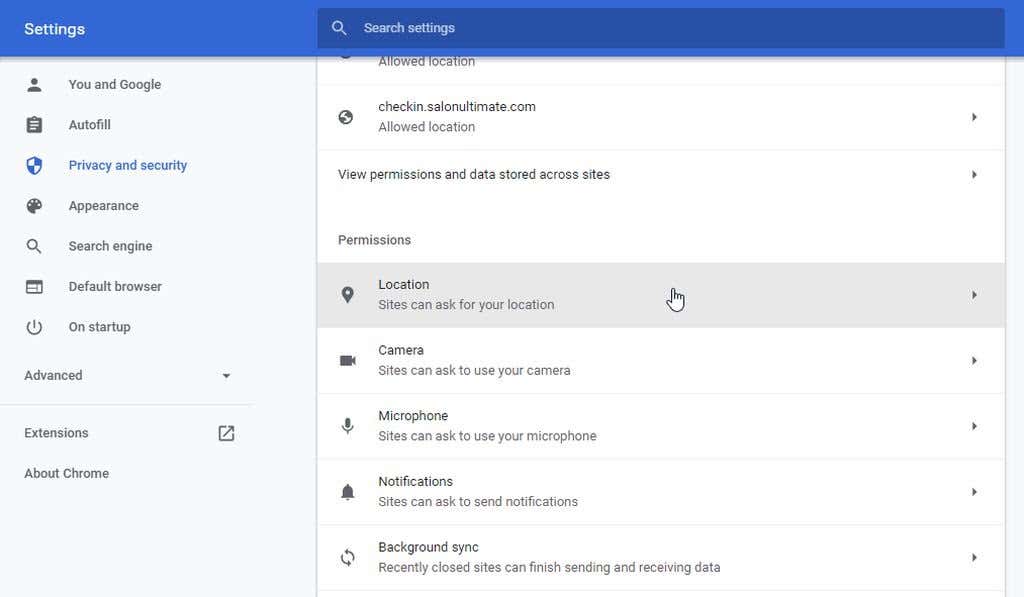
3. In the next window, scroll down to Allowed to see your location. Select the arrow to the right of https://www.google.com:443. On the next window, make sure Location under the Permissions section is set to Allow.
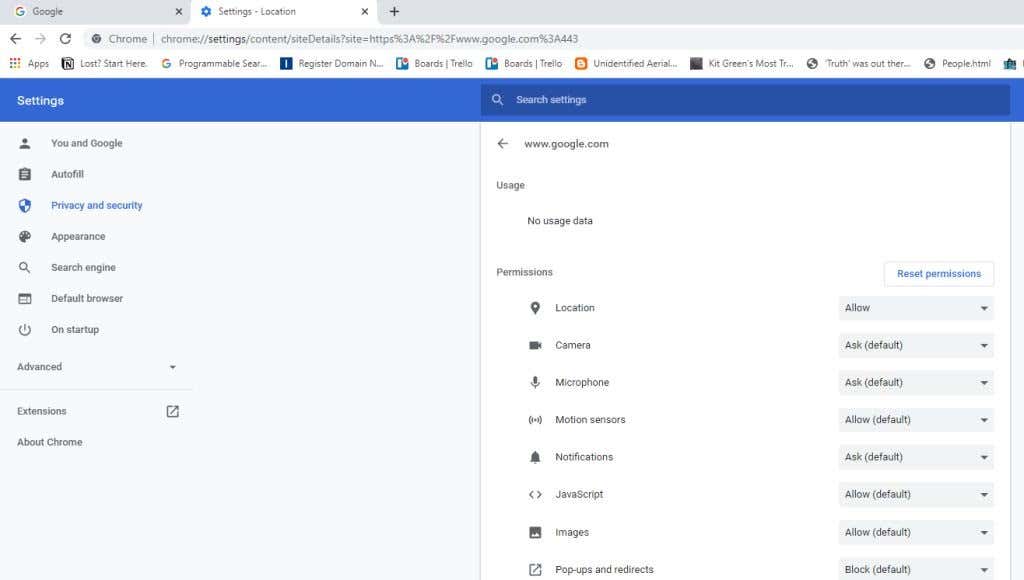
Restart your browser before testing to see if YouTube TV works.
6. Restart Your Device
A common solution for YouTube TV not working is to restart the device you’re using to access the service. Restarting clears the device’s memory cache and browser cache and kills all running apps or services that may interfere with the YouTube TV service.
Make sure to completely shut down your computer or laptop before restarting. Choose the shutdown option rather than the restart option. The same goes for restarting your mobile device. Perform a complete shutdown using the power button on the side of your phone. Then start up the phone before testing YouTube TV again.
7. Check Your Internet Connection
A basic first check is to ensure that you have a good internet connection. Connect with other websites with your device and make sure those connections work.
With that out of the way, you’ll also need to ensure your internet connection is fast enough to use YouTube TV. YouTube TV needs a download speed of at least 3 Mbps to stream well. If your internet connection can’t manage this, you may likely experience lag issues, or YouTube TV may not work at all.
YouTube recommends the following internet speeds depending on your usage:
- 3 Mbps: Good for streaming standard definition video.
- 7 Mbps: Lets you stream a single HD (high definition) video at a time, but additional devices streaming simultaneously may cause issues.
- 13 Mbps: Multiple devices can stream HD video.
- 25 Mbps: Lets you stream 4K video or programs from YouTube TV.
The first thing to try is running a speed test to check your internet connection speed. The easiest way to do this is to search Google for internet speed test.
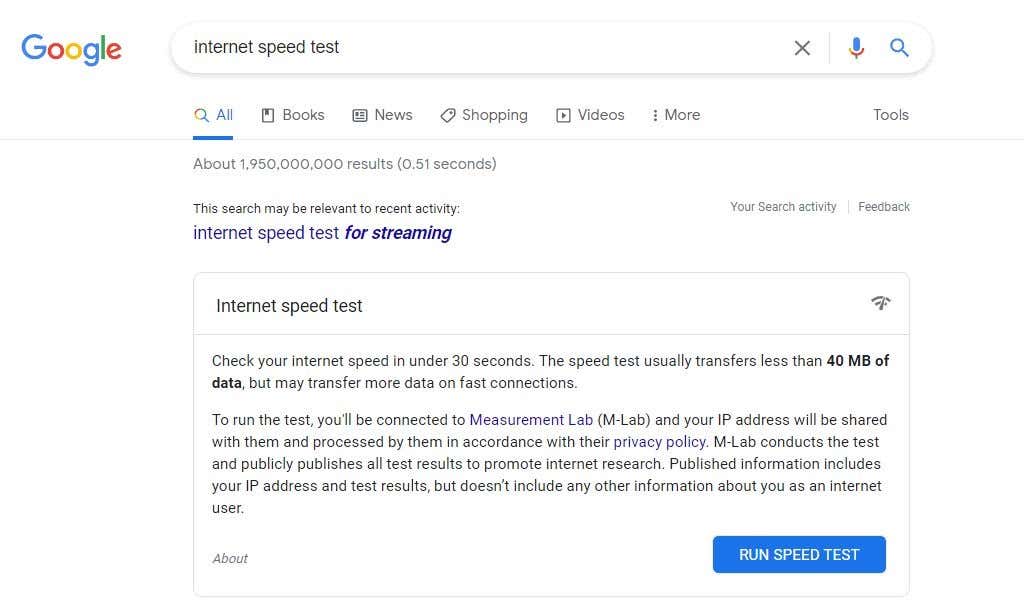
Select Run Speed Test to start the test. When the test is completed, you’ll see both download and upload speeds for your network.
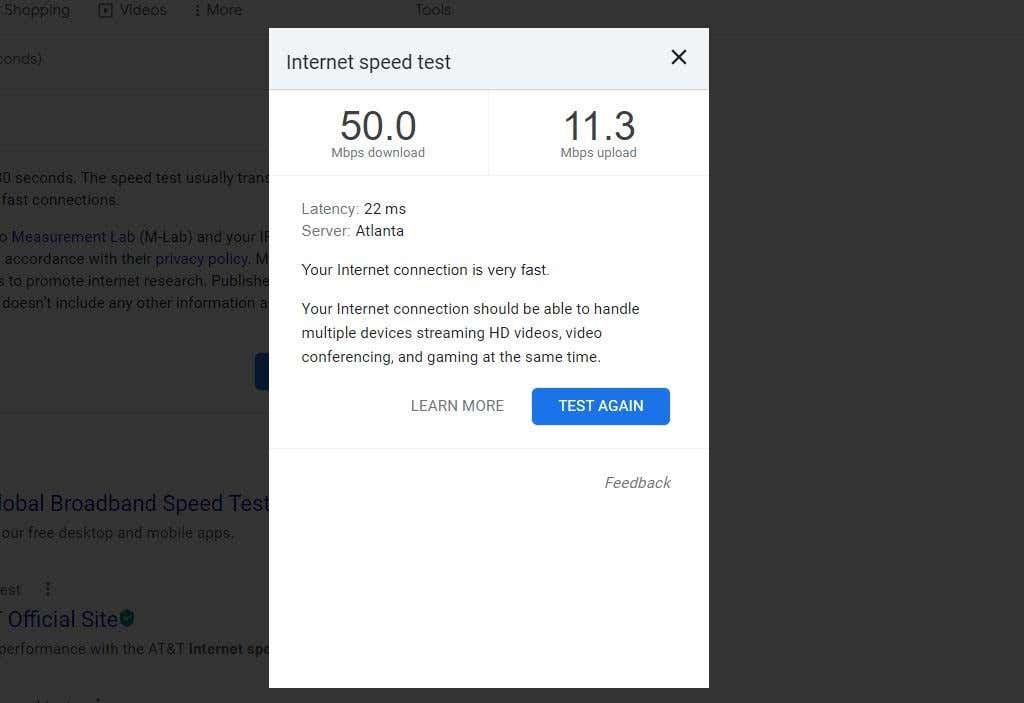
The Mbps download result is the one to be concerned with. Make sure this speed result matches your YouTube TV usage from the list above.
Also, ensure your mobile internet connection is working correctly by restarting the data connection. On Android, open Settings, select Connections, and enable and then disable Airplane mode. On iPhone or iPad, open the Control Center and tap Airplane Mode to allow it. Tap it again to disable it.
8. Adjust YouTube TV Video Quality
If you don’t have quite enough bandwidth speed for YouTube TV to work properly, you can tweak some settings in the YouTube TV app so that it’ll work more efficiently.
- Select the gear icon at the lower right corner of the player window when you launch a video.
- Select the Quality option from the Settings list.

- Choose a lower video resolution from the Quality list.
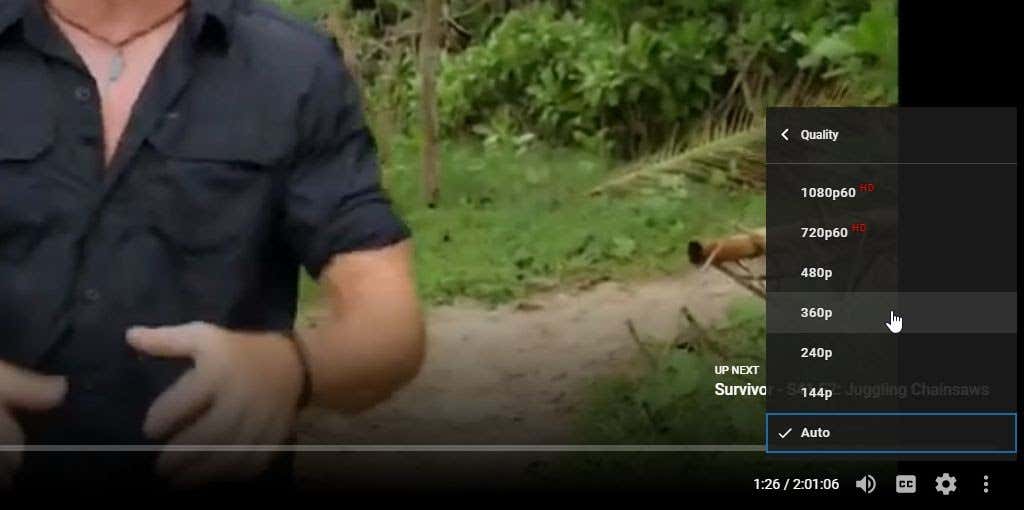
Choosing a lower video quality will require lower bandwidth, which may let you get away with a slower internet connection speed.
Note: You can lower video quality on the YouTube TV mobile app in the same way through the video settings menu inside the YouTube TV mobile player.
This isn’t the best solution since a much lower video quality won’t look good on larger screens. Ideally, you’ll want to troubleshoot why you’re not getting the bandwidth you’ve purchased from your ISP.
