

YouTube is a notoriously slow platform, but that’s not overly surprising given the load the servers are under. As of February 2020, more than 500 hours of content were uploaded to YouTube every minute. With that much data, there are going to be at least a few errors.
If your YouTube video doesn’t upload correctly or won’t process, there are steps you can take to resolve the issue. Some of them are as simple as waiting a few minutes and trying again, while others are more complex. Either way, if video processing is taking an unacceptable amount of time, here’s a few things to try.
Wait a Few Minutes
It sounds like trite advice, but sometimes waiting 10 to 15 minutes is all it takes. The YouTube uploader doesn’t show progress in real-time, so it might be farther along than is displayed. Of course, if it freezes after multiple hours or makes no progress whatsoever, you should try another step.
Once the video is uploaded, YouTube’s processing time can vary depending on activity. If there is too much activity on the YouTube servers, it might take longer.
1. Check Your Internet Connection
There are no official suggested upload speeds for YouTube, but a general rule of thumb is the faster, the better. Google suggests a speed of at least 5 Mbps to stream 1080p video, so a rough estimate would be to halve that speed for uploading.
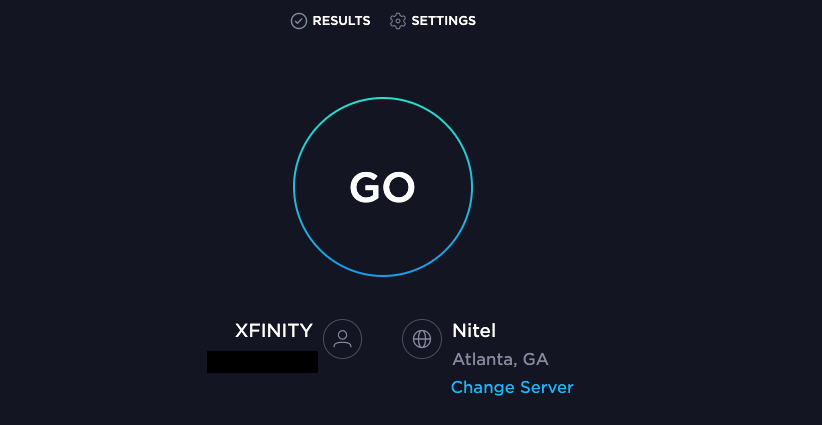
Either way, if your Internet connection isn’t steady or you’re experiencing reduced speeds, it can impact the rate of your upload. Use a tool like Speedtest to measure how fast your current speeds are.
2. Connect Directly to Your Router
Wi-Fi will always be slightly less stable than a direct connection through Ethernet. When you try to upload a video, connect directly to your router to eliminate any chance of interference from Wi-Fi.
In that same vein, always try to upload from a computer rather than a mobile device – unless you can somehow connect your mobile device directly to your router.
3. Disable Your VPN
If you use a VPN for more secure browsing, turn it off before you try to upload a YouTube video. While it will help protect you, it can also interfere with video uploads and reduce your internet speed. Before you upload a video, temporarily turn off your VPN.
4. Clear Your Cache
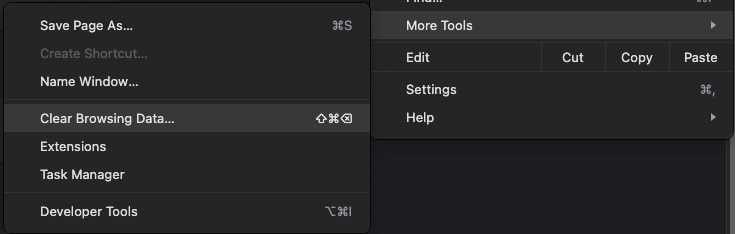
Clearing your cache covers a multitude of glitches. The good news is that it’s easy to do. While the exact process varies from browser to browser, it follows a similar process. To clear your cache in Chrome:
- Select the three dots in the top-right corner.
- Select More Tools > Clear Browsing Data.
- Select Cached images and files.
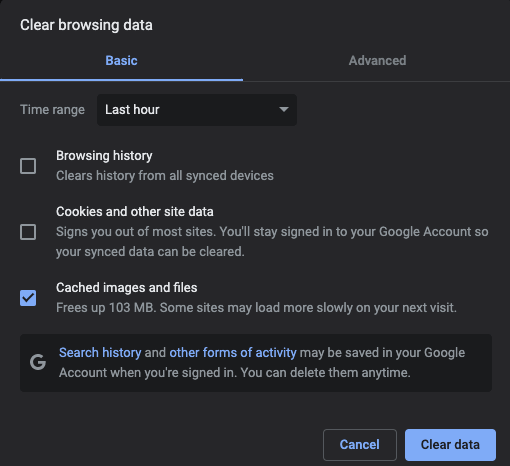
- Select Clear data.
If you don’t want to clear your cache, another trick is to open an Incognito window. This will also eliminate any interference from plugins.
You can open an incognito window through File > New Incognito Window, or you can press CTRL + Shift + N or CMD + Shift + N.
5. Swap Web Browsers
All browsers are not created equal. If you can’t get a video to upload on one browser, try using a different browser. A general suggestion is to use Chrome for anything Google-related, including YouTube. And don’t use Microsoft Edge for anything if you can avoid it.
6. Change Video Format
YouTube supports a wide range of video formats. If you’re trying to upload a .MOV file and it won’t work, convert it to a different format and then try re-uploading it. For example, .MP4 is one of the most commonly used file types on YouTube.
You can download free software for converting video on Windows 10, on Android, and more. You can also find online web converters, but these are typically less effective due to the need to upload and then re-download large video files.
7. Decrease Your Video’s File Size
YouTube has a maximum file size of 256GB, or a maximum length of 12 hours. Whichever of those you reach first is the cut-off. If your video file is too large, try to reduce it. A few ways you can do this is by compressing the video, shortening its overall length, and removing additional content like music or overlays from the video.

Another step you can take is to change the resolution. If the video is in 4K, consider dropping it to just 1080p. While it will impact the overall quality of the video, it might make it easier to upload.
8. Uninstall and Reinstall the App
Some people use only their phones to create content on YouTube. If you’re trying to upload from an iOS or Android device, the problem might lie in the app. Uninstall the YouTube app and reinstall it on your phone. Not only will this clear up any underlying glitches, but it will also ensure you have the latest version of the app.
9. Delete the Video and Start Over
If your video won’t process, sometimes you just have to try again. If you have a slow internet connection or your ISP throttles uploads, the last thing you want to do is delete your video and re-uploaded it – but sometimes, that’s all you can do.
- Log into your YouTube account and select Manage Videos.

- Find the video that won’t process and hover your cursor over it, then select the three dots.
- Select Delete forever.

Once you do this, your video is gone from your page, but you can re-upload it and try again. Sometimes a glitch in the upload data can interfere with video performance, leaving you no other option.
YouTube is a great platform for growing your brand or just posting fun videos, but sometimes you have to help it work out a few kinks here and there. Try these nine fixes to get your video live and gathering views that much faster.
