

The Windows Task Scheduler is a handy part of the Windows operating system that lets you automate and schedule apps and various scripts to run how and when you want them to. In the hands of a power user you can work real magic with the tool, but it’s not the most user-friendly experience in the world!
Luckily there are plenty of third-party Windows Task Scheduler alternatives to choose from. Some of them make the task easy, others add even more advanced features.
Advanced Task Scheduler ($39.95)
Advanced Task Scheduler is a shareware application which you can try for 30 days to see if it works for you. While it may not be free, the basic version of the applications costs as little as $39.95 and offers a decent set of features for the money.
If you have multiple workstations to service, it can get expensive quickly. However home users with a single machine that needs better automation might feel the price tag is worth it for the features on offer.
Advanced Task Scheduler can launch applications, run scripts, execute batch files and generally get stuff done without you having to be there. You can schedule tasks across all users and even schedule “hidden tasks” that happen when no one is logged in.
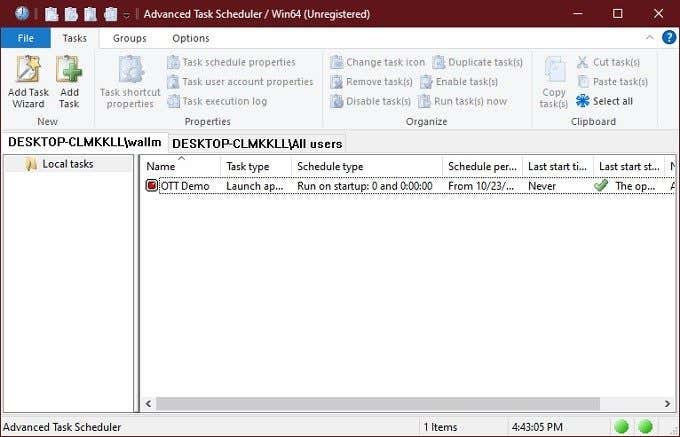
The list of things that Advanced Task Scheduler can do is quite lengthy, but notable features include:
- Killing processes.
- Copying, moving and deleting files.
- Downloading from HTTP and FTP sources.
- Sending specific key sequences.
There’s also plenty of flexibility with the various schedule types that can trigger actions when certain conditions arise. These include some pretty useful ones such as the computer being idle, it not being idle or when a certain hot key is pressed. Schedule frequency is also comprehensive. Starting from running once a minute all they way up to running once a year.
If you want more esoteric options (such as running something at random times) you’ll have to pay for the professional edition, but we think most people are going to be just fine with the basic package.
Task Till Dawn (Free)
Task Till Dawn is a completely free Windows Task Scheduler alternative that’s actually available for both Windows and macOS. Even better, you can transfer many of the same workflows between the two versions of the app.
If you have multiple workstations which need the same set of automated tasks, such as backups, you can set up one and then use Task Till Dawn’s export function to easily copy it to any other machine.
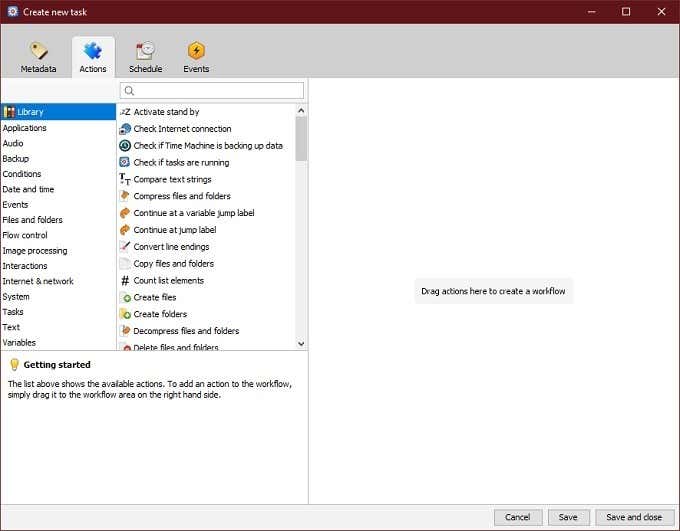
Tasks can also be grouped by type, to make management and administration of automated tasks easy.
You can do some pretty neat stuff with Task Till Dawn. Some of the key examples from the developer include:
- Auto-connected to network drives at startup.
- Print any files you send to a particular folder.
- Copy files from a connected USB device as soon as you plug it in.
There’s also a portable version of the app, so you can run it from a USB drive! All in all, for a completely free app, Task Till Dawn is one of the most flexible and user-friendly alternatives we’ve seen.
Z-Cron Scheduler (Free for Personal Use)
Z-Cron is a task scheduler with a freeware version which has just about all the features the average user will need. However, there are paid versions designed specifically for workstation and server computers, used in professional contexts. It’s only free for personal use, which is a very kind gesture from the developer.
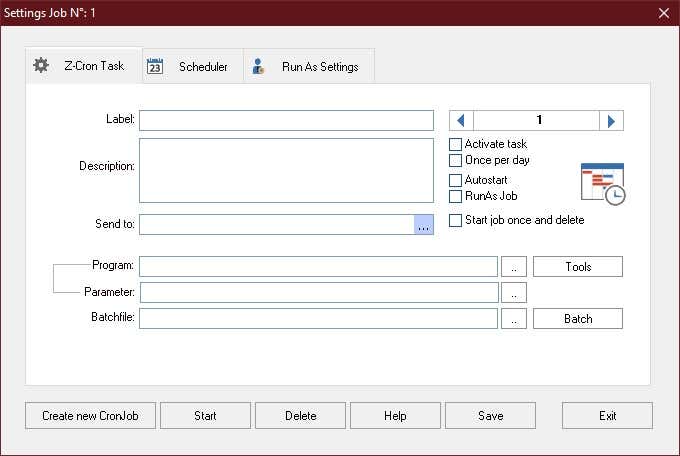
Z-Cron can do pretty much what you expect a Windows task scheduler should. You can start software at any predetermined time, run them with specific parameters and then stop them when the job is done. It’s fairly easy to use, is a great drop-in replacement for the Windows Task Scheduler and most users probably don’t have to pay for the fancy version.
RoboIntern (Free)
As the name suggests, RoboIntern is a software package that aims to automate the daily productivity grind. Unlike a general-purpose task scheduler, RoboIntern is specifically designed to automate tasks in Excel, Access and Word. It can also do a bunch of neat stuff with emails, file management and ODBC (Open Database Connectivity) databases.
There’s also a scripting option so that you can program complex operations to fit your very specific needs. RoboIntern is so clever, it’s hard to believe that the program is completely free. Technically it’s donationware, but at the time of writing the donations page was not yet up and running.
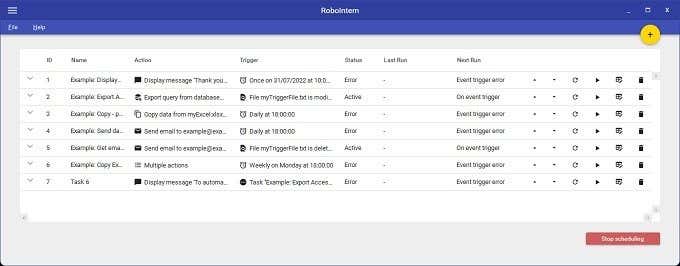
So what can you do? First of all, RoboIntern can dig right into the main Microsoft Office apps and perform operations. One that will get plenty of people excited is the ability to automatically import data from Excel into Access. The other two features we really like allow you to generate emails automatically and offer automated report creation.
RoboIntern has a mountain of potential, but there’s no room to really do it justice here. Luckily you can find out for yourself for free!
System Scheduler (Free Version With $30 Pro Option)
System Scheduler is another free Windows Task Scheduler alternative and might be the most direct replacement in this list. It seems that Splinterware wrote this little application to be a more or less drop-in replacement for the Windows original. You can also run both programs on the same computer without issue. System Scheduler is not dependent on the Windows Task Scheduler in any way. It does it all on its own steam.
The free version of the program includes some interesting abilities. In terms of personal time management, you can program popup reminders to let you know of things you wanted to attend to. You can launch applications at specific times and then replay a series of keypresses and mouse clicks to get them to do specific tasks. It also has a neat “Window watcher” feature.
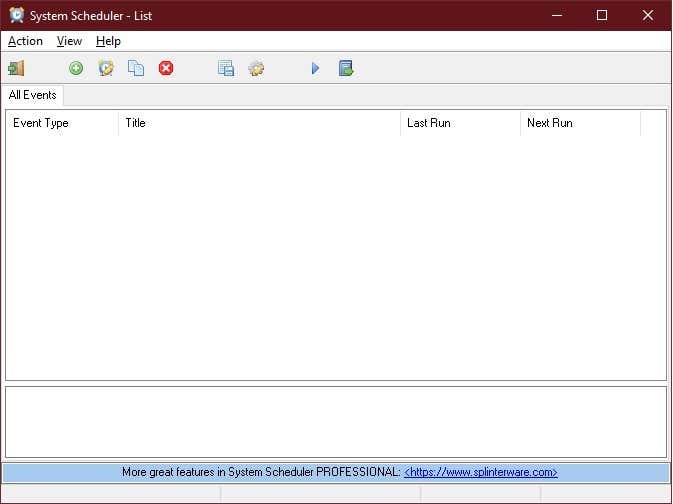
Basically, when a specific window pops up (such as an error message) you can use it as a trigger. Perhaps when your FTP connection is broken, you can dismiss the window that pops up and reconnect. This way you can make sure important processes don’t fail while the system is unattended.
There’s also a professional version of the software, for which you will need to pay. There are however significant benefits to the Pro version of System Scheduler. Especially its ability to run as a system service. Which means it can perform tasks even if no one is logged in.
Many of the advanced features of the paid version are actually useful to average users as well. You can try out an evaluation version and then decide if the added bells and whistles are worth the $30 asking price. We think the answer is yes, but every user will have to decide for themselves.
Right On Time!
If you do plenty of repetitive tasks or tasks that you keep forgetting about, getting a good task scheduler can transform your computing experience. By automating parts of your workflow with smart use of these applications, you can make more time for yourself and ensure you don’t miss important jobs such as regular backups.
While we think these are some of the best Windows Task Scheduler alternatives out there, feel free to make your own suggestions in the comments. Tell us which schedulers you use and why you love them!
