

You open a folder in Windows 11 File Explorer and it says “This folder is empty.”, or files you know are there aren’t showing. Files may be hidden, filtered out, in OneDrive, or obscured by a stale Explorer view. Check their location before trying repairs.
Before You Start: Confirm Your Files Still Exist
Don’t delete, move, or “repair” anything yet. First find out whether the files are gone or just not being displayed. These two checks change nothing on your PC.
Check #1: Search Your Whole PC
- Press
Windows + Eto open File Explorer. - Select This PC in the left navigation pane. Home can also find PC and cloud files, but This PC gives you a clear starting point for checking your drives.
- Click the search box in the top-right corner.
- Type part of the file name, such as
budget, and pressEnter. - Wait for the green progress bar in the address bar to finish.

If the file appears, right-click it and choose Open file location. That shows you where it actually lives.
If you get “No items match your search.”, don’t panic. Windows Search only indexes certain folders by default. To widen it, go to Settings > Privacy & security > Searching Windows and select Enhanced. Indexing can take hours, and searches may be incomplete while it catches up. In current builds, the settings page may be named Search. Use Customize search locations > Modify to check which folders are indexed, or choose Enhanced for broader indexing. Then use Check #2 to inspect a known folder directly.
Check #2: List the Folder With the dir Command
Command Prompt lists a specified path independently of Explorer’s view settings; path, permissions, and filesystem errors can still affect the result.
- Press
Windows + S, typecmd, and pressEnter. - List everything in the folder that looks empty, including hidden files. For example, for Documents:
dir "%USERPROFILE%\Documents" /a- To search the entire C: drive for a file name, use wildcards and the
/sswitch:
dir "C:\*budget*" /s /b /a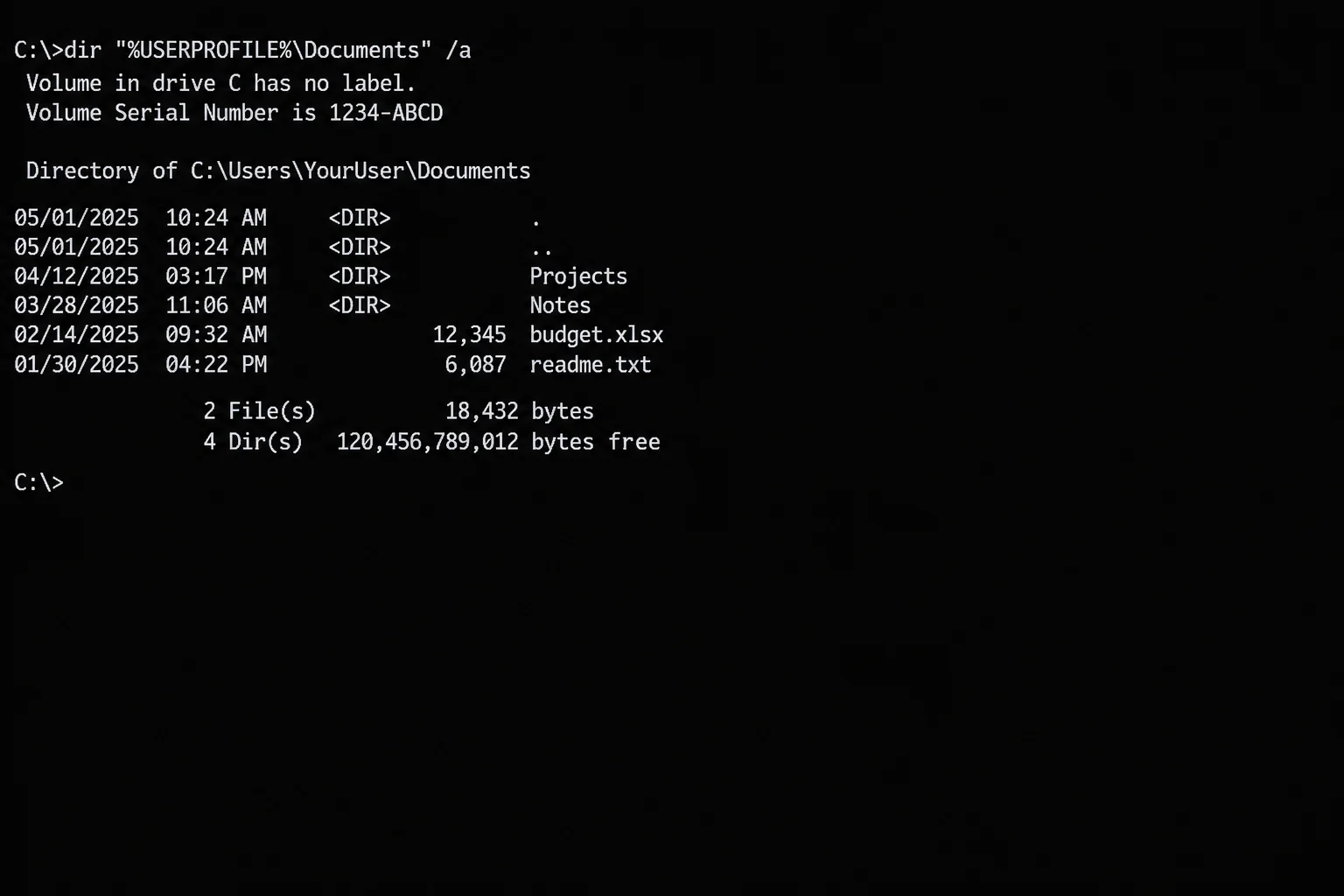
How to read the result:
- Files are listed: Confirm the listed path matches the folder open in Explorer, then start at Fix #1.
- You see “File Not Found”: Nothing matched in that location. Check OneDrive (Fix #5) and other locations (Fix #6) before you assume anything was deleted.
- The summary line shows a large byte count but Explorer shows nothing: Totals alone do not identify the cause. Compare the exact paths and filenames; check any access or filesystem errors before changing attributes.
Quick Diagnosis: Symptoms and Likely Causes
| Symptom | Likely Cause | Start With |
|---|---|---|
| Folder empty right after a crash or freeze | Explorer process glitched | Fix #1 |
| Some files missing, others visible | Hidden attribute or active filter | Fix #2, Fix #3 |
| Only one folder looks wrong | Corrupted folder view | Fix #4 |
| Desktop, Documents, or Pictures emptied | OneDrive folder backup | Fix #5 |
| File not in Home or Quick access | Home shows only recent items | Fix #6 |
| Hidden items is on, but the file is still invisible | Hidden and System attributes both set | Fix #7 |
| Files vanished after power loss or an update | Disk or system file corruption | Fix #8 |
dir finds nothing anywhere | Deleted or overwritten | Recovery section |
Fixes for Files and Folders Not Showing
Fix #1: Restart Windows Explorer
Symptoms:
- A folder looks empty, or the view won’t refresh
- The address bar says “Working on it…” forever
- The taskbar or desktop icons also act strangely
Why it happens: Restarting Windows Explorer reloads the folder interface. Finish any active file copy or move first.
- Press
Ctrl + Shift + Escto open Task Manager. - Select Processes in the left sidebar.
- Scroll to Windows Explorer and right-click it.
- Select Restart.
Your taskbar and desktop will disappear for a second or two, then come back.
How to confirm it worked: Open the folder again. If your files are back, you’re done. If Explorer keeps freezing, see our guide on fixing File Explorer not responding in Windows 11.
Fix #2: Show Hidden Items and Protected System Files
Symptoms:
- Some files are visible, but specific ones are missing
dir /alists files that Explorer doesn’t show- A USB drive looks empty but still reports used space
Why it happens: Files can carry a “Hidden” attribute. Apps, backup tools, and malware sometimes set it. Explorer hides these files by default.
- Open File Explorer and go to the folder.
- Click View on the command bar.
- Hover over Show.
- Select Hidden items so a checkmark appears.
Hidden files now appear with faded icons. If you still don’t see the files, reveal protected system files too:
- Click See more (the
...button) on the command bar. - Select Options.
- Open the View tab.
- Under Hidden files and folders, select Show hidden files, folders, and drives.
- Uncheck Hide protected operating system files (Recommended).
- Click Yes on the warning, then click Apply and OK.
You can also flip both settings at once in Settings > System > Advanced > File Explorer by turning on Show hidden and system files. On some Windows 11 builds, this page is called For developers instead of Advanced.
How to confirm it worked: Faded icons appear in the folder. Once you’ve found your files, turn protected system files back off so you don’t delete something Windows needs.
Fix #3: Clear Filters, Grouping, and Sort Settings
Symptoms:
- Only one folder shows fewer files than expected
- Files appear under collapsed headings like “Earlier this year”
- A small checkmark or arrow appears next to a column name
Why it happens: Explorer remembers filters and groupings for each folder. If you clicked a column filter weeks ago, it can still be active.
- Look at the search box in the top-right. If it has text, click the X to clear it.
- Click View > Details so column headers appear.
- Hover over each column header, such as Name, Date modified, and Type. If a header shows a checkmark, click its dropdown arrow and uncheck every box.
- Click Sort on the command bar.
- Hover over Group by and select (None).
- Click Sort again and choose Name so everything is listed A to Z.
How to confirm it worked: The status bar at the bottom left shows the item count. Compare it to the file count from dir /a in Check #2. They should roughly match.
Fix #4: Reset Folder Views
Symptoms:
- One folder keeps a strange layout no matter what you change
- A folder with many files is slow to load or stays blank
- Filters are clear and hidden items are on, but things still look wrong
Why it happens: Windows stores a saved view for each folder type. That saved view can get corrupted.
- In File Explorer, click See more (
...) > Options. - Open the View tab.
- Click Reset Folders.
- Click Yes to confirm.
- Click Apply, then OK.
- Close all File Explorer windows and open a new one.
Is it safe? Yes. Reset Folders only changes how folders look, such as layout, sorting, and columns. It never moves or deletes files. You’ll lose any custom views you set up, and that’s all.
If one large folder still hangs, change its folder type:
- Right-click the folder and select Properties.
- Open the Customize tab.
- Set Optimize this folder for to General items.
- Check Also apply this template to all subfolders, then click OK.
While you’re in Folder Options, click Clear under Privacy on the General tab. That wipes stale entries from Home and Quick access without touching the files.
How to confirm it worked: The folder opens quickly and shows the expected item count.
Fix #5: Check OneDrive Files On-Demand and Folder Backup
Symptoms:
- Desktop, Documents, or Pictures looks empty after you set up a new PC or signed into OneDrive
- Your desktop icons disappeared overnight
- Files show a cloud icon and won’t open without internet
- You see “Error 0x8007016A: The cloud file provider is not running.”
Why it happens: OneDrive folder backup can redirect or sync your known folders into OneDrive. The location depends on the account and setup; an empty local folder is not proof that backup caused the problem. With Files On-Demand, some files exist only in the cloud until you open them.
Check where your folders point:
- Click the OneDrive cloud icon in the taskbar notification area.
- Click the gear icon and select Settings.
- Open the Sync and backup tab.
- Click Manage back up.
- See whether Desktop, Documents, and Pictures are turned on.
If backup is on, open File Explorer and select OneDrive in the left pane. Your Desktop, Documents, and Pictures folders are inside it.
Check Files On-Demand:
- In the same Sync and backup tab, click Advanced settings.
- Find the Files On-Demand section.
- To keep specific files offline, right-click them in File Explorer and choose Always keep on this device.
A cloud icon means the file lives online only. A green check means it’s on your PC. If OneDrive isn’t running, cloud-only files can look broken, so relaunch OneDrive from the Start menu.
Warning: Do not stop backup as a troubleshooting shortcut. Microsoft’s current Windows workflow asks whether to keep files only in OneDrive or only on the PC; cloud-only files may need downloading first. Read the choices before making changes.
Also make sure you’re signed into the right OneDrive account. A work account and a personal account hold different files.
How to confirm it worked: Open the Documents folder under the correct OneDrive account and check whether your files are there; do not assume a fixed folder path. For more background, see our explainer on what OneDrive Files On-Demand is and how it works.
Fix #6: Look Beyond Home and Quick Access
Symptoms:
- A file you saved yesterday isn’t in Home
- A folder is missing from the left navigation pane
- Your files vanished after a Windows upgrade
Why it happens: Home and Quick access are convenient starting views, not a complete listing of your drives. After an upgrade, Windows sometimes signs you into a temporary profile, so your real files sit in a different user folder.
- Select This PC in the navigation pane.
- Open the drive, usually Local Disk (C:).
- Browse to Users and check every user folder, that belong to you.
- To jump straight to a known location, click the address bar, paste the full path, and press
Enter. For example:C:\Users\YourName\Downloads.
If folders are missing from the left pane, right-click an empty spot in the pane and select Show all folders. Also confirm the pane is on via View > Show > Navigation pane.
To make File Explorer always open to your drives, go to See more > Options > General. Set Open File Explorer to as This PC.
After an upgrade, also check for a C:\Windows.old folder. Your old files may be under C:\Windows.old\Users\YourName. Microsoft’s find lost files after upgrading page covers the temporary-profile case in detail.
How to confirm it worked: You can open the file from its full path, and it shows the right date and size.
Fix #7: Remove the Hidden or System Attribute With attrib
Symptoms:
- Hidden items is on, but a file or folder still won’t appear
- A USB drive shows only shortcuts, or nothing at all
dir /alists files thatdiralone doesn’t
Why it happens: Some files carry both Hidden and System attributes. Malware on USB drives often does this, and so do some cleanup tools. The attrib command clears those flags directly.
Before you run attrib on a USB drive: Scan it first. Right-click the drive in This PC and select Show more options > Scan with Microsoft Defender. The “shortcuts only” symptom is a classic sign of USB malware.
- Press
Windows + Sand typecmd. - Right-click Command Prompt and select Run as administrator.
- See which attributes a file has.
Hmeans Hidden,Smeans System:
attrib "C:\Users\YourName\Documents\Report.docx"- If this is your own document and both flags were set unexpectedly, clear them for that one file:
attrib -h -s "C:\Users\YourName\Documents\Report.docx"- Repeat only for specific personal files whose attributes you have inspected. Do not use wildcards or recursive switches across a Documents folder or an entire USB drive.
Use it safely:
- Clear only the unexpected attributes on the identified file. Use
-hfor a Hidden-only file; the example above handles a personal file with both H and S. Leave legitimate protected files alone. - Never run it on
C:\,C:\Windows, orC:\Program Files. Those files are hidden on purpose. attribonly changes flags. It doesn’t move, edit, or delete files.
How to confirm it worked: Run attrib on the file again. The H and S letters should be gone, and the file shows normally in Explorer.
Fix #8: Scan the Drive (chkdsk) and Repair System Files (DISM and SFC)
Symptoms:
- Files vanished after a power cut, crash, or Windows update
- You see “The file or directory is corrupted and unreadable.”
- Folders show strange names, zero-byte files, or won’t open
Why it happens: An unexpected shutdown can leave errors in the drive’s file table, so Windows can’t find what’s stored there. Corrupted system files can also break how Explorer lists folders.
Back up first: If you can see any of your files, copy them to an external hard drive or a portable SSD like the Samsung T7 before you run chkdsk. If the drive clicks, grinds, or has been getting slower, copy your data off before anything else. chkdsk works a failing drive hard.
GUI option for non-system drives (USB sticks, D: drives):
- In This PC, right-click the drive and select Properties.
- Open the Tools tab.
- Under Error checking, click Check.
- Click Scan drive and follow the prompts.
Command option for an NTFS drive with suspected filesystem errors:
- Open Command Prompt as administrator.
- Run:
chkdsk C: /scan- Review the scan result. If it reports errors needing repair, back up before considering
chkdsk C: /f; a busy system volume may require a restart. - Do not use
/ras a routine missing-files fix. It scans for bad sectors and includes repairs. If hardware failure is suspected and the files matter, stop using the drive and seek recovery advice before scans or repairs.
Repair Windows system files:
- After restarting, open Command Prompt as administrator again.
- Run DISM first. It repairs the source files that SFC uses:
DISM /Online /Cleanup-Image /RestoreHealth- When DISM reaches 100%, run:
sfc /scannow- Restart your PC.
Is it safe? SFC and DISM only replace Windows system files. They don’t touch your documents. Disk repairs can change filesystem metadata; preserve important files first, and do not keep scanning a drive that may be failing. Our guide on running SFC and DISM to repair Windows 11 goes deeper on reading the results.
How to confirm it worked: SFC should report “Windows Resource Protection did not find any integrity violations.” or that it repaired files. Then repeat Check #2 with dir /a.
Repeated disk errors need diagnosis. Preserve the data before further troubleshooting or replacing the drive.
Still Missing? Recover From the Recycle Bin, Previous Versions, or File History
Only go here once dir /a and Search both come up empty. Try these in order.
Restore From the Recycle Bin
- Double-click Recycle Bin on your desktop. You can also type
Recycle Bininto the File Explorer address bar. - Click the Date deleted column header to sort by the newest deletions.
- Select your files.
- Click Restore the selected items on the command bar. You can also right-click and choose Restore.
Files go back to their original folder. Files deleted from USB drives or network shares skip the Recycle Bin. For OneDrive files, also check the OneDrive recycle bin at onedrive.live.com.
Restore a Previous Version
- Right-click the folder that used to hold the files. Right-click the drive itself if the folder is gone.
- Select Properties.
- Open the Previous Versions tab.
- Select a version dated before the files went missing.
- Click Open to browse it first.
- Copy the files you need, or click Restore to replace the whole folder.
If you see “There are no previous versions available.”, no usable version is available through this dialog.
Tip: Use Open and copy files out instead of Restore. Restore overwrites the current folder, including anything you saved after that date.
Restore From File History
- Open Control Panel > System and Security > File History.
- Click Restore personal files.
- Use the arrows at the bottom to go back to a date before the loss.
- Select the files and click the green Restore button.
This only works if File History was already turned on and backing up to an external drive. Our guide on recovering deleted files in Windows 11 covers Microsoft’s own Windows File Recovery tool if none of these work. Stop saving new files to the drive in the meantime, because new data can overwrite deleted files.
Common Error Messages Explained
| Error Message | What It Means | Fix |
|---|---|---|
| “This folder is empty.” | Explorer isn’t displaying anything, which isn’t the same as the folder being empty | Check #2, then Fix #1–#4 |
| “No items match your search.” | Nothing in the search scope or index matched | Search from This PC; use dir /s |
| “Location is not available” | The path points to a drive or folder that moved or disconnected | Fix #5, Fix #6 |
| “Windows cannot find ‘…’. Make sure you typed the name correctly, and then try again.” | A shortcut or path is broken | Fix #6 |
| “Error 0x8007016A: The cloud file provider is not running.” | OneDrive isn’t running, so cloud-only files can’t open | Fix #5 |
| “The file or directory is corrupted and unreadable.” | File system damage | Fix #8 |
| “Not resetting system file” / “Not resetting hidden file” | An attribute prevents the requested change | Inspect the exact personal file and its flags (Fix #7) |
| “Chkdsk cannot run because the volume is in use by another process.” | The drive is in use; chkdsk needs a restart | Type Y and restart |
| “Windows Resource Protection found corrupt files but was unable to fix some of them.” | SFC couldn’t repair everything | Run DISM, then SFC again |
| “There are no previous versions available.” | No usable saved version is available here | Check other backups |
Windows 10 Differences
The fixes above also work on Windows 10, but a few menus look different:
- Hidden items: Click the View tab on the ribbon and check Hidden items.
- Folder Options: Click View > Options on the far right of the ribbon.
- Group by: Use View > Group by on the ribbon.
- OneDrive, attrib, chkdsk, SFC, and DISM work the same way.
Getting Help
If you need to ask for help on a forum or from support, gather this first:
- SFC log:
C:\Windows\Logs\CBS\CBS.log - chkdsk results: Open Event Viewer > Windows Logs > Application. Look for entries from the Wininit source (boot-time scans) or Chkdsk.
- Your Windows version: Go to Settings > System > About.
- The output of
dir /afor the folder, copied as text.
Useful Microsoft resources:
- File Explorer in Windows
- Show all files found in search in File Explorer (Microsoft Q&A)
- Folders don’t show up on left column of File Explorer (Microsoft Q&A)
You can also open the Get Help app from the Start menu to reach Microsoft support directly.
Prevention Tips
- Know where OneDrive puts your folders: Check Manage back up once, so a “missing” Desktop doesn’t surprise you later.
- Turn on File History: Plug in an external drive and go to Control Panel > File History > Turn on. A backup must already exist before it can restore a lost file.
- Shut down properly: Power cuts are a top cause of file system errors. A small UPS protects a desktop PC from sudden outages.
- Scan USB drives before opening them: This stops the malware that hides files and replaces them with shortcuts.
- Clear filters when you’re done: A forgotten column filter is the easiest way to “lose” files in one folder.
Frequently Asked Questions
How do I know if my files are actually deleted or just hidden?
Run dir "path\to\folder" /a in Command Prompt. If the files are listed, compare their exact path with the folder shown in Explorer. If you see “File Not Found”, check OneDrive and other user folders before you assume they’re deleted.
Why did my files disappear after signing into OneDrive?
Folder backup may have redirected the folder into OneDrive. Check the correct OneDrive account and actual folder location as described in Fix #5.
How do I show hidden files in Windows 11?
In File Explorer, click View > Show > Hidden items. For protected system files, go to See more > Options > View and uncheck Hide protected operating system files.
Why does only one folder look empty while others are fine?
That folder has either a leftover filter or grouping (Fix #3) or a corrupted saved view (Fix #4). Neither affects the files themselves.
What does “Reset Folders” do and is it safe?
It restores every folder’s default layout, sorting, and columns. It’s completely safe for your files. You only lose custom view settings.
How do I search my whole PC for a missing file?
Select This PC in File Explorer and use the search box. For a search that doesn’t depend on indexing, run dir "C:\*filename*" /s /b /a in Command Prompt.
What is the attrib command and how do I use it safely?
attrib shows and changes file flags such as Hidden (H) and System (S). Inspect the affected personal file first; clear only unexpected flags on that exact file. Never run it on C:\ or Windows system folders.
When should I run chkdsk or SFC, and is it safe?
Use filesystem checks for actual filesystem-error symptoms, and DISM/SFC for suspected Windows corruption. Back up before disk repairs; suspected hardware failure calls for data preservation or recovery advice first.
How do I recover a file from a previous version or the Recycle Bin?
Open the Recycle Bin, select the file, and click Restore the selected items. For previous versions, right-click the parent folder and choose Properties > Previous Versions. Then pick a date and click Open to copy files out.
Choose Your Next Step
Check the exact path, Explorer visibility, and OneDrive account first. If you see unreadable files or repeated disk errors, prioritize preserving the data over trying more repairs.
Last updated: September 28, 2026 | Applies to Windows 11 File Explorer on Windows 11 (most steps also apply to Windows 10)