

On Discord, you can be a part of many different servers that might not have a lot in common. In fact, some of them might not even be gaming-related. More and more people are using Discord as a video conferencing app, to host meetings and discussions on a variety of topics, from lifestyle to political debate.
With such a diverse range of topics, you might want to differentiate your social identities. Changing your nickname on Discord can help you present yourself in non-identical ways to different groups of people. Learn how to change your nickname on a Discord server and how to keep your many Discord identities separate.
Can You Change Your Name on Discord?
Like any other app, Discord allows you to change your name in multiple ways.
You can change your Nickname on a single server. This option allows you to maintain separate profiles on different servers. That way you can have a playful nickname on a server with your close friends, a more serious nickname on a server with work-related discussions, and a recognizable name on a gaming server.
You can also change your Username on Discord. That will change the name used for all servers. This action will have a bigger impact on your Discord identity, as the change will affect all of the servers that you’re a part of at once. Now that you know the difference, it’s time to learn how to change your Nickname and your Username on Discord.
How to Change Your Nickname on a Discord Server
Use this method if all you’re looking for is to change the way your name appears on a single server. To change your nickname on a Discord server, follow the steps below.
- Open Discord in your browser, on your computer or smartphone and log into your account.
- Select the server where you want to change your nickname.
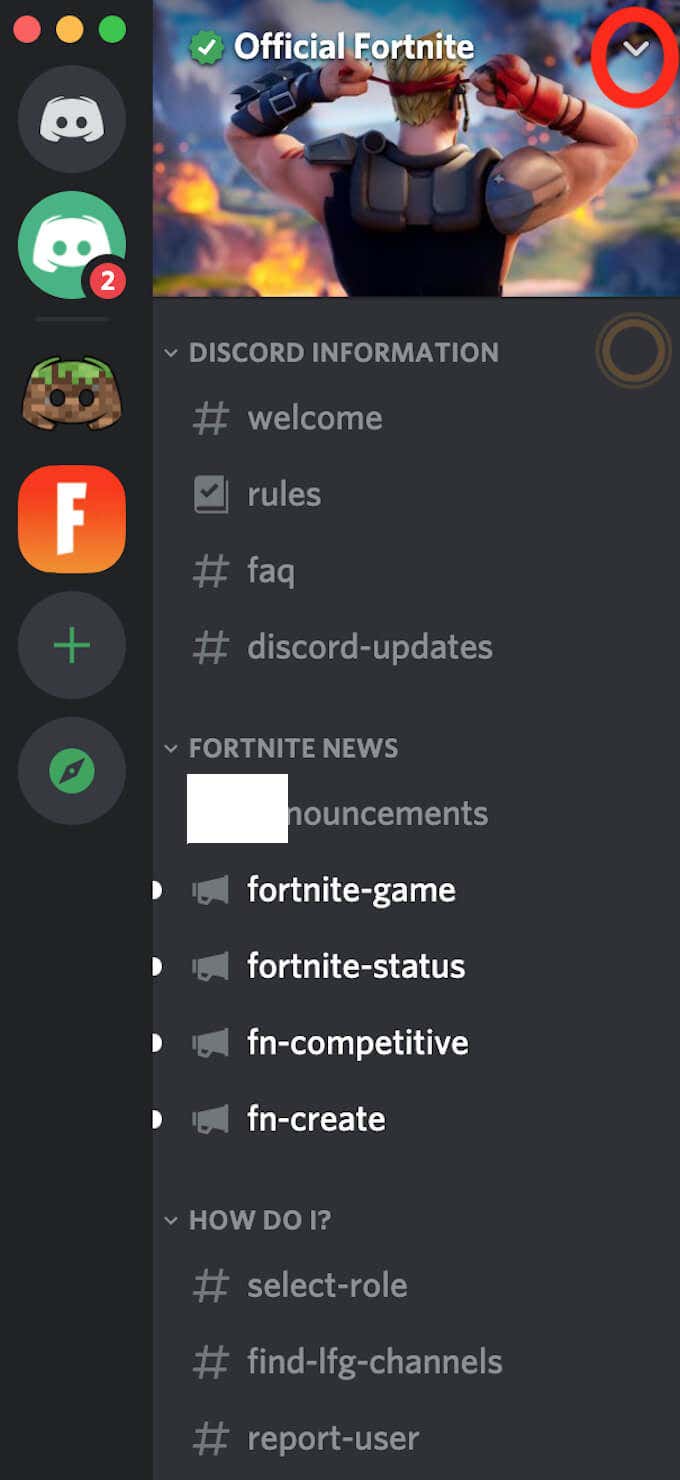
- Open the drop-down menu on the server’s sidebar on the left. On desktop it appears as a drop-down arrow, and on mobile it’s three vertical dots or an ellipsis.
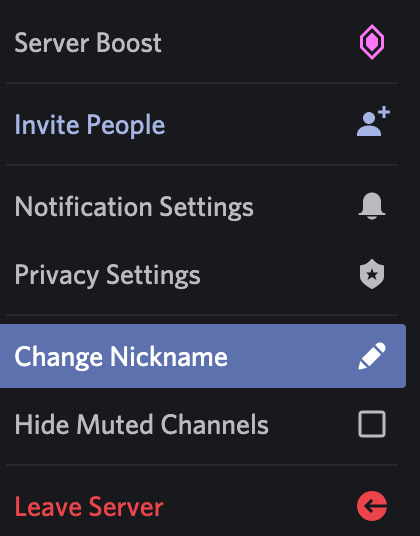
- Select Change Nickname.
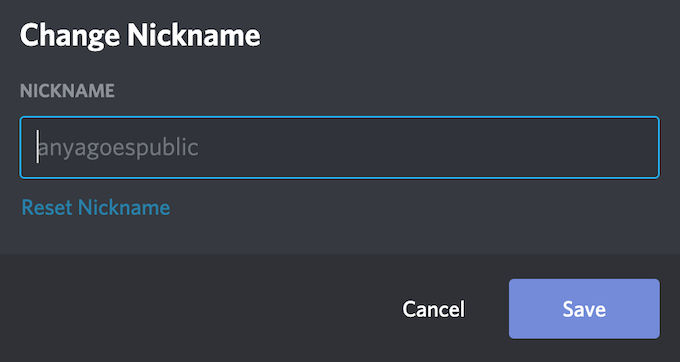
- Type the new nickname and select Save.
Your account will now appear on this selected server with a new nickname. Your old nickname will still appear on other servers that you’ve joined before. If you want to change your nickname on another server, you’ll need to repeat this whole process on each server.

There’s a quicker way to change your nickname on a selected server through the public chat. You can type the /nick command into the server’s chat followed by your new nickname and that will change your name on the server. Bear in mind that everyone on the server will be able to see this.
How to Reset Your Nickname
After you’ve changed your nickname on a server, you can always revert it back to the original. To do that, select the server and open the drop-down menu. Then follow the path Change Nickname > Reset Nickname. Select Save to confirm. Your nickname is now reverted to the original one.
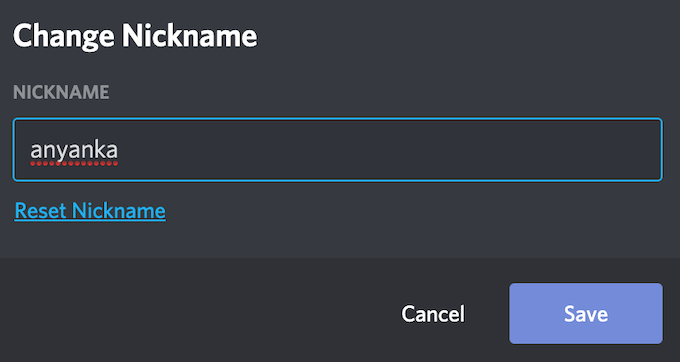
The instructions to change your nickname on a Discord server are the same for all devices, whether it’s a computer or a smartphone that you’re using.
How to Change Your Username on Discord
If you’re planning a bigger rebranding than just changing the way your name appears on just one server, Discord has a different method that you can use. Instead of changing your nickname on each Discord server one by one, you can change your username on all Discord servers at once. To change your username on all Discord servers, follow the steps below.
- Open Discord in your browser, on your computer or smartphone and log into your account.
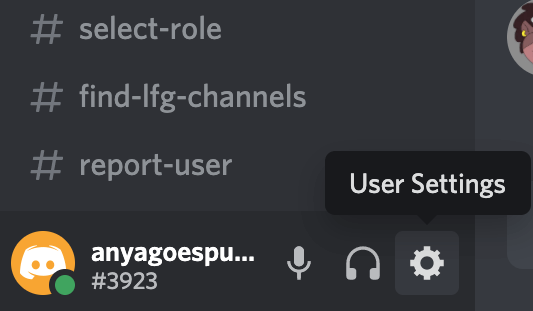
- Select User Settings located next to your username at the bottom of the app. On mobile, it’s the icon located in the bottom-right corner of the screen.
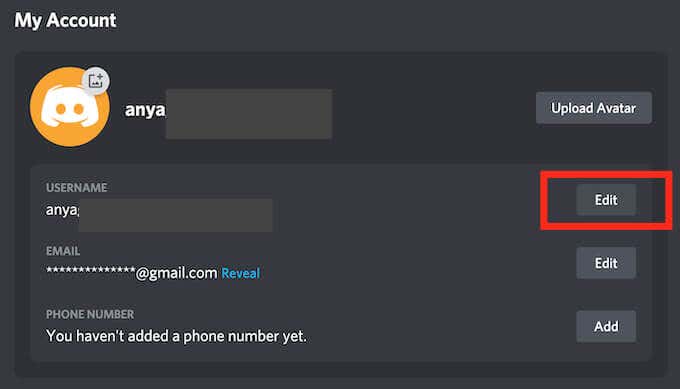
- Follow the path My Account > Username > Edit.
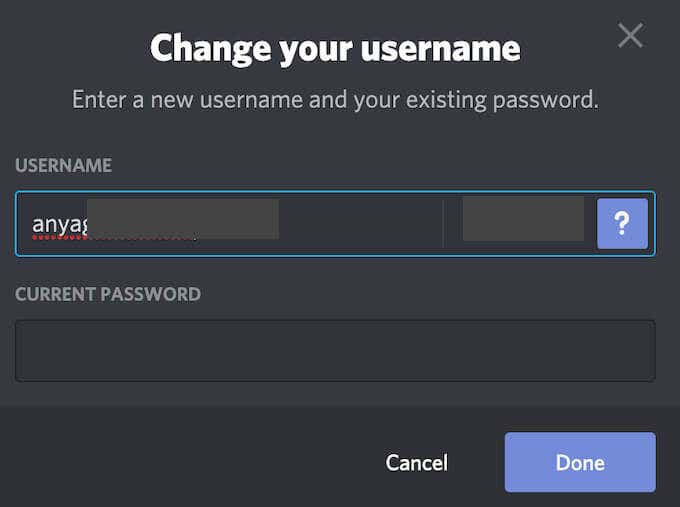
- In the Change your username window, enter your new Username and Current Password. Select Done to confirm.
Your account will now have a new username on all Discord servers. You can change both your nickname and your username as many times as you like.
How to Customize Your Discord Experience Further
Many users select Discord over other telecommuting services thanks to the app’s customization abilities. Aside from customizing how you appear on different servers on Discord, you can create and customize your own server. You can add a bot to play music in your server, or a special bot to help you create memes and have fun with your friends on the server.
Have you tried changing your nickname or username on Discord before? What other fun customization tricks that work on Discord do you know? Share your experiences in the comments section below.
