

YouTube is the most popular platform for watching and uploading videos, but it’s not entirely free of glitches and bugs. Did you ever log in to your YouTube account to watch your funny cat videos or a vlog, just to receive a “You’re Offline. Check Your Connection” error?
This error can affect the web browser version of YouTube and also prevent the YouTube app from working. That said, you can easily fix this error with our step-by-step troubleshooting guide.
Causes Behind “You’re Offline. Check Your Connection” YouTube Error
It’s frustrating when your favorite online platform doesn’t function properly and it’s easy to blame the developers behind it. But there are actually several reasons why you’re experiencing the “You’re Offline. Check Your Connection” error, and the fault might lie with your device without you even knowing it. Here are some of the most common things that can cause this issue:
- Poor or unstable internet connection. This is an obvious reason behind the “You’re Offline. Check Your Connection” error. Perhaps your device is disconnected from the router, or your internet is temporarily down.
- You run out of Mobile Data. Perhaps you spent all the available mobile data from your subscription plan..
- Your YouTube App is Outdated. Outdated apps don’t work properly and may cause this or similar errors.
- Your web browser is outdated. Similar to the app, outdated browsers may cause certain errors to appear.
- You have corrupted cache data in your browser. Corrupted data and cookies may cause this error message to appear.
- VPN or ad-blockers are interrupting your connection. VPN, proxy servers, and ad-blockers can slow down your internet connection or entirely interrupt it. This can easily result in the “You’re Offline. Check Your Connection” error.
With that in mind, here’s everything you need to check and fix to get rid of your YouTube troubles.
1. Check Your Internet Connection
Checking your internet connection should be the first thing you do when you get the “You’re Offline. Check Your Connection” error on YouTube. It doesn’t matter if you’re using a PC, Android, or iOS device, the connection must be established and stable in order for YouTube to work properly. So go on and check if your device is connected.
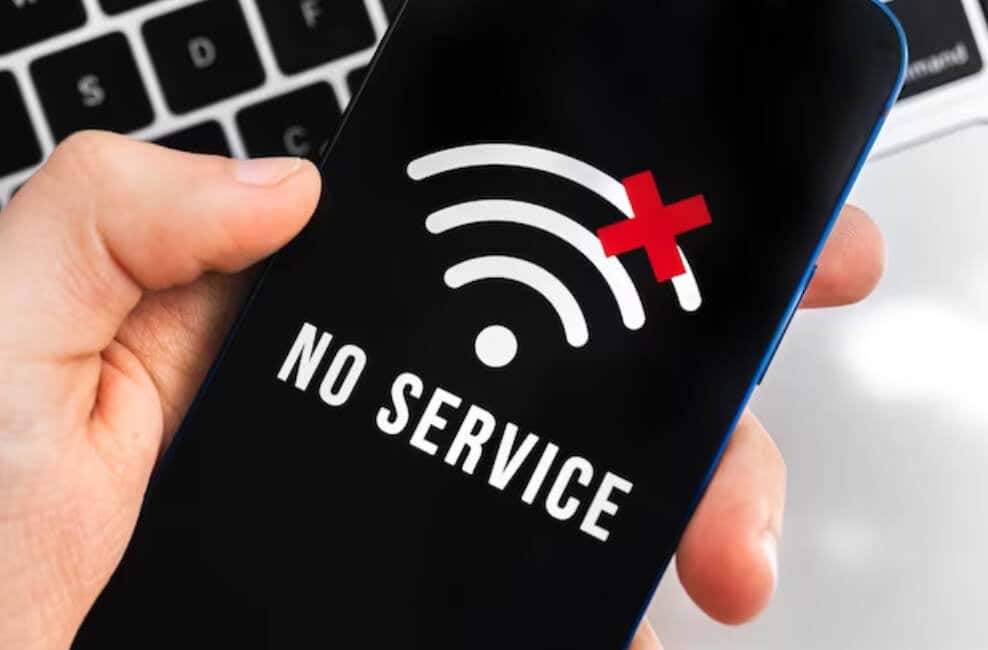
If you notice a connection error, try restarting your router or modem. You can also check the signal strength if you’re connected to a Wi-Fi network. Also, make sure other devices in your household are not using the same connection to run some programs in the background.
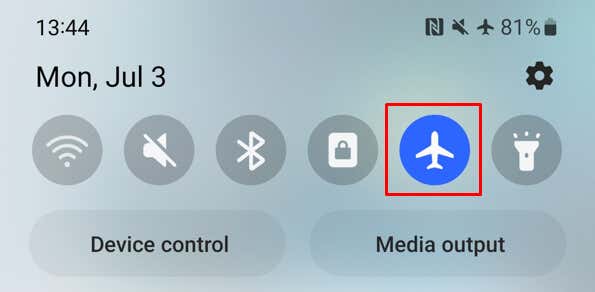
If you use a mobile device to browse YouTube, restarting your Android or iPhone might fix the connectivity issues. You can also try enabling and disabling Airplane Mode to restart the network connectivity.
2. Disable Airplane Mode on Your Mobile Phone
If you’re on your mobile device and you are getting the offline error, perhaps you forgot to disable the airplane mode. Airplane Mode restricts all wireless communication and it might be what’s causing the said error to appear when you try watching YouTube videos. If this is the case, simply disable the Airplane Mode on your mobile device and the issue should be fixed. You’ll find the airplane mode button among your shortcut icons on most mobile devices.
3. Change the Network if Possible
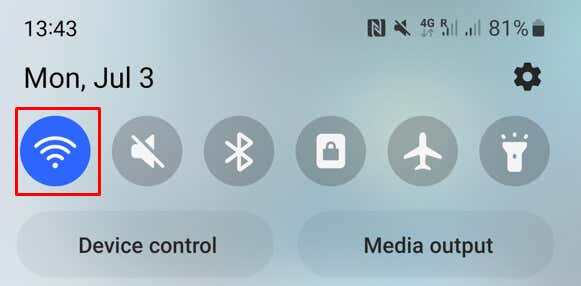
Perhaps the issue lies with your current network and you can’t really do much about it, especially if the problem is at the internet service provider’s end. In that case, you’ll want to change the network. If you’re using mobile data, try switching to it to see if the error persists.
This is especially a problem when using a public Wi-Fi network. They are prone to limiting access to certain websites, and YouTube might be one of them. They also limit the bandwidth for guests in order to keep the network open for everyone.
4. Clear Browser Cache
The browser cache can contain corrupted files that cause the “You’re Offline, Check Your Connection” error on YouTube. If this is the case, all you need to do is clear browsing data on your device. How you’ll do it depends on which browser and device you’re using.
If you’re using a PC, all popular web browsers have a similar method of clearing the cache, including Google Chrome, Mozilla Firefox, and Microsoft Edge. Although the steps may differ slightly on other browsers, here’s how to do it in Mozilla Firefox.
How to Clear the Cache on a PC Web Browser
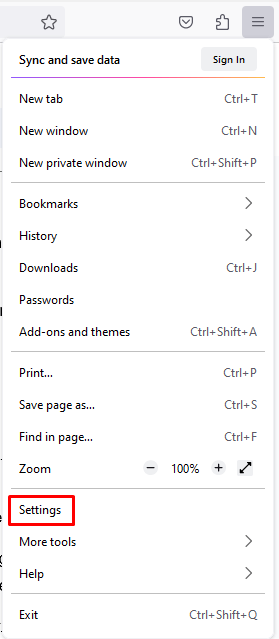
- Open the web browser and click the three lines menu in the upper-right corner.

- Select Settings from the drop-down menu.
- Select Privacy & Security from the left sidebar menu.
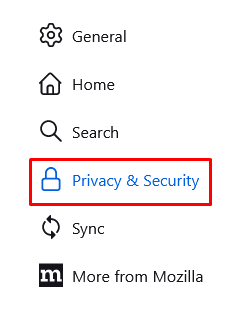
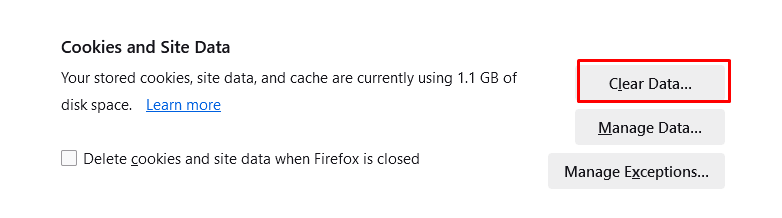
- Scroll down to Cookies and Site Data section and click the Clear Data button.
How to Clear the Cache on Safari
- Open the Settings app.
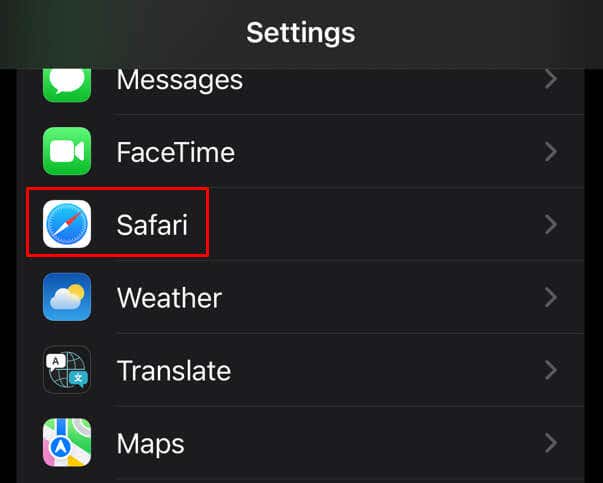
- Scroll down to find and tap Safari from the list of apps.
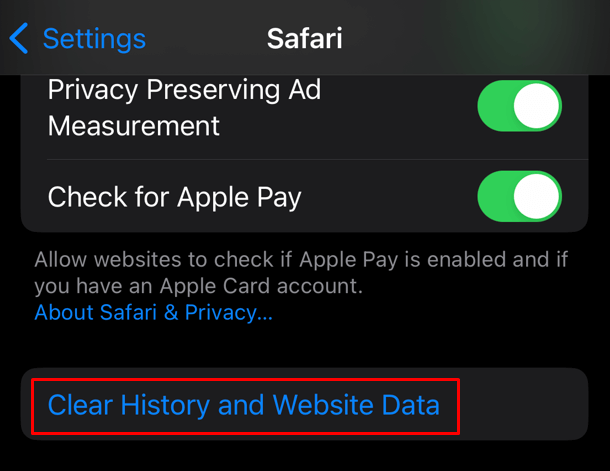
- Tap Clear History and Website Data.
How to Clear the Cache on the Android YouTube App
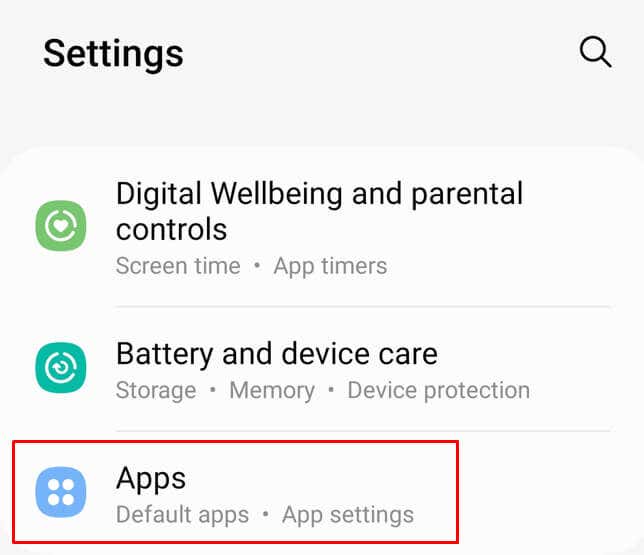
- Go to Settings, and navigate to the Apps menu.
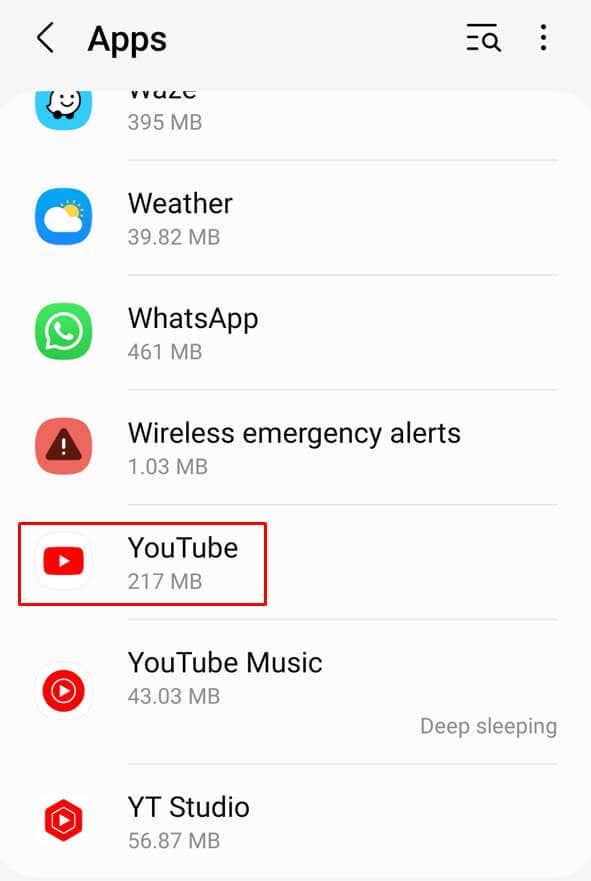
- Find YouTube on the list of apps, and tap it.
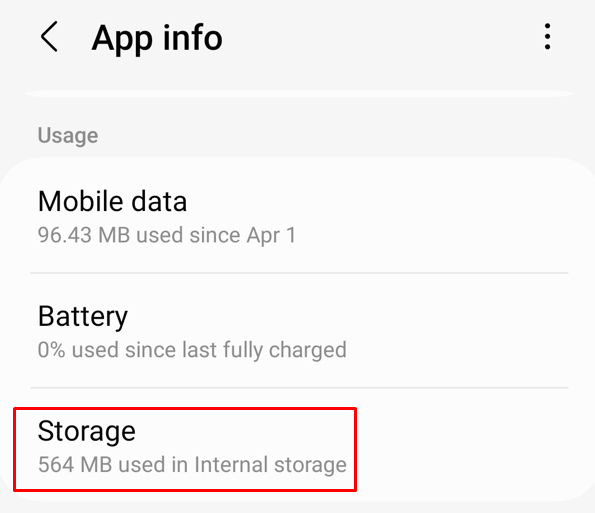
- Once you open the app’s settings, select Storage.
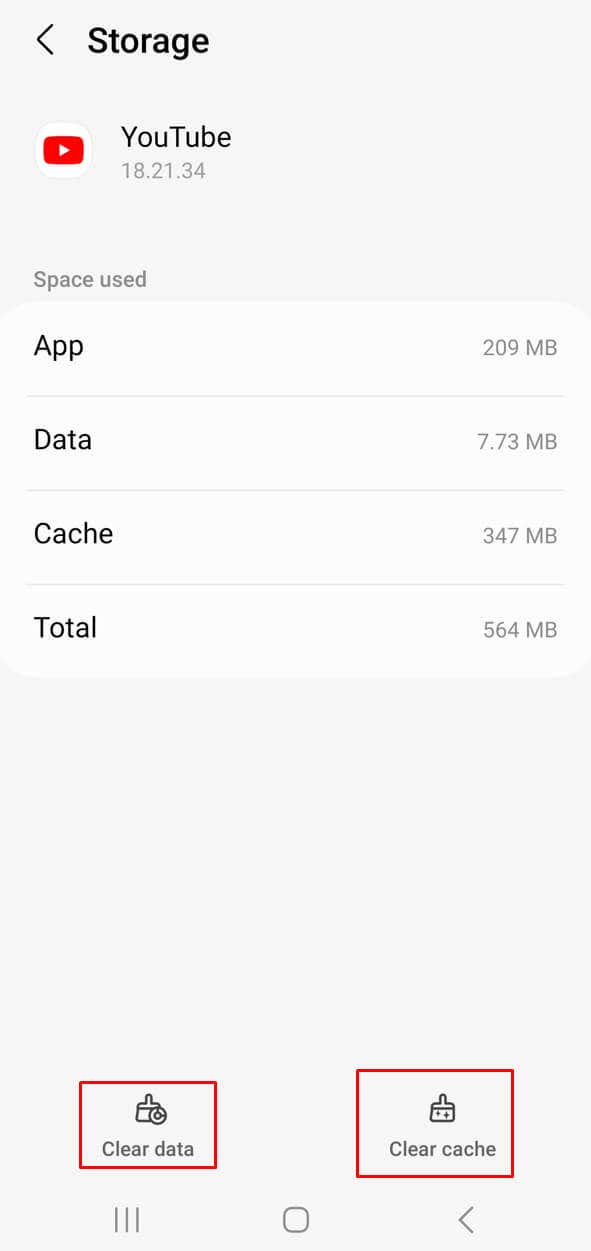
- Select Clear Cache and then Clear Data.
5. Update the YouTube App
Outdated versions of apps often don’t work properly. You should periodically check if there are any updates. If you’re experiencing the “You’re Offline. Check Your Connection” issue on the app, simply update your YouTube to the latest version available.
If you’re using an iPhone or an iPad, you can do this from the App Store. And if you’re using an Android device, use the Google Play Store instead.
- Type YouTube in the search bar of the App or Play Store.
- If there’s an update available, you’ll see the Update button, tap it.
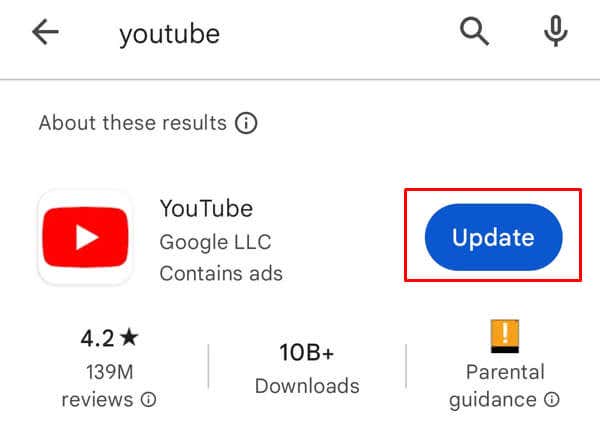
- The update will start automatically. Once it finishes, open the app and see if the error appears again.
6. Update Your Web Browser
Having the latest version of the web browser is essential if you want websites to open up properly and without any errors. No matter which browser you’re using, it should be the latest version for your online security and a better user experience.
Updating a web browser may differ depending on which one you’re using, but generally:
- Go to the browser’s Settings.
- Type “Update” in the search bar.
- Look for the Check for Updates button and click it.
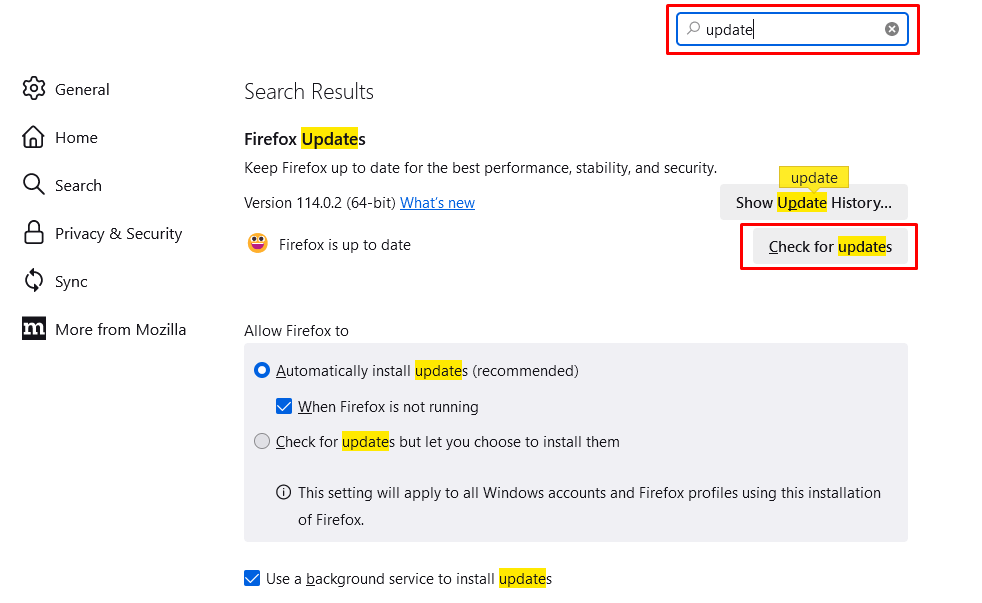
- Wait to see if your browser finds any available updates, and if it does, select Install.
7. Disable Your VPN and Ad Blockers
If you’re using a VPN (Virtual Private Network) know that it can interfere with your connection to the internet and it’s causing the “You’re Offline. Check Your Connection” error. To fix this issue, simply disable your VPN app and try streaming a video again to see if you still experience the issue.
As for Ad blockers, they work by interfering with the advertisement code, and that causes errors when you try to watch a video. Turn off your Adblocker to see if this fixes the issue.
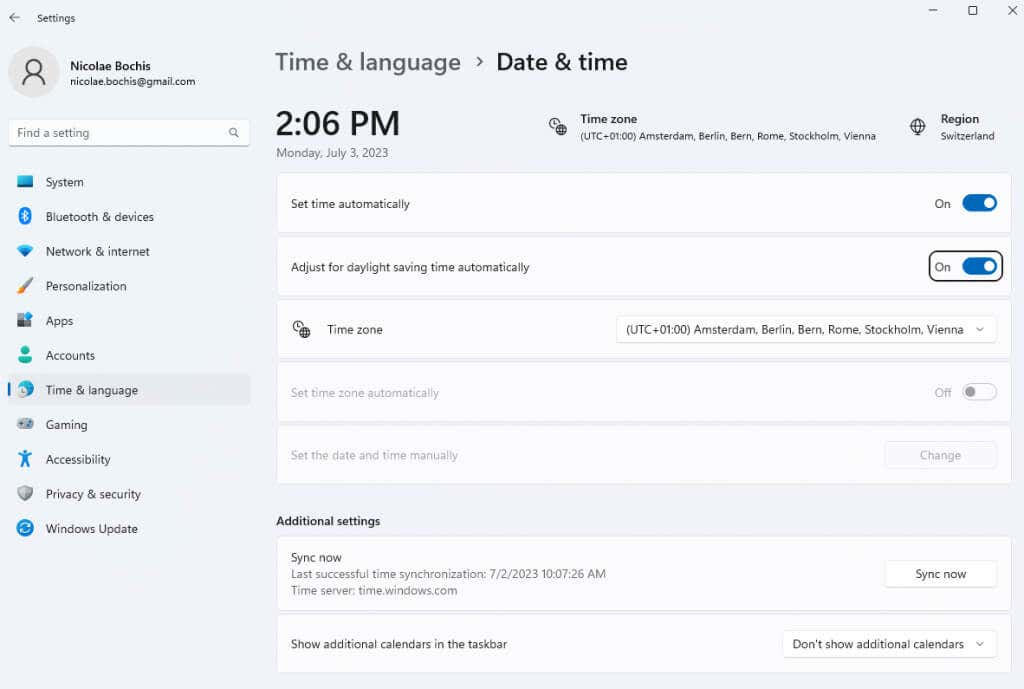
8. Check Your PC’s Date and Time Settings
The incorrect Date and Time settings on your Windows PC may cause YouTube’s “You’re Offline. Check Your Connection” error. To see if this is the case for you, check if your PC has the correct Date and Time setting. This happens if you recently moved into another time zone.
9. Restart Your Device
Sometimes the glitch can be in your device. If all else fails, try restarting your PC or mobile device. This usually fixes the system errors and bugs and it may help you with the “You’re Offline. Check Your Connection” error on YouTube.
Bonus: Other Quick Fixes
If none of the above steps help you with the “You’re Offline. Check Your Connection” error you might want to try some of these quick fixes. They are simple but they might help you deal with the issue in no time.
- Sign out of your YouTube account and sign back in.
- Refresh the YouTube website.
- Check if your router and modem are in working order.
- Contact YouTube Support.
Which fix worked for you? Let us know in the comment section below.
