

Accidentally deleting crucial files is a nightmare that many computer users have experienced. Fortunately, there’s hope when using Linux, as several tools and techniques can be used to restore files.
Before diving into the recovery process, make sure you unmount the affected drive right away to avoid overwriting deleted files with new data. This step increases the likelihood of successful file recovery.
If you’re unsure how to recover deleted files on Linux, follow the steps below.
Understanding Linux File Management
Before you recover deleted files on your Linux PC, it’s a good idea to understand how this is possible. It’s all down to how files are managed on a Linux file system.
Files on Linux use inodes, which contain vital info like file size and location. When you delete a file, the inode is marked as free—the data is still technically there, but you’ll lose access to it. Over time, new files will overwrite the old ones, making file recovery much harder as time goes on.
While there isn’t a built-in undelete command, you can recover files using tools like TestDisk and PhotoRec, depending on your use-case. It’s essential to act fast after realizing your file is missing, as data can be overwritten quickly.
However, recovery isn’t a substitute for prevention. To avoid being in this situation in future, make sure that you back up your files regularly and use clear folder structures to minimize the risk of accidental deletion.
Before Recovering Your Files on Linux
When it comes to recovering deleted data on Linux, there are some important precautions you should take to ensure a successful recovery.
Avoid Overwriting Data
One crucial aspect of recovering lost files is making sure you don’t overwrite the data you’re trying to recover. To do this, you should immediately stop using the affected drive after you realize files are missing.
You can then use a portable Linux distribution on a Live CD or USB drive to boot the system and perform the recovery process. You should also make sure you don’t save recovered files to the same drive—store them on a different drive to prevent further overwriting.
Data Backup
To safeguard your data, it’s a good idea to have a backup plan in place. Having a reliable backup means you won’t need to worry about data recovery processes as much.
It’s a good idea to have a regular backup schedule (whether it’s daily, weekly, or monthly). You should also try to store backups in multiple locations, both physical and online, to protect against data loss due to hardware failure or natural disasters.
If you can’t do that, you should try to use cloud storage solutions like Dropbox or Google Drive as a way to store your most important files away from your physical location.
Using Safe Commands
When working on a Linux PC, you should try to follow some best practices to avoid overwriting or deleting your files accidentally.
With that in mind, you should become familiar with commands like cp (copy), mv (move), and df (display filesystem) on your PC. Understand their proper usage and syntax—if you’re unsure, type man command (eg. man cp) in the command line or terminal to learn more.
Once you’re sure, you should be extremely cautious when handling crucial files. Always double-check your commands before running them. A good way to avoid overwriting your files is to use the –no-clobber flag with the cp and mv commands, which will stop the commands from overwriting any existing files.
If you’re trying to delete files using rm (remove), consider using the -i (interactive) flag, which prompts confirmation before deleting files.
By taking these precautions, you can minimize the chances of accidentally losing or overwriting important files—prevention is much better than recovery, after all.
Recovering Deleted Files on Linux Using TestDisk
A useful tool for recovering deleted files on a Linux PC is TestDisk, an open-source tool designed for data recovery. TestDisk can be used to recover entire lost partitions from your hard drive when your file system structure has been corrupted or if you’ve formatted your drive by mistake.
If you want to recover individual files, you can use TestDisk’s companion application PhotoRec instead. We’ve outlined how to use this in the next section.
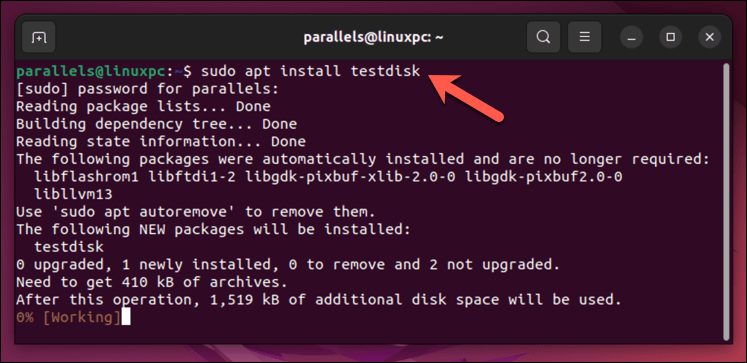
On Ubuntu and Debian-based operating systems, you can quickly install TestDisk by opening the terminal and using the command sudo apt install testdisk to begin the installation with the correct permissions.
Finding Lost Partitions
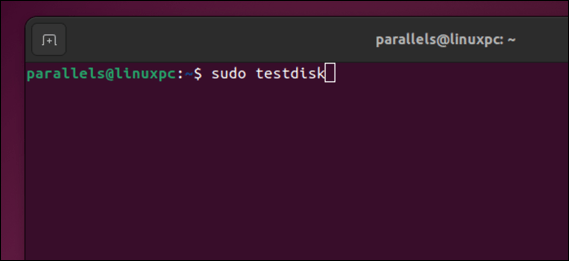
Once you’ve installed TestDisk, the first step is to identify the partition you’re working with. Launch TestDisk by typing sudo testdisk in the terminal.
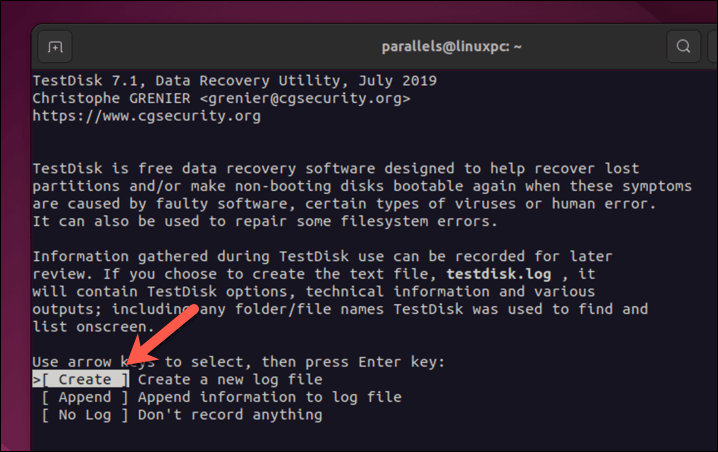
When prompted, select Create to start a new log file—press Enter to confirm.
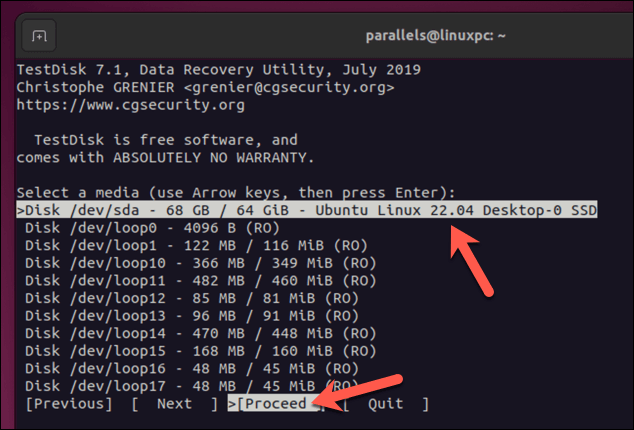
Choose your hard drive and select Proceed with your arrow keys, then press Enter.
When prompted, pick the partition type and press Enter. Most users will need to select Intel, but take note of the hint at the bottom—in most cases, the hint will be accurate.
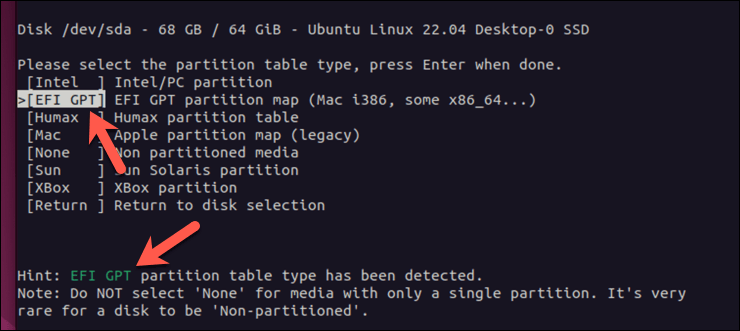
At this point, you’re ready to proceed. You can select Analyse to search your current partitions or press Advanced to access other file system recovery tools.
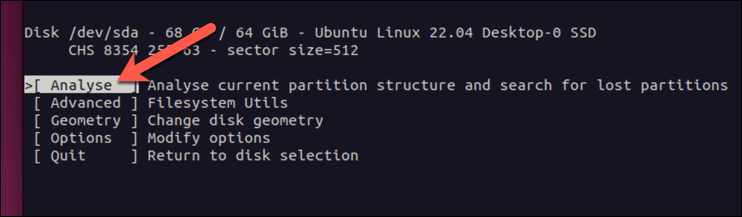
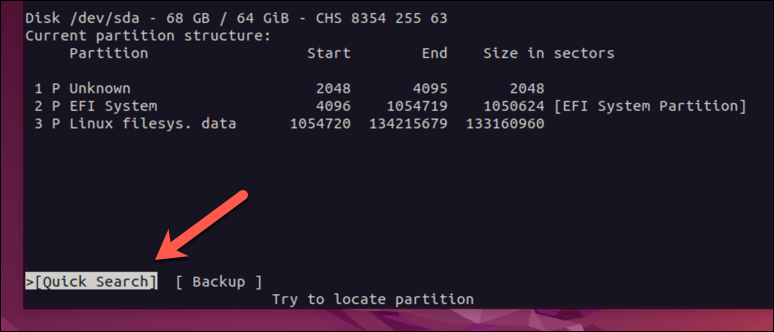
When you’re ready, select Quick Search to search for lost partitions and press Enter.
Recovering Files with TestDisk
TestDisk will search for lost partitions. If it can’t find them, select Deeper Search and allow the search to complete. Once it finds them, you can then try to recover them (and any missing files).
To do this, use the arrow keys to select a partition, then press p to list the files on it.
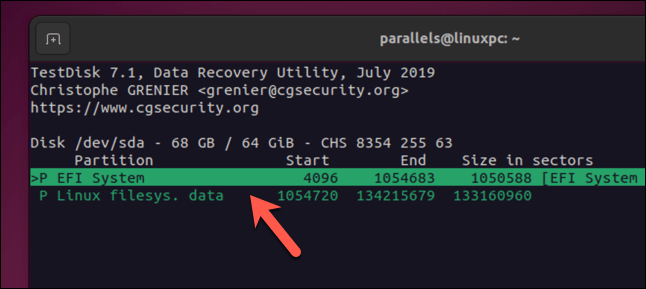
If it’s the right partition, press q (lowercase) to return to the previous menu, then press the left or right arrow keys on your keyboard to update the partition from deleted to a standard logical or primary partition. Press Enter to confirm the change. To write the changes to the partition table, select Write, then Enter.
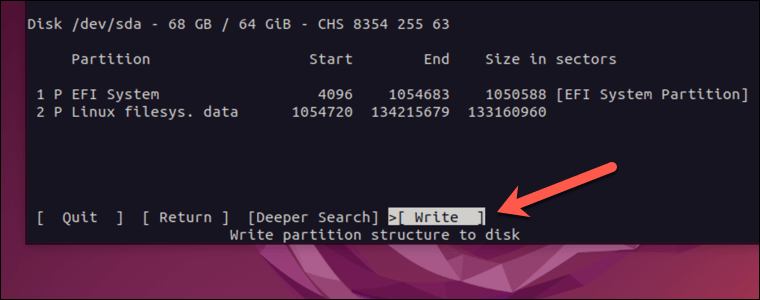
Once the process is complete, you should be able to mount the drive and view the files as normal.
Recovering Deleted Files Using PhotoRec
If you only need to recover a small number of files (rather than an entire drive or partition), you might prefer to use PhotoRec instead. PhotoRec is a companion recovery tool to TestDisk—it requires you to install TestDisk first to use it.
Photorec supports a huge number of file extensions, from ZIP files to media files.
Running PhotoRec
With PhotoRec, you can choose specific file types to recover, such as images, documents, or even file systems like FAT and ext3. Once you’ve selected your desired partition, you’ll be given the option to choose the file system.
We’ll explain how to use PhotoRec to recover different files on an ext4 partition. The steps should remain similar for different systems, however.
To run Photorec, you’ll need to follow the steps above to install TestDisk first. Once it’s installed, run the following command from your Linux terminal:
sudo photorec
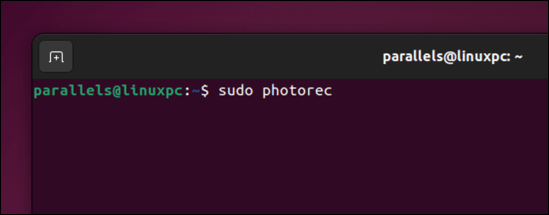
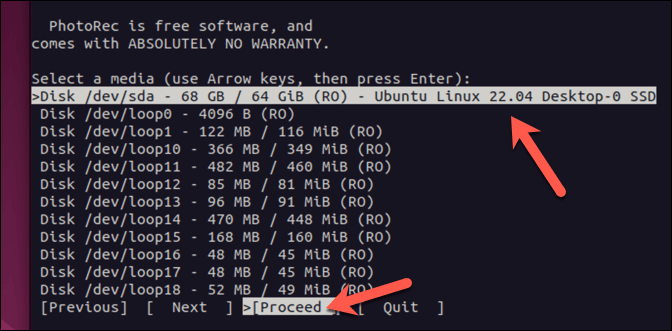
This will launch PhotoRec with administrative privileges—you may need to provide your system root password for it to run successfully. You’ll see a list of partitions, connected disks, and devices.
Navigate the menu using up and down arrow keys to select a partition where you want to recover files from, then use the right arrow key to select Proceed. Press Enter to proceed.
Selecting File Types to Recover
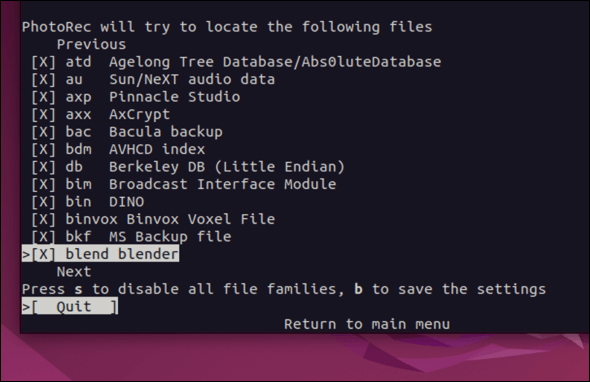
At the next menu, select File Opt and press Enter.
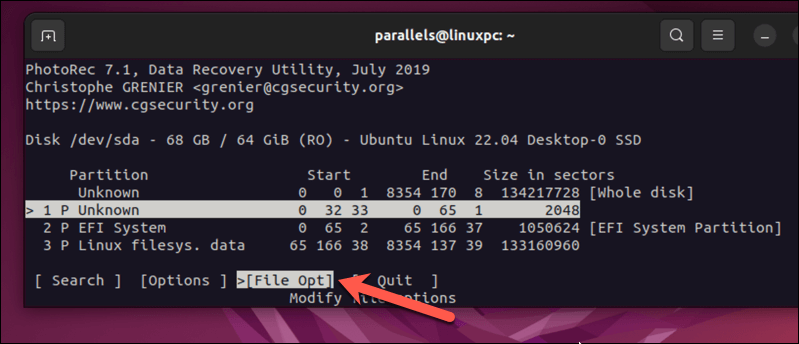
From this menu, select any file types that you do (or don’t) want to search for by using the arrow keys and pressing Enter. Those with a cross will be recovered. Press b (lowercase) to save your settings, then press q to return to the previous menu.
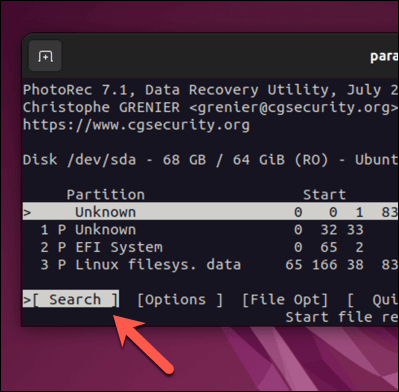
When everything’s configured, select Search and press Enter.
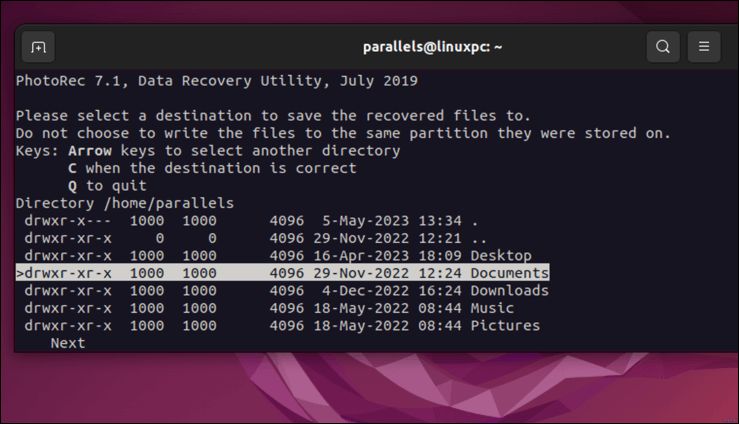
You’ll need to choose a location to save the files it recovers. Select a directory, then press C (uppercase).
PhotoRec will begin scanning your selected partition and recovering the specified file types for you automatically. Once the process is complete, the terminal will display the results, including how many files were recovered.
Protecting Your Files on Linux
Thanks to the steps above, you can try your best to recover deleted files on Linux. It’s important to remember that acting fast and unmounting the device can improve your chances of a successful recovery.
Do you want to manage your files better? You can always move and rename your Linux files without risking file deletion. If you’re new to Linux, you’ll need to make sure you understand the Linux directory structure to help you locate your files and save them appropriately on your device.
