Skip to content
HELP 101010 DESK 010101 GEEK
  • How-To
  • Social Media
  • Streaming
  • Reviews
  • How-To
  • Social Media
  • Streaming
  • Reviews
  1. Home/
  2. Social Media/
  3. How to Save Your Live Stream on Twitch, Instagram and Facebook

How to Save Your Live Stream on Twitch, Instagram and Facebook

Jake Harfield
January 30, 2022
4 min read

Help Desk Geek is reader-supported. We may earn a commission when you buy through links on our site. Learn more.

It’s now possible to save your live streams easily on most platforms, which is great if you want to upload them to another platform or archive them for safe storage. Twitch, Instagram, and Facebook have included this feature.

In this guide, we’ll show you how you can save your live stream on Twitch, Instagram, and Facebook.

Table of Contents

    How to Save Your Live Stream on Twitch

    Twitch incorporates a feature called Video on Demand (VOD) which saves streams and allows users to see videos after they’ve been streamed. Via this feature, it’s possible to find and download your previous live streams. First though, you need to enable VODs, then saving them is easy.

    Here’s how to set up your VODs to easily save your live streams:

    1. Open the official Twitch website and log in. 
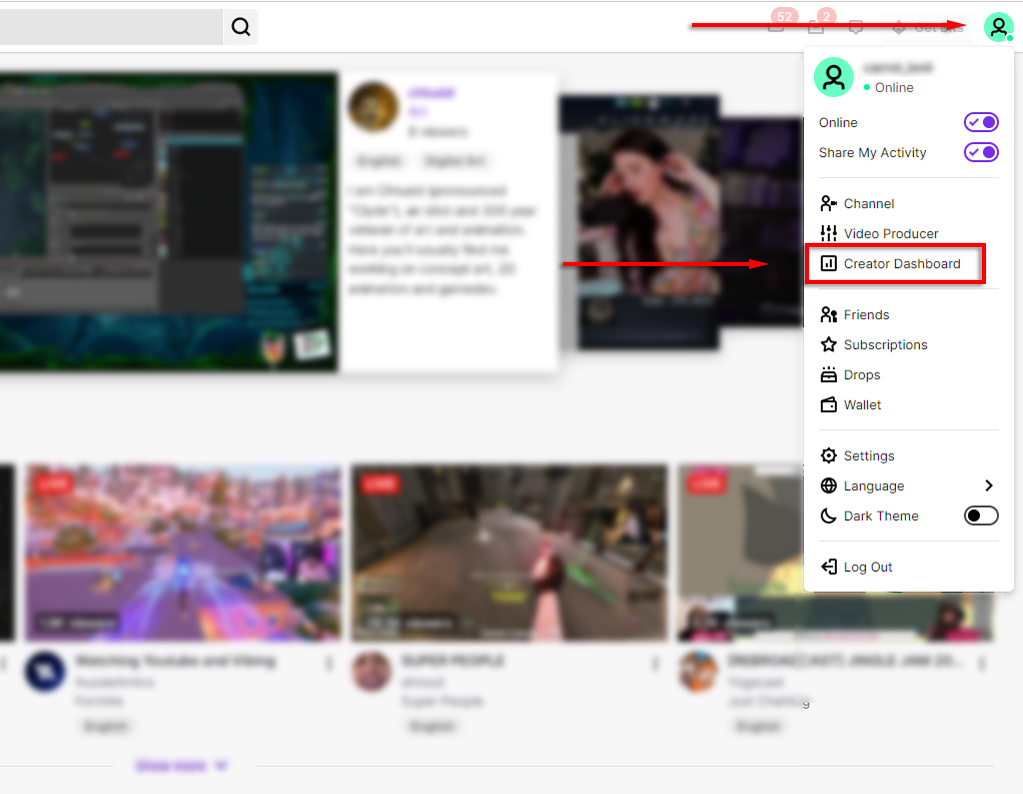
    2. Click your user avatar in the top-right corner of the screen. 
    3. Select Creator Dashboard.
    How to Save Your Live Stream on Twitch, Instagram and Facebook image 2
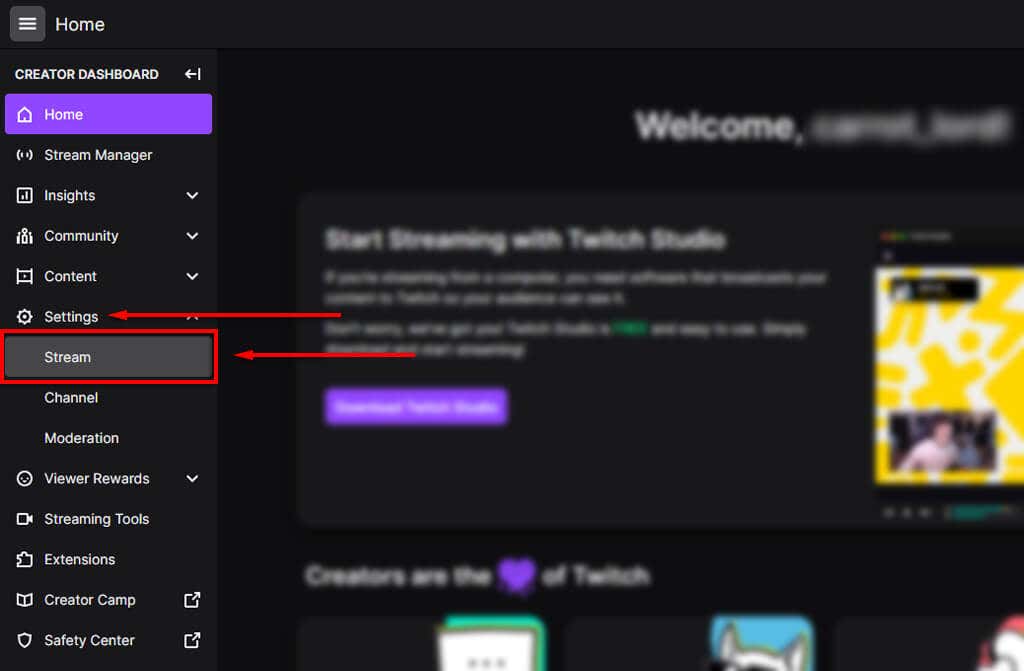
    1. In the left-hand menu, select Settings then select Stream in the dropdown menu.
    How to Save Your Live Stream on Twitch, Instagram and Facebook image 3
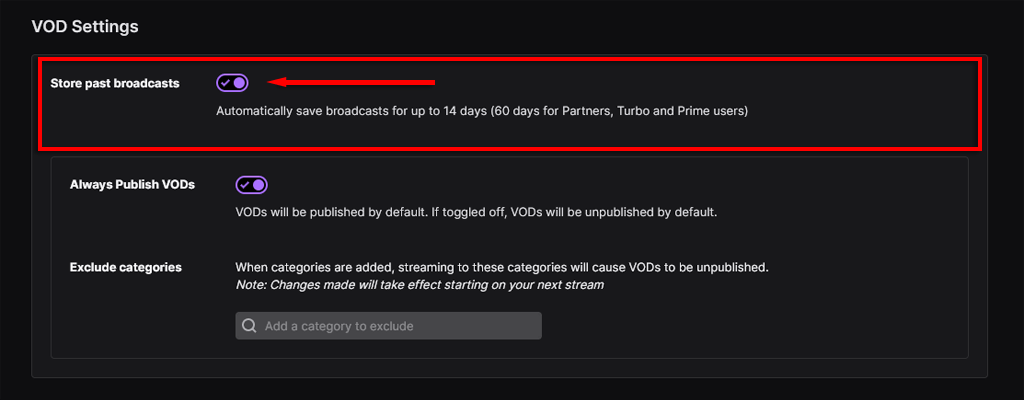
    1. Scroll down to VOD Settings and toggle on the switch for Store past broadcasts.
    How to Save Your Live Stream on Twitch, Instagram and Facebook image 4

    Now, each time you complete a live stream, Twitch will save the video as a VOD. These are saved for 14 days if you’re a Twitch standard user, or 60 days if you have a Twitch Turbo, Prime Gaming subscription, or you’re a Twitch Partner. 

    To find and save your live streams, do the following:

    1. Open the official Twitch website and log in. 
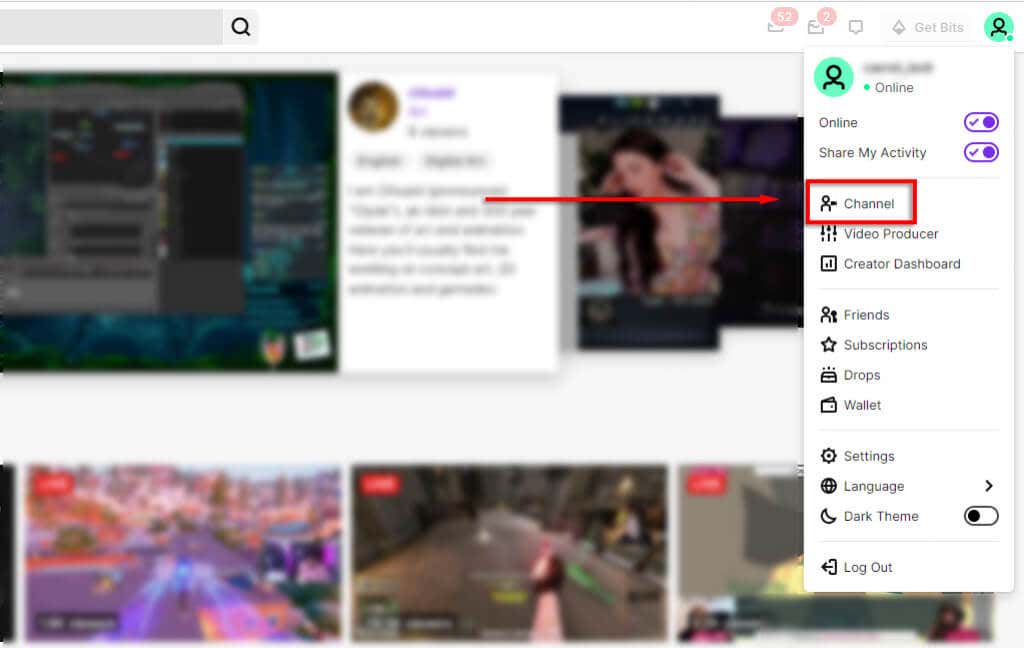
    2. Select your user avatar in the top-right corner. 
    3. Select Channel.
    How to Save Your Live Stream on Twitch, Instagram and Facebook image 5
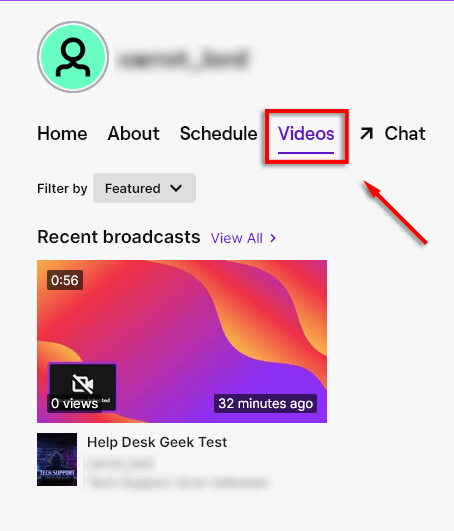
    1. Select Videos. On this page, you’re able to see all of your previously saved videos.
    How to Save Your Live Stream on Twitch, Instagram and Facebook image 6
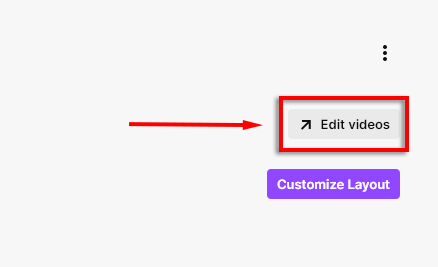
    1. Select Edit Videos at the top-right of the pane.
    How to Save Your Live Stream on Twitch, Instagram and Facebook image 7
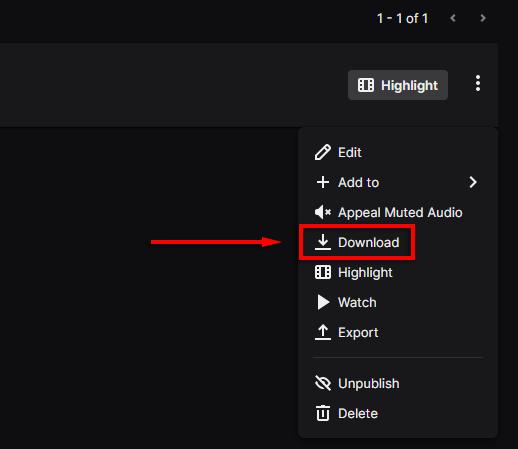
    1. Click the video you wish to save, then select the three vertical dots.

    How to Save Your Live Stream on Twitch, Instagram and Facebook image 8
    1. In the drop-down menu, select Download.
    How to Save Your Live Stream on Twitch, Instagram and Facebook image 9

    Twitch also offers another functionality called Highlights which allows you to save curated broadcasts into short videos that remain on your channel forever.

    Note: To download other people’s videos, check out our guide. 

    How to Save Your Live Stream on Instagram

    Instagram introduced the ability to download live streams (also called broadcasts) around 2017, bringing it up-to-date with other platforms like Facebook and Twitter. Keep in mind, you’re only able to create and save a live stream via your mobile device.

    To save your live stream on Instagram on Android or iPhone:

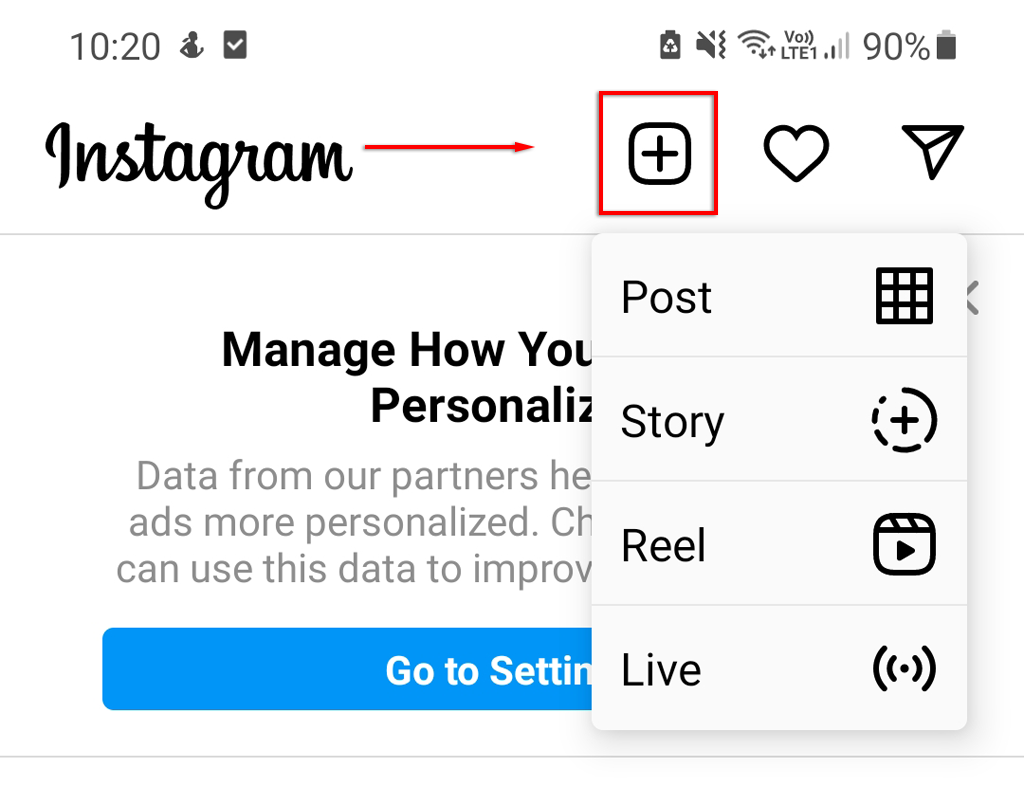
    1. Tap the Plus icon at the top-left of the app.
    How to Save Your Live Stream on Twitch, Instagram and Facebook image 10
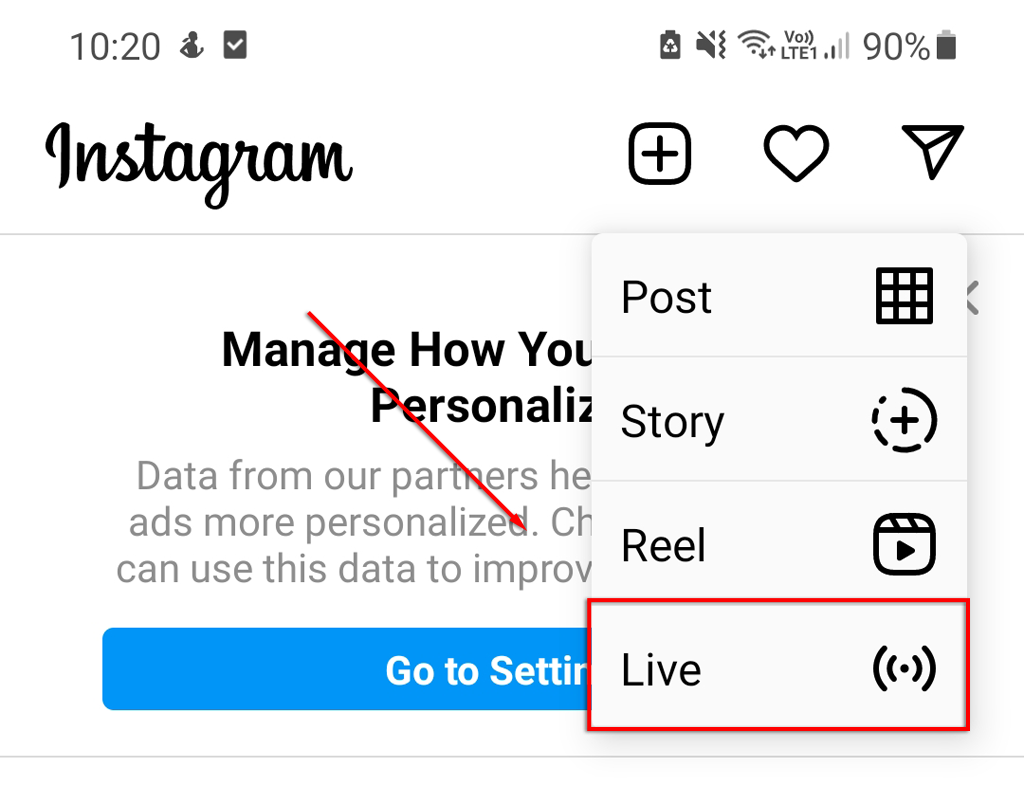
    1. Tap Live, and give Instagram any required permissions.
    How to Save Your Live Stream on Twitch, Instagram and Facebook image 11
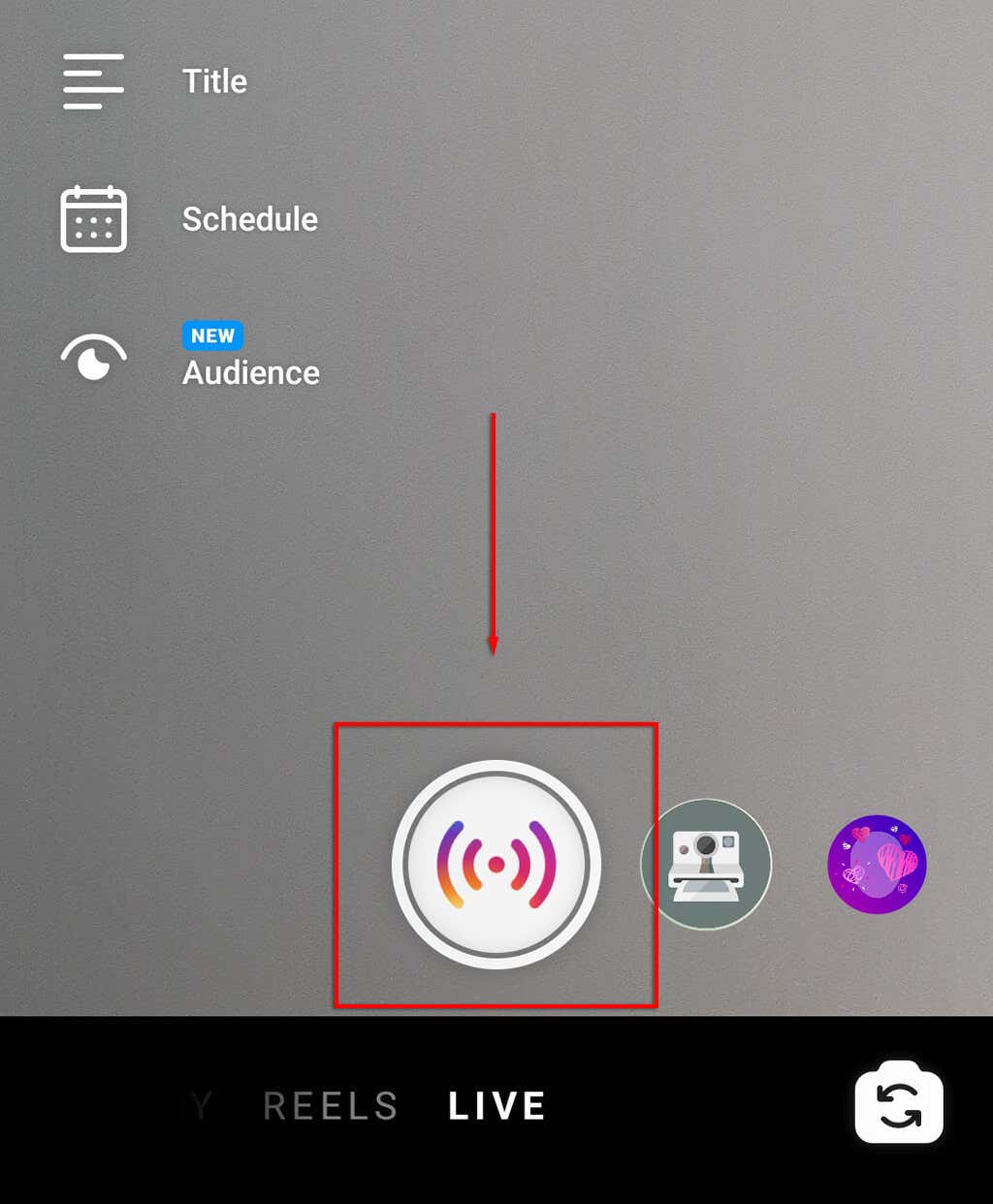
    1. Tap the shutter icon to start your live video.
    How to Save Your Live Stream on Twitch, Instagram and Facebook image 12
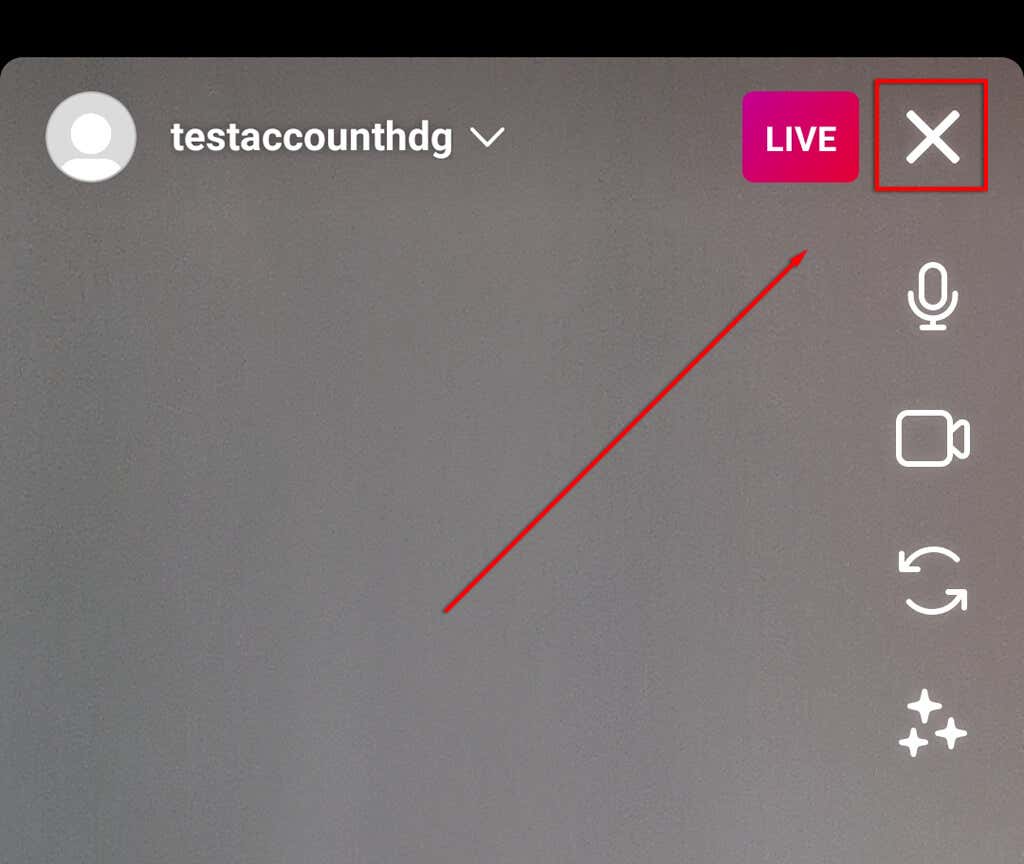
    1. Once completed, tap the cross icon at the top-right corner of the screen to end your stream.
    How to Save Your Live Stream on Twitch, Instagram and Facebook image 13
    1. A pop-up will appear asking you whether you want to save or discard your video. Select Download Video. The video will be saved in your camera roll.
    How to Save Your Live Stream on Twitch, Instagram and Facebook image 14

    Note: You’re only able to save your live stream as soon as it’s completed. Once you move past the final pop-up, saving the stream becomes impossible.

    How to Save Your Live Stream on Facebook

    As soon as you finish a live stream on Facebook, it will automatically post to your Facebook timeline and save it in your Facebook video library. This makes it incredibly easy to download if you want to archive it or post it to another platform. 

    To download your live stream from Facebook on PC or Mac:

    1. Head to Facebook and log in to your account.
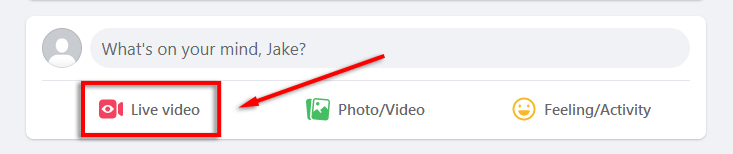
    2. Select Live Video.
    How to Save Your Live Stream on Twitch, Instagram and Facebook image 15
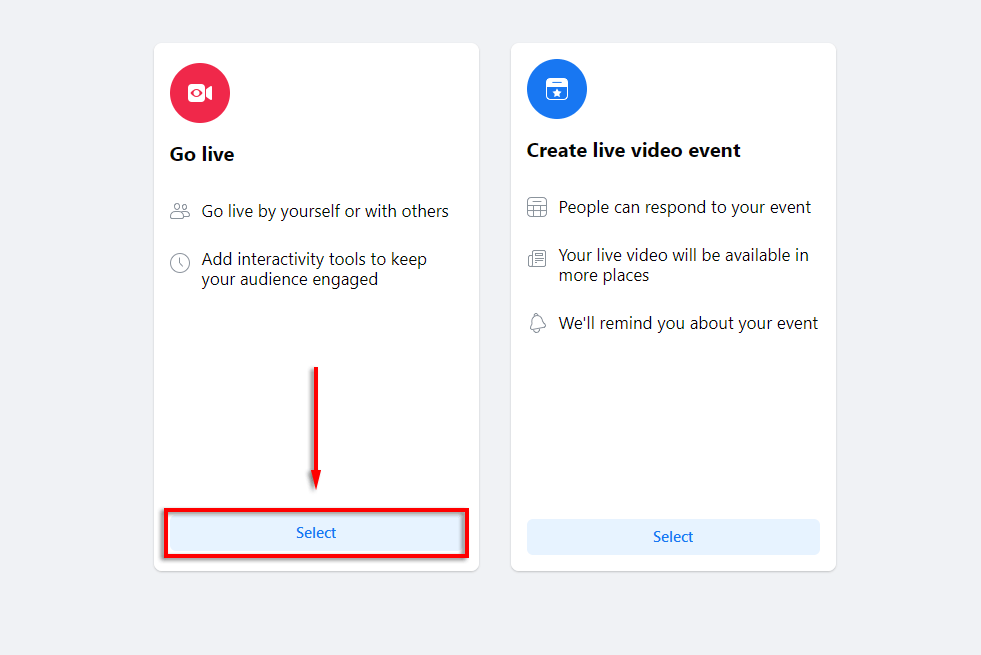
    1. On the new page, select Go live.
    How to Save Your Live Stream on Twitch, Instagram and Facebook image 16
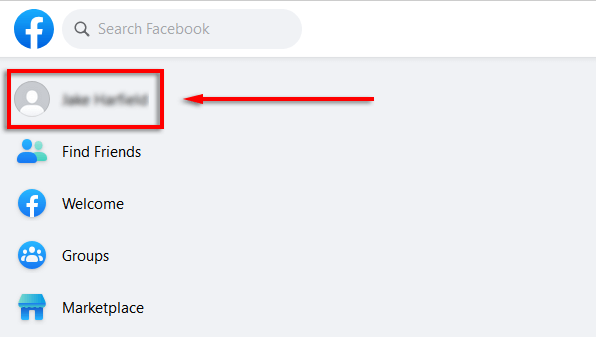
    1. Once you’ve completed your live stream, select your user avatar at the top-left corner to go to your profile.
    How to Save Your Live Stream on Twitch, Instagram and Facebook image 17
    1. Select Videos.
    How to Save Your Live Stream on Twitch, Instagram and Facebook image 18
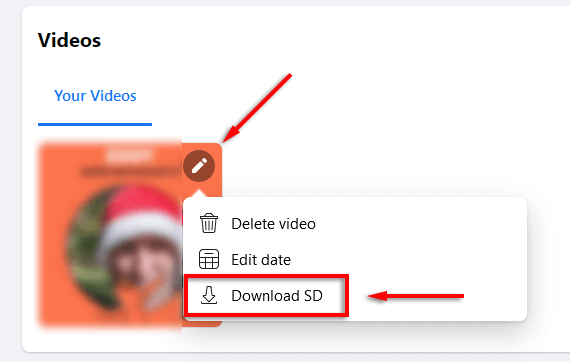
    1. You should see a list of all the videos on your account. Find your live stream and select the pencil icon at the top-right of the thumbnail. Next, select Download SD.
    How to Save Your Live Stream on Twitch, Instagram and Facebook image 19
    1. The video will now be in your downloads folder.

    Downloading live streams via Android or iPhone is more difficult. To do so:

    1. Find the video you wish to download in the Facebook app.
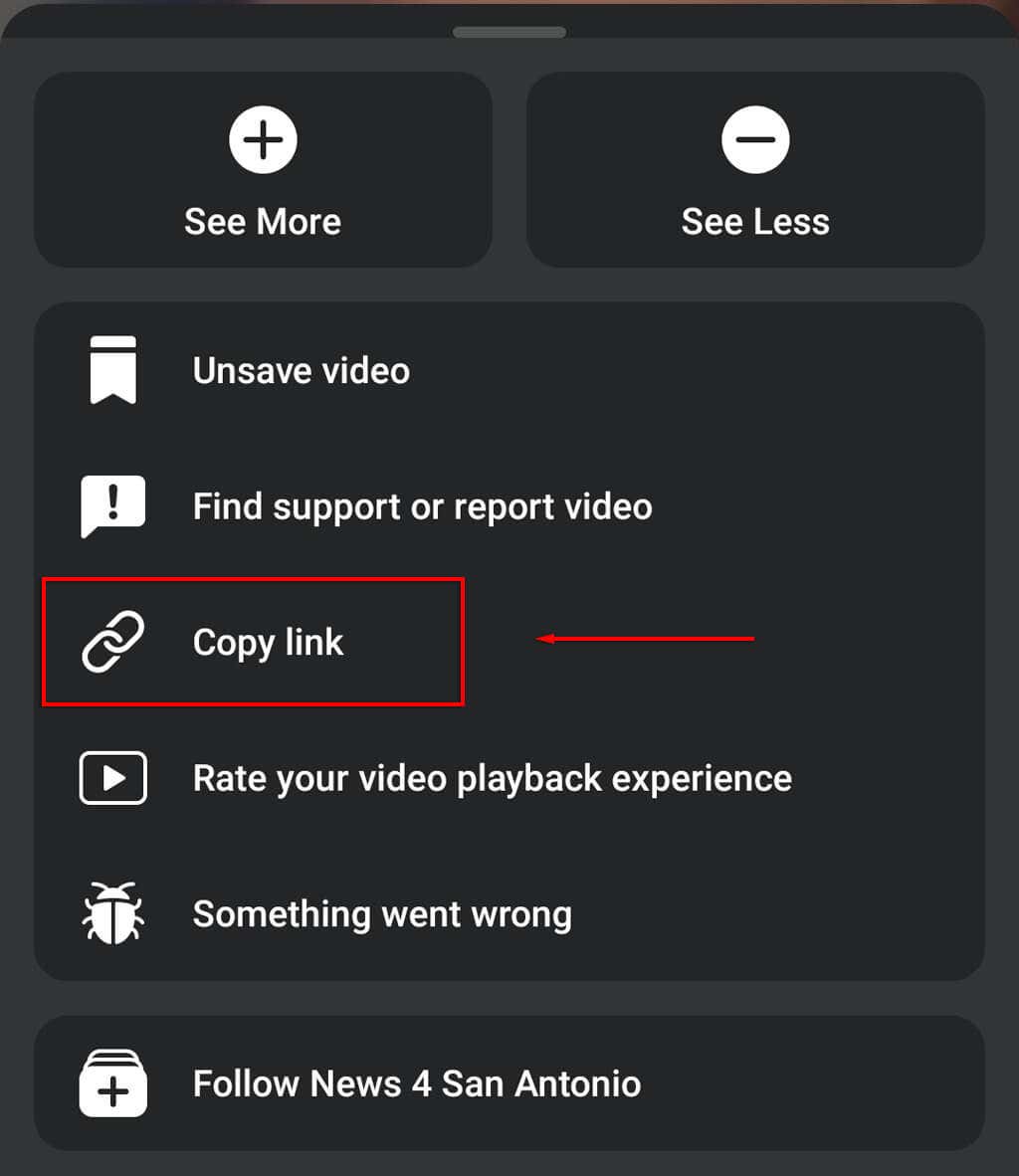
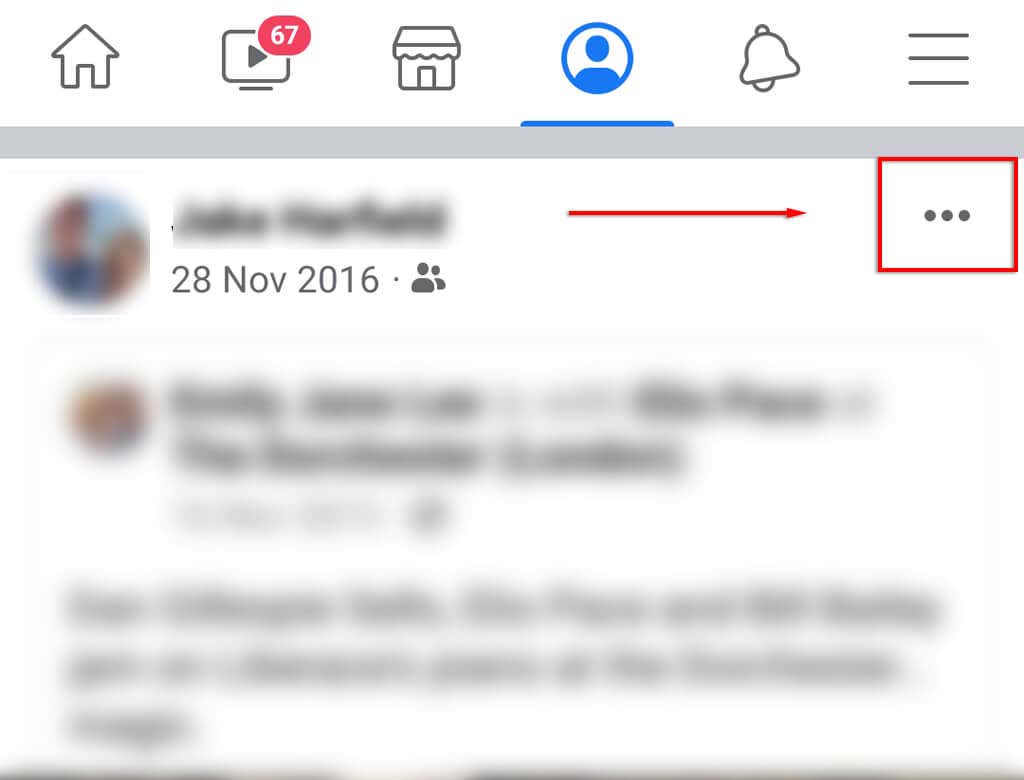
    2. Open the video, then tap the three dots at the top-right of the pane.
    How to Save Your Live Stream on Twitch, Instagram and Facebook image 20
    1. Select Copy Link.
    How to Save Your Live Stream on Twitch, Instagram and Facebook image 21
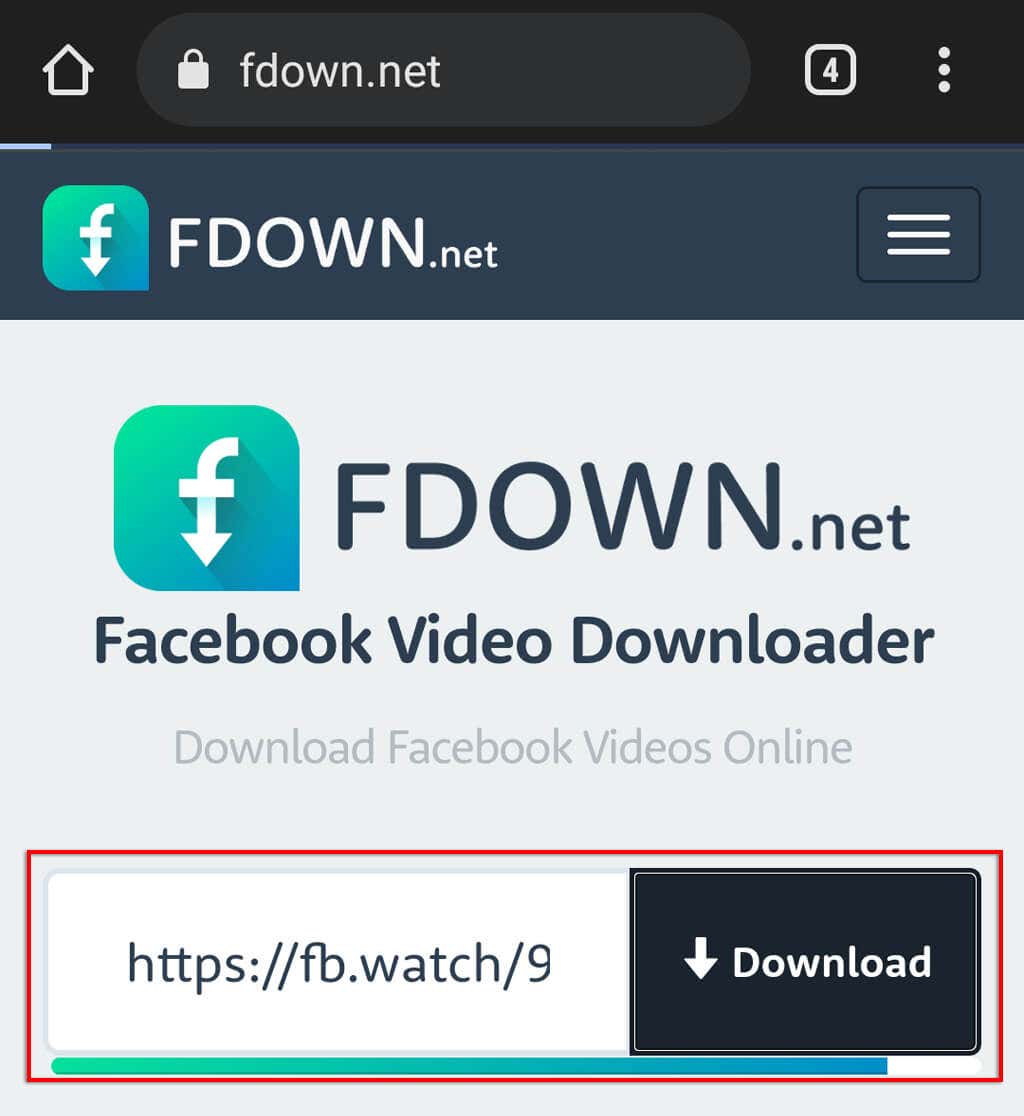
    1. Head to a website that allows video downloads from Facebook such as fdown.net. Keep in mind that there are no Facebook-authorized websites that allow downloading, so do so at your own risk. 
    2. Paste the link and select Download. 
    How to Save Your Live Stream on Twitch, Instagram and Facebook image 22

    Save Your Live Stream

    Now you know how you can save and download your live stream on Twitch, Instagram, and Facebook. Luckily, it’s incredibly easy, and it’s a great way to ensure that you always have access to your previous videos, especially if you wish to reuse them in the future.

    Tags: Facebook
    Share
    Written by

    Jake Harfield

    Jake Harfield is an Australian freelance writer whose passion is finding out how different technologies work. He has written for several online publications, focusing on explaining what he has learned to help others with their tech problems. He’s an avid hiker and birder, and in his spare time you’ll find him in the Aussie bush listening to the birdsong. Read Jake's Full Bio

    View Jake's Profile

    Recent Posts

    • How to Fix "Windows Cannot Connect to This Network" Error in Windows 11
      How to Fix “Windows Cannot Connect to This Network” Error in Windows 11Apr 20, 2026
    • How to Fix App Notifications in Windows?Feb 27, 2026
    • Using an Old Device? 5 Account Security Settings You Should EnableFeb 26, 2026
    • How to Find Features Moved from Control Panel to Settings in Windows 11?Feb 26, 2026

    Ready for the best newsletter in tech?

    Get daily tips, tricks, guides, and special offers delivered right to your inbox.

    Thanks! Check your inbox for the next issue.

    Search

    Categories

    • Announcements (1)
    • Gaming (51)
    • How-To (2,934)
    • News (12)
    • Reviews (294)
    • Social Media (96)
    • Streaming (37)

    Popular Tags

    Adobe Amazon Android Antivirus Buying Guides Chrome Chromebook Discord Explainer Facebook Firefox Gadget Reviews Google Google Docs Google Drive Hardware Home Networking Internet iPhone Linux macOS Microsoft Excel Microsoft Office Microsoft Outlook Microsoft PowerPoint Microsoft Surface Microsoft Teams Microsoft Word OneDrive Printers Roundups Software Reviews Steam Ubuntu Virtualization WhatsApp WiFi Windows 7 Windows 8 Windows 10 Windows 11 Windows Vista Windows XP Wordpress YouTube

    Our Publishing Family

    Help Desk Geek is part of the AK Internet Consulting publishing family.

    • ONLINE TECH TIPS
    • THE BACK ROOM TECH
    • SWITCHING TO MAC
    • XBOX ADVISOR

    Daily Email Newsletter

    CONNECT WITH US

    About Help Desk Geek

    Help Desk Geek has published practical troubleshooting guides, Windows and Office tutorials, and hardware fixes since 2009 — helping millions of readers solve tech problems and get more from their devices.

    Learn More →

    © 2009-2026 Help Desk Geek.com, LLC.
    All Rights Reserved.

    • Home
    • About Us
    • Editorial Standards
    • Contact Us
    • Terms of Use
    • Privacy Policy
    Online
    Tired of Googling Tech Problems?

    Tired of Googling Tech Problems?

    Get step-by-step fixes from Help Desk Geek so the answer is already in your inbox next time.

    By signing up, you agree to the Terms of Service and Privacy Policy.

    Subscribed! Next Tech Headache: Handled.

    Stay tuned for our step-by-step fixes, actionable guides, tech how-tos, and clear, practical advice for real-world problems.

    Thank you!

    Subscribed! Next Tech Headache: Handled.

    Stay tuned for our step-by-step fixes, actionable guides, tech how-tos, and clear, practical advice for real-world problems.