Skip to content
HELP 101010 DESK 010101 GEEK
  • How-To
  • Social Media
  • Streaming
  • Reviews
  • Newsletter
  • News

Subscribe to our Newsletter

Get troubleshooting tips, step-by-step guides, and the latest tech updates.

Sign in with Google

Explore

  • How-To
  • Social Media
  • Streaming
  • Reviews
  • Newsletter
  • News

About & help

  • About Us
  • Editorial Standards
  • Contact Us
  • Terms of Use
  • Privacy Policy
  • Advertise
0%
In this article
    1. Home/
    2. Social Media/
    3. Need to Ban or Unban a User on Discord? Here’s How to Do It

    Need to Ban or Unban a User on Discord? Here’s How to Do It

    Anya Zhukova
    August 27, 2021
    6 min read

    Help Desk Geek is reader-supported. We may earn a commission when you buy through links on our site. Learn more.

    If you’re an owner of a Discord server, you know how hard it is to manage a Discord community. You’re lucky if you have a small group of users that are easy to handle. However, if it’s a bigger server with many users that you have to manage, sooner or later you’ll have to start banning people to maintain the peace. 

    Learning how to ban or kick someone out of your Discord server is especially useful for those who manage public Discord servers that anyone can join. Find out how to ban or unban a user on Discord and create a more efficient community for yourself and other users. 

    Table of Contents

      Should You Kick or Ban a User on Discord?

      If someone’s disruptive on your Discord server, you have two options to deal with them: you can kick them or ban them. 

      Kicking is a less terminal measure, as it only removes a user from your server without banning them. If you kick someone out of your Discord server, they can rejoin at a later date (for example, if you invite them again later). If the user in question made the mistake of not following the rules for the first time, kicking them off your server is a good way to deal with them. 

      Meanwhile, banning a user means that you’re getting rid of them for good. This is a permanent measure that ensures that the user won’t rejoin your server later. When you ban someone, they don’t see your server in their servers’ list anymore and can’t use an invite link again. 

      Since Discord bans both the user’s account and their IP address, the only way they’ll be able to join your server again is by using a new account with a new IP address. 

      How to Kick a User on Discord

      If you’ve decided to kick a disruptive user from your Discord server, you can easily do that both from your computer or mobile. 

      How to Kick a User on Discord Using Your Computer

      To kick someone using your PC or Mac, follow the steps below.

      1. Open the Discord website or app on your computer and log into your account.
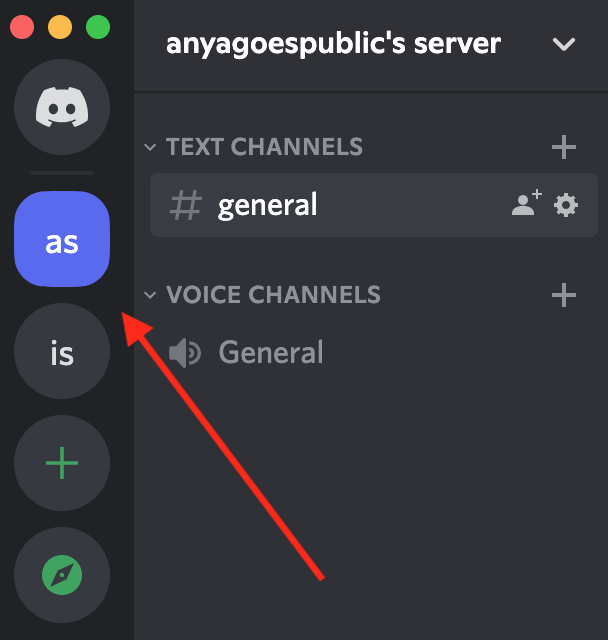
      2. Select the server that you want to kick a user from. You can find the list of your servers from the panel on the left side of your screen.
      Need to Ban or Unban a User on Discord? Here's How to Do It image 2
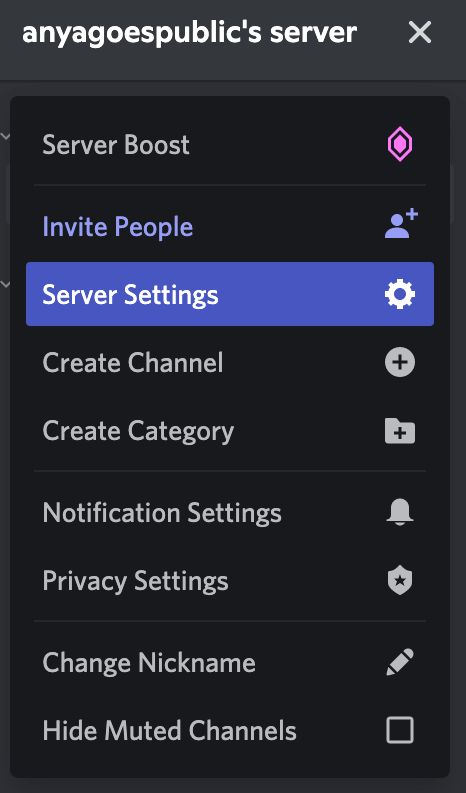
      1. Select the server’s name at the top of the page.
      2. Select Server Settings.
      Need to Ban or Unban a User on Discord? Here's How to Do It image 3
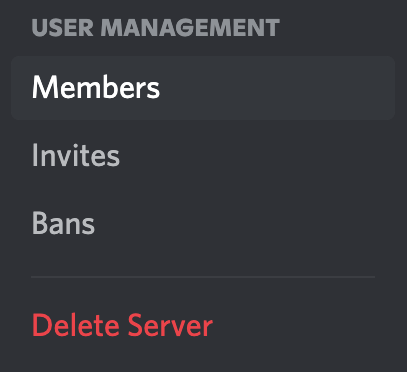
      1. Under User Management, select Members. 
      Need to Ban or Unban a User on Discord? Here's How to Do It image 4
      1. Find the user that you want to kick and select the three dots next to their username. 

      Need to Ban or Unban a User on Discord? Here's How to Do It image 5
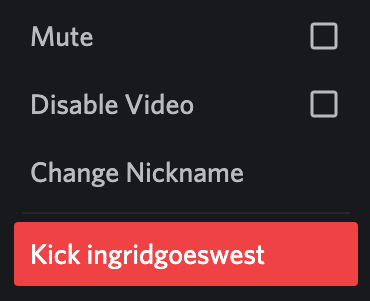
      1. From the drop-down menu, select Kick *username*. 
      Need to Ban or Unban a User on Discord? Here's How to Do It image 6
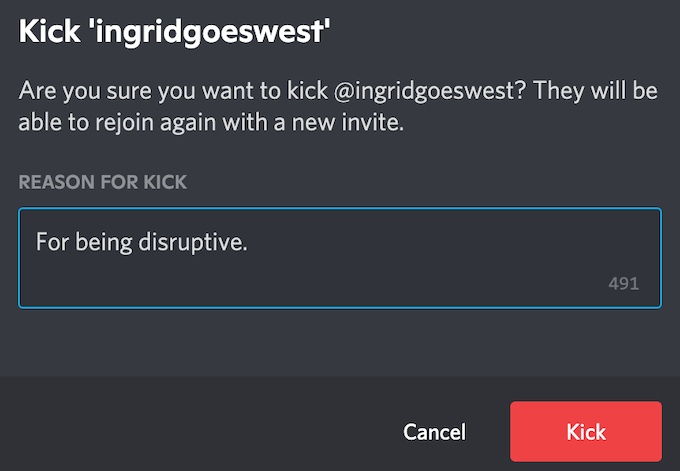
      1. In the pop-up box, you can write the reason for kicking the user. You can also leave this box blank. Select Kick to confirm. 
      Need to Ban or Unban a User on Discord? Here's How to Do It image 7

      How to Kick a User From Your Discord Server on Mobile

      If you prefer using Discord on your smartphone, here’s how to kick someone from your server on mobile.

      1. Open the Discord app and sign in.
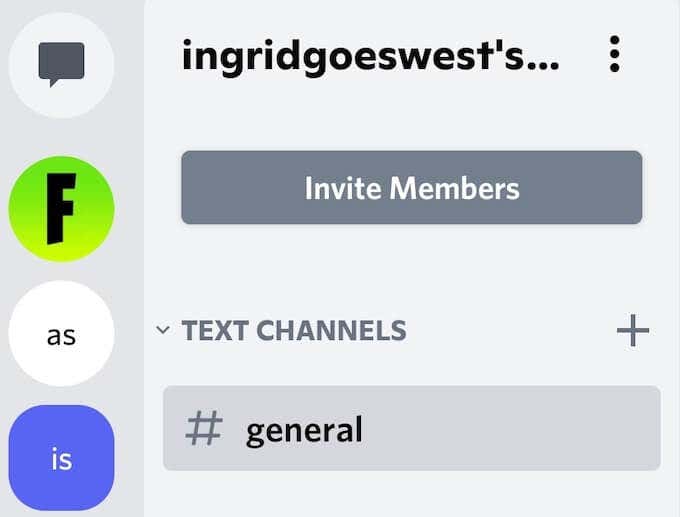
      2. Select the server that you want to kick a user from.
      Need to Ban or Unban a User on Discord? Here's How to Do It image 8
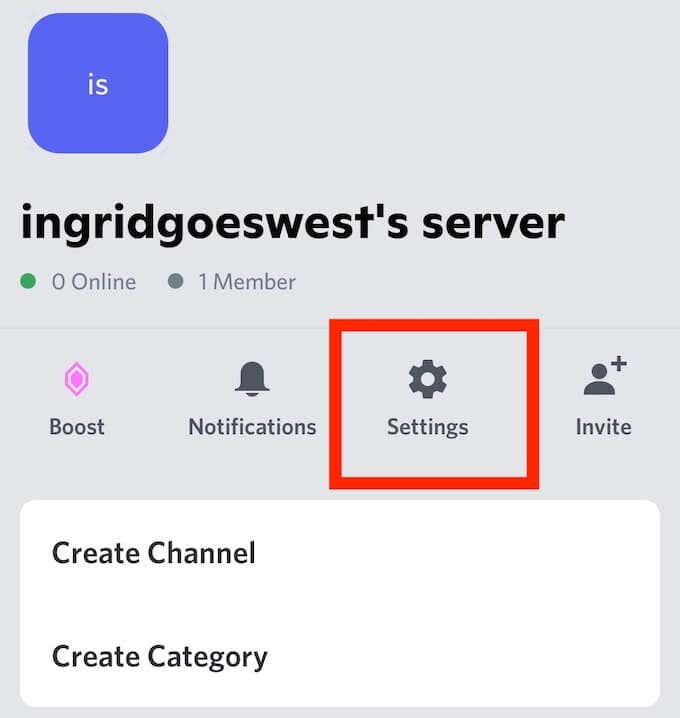
      1. Select the server’s name at the top of the page.
      2. Select Settings from the server’s menu.
      Need to Ban or Unban a User on Discord? Here's How to Do It image 9
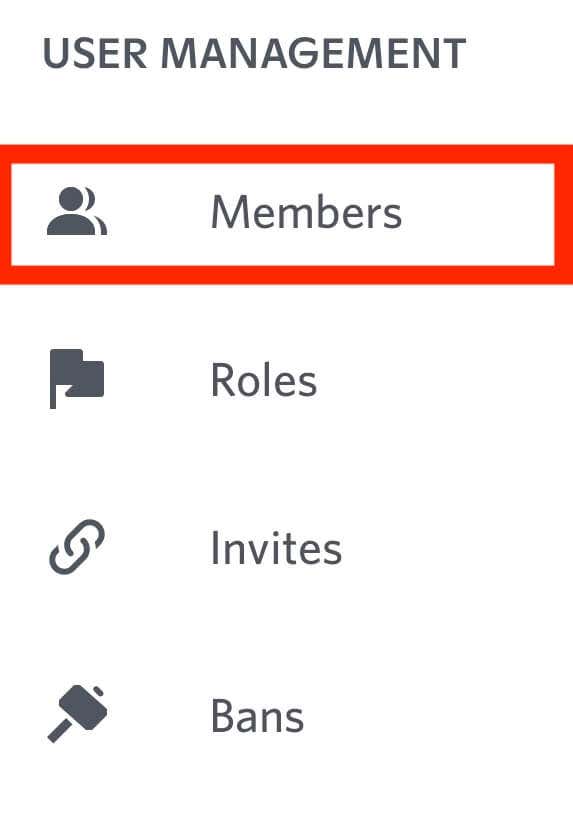
      1. Scroll down until you see User Management and select Members. 
      Need to Ban or Unban a User on Discord? Here's How to Do It image 10
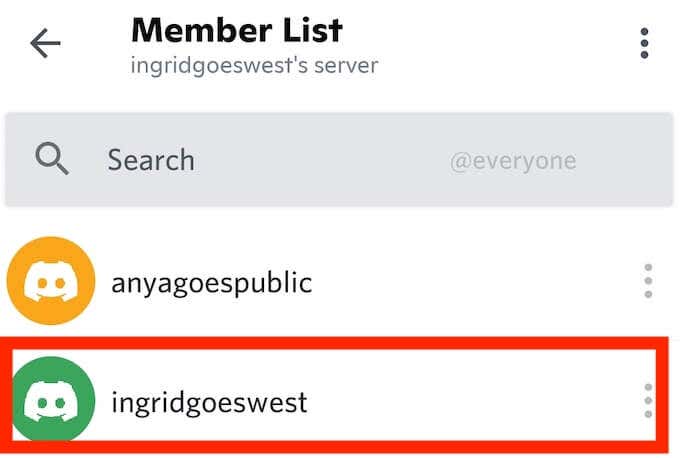
      1. Select the user that you want to kick from your server.
      Need to Ban or Unban a User on Discord? Here's How to Do It image 11
      1. Under Administrative, select Kick *username*. 

      Need to Ban or Unban a User on Discord? Here's How to Do It image 12
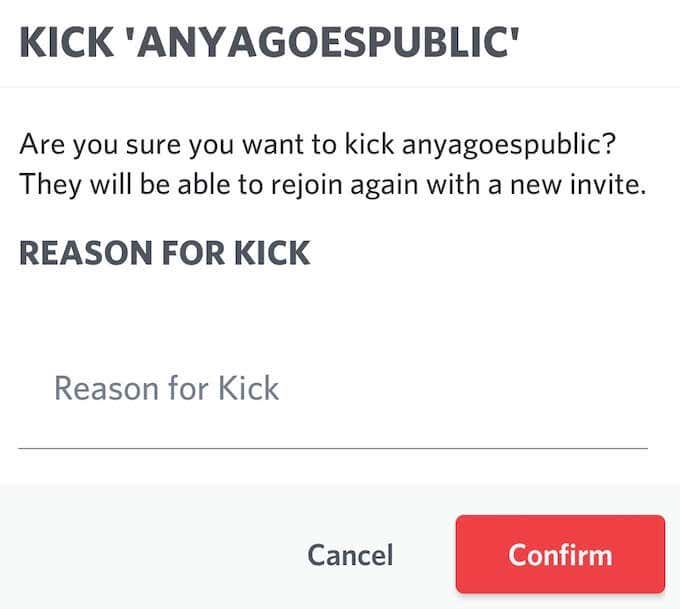
      1. In the pop-up box, fill in the reason for kicking the user or leave it blank. Select Kick to confirm.
      Need to Ban or Unban a User on Discord? Here's How to Do It image 13

      Any user that you kicked from your server can rejoin it using an active invitation link. 

      How to Ban a User on Discord on Computer & Mobile

      If you’ve already tried kicking a user from your server, but they come back and keep disturbing the peace, you can ban them from ever joining your Discord server again. 

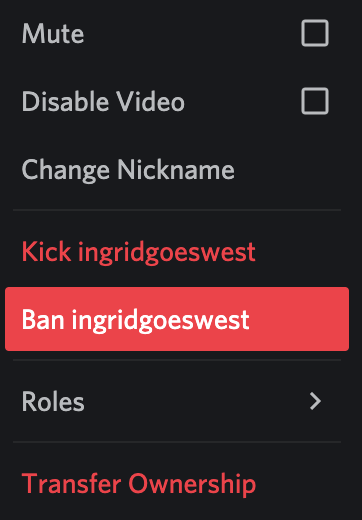
      The process of banning someone is similar to kicking them from your server. To ban a user on your computer, follow steps 1 through 6 described in the previous section. Then from the drop-down menu, select Ban *username*. 
      Need to Ban or Unban a User on Discord? Here's How to Do It image 14

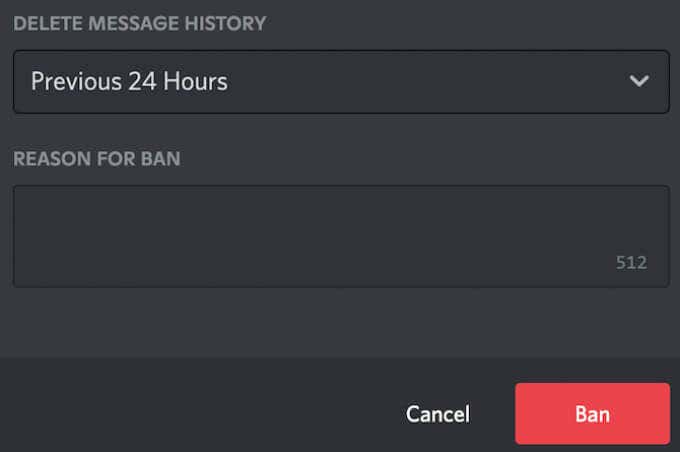
      In the pop-up box, you can also select to Delete Message History of that user from the Previous 24 Hours or Previous 7 Days. If you like, you can also type in the reason for banning the user. After you’re finished, select Ban to confirm. 
      Need to Ban or Unban a User on Discord? Here's How to Do It image 15

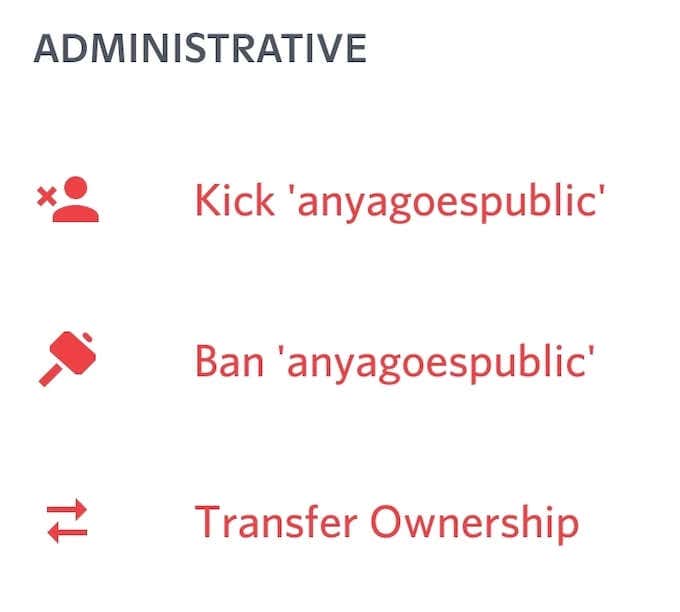
      To ban a user on mobile, open the Discord app and follow steps 1 through 6 described above. After that, under Administrative, select Ban *username*. 
      Need to Ban or Unban a User on Discord? Here's How to Do It image 16

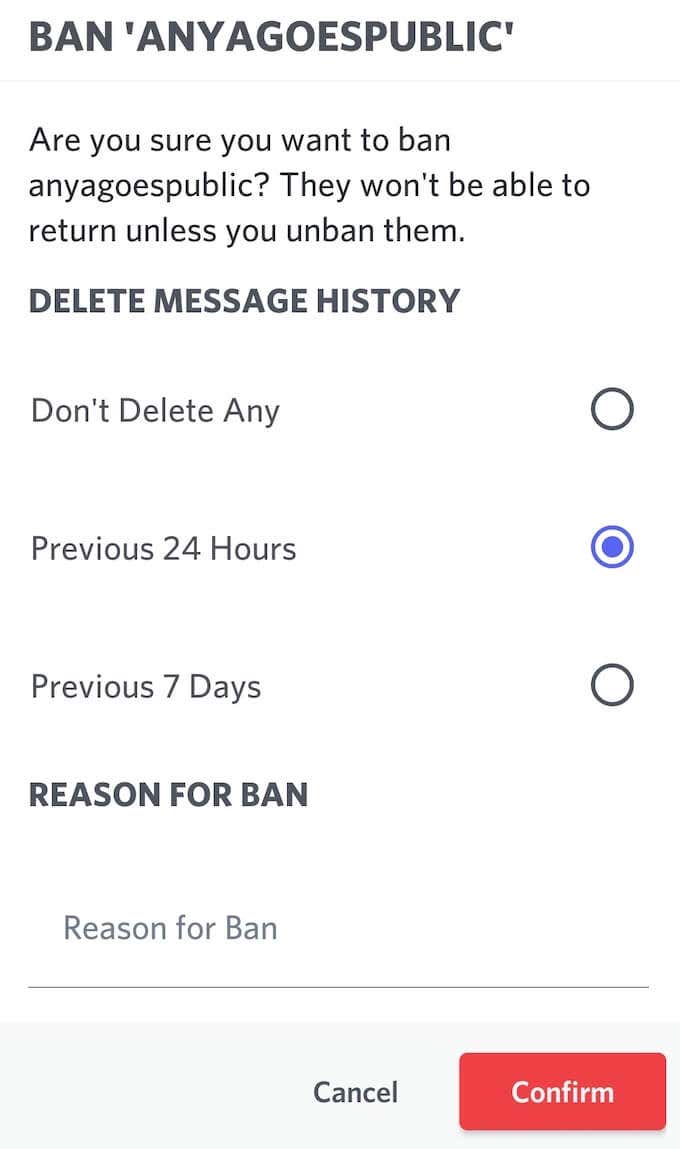
      Here you’ll also see an option to Delete Message History of the user and describe the reason for banning them. After you select Confirm, the user will be banned from your server. 
      Need to Ban or Unban a User on Discord? Here's How to Do It image 17

      How to Unban a User on Discord

      Think you’ve banned someone by mistake? No worries, it’s an easy fix and you can revoke a ban on Discord in just a few clicks both from your computer or mobile. 

      To unban a user on Discord using your computer, follow the steps below.

      1. Open Discord on your computer and log into your account.
      2. Select your server from the panel on the left side.
      3. Open the server’s menu and select Server Settings.
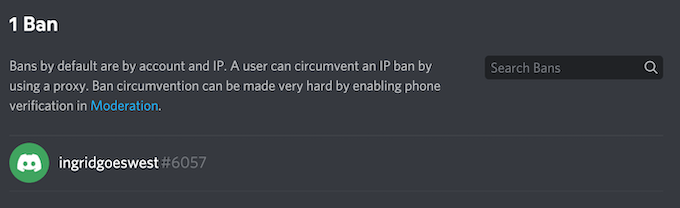
      4. Under User Management, select Bans. 
      Need to Ban or Unban a User on Discord? Here's How to Do It image 18
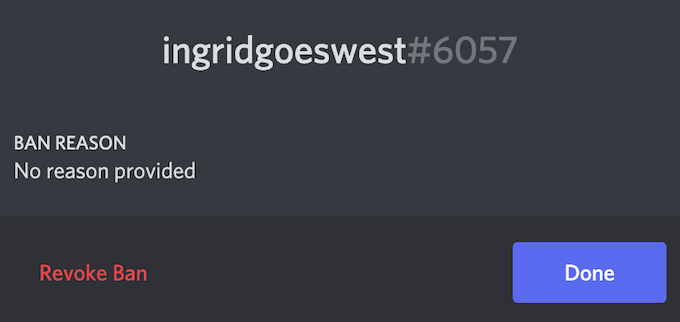
      1. Select the user that you want to unban. Then select Revoke Ban. 
      Need to Ban or Unban a User on Discord? Here's How to Do It image 19

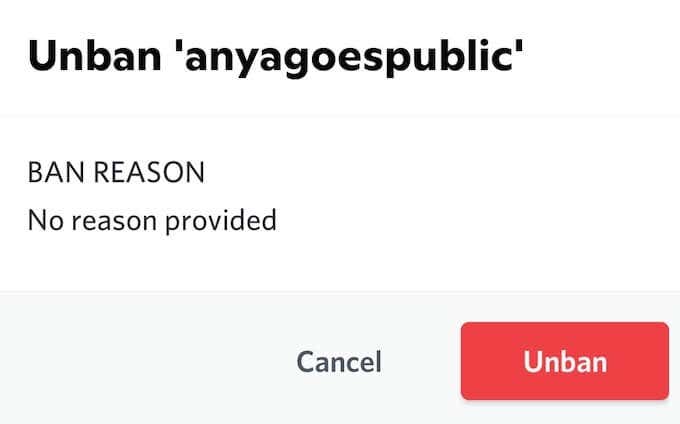
      To unban a user on Discord using your smartphone, follow steps 1 through 4 from the above, then select Unban. 
      Need to Ban or Unban a User on Discord? Here's How to Do It image 20

      If the user you just unbanned keeps breaking the rules, you can ban them again an unlimited amount of times. 

      What to Do If You Got Banned on Discord

      Nobody likes getting banned. If you think you’ve been banned on Discord for no good reason, the best course of action is to try contacting the server’s admin and get that ban revoked. Alternatively, you can try using a VPN to bypass the ban. However, it’s not a proven method, and there’s a big chance a VPN won’t help you get around the ban on Discord. 

      Have you ever banned someone or been banned yourself on Discord? Did you manage to get that ban lifted? Share your experience with Discord bans with us in the comments section below. 

      Tags: Discord
      Share
      Written by

      Anya Zhukova

      Anya is a freelance technology writer. Originally from Russia, she is currently a full-time Remote Worker and Digital Nomad. With a background in Journalism, Language Studies, and Technical Translation, Anya couldn't imagine her life and work without using modern technology on a daily basis. Always looking out for new ways to make her life and location-independent lifestyle easier, she hopes to share her experiences as a tech- and internet-addict through her writing. Read Anya's Full Bio

      View Anya's Profile

      Recent Posts

      • 10 Ways to Fix the Hosts File Not Working in Windows 11
        10 Ways to Fix the Hosts File Not Working in Windows 11Sep 28, 2026
      • Fix 'Critical Error: Your Start Menu Isn't Working' in Windows 11
        Fix ‘Critical Error: Your Start Menu Isn’t Working’ in Windows 11Sep 28, 2026
      • How to Show Values as Percentages in an Excel PivotTable
        How to Show Values as Percentages in an Excel PivotTableSep 27, 2026
      • Microsoft Fixes File History Backup Bug From September 2026 Windows Update (KB5124008)
        Microsoft Fixes File History Backup Bug From September 2026 Windows Update (KB5124008)Sep 27, 2026

      Ready for the best newsletter in tech?

      Get daily tips, tricks, guides, and special offers delivered right to your inbox.

      Thanks! Check your inbox for the next issue.

      Search

      Categories

      • Announcements (1)
      • Gaming (51)
      • How-To (2,921)
      • News (14)
      • Reviews (294)
      • Social Media (96)
      • Streaming (37)

      Popular Tags

      Adobe Amazon Android Antivirus Buying Guides Chrome Chromebook Discord Explainer Facebook Firefox Gadget Reviews Google Google Docs Google Drive Hardware Home Networking Internet iPhone Linux macOS Microsoft Excel Microsoft Office Microsoft OneNote Microsoft Outlook Microsoft PowerPoint Microsoft Surface Microsoft Teams Microsoft Word OneDrive Printers Roundups Software Reviews Steam Ubuntu Virtualization WhatsApp WiFi Windows 7 Windows 8 Windows 10 Windows 11 Windows XP Wordpress YouTube

      Our Publishing Family

      Help Desk Geek is part of the AK Internet Consulting publishing family.

      • ONLINE TECH TIPS
      • THE BACK ROOM TECH
      • SWITCHING TO MAC
      • XBOX ADVISOR

      Daily Email Newsletter

      CONNECT WITH US

      About Help Desk Geek

      Help Desk Geek has published practical troubleshooting guides, Windows and Office tutorials, and hardware fixes since 2009 — helping millions of readers solve tech problems and get more from their devices.

      Learn More →

      Advertise →

      © 2009-2026 Help Desk Geek.com, LLC.
      All Rights Reserved.

      • Home
      • About Us
      • Editorial Standards
      • Contact Us
      • Terms of Use
      • Privacy Policy
      • Advertise
      Online
      Tired of Googling Tech Problems?

      Tired of Googling Tech Problems?

      Get step-by-step fixes from Help Desk Geek so the answer is already in your inbox next time.

      By signing up, you agree to the Terms of Service and Privacy Policy.

      Stay tuned for our step-by-step fixes, actionable guides, tech how-tos, and clear, practical advice for real-world problems.

      Thank you for subscribing!

      Stay tuned for our step-by-step fixes, actionable guides, tech how-tos, and clear, practical advice for real-world problems.