

Spotify is among the best music streaming services available, especially if you’re into lesser-known artists. On the other hand, nothing ruins music faster than frequent pausing and buffering. This issue is common on Spotify and has many causes, but thankfully, it is easy to fix.
Follow the troubleshooting steps below if Spotify pauses or interrupts your listening experience.
Also, check out this video on our YouTube channel, where we reviewed the options mentioned in this article.
Why Does My Spotify Keep Pausing?
Factors ranging from poor internet connection to data saver settings and headphone interference can make Spotify repeatedly pause playback. Using your device in low power or power-saving mode can also affect your Spotify streaming experience.
Additionally, Spotify can malfunction if the app or your device’s operating system isn’t up-to-date.
Troubleshooting the issue can be difficult if you don’t know where to look, but we’ll guide you in the right direction. We’re confident the recommendations below will get Spotify working correctly on your device without the annoying pauses.
1. Turn Off Battery Saver or Low Power Mode
Mobile devices have a battery saver or low-power mode that reduces background activity to conserve battery life. Low power mode often cuts off background refresh and stops downloads for some apps. It can also reduce network usage and interfere with your Spotify stream.
If you find Spotify repeatedly pausing while listening to music, try turning off low power mode and ensuring you have sufficient battery charge.
On an iPhone, this is as simple as dragging down from the top-right corner of the screen and tapping the battery icon. You can also access Low Power Mode through Settings > Battery > Low Power Mode.

Android devices handle this slightly differently. The setting on Android devices is called “Battery saver.”
Open your device’s Settings app, tap Battery saver, and set the slider to Off.
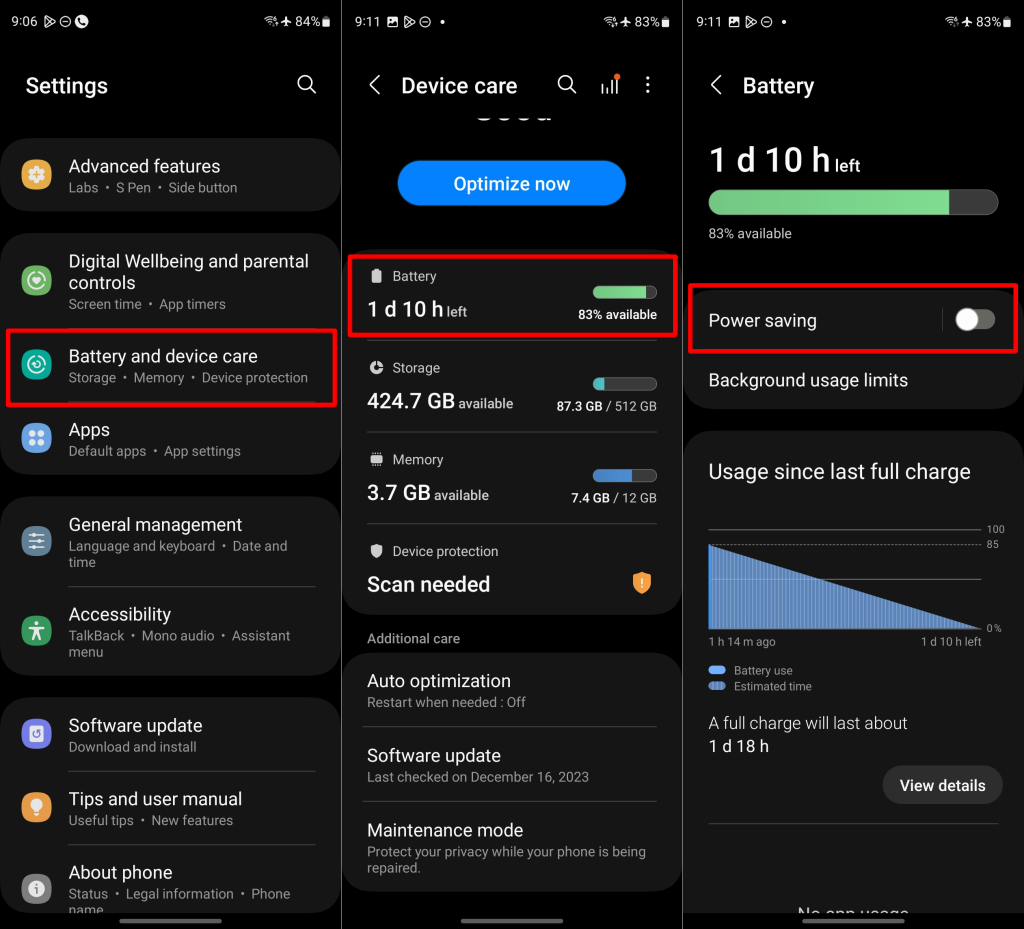
If you have a Samsung device, head to Settings > Battery and device care > Battery and turn off Power saving.
2. Turn Off Data Saver Mode
Spotify has a built-in Data Saver mode that reduces the amount of data the app uses when you’re streaming over cellular networks. This mode can potentially interfere with playback quality and result in Spotify pauses.
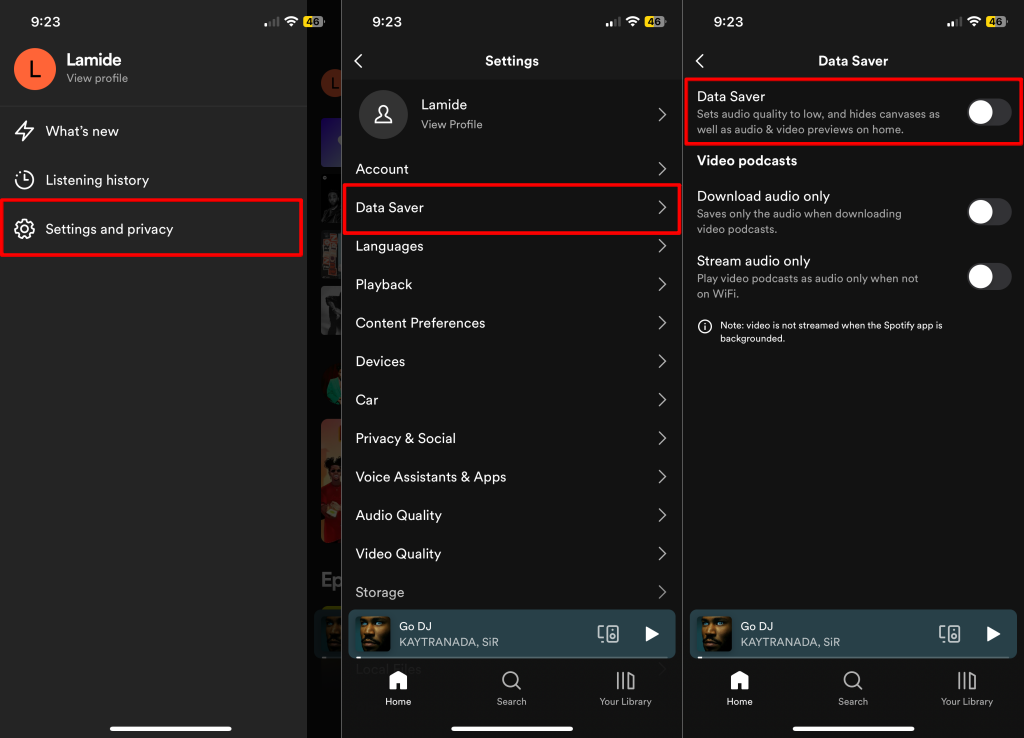
Tap your Spotify profile icon, select Settings and privacy > Data Saver, and toggle off Data Saver.
We recommend turning off your device’s data saver to stream Spotify without interruption.
On Android, go to Settings > Network & internet > Data Saver and turn off Data Saver.
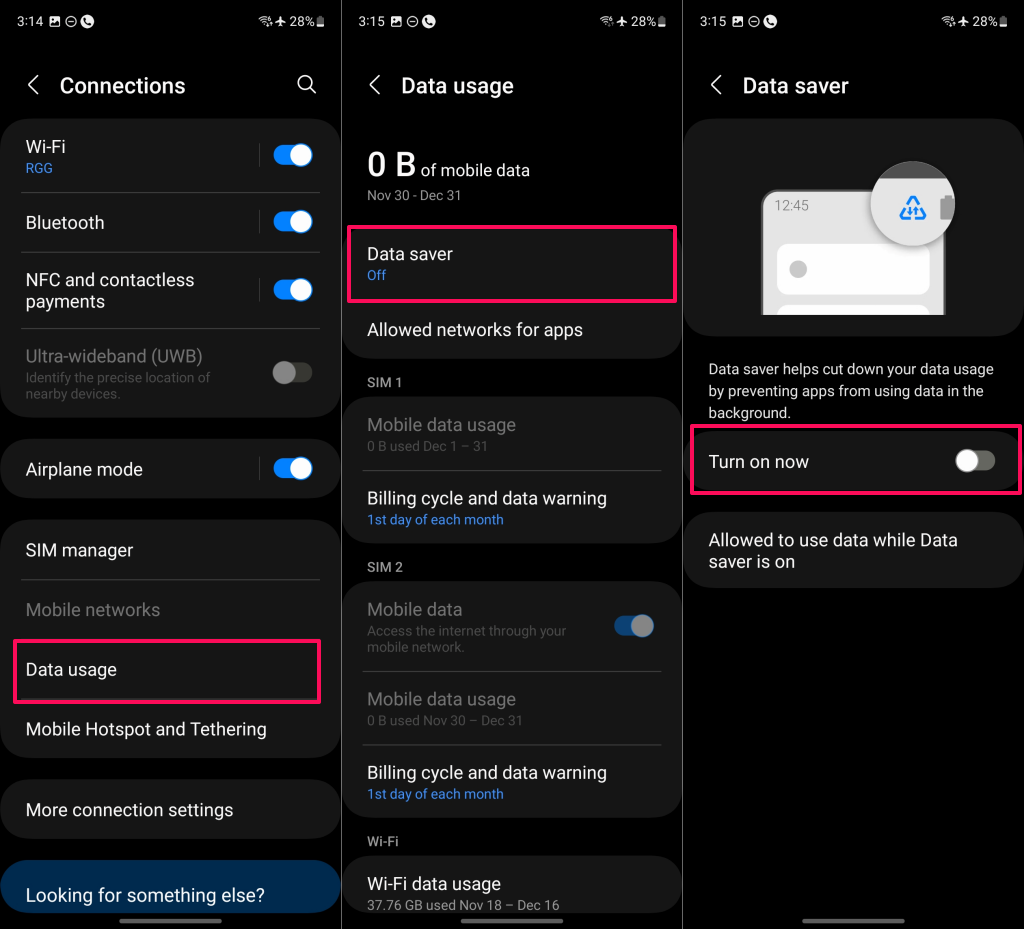
If you use a Samsung device, go to Settings > Connections > Data usage > Data saver and toggle off Turn on now.
3. Adjust Audio Streaming Quality
Spotify allows you to choose from multiple quality levels to stream your music. Streaming higher audio quality on a poor cellular or Wi-Fi connection might cause Spotify to occasionally pause playback to load the song you’re playing.
The base level for music is 160 kbps and requires upload/download speeds of 384 kbps. The next level is 320 kbps and requires a 512 kbps upload/download speed. You need at least 2 Mbps download and 0.5 Mbps upload speed for lossless quality streaming.
The required connection speeds must remain consistent (or even better), or playback will buffer and pause repeatedly. In many cases, 3G is not sufficient for lossless quality.
Switch to a Wi-Fi connection if you’re streaming music at the highest quality on cellular data and aren’t achieving the desired results. You could also lower the audio stream quality to match your connection speed/quality.
We recommend configuring Spotify to auto-adjust audio quality based on your connection quality.
Adjust Spotify Audio Quality (Android)
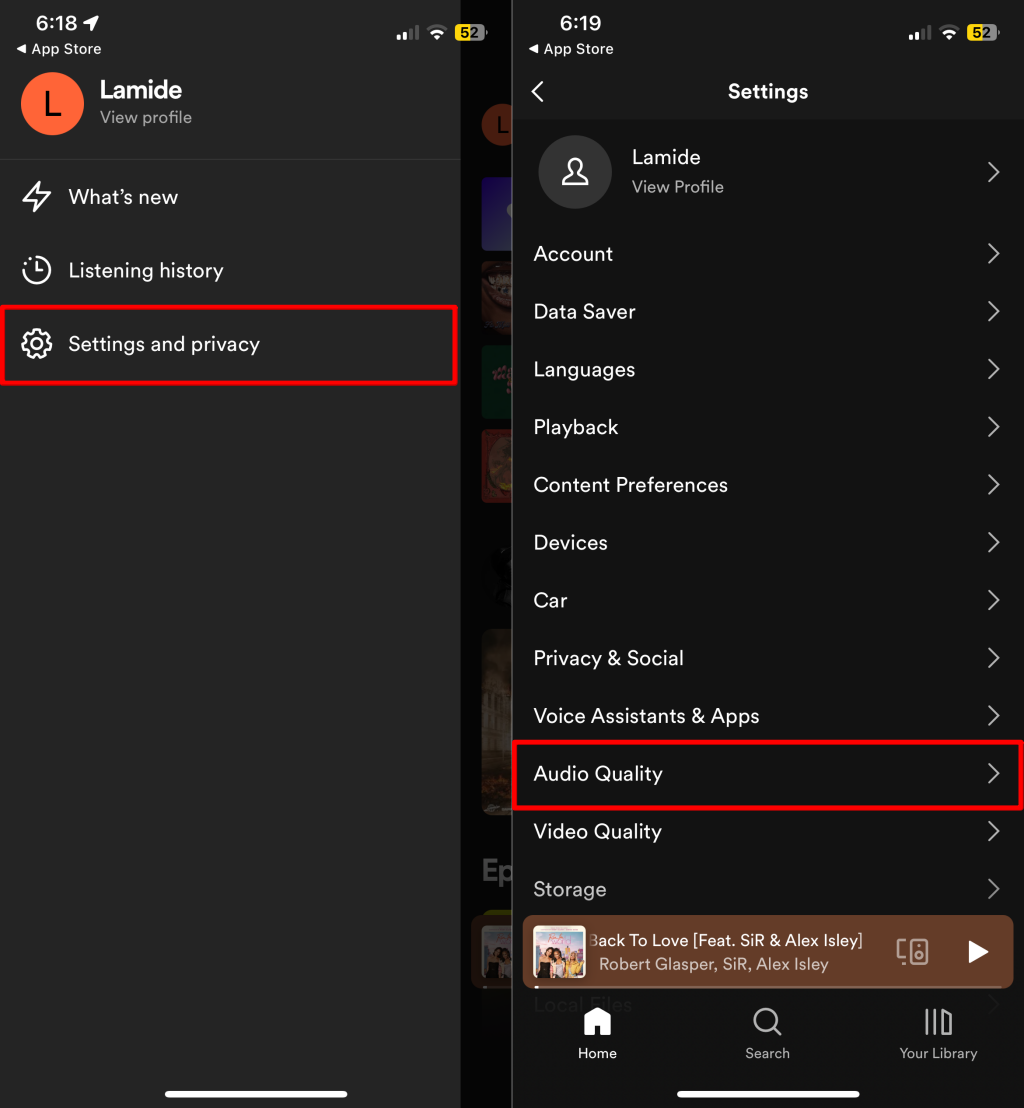
- Open the Spotify app and tap your profile picture/icon in the top-left corner.
- Tap Settings and privacy.
- Select Audio Quality (or scroll to Android’s “Audio Quality” section.)
- Set the audio quality for “Wi-Fi Streaming” and “Cellular Streaming” to Automatic. Additionally, turn on Auto adjust quality.
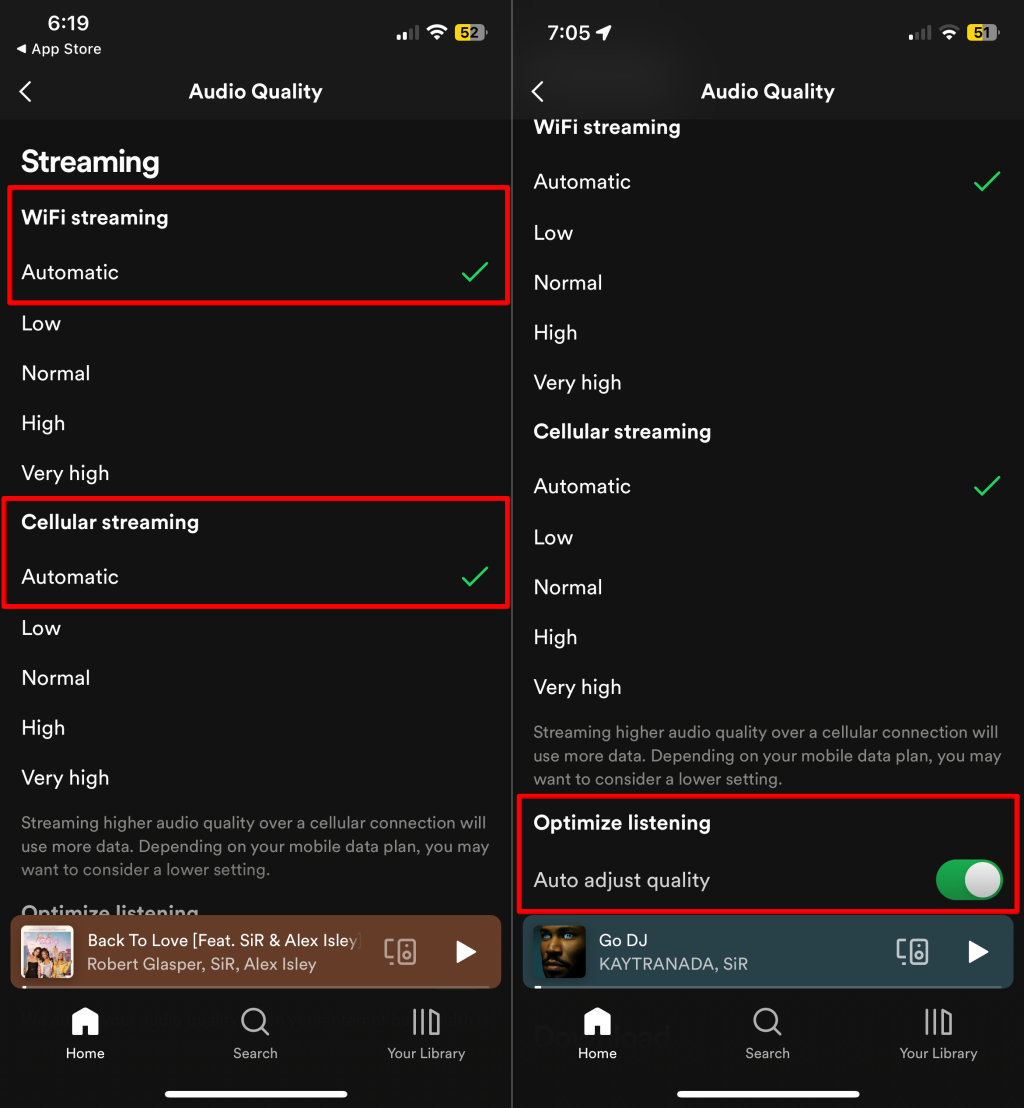
Set the streaming quality to “Low” or “Normal” if your Spotify pauses often.
4. Restart Your Device
Performing a system reboot is one of the easiest ways to stop Spotify from pausing intermittently. A restart clears Spotify’s app data temporarily stored in your device’s memory. Closing other open applications can optimize Spotify’s performance, especially if you have a budget or low-memory device.
Close Spotify and other applications on your device to avoid losing unsaved data or downloads. Reboot your phone or computer and reopen Spotify. Update Spotify from your device’s app store if the app keeps pausing playback.
5. Update Your Devices
Sometimes, Spotify doesn’t work correctly on older or buggy versions of your device’s operating system (OS). Make sure to keep your device up-to-date with the latest version of its OS. Better yet, enable automatic updates so your device automatically downloads and installs OS updates.
Head to Settings > General > Software Update to update your iPhone or iPad.
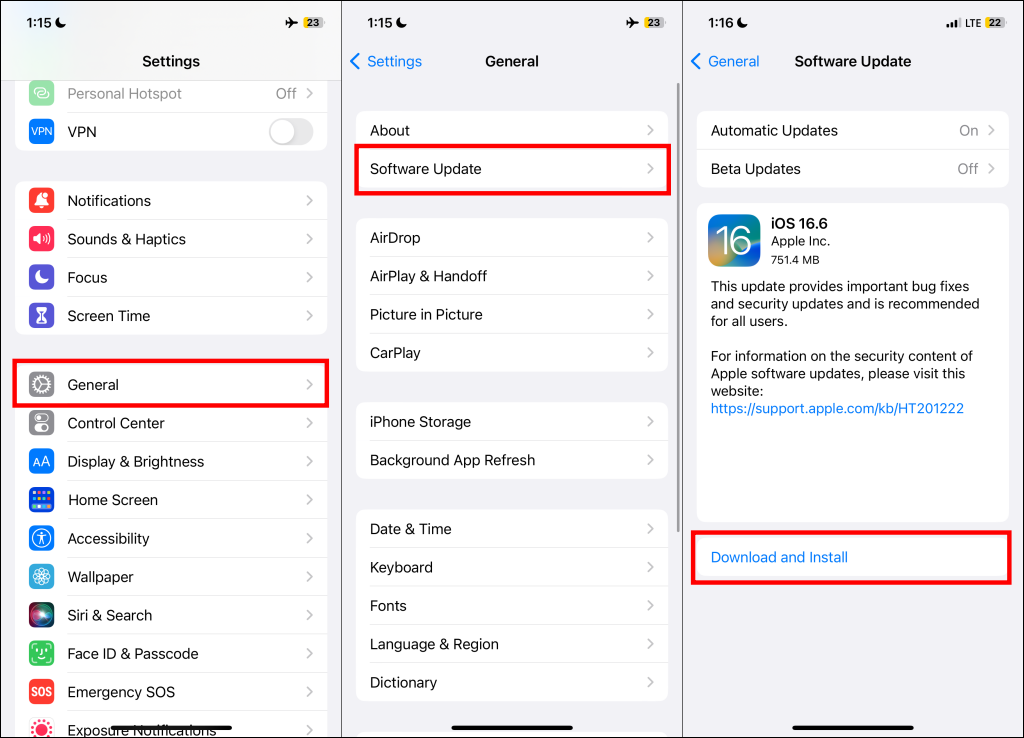
On Android, go to Settings > System update and tap Check for system updates.
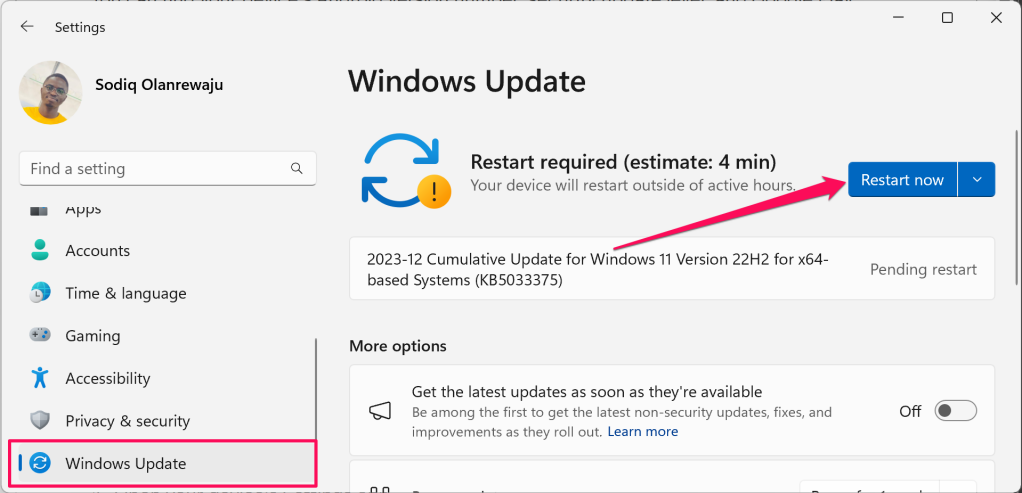
If you stream Spotify on a Windows PC, go to Settings > Windows Update and select Check for updates or Restart now.
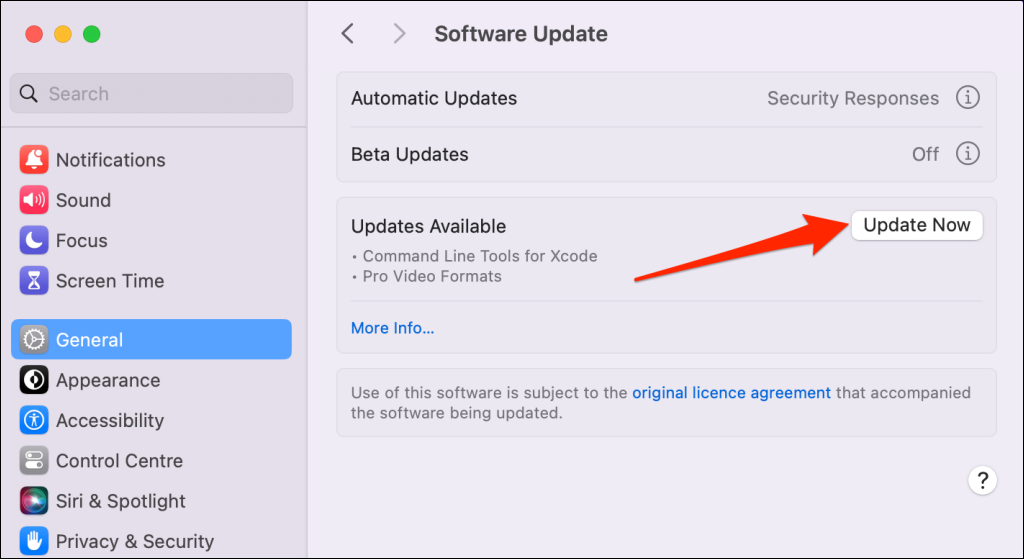
Head to System Settings > General > Software Update and select Update Now to update your Mac’s operating system.
6. Log Out of Spotify (And Sign Back In)
Several Spotify users report signing out of their accounts on every device, and logging back in fixed Spotify’s frequent pausing issue.
Open your Spotify account overview page in a web browser and select Sign out everywhere in the “Security and privacy” section.
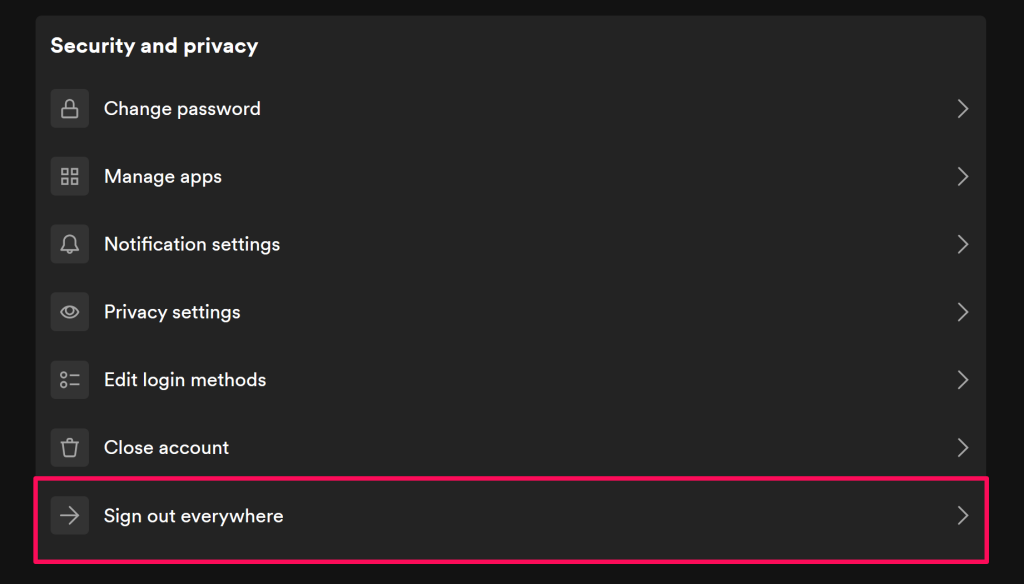
Note: The “Sign out everywhere” option won’t sign out Spotify on partner devices like PlayStation consoles or Sonos speakers.
Log back into your Spotify account and check if the streaming app plays songs without pausing repeatedly.
7. Delete and Reinstall Spotify
Errors can occur during installation that might result in playback issues. Uninstall Spotify from your device and reinstall the app if the problem persists after trying the troubleshooting steps above.
8. Check for Bluetooth Connection Interference
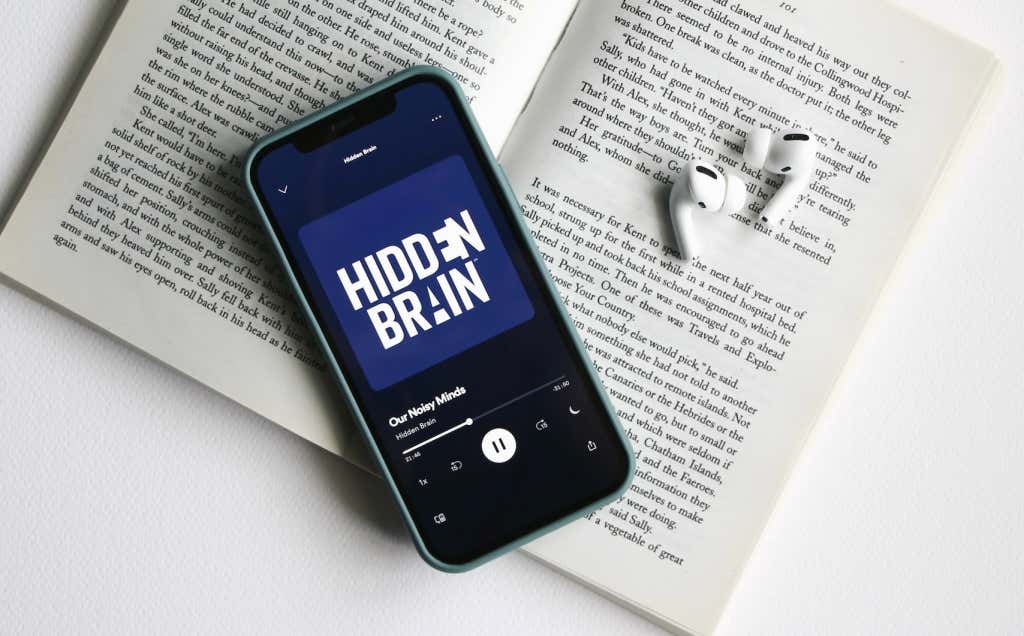
If you use Bluetooth headphones, ensure no playback setting affects your Spotify streaming experience. Apple’s AirPods, for instance, will pause a song if you remove one AirPod from your ear. If your Bluetooth device malfunctions, it may cause Spotify to pause songs intermittently.
To test this, listen to a few songs without your headphones and then listen with the headphones in. If Spotify only pauses when using the headphones, it indicates that something may be wrong with your Bluetooth device.
