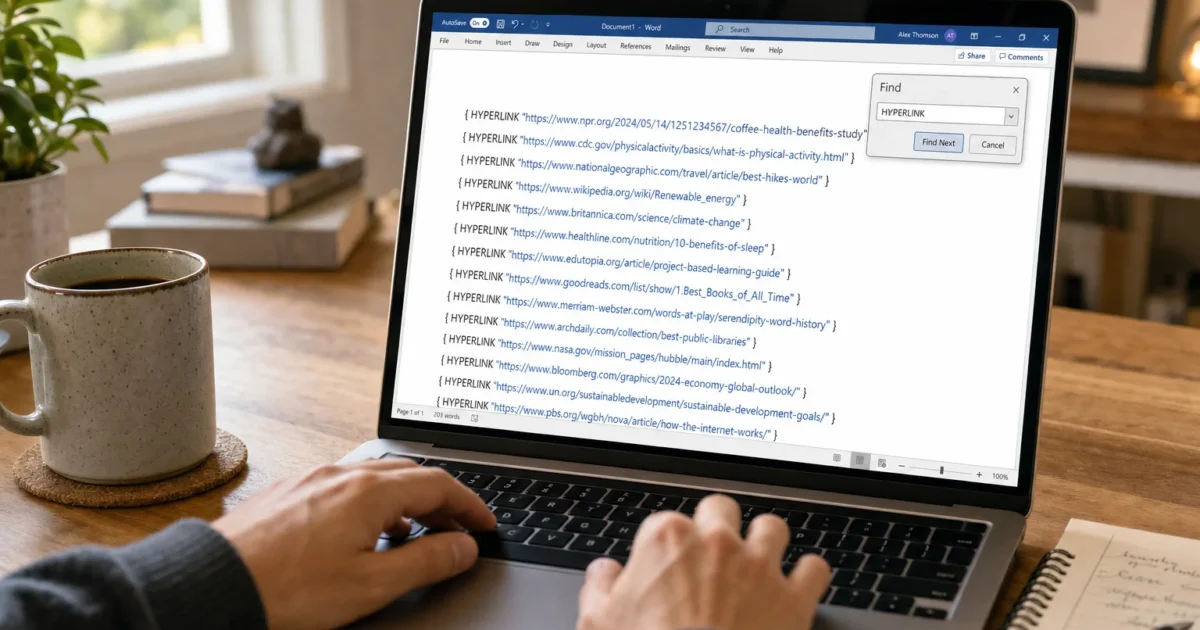
Long Word documents, such as theses, manuals, and reports, often contain dozens of hyperlinks, and Word has no built-in button to verify them all at once. Here are three methods that work in Word for Microsoft 365 and Word 2019/2021 on Windows, ordered from quickest to most thorough.
Method #1: Reveal and Scan Every Hyperlink With Alt+F9
This is the fastest way to see every raw URL in your document without installing anything. It doesn’t test whether links are alive. It just makes every hidden URL visible so you can spot typos and wrong addresses at a glance.
- Open your document in Word (desktop version; Word for the web doesn’t support field code toggling).
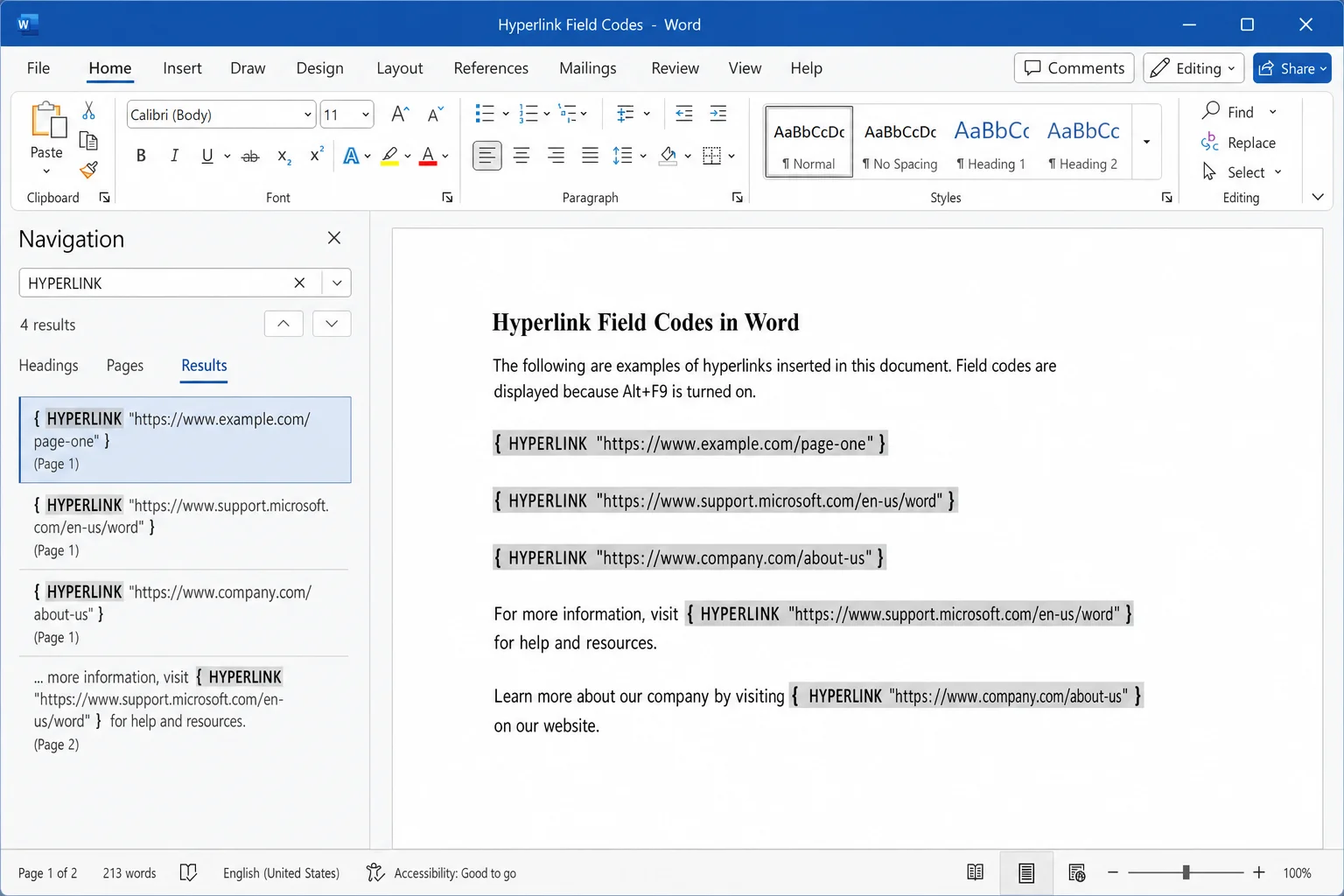
2. Press Alt+F9 to toggle all field codes on. Every hyperlink will now appear as: HYPERLINK "https://example.com"
3. Press Ctrl+F to open the Navigation pane and search for HYPERLINK. Word will jump through every link field in the document.
4. Review each URL for obvious errors, such as misspellings, broken paths, or placeholder text left in the address.
5. Press Alt+F9 again to return to normal view.
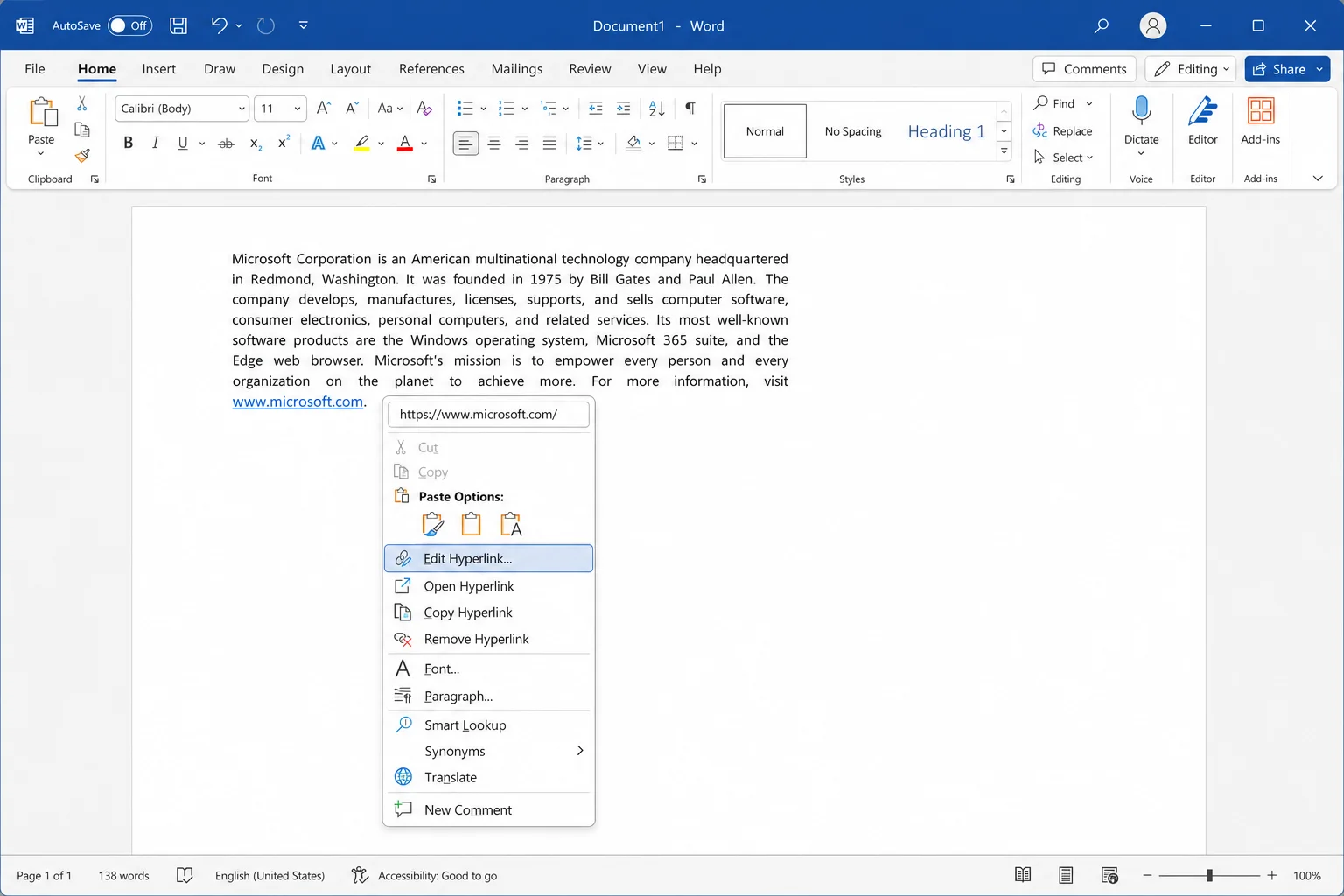
To edit a specific link, right-click it and choose Edit Hyperlink…, or select the link text and press Ctrl+K. You can also learn more about how to show/hide field codes in Word and convert fields to text for additional control over how fields are displayed.
Method #2: Use a VBA Macro to Test Every Link Automatically
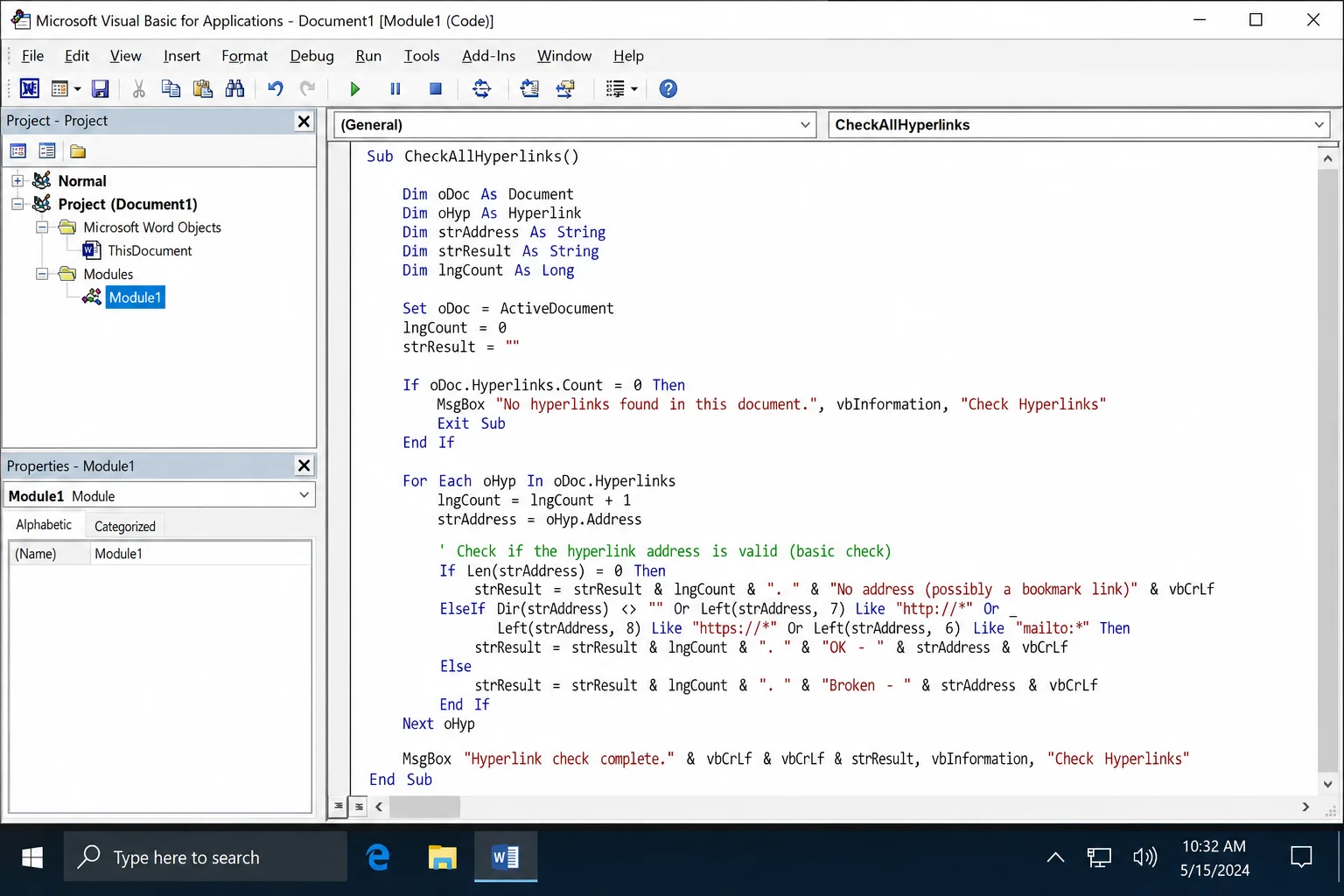
This is the closest Word gets to a true link checker. It is a macro that loops through every hyperlink in the document, sends an HTTP request to each URL, and logs which ones return errors. This runs in desktop Word on Windows only; Word for the web doesn’t support VBA.
Note: Macros are blocked by default in documents downloaded from the internet or received via email (Mark of the Web). Save the document to a trusted local folder before running any macro.
- Press
Alt+F11to open the VBA editor.
2. Click Insert > Module to add a new code module.
3. Paste the following macro into the module window:
Sub CheckAllHyperlinks()
    Dim oDoc As Document
    Dim oHyp As Hyperlink
    Dim oRng As Range
    Dim sReport As String
    Dim oHTTP As Object
    Dim sStatus As String

    Set oDoc = ActiveDocument
    sReport = "Hyperlink Check Report" & vbCrLf & String(40, "-") & vbCrLf

    For Each oHyp In oDoc.Hyperlinks
        Dim sURL As String
        sURL = oHyp.Address

        If sURL = "" Then
            sStatus = "No URL (bookmark/anchor link)"
        Else
            On Error Resume Next
            Set oHTTP = CreateObject("MSXML2.XMLHTTP")
            oHTTP.Open "HEAD", sURL, False
            oHTTP.Send
            If Err.Number <> 0 Then
                sStatus = "ERROR: " & Err.Description
                Err.Clear
            Else
                sStatus = "HTTP " & oHTTP.Status & " " & oHTTP.statusText
            End If
            On Error GoTo 0
            Set oHTTP = Nothing
        End If

        sReport = sReport & sURL & " — " & sStatus & vbCrLf
    Next oHyp

    ' Output report to a new document
    Dim oNewDoc As Document
    Set oNewDoc = Documents.Add
    oNewDoc.Content.Text = sReport
    MsgBox "Done! Results are in the new document.", vbInformation
End Sub- Close the VBA editor and return to your document.
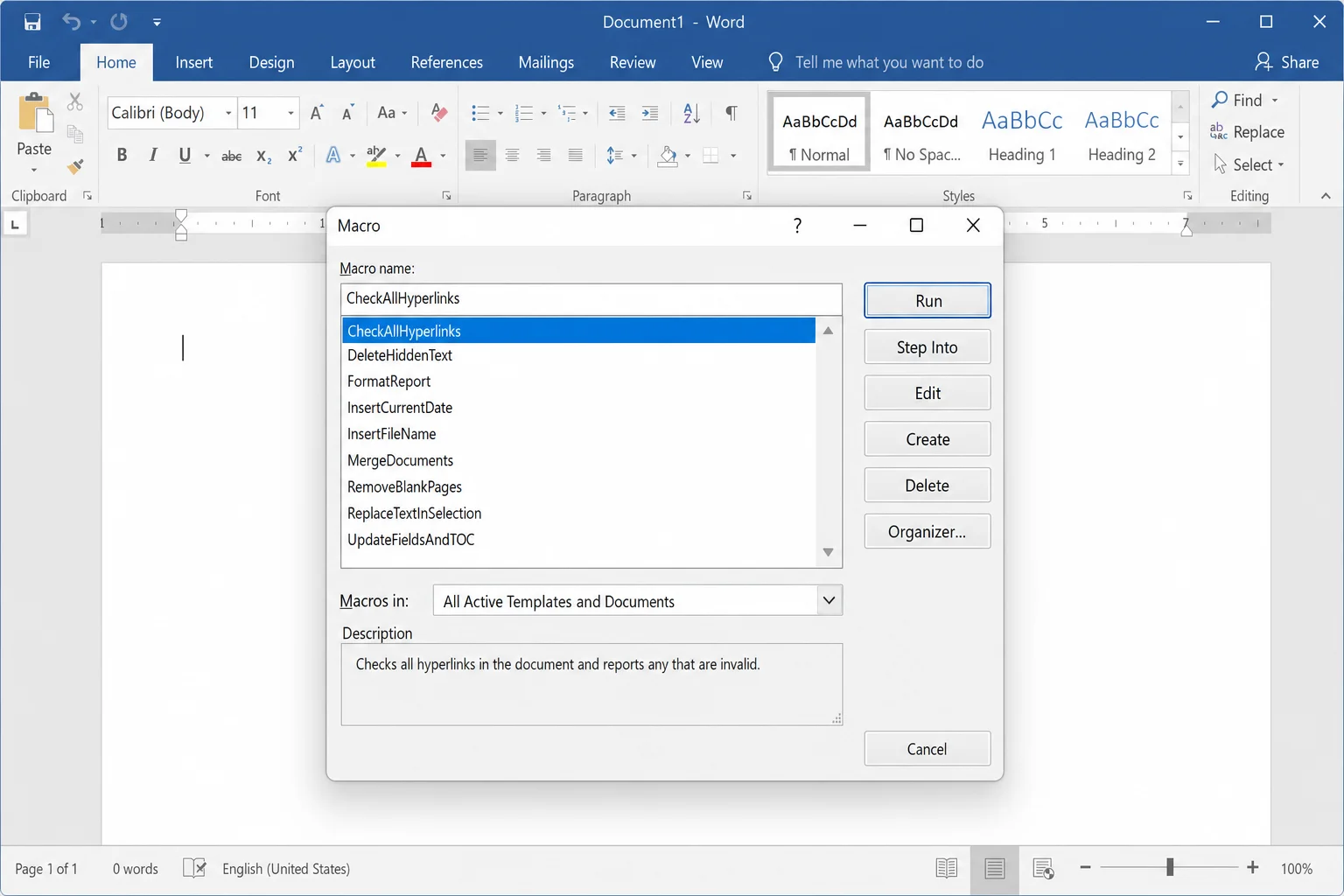
5. Press Alt+F8, select CheckAllHyperlinks, and click Run.
6. Word opens a new document listing every URL and its HTTP status. Links returning HTTP 200 are fine. Anything else, such as 404, 403, or ERROR, needs attention.
Method #3: Export to HTML and Use an External Link Checker
If you’d rather not use macros, exporting the document and running it through an external tool is the most reliable way to verify every URL. This is especially useful for long technical documents with 50+ links.
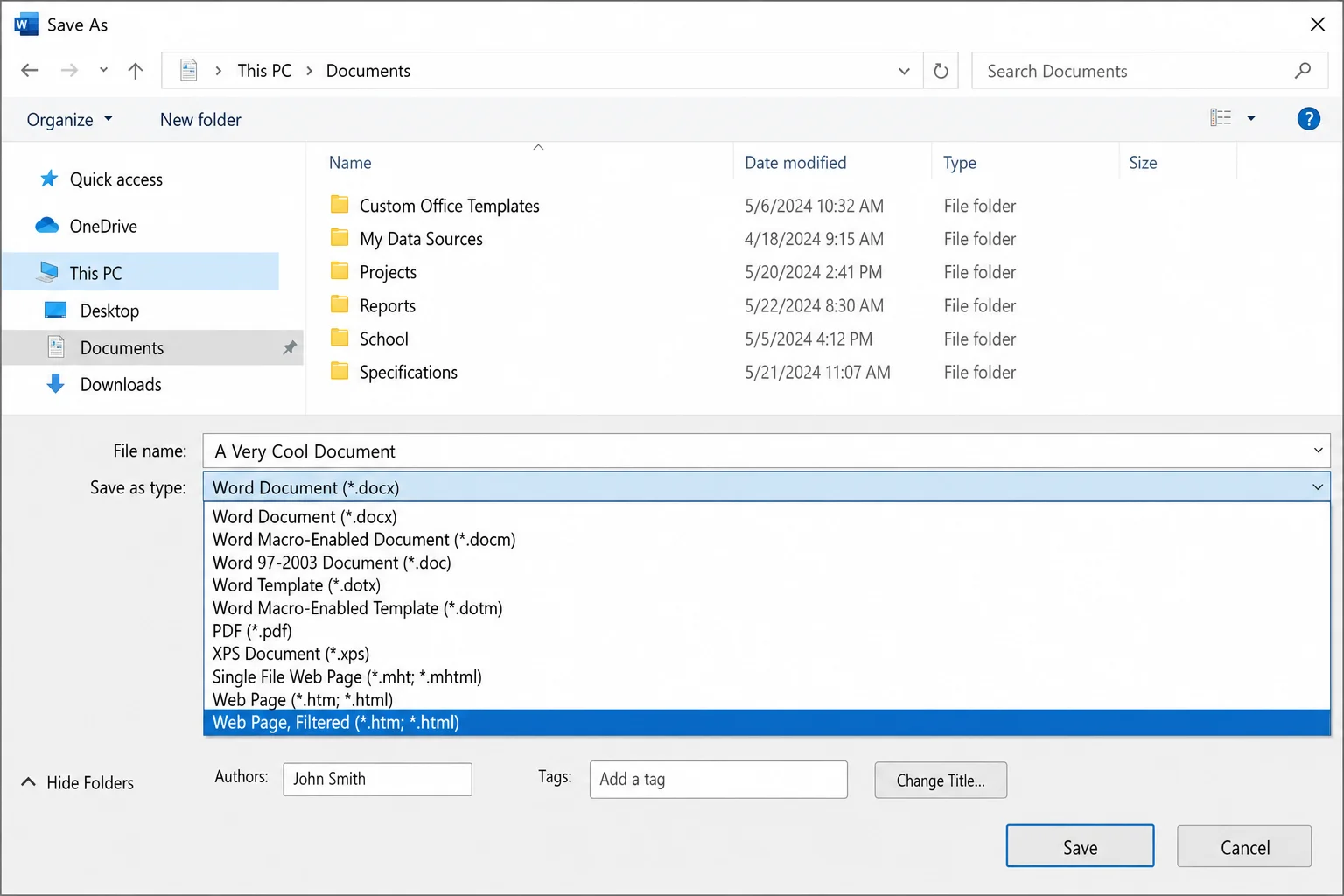
- In Word, click File > Save As (or Export).
2. Choose Web Page (Filtered) as the file type and save it to your desktop.
3. Open a browser-based or desktop link-checker tool (search for “broken link checker”, several free options exist).
4. Point the tool at your saved HTML file or paste its local file path.
5. Review the report for any URLs flagged as broken, redirected, or timing out.
6. Return to your Word document and fix the flagged links using Ctrl+K or Edit Hyperlink….
Troubleshooting: Hyperlinks Not Working in Word
Before checking whether your links are alive, make sure they’re actually clickable. A few common settings block hyperlinks from opening at all.
Links require Ctrl+Click but you’re single-clicking
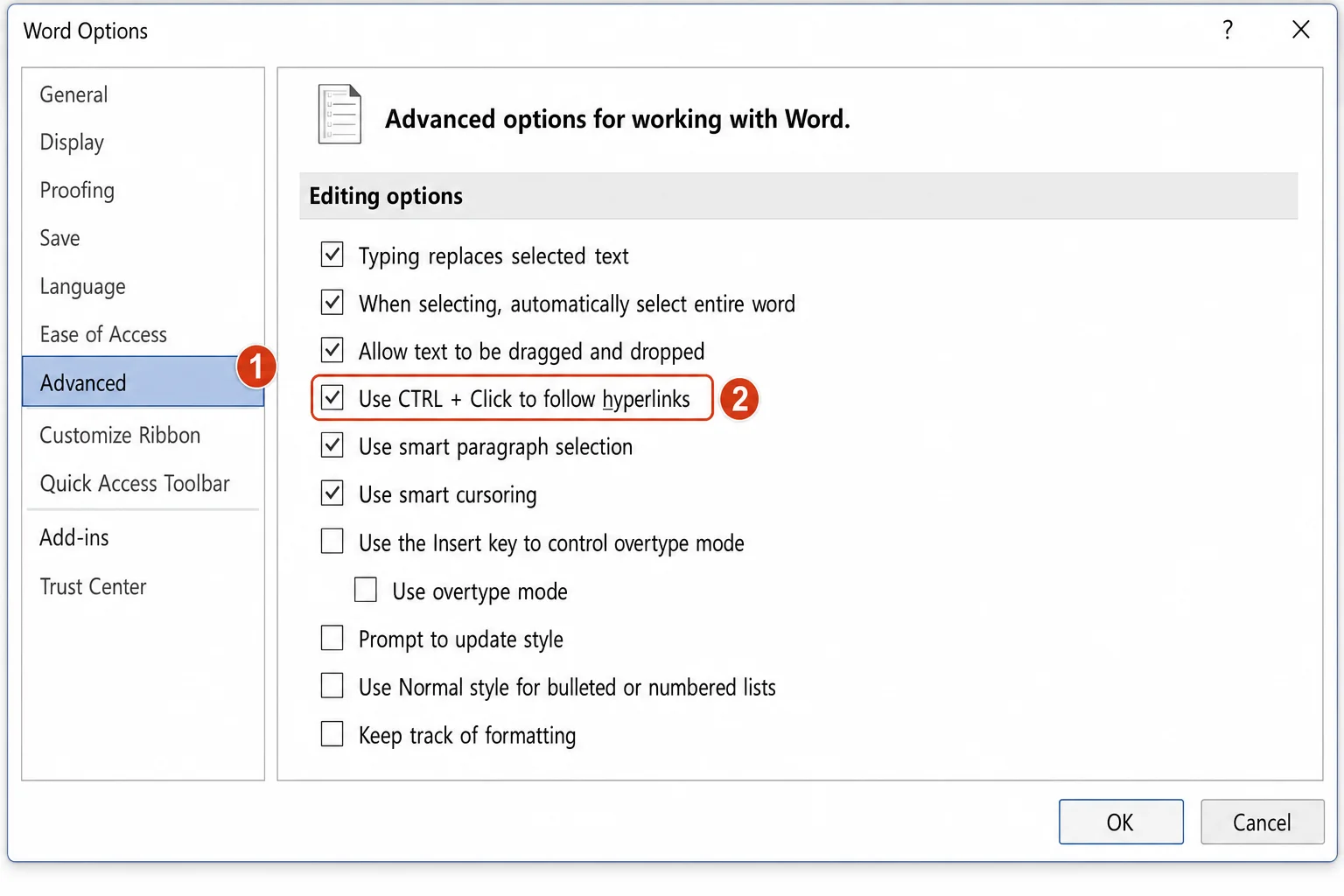
By default, Word requires Ctrl+Click to follow a hyperlink. To change this:
- Go to File > Options > Advanced.
2. Under Editing options, uncheck Use Ctrl + Click to follow hyperlink.
3. Click OK.
Field codes showing instead of link text
If you see HYPERLINK "https://..." instead of your link text in normal view:
- Go to File > Options > Advanced.
2. Under Show document content, make sure Show field codes instead of their values is unchecked.
3. Click OK.
Links work in Word but not in the exported PDF
This is a known issue in specific Microsoft 365 and Adobe Acrobat version combinations. To preserve hyperlinks in PDF exports:
- Use File > Save As > PDF in Word. Do not use “Print to PDF,” which strips link metadata.
2. Make sure both Office and Adobe Acrobat are fully updated.
3. If links still break after updating, use Adobe Acrobat’s own Word plug-in to generate the PDF instead of Word’s built-in exporter.
URLs not auto-converting to clickable links as you type
If Word isn’t turning typed URLs into hyperlinks automatically:
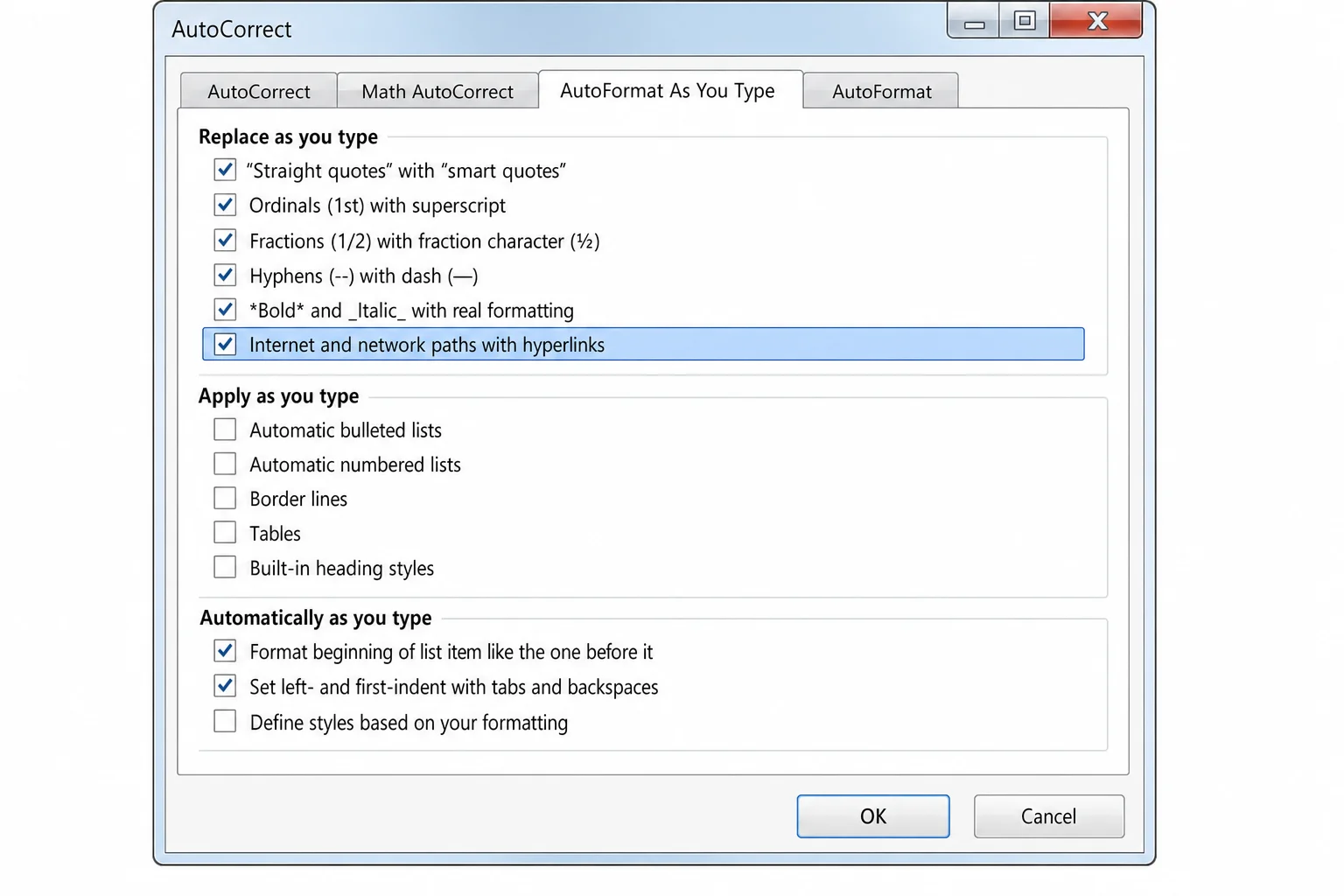
- Go to File > Options > Proofing > AutoCorrect Options.
2. Click the AutoFormat As You Type tab.
3. Check Internet and network paths with hyperlinks.
4. Click OK, then type a URL and press Space or Enter to convert it.
Conclusion
For most documents, the Alt+F9 field-code scan (Method #1) catches the majority of problems in under a minute, so it’s worth trying first. If you need to actually confirm every URL is live, the VBA macro is the most direct option and works well for documents with dozens of links. The HTML export route is a solid choice when macros are blocked or you’d rather use a dedicated tool. If your links are opening the wrong page or not opening at all, the troubleshooting steps above will sort out the most common culprits before you spend time chasing broken URLs that were never the real problem. You can also rename a hyperlink in Microsoft Word documents to keep your link text clean and descriptive, or check out how to fix the Bookmark Not Defined error in Word if anchor links are causing issues. For documents where performance slows down with many fields and links, see how to fix Microsoft Office 365 slow performance issues. Microsoft also provides official guidance on creating and editing hyperlinks in Word if you need further reference.