
For a lot of us, the rise in popularity (and availability) of eBooks has been a very good thing. Now it’s possible to hold an entire library of books in a package the size of a paperback, which is especially great for vacations and other trips. No longer do you need to decide which books to take along with you. Simply grab your Nook or Kindle, and take them all!
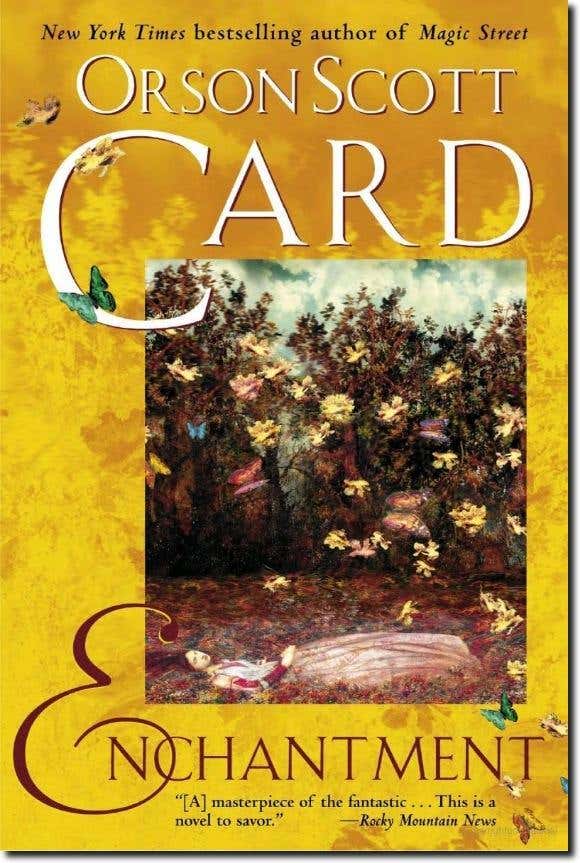
One thing, however, that’s been personally disappointing with eBooks is how many of them don’t come with cover art. If you go into a bookstore and purchase Orson Scott Card’s Enchantment, you’ll see this cover.
If, on the other hand, you purchase the eBook of Enchantment, you’ll get this instead.
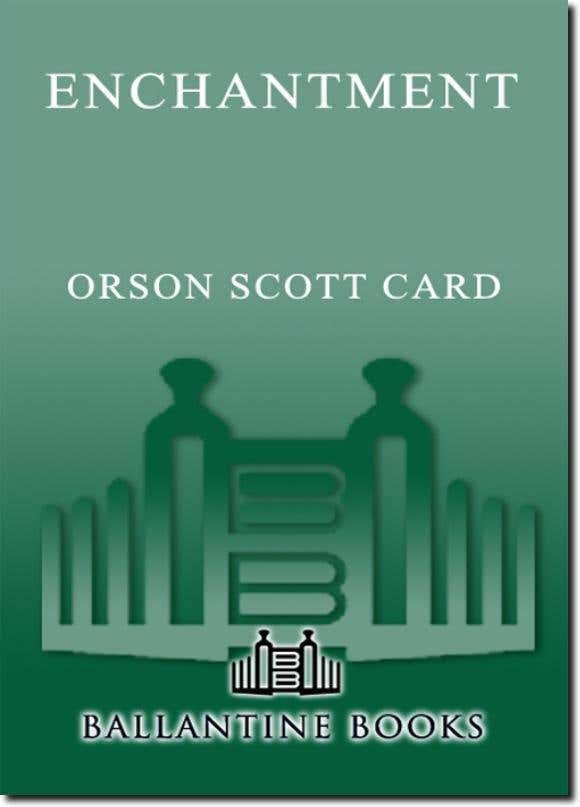
Not much comparison. And for those of us who are used to browsing by cover art, a bit of a disappointment. And unlike much music album cover art, which can easily be grabbed from places like Album Art Exchange, there is no public archive of book covers. You may find websites devoted to a particular author, or a specific artist, but nothing that would come close to covering “all” books. And while some publisher websites will have high resolution artwork, many do not.
Thankfully, just as it’s possible to download high quality album art from the Google Play music store (formerly the Android Market Store), you can use the Google Play book store to get high resolution artwork perfectly suitable for inserting into your ebook. And while you won’t find every book’s artwork, you will find a large number of them. Here’s how it works.
Download High Resolution Book Cover Art
We’ll be using Enchantment as our example, but you can – of course – use any book you want.
First, head to the Google Play book store.

Next, search for the book you’re interested in finding cover art for; as mentioned, we’ll use Orson Scott Card’s Enchantment, as we know high resolution artwork is present, but feel free to search for whatever book you want. You should now be shown a results page.
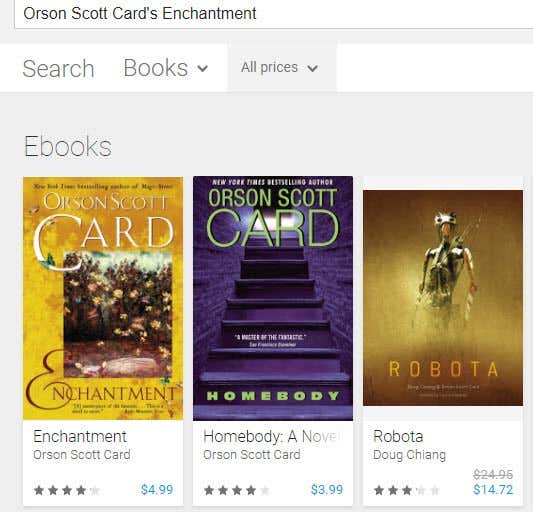
Go ahead and click the correct result, which will take you to that product’s page.
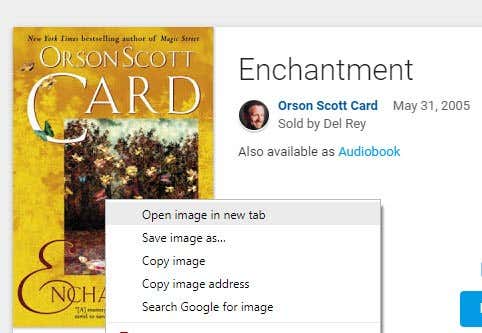
Now right-click the small cover art thumbnail and choose the View Image option. In Chrome, right-click on the image and choose Open image in a new tab.
You should now see the thumbnail image (in new versions of Firefox it will be shown against a black background, as you can see below).
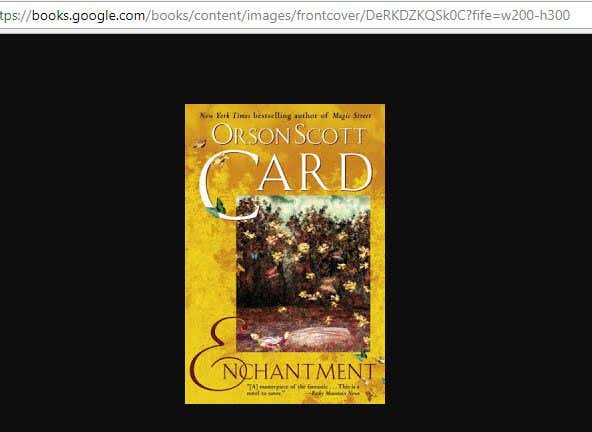
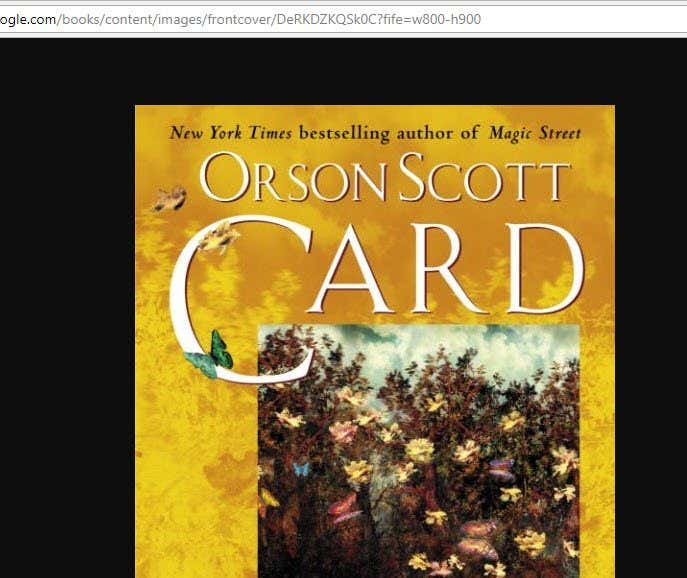
While this is obviously too small to be useful, but the URL of this does give us an easy way to access high resolution artwork, if available. Go to the URL bar and highlight the URL, then go to the very end of the URL. You should see something like https://books.google.com/books/content/images/frontcover/-rUACwAAQBAJ?fife=w200-h300 as shown above.
To get high resolution artwork, we simply need to change the width and height part to something else. In this case, w=800 and h=900 will give us much higher quality artwork. Unfortunately, there is no way to know how high you can go. Just keep trying larger values until you get the size you want.
Once you’ve done this, hit Enter to load the new URL. If high resolution artwork exists, you should now see it.
Now you simply need to download the art, then use your favorite program (such as Sigil or Calibre) to insert it into your favorite eBook. Enjoy!
