It's not as intuitive as it should be

If you’re a heavy Word user, you probably have come across a situation where it would be convenient to merge multiple Word documents into one master document. Even though it’s not very difficult to do this in Word, it’s also not very intuitive.
You would think Microsoft would have included some merge documents feature into the program considering how many other more complicated tasks it can complete. Anyway, in this article, I’ll show you a quick and simple way to combine several Word documents into one document.
Table of Contents
It’s worth noting that the procedure pretty much works on all versions of Office from 2007 to 2016. Also, in my own tests, it seems that all the formatting was retained when the documents were combined. However, this was only tested on files using the same version of Office. I’m not 100% sure if all the formatting will remain if you insert a Word 2007 document into Word 2016.
Merge Multiple Word Documents
To get started, open the first Word document that you want to use as the master file. Next, go to the position in the document where you want to insert the additional Word file. The nice thing about this method is that you can insert the additional Word files anywhere in the master file. It doesn’t always have to be at the end.
Now, click on the Insert tab and click on Object.
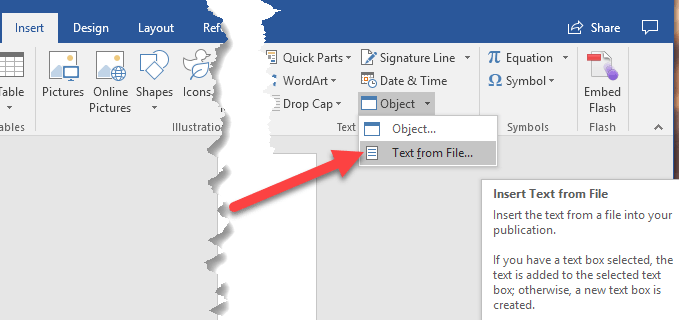
Now choose the documents that you want to insert. You can do it one at a time or you can choose multiple documents at once by holding down the SHIFT key and selecting them.
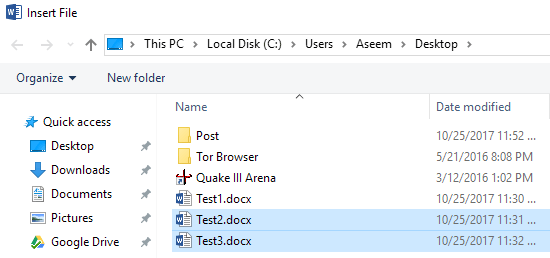
If you have a particular order they need to be inserted in, then do it one at a time. I’m not sure exactly how Word decides which files gets inserted when you select more than one at a time.
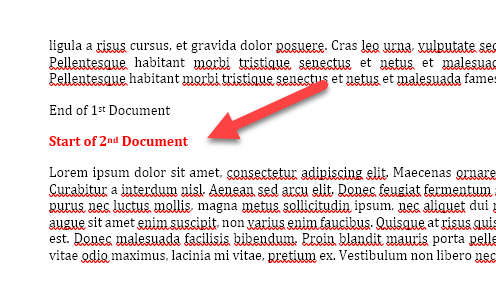
As you can see in the example above, the text from the second Word document starts right where I had the cursor, which was at the end of the first document. All of the formatting for the second document remained, including bold, bullet points, line spacing, text colors, text size, etc.
I even tested a document that just had pictures and other items like WordArt, charts, etc. and all of those items got merged properly too. Again, you could run into issues if you are merging documents that were created using different versions of Office. If that is the case, the best option is to open the older files in a newer version of Word and save it in the new file format.