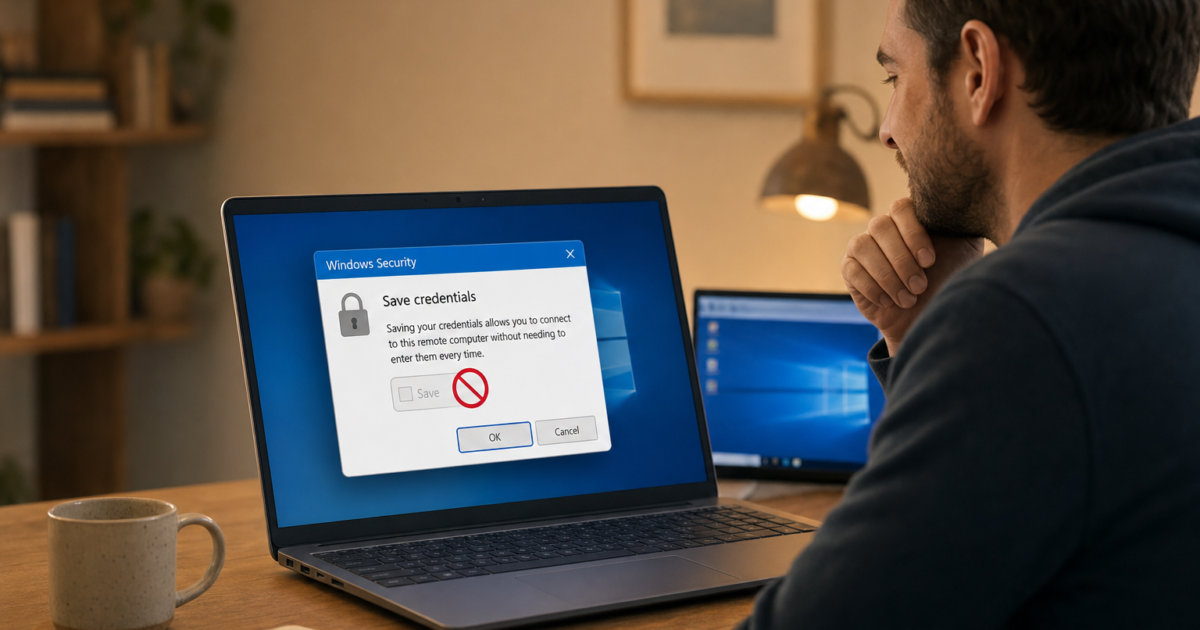
If you share a PC and use Remote Desktop Connection, Windows saving your RDP credentials by default is a real security risk. Anyone who sits down at that machine can connect to your remote computer without entering a password. These four methods let you block that, clear credentials that are already saved, or both.
Method #1: Group Policy (Windows 10/11 Pro, Enterprise, or Education)
This is the cleanest approach if you’re on a Pro or Enterprise edition. It disables the Allow me to save credentials checkbox in Remote Desktop Connection entirely.
- Press
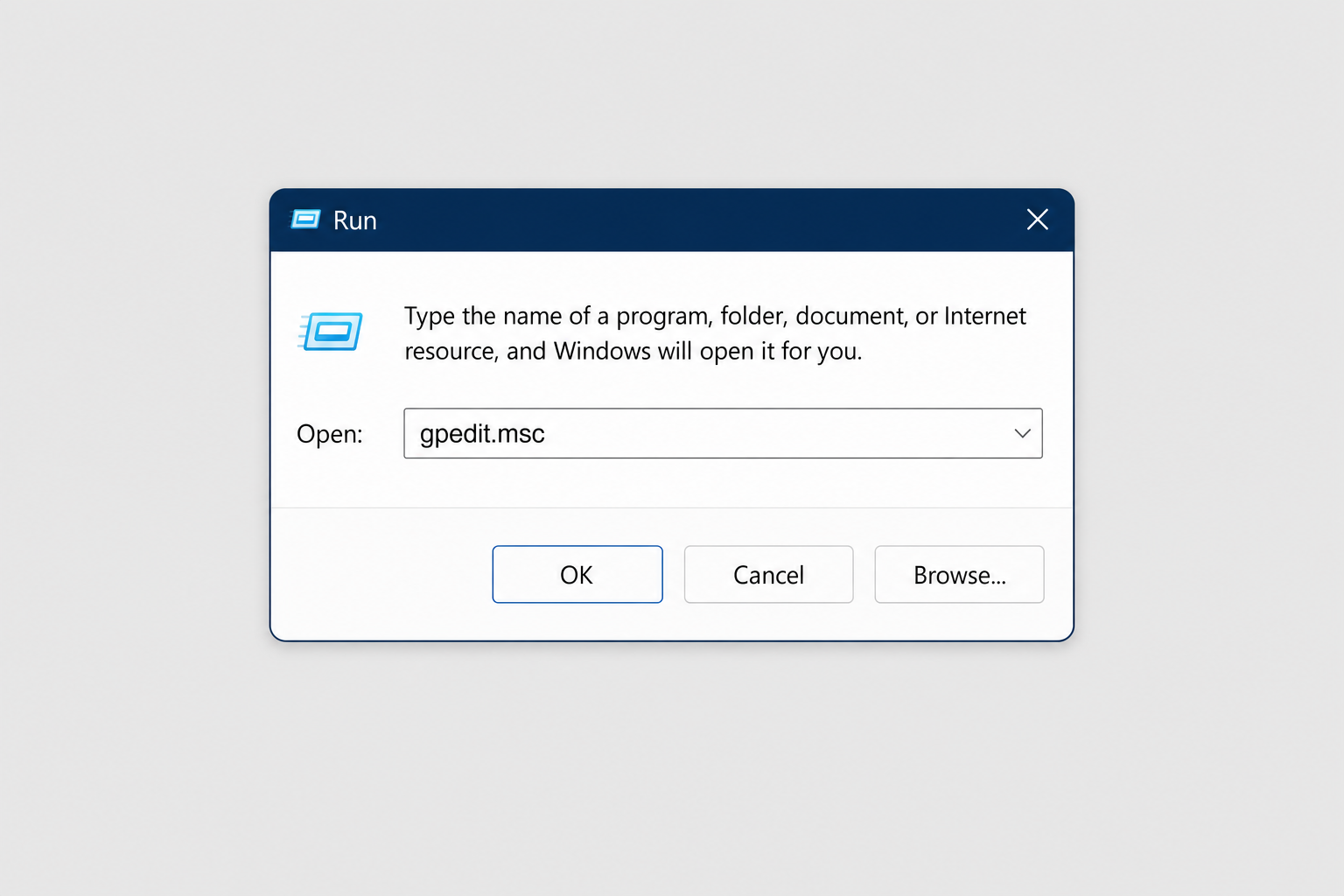
Windows + R, typegpedit.msc, and press Enter to open Local Group Policy Editor.
- In the left pane, navigate to:
Computer Configuration → Administrative Templates → Windows Components → Remote Desktop Services → Remote Desktop Connection Client
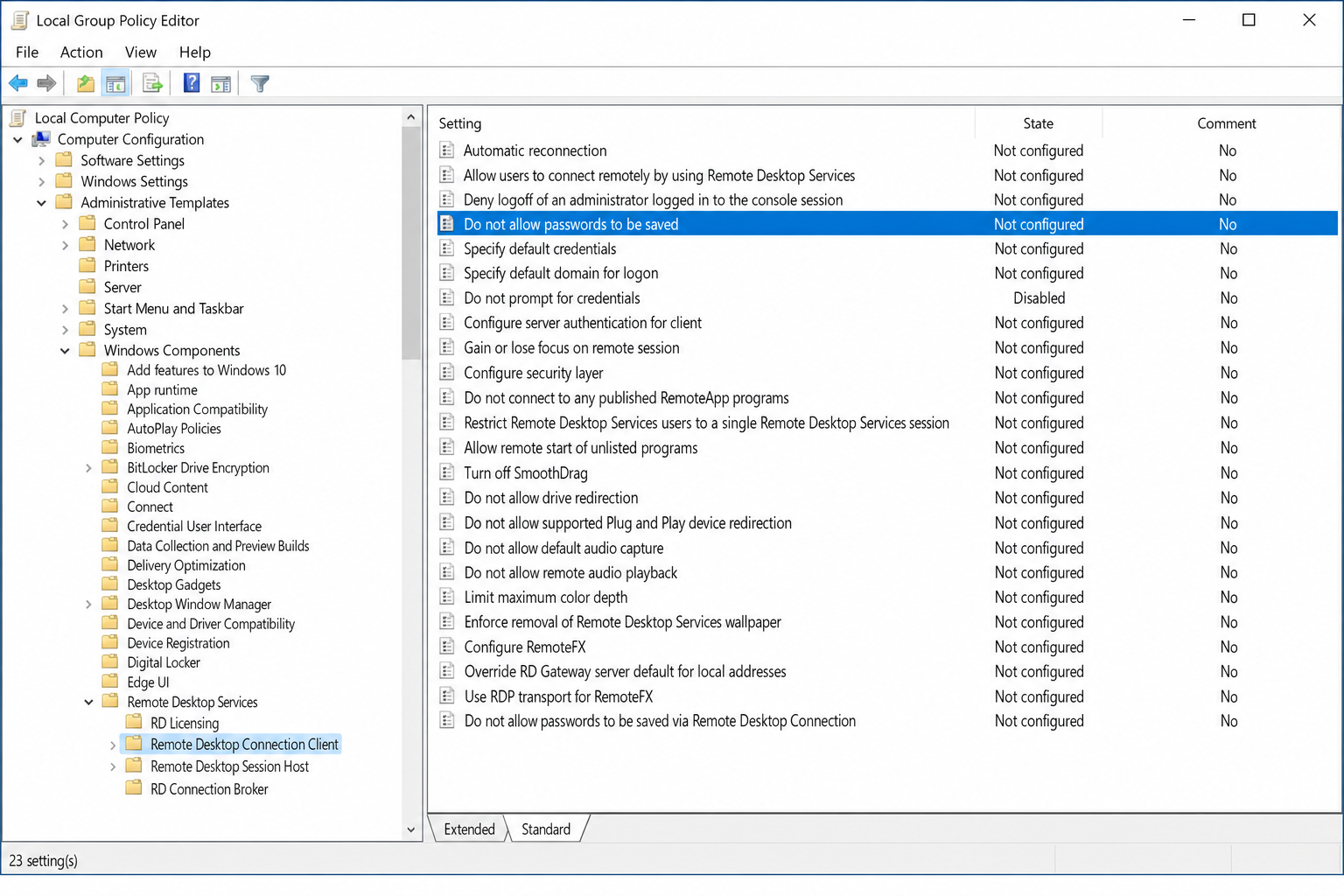
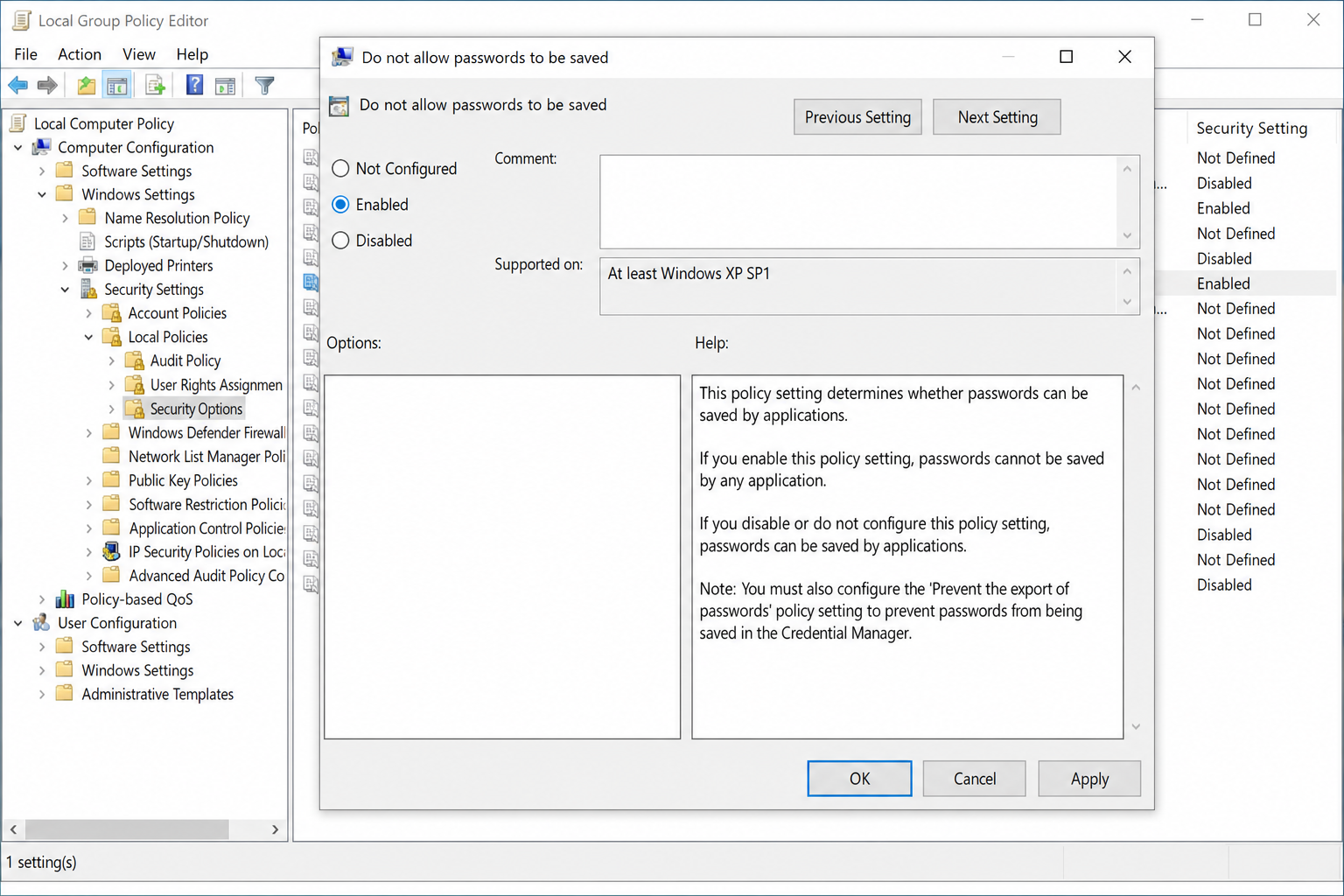
- In the right pane, double-click Do not allow passwords to be saved.
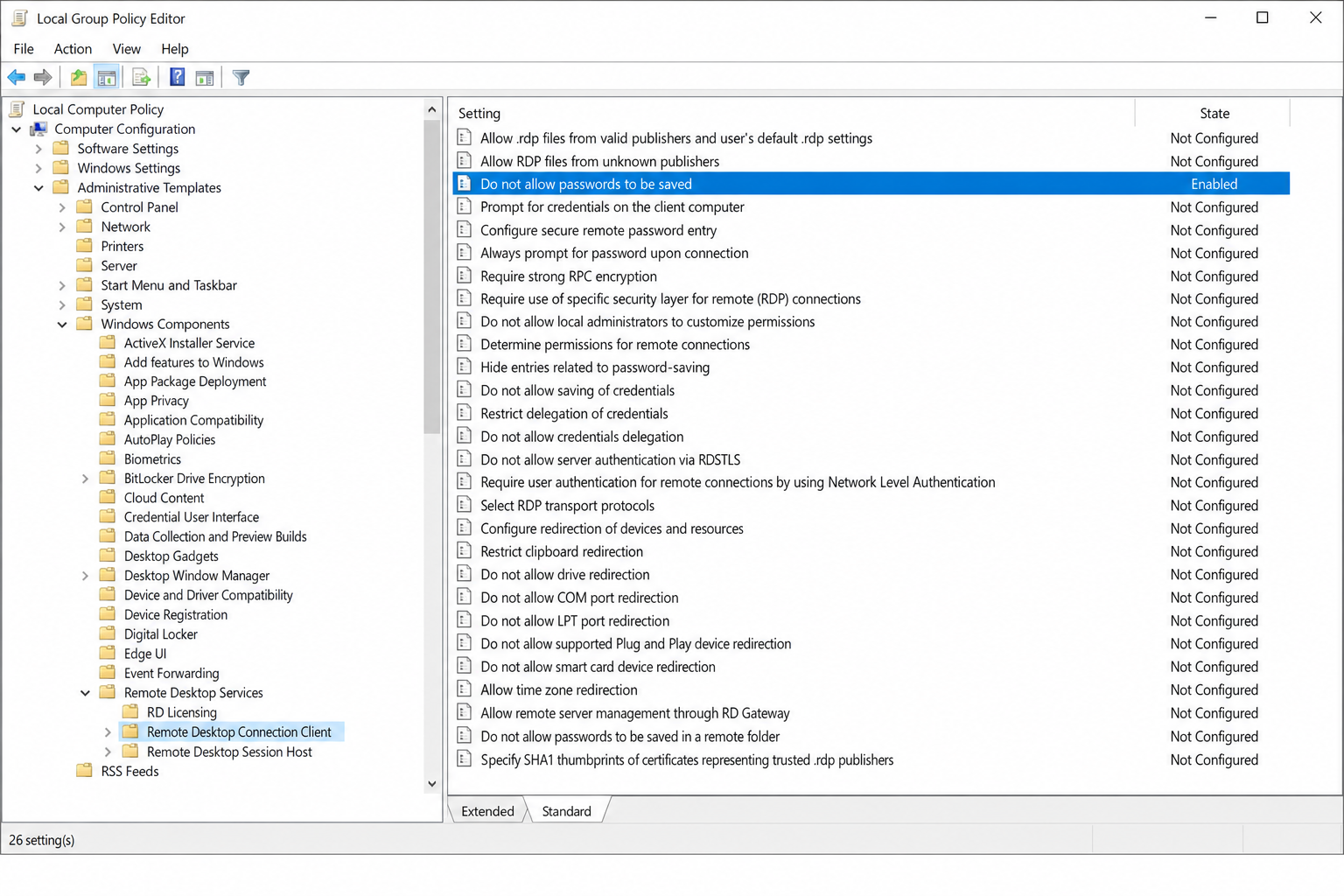
- Select Enabled, then click Apply and OK.
- Open an elevated Command Prompt (search cmd, right-click, select Run as administrator), then run:
gpupdate /force
After the policy applies, open Remote Desktop Connection (mstsc.exe) and check the General tab. The Allow me to save credentials checkbox will be greyed out. Users will be prompted for a password on every connection.
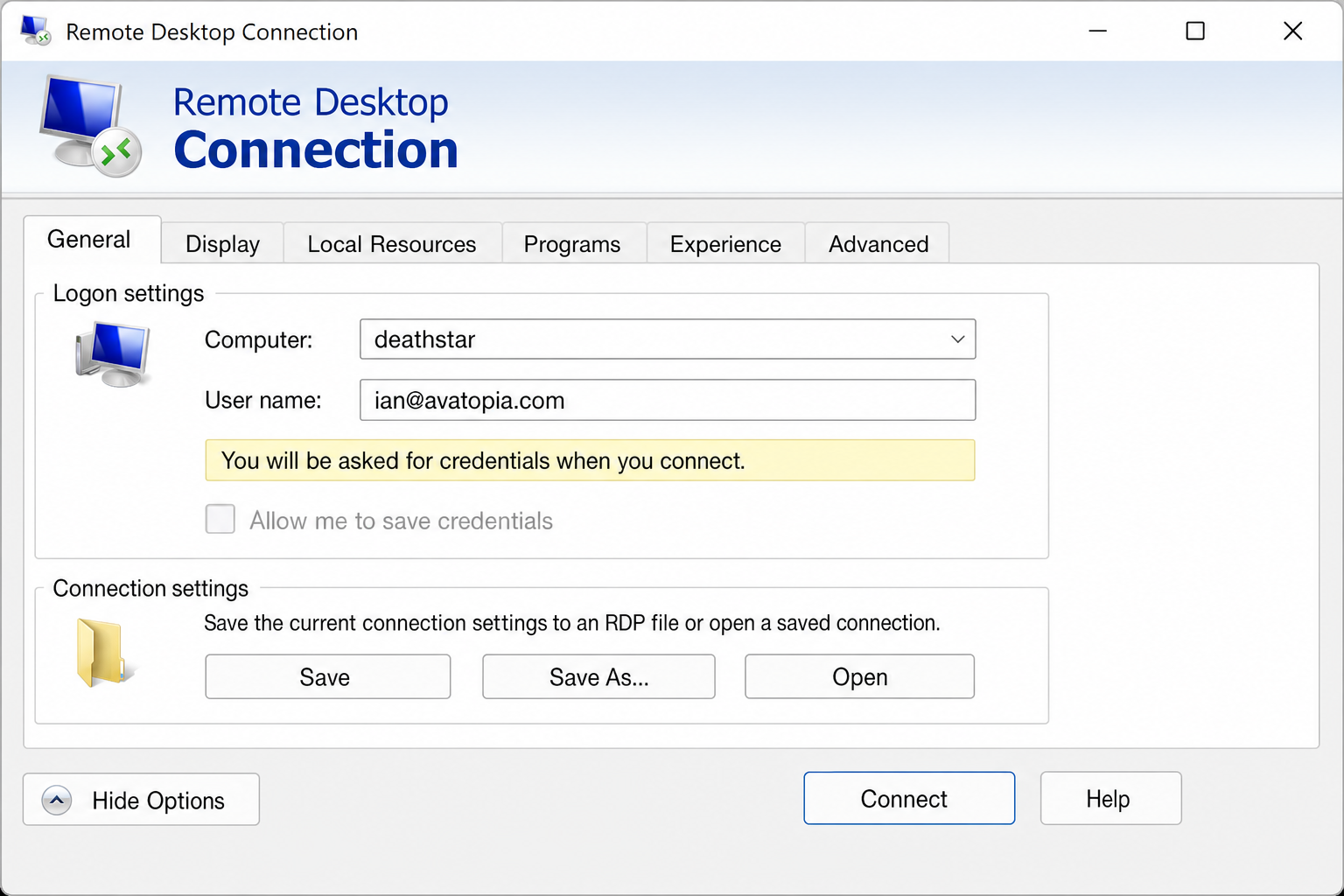
To reverse this later, go back to the same policy setting and set it to Disabled or Not Configured, then run gpupdate /force again.
Method #2: Registry Edit (Windows 10/11 Home, no Group Policy)
Windows Home doesn’t include gpedit.msc, but you can set the same policy directly in the registry. This produces identical results.
Before you start: Back up the registry or create a System Restore point. Press
Windows + R, typesysdm.cpl, go to System Protection, and click Create.
- Press
Windows + R, typeregedit, and press Enter. - Navigate to:
HKEY_LOCAL_MACHINE\SOFTWARE\Policies\Microsoft\Windows NT\Terminal Services
If theTerminal Serviceskey doesn’t exist, right-click Windows NT, select New → Key, and name itTerminal Services.
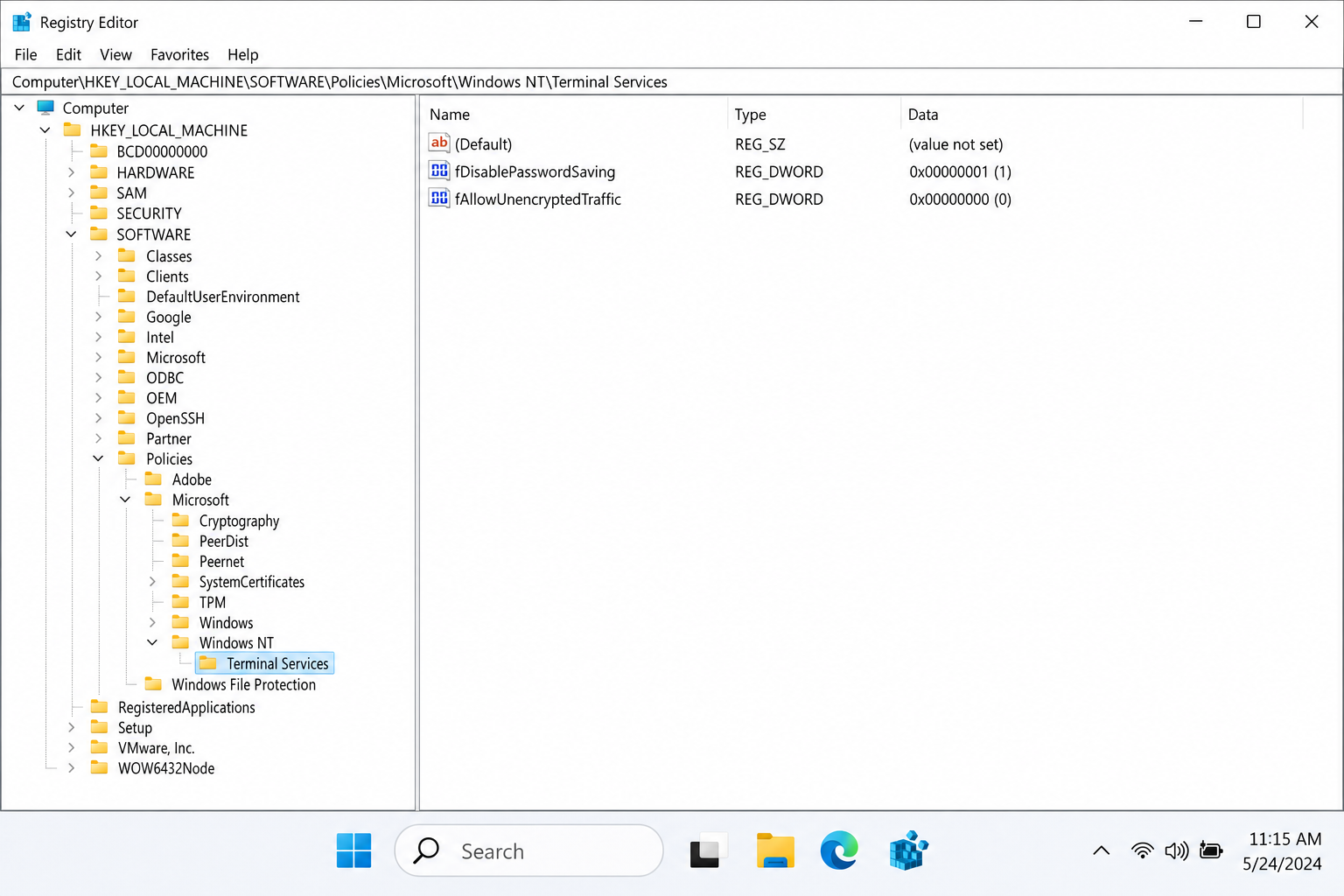
- In the right pane, right-click an empty area and select New → DWORD (32-bit) Value.
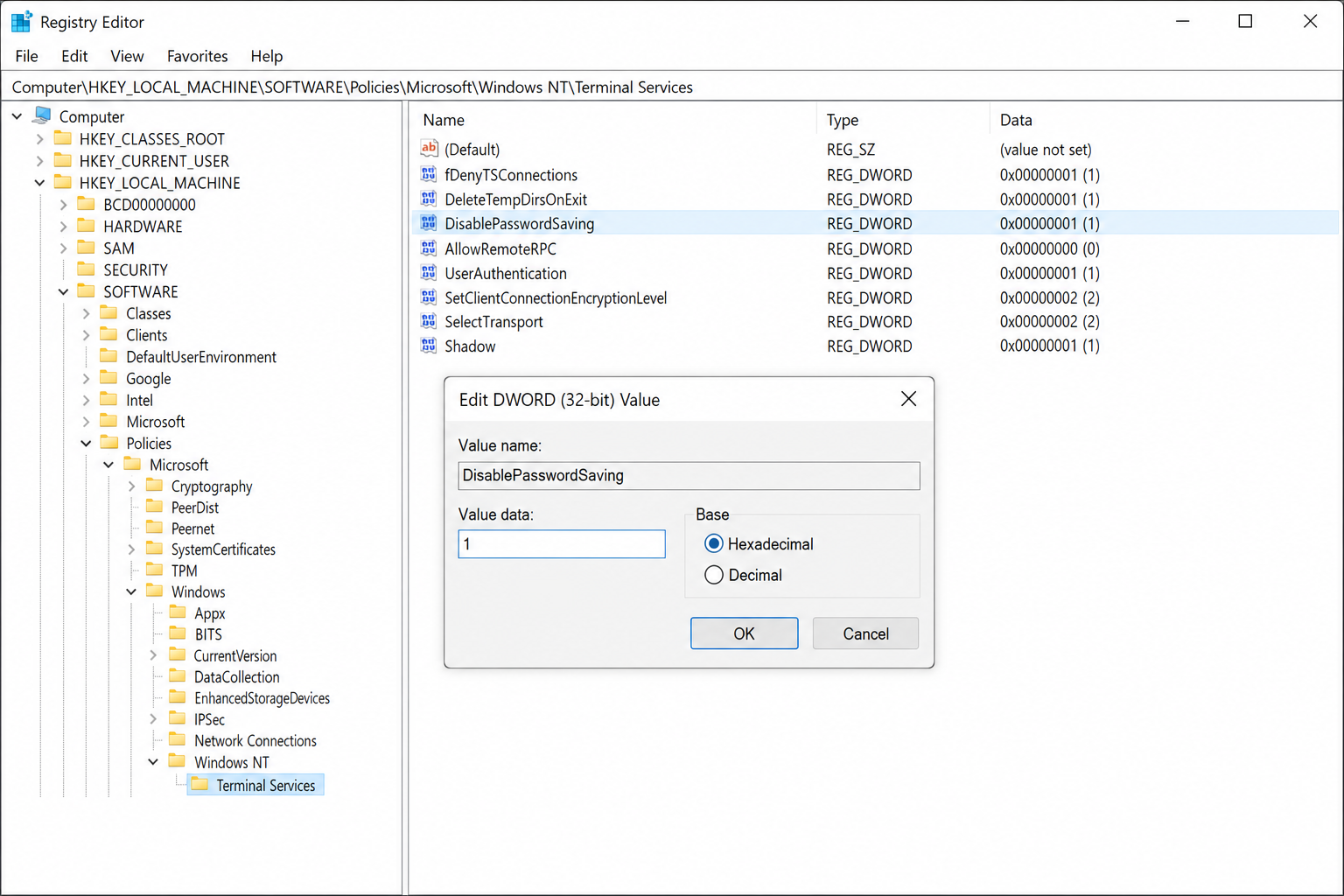
- Name it
DisablePasswordSavingand press Enter. - Double-click
DisablePasswordSaving, set the value data to1, and click OK.
- Close Registry Editor and restart your PC (or run
gpupdate /forcefrom an elevated Command Prompt).
To undo this, set DisablePasswordSaving back to 0, or delete the DWORD entirely.
Method #3: Remove Credentials Already Saved in Credential Manager
Methods #1 and #2 stop new credentials from being saved, but they don’t erase passwords that are already stored. Use Credential Manager to clean those out.
- Press
Windows, type Credential Manager, and press Enter. - Click Windows Credentials.
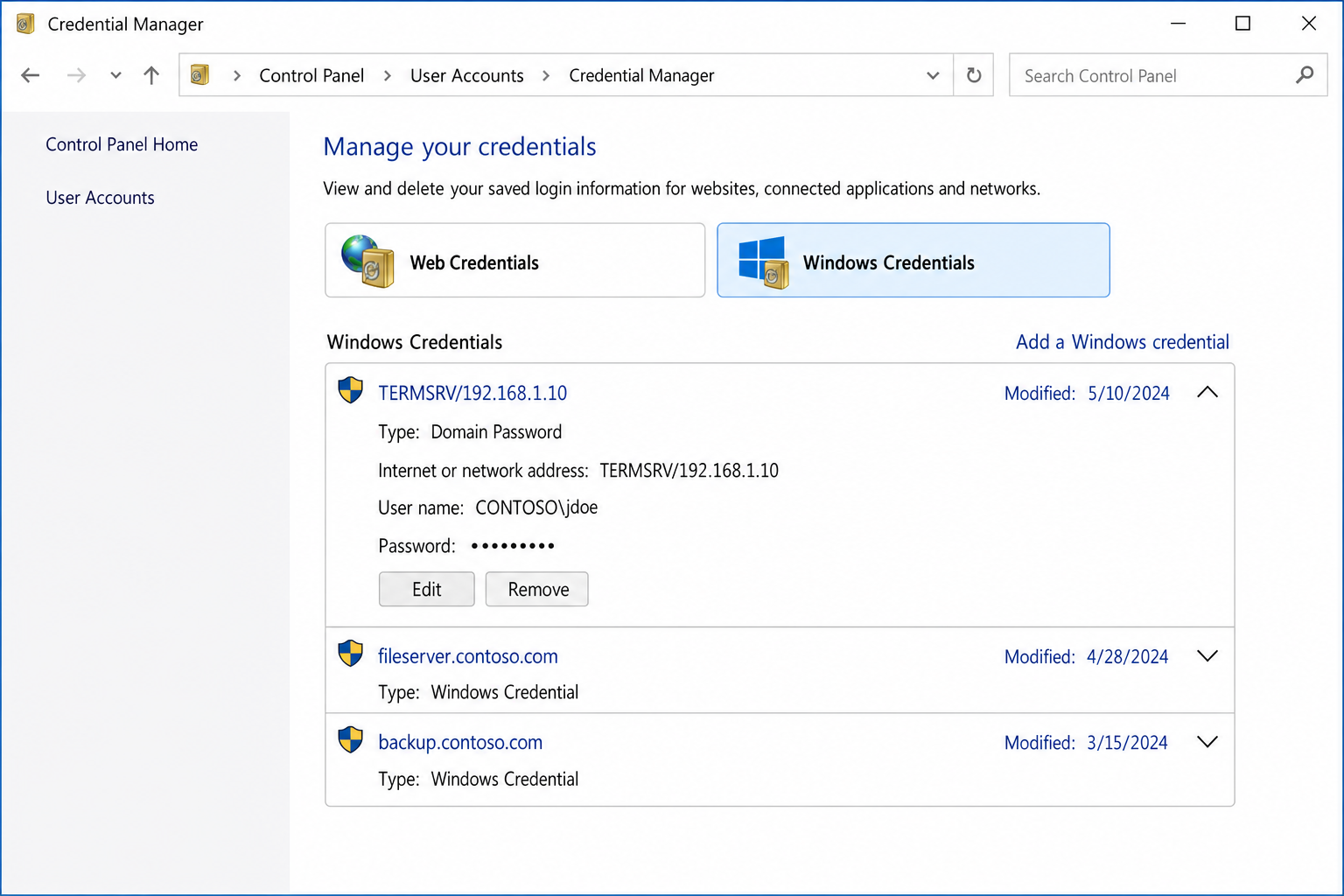
- Look for entries whose Internet or network address starts with
TERMSRV/for example,TERMSRV/192.168.1.50orTERMSRV/officepca. These are saved RDP passwords. - Click the entry to expand it, then click Remove.
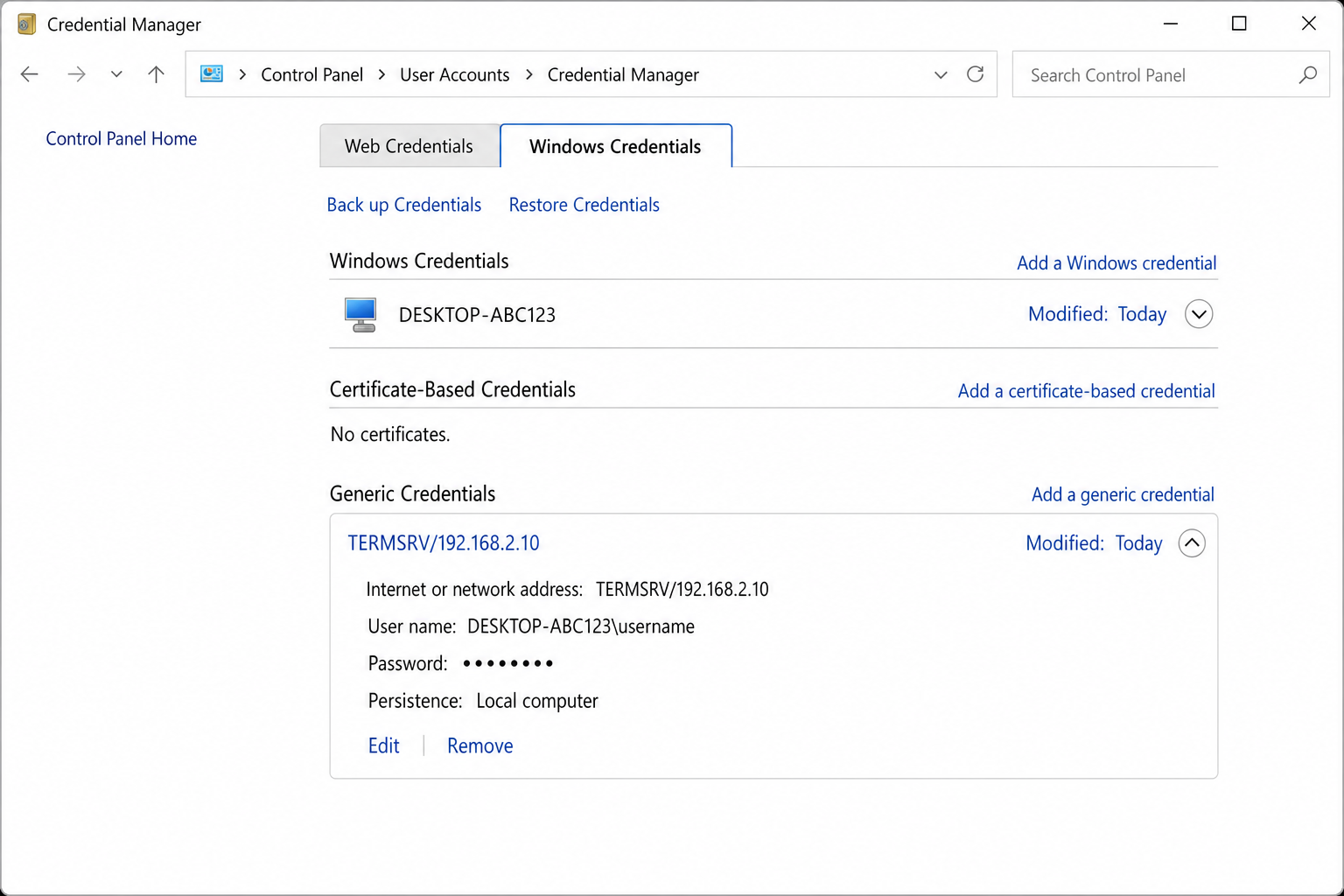
- Repeat for every
TERMSRV/entry in the list.
Once removed, those saved passwords are gone. Combined with Method #1 or #2, new ones can’t be added back.
Method #4: Block Credential Delegation (Stricter Enterprise-Style Control)
If you want to go further and prevent saved credentials from being used even if they somehow end up in Credential Manager, the Credentials Delegation policies in Group Policy handle that. This is more aggressive and is mostly relevant in corporate or shared environments.
- Open Local Group Policy Editor (
gpedit.msc). - Navigate to:
Computer Configuration → Administrative Templates → System → Credentials Delegation - Set each of the following to Disabled:
- Allow delegating saved credentials
- Allow delegating saved credentials with NTLM-only server authentication
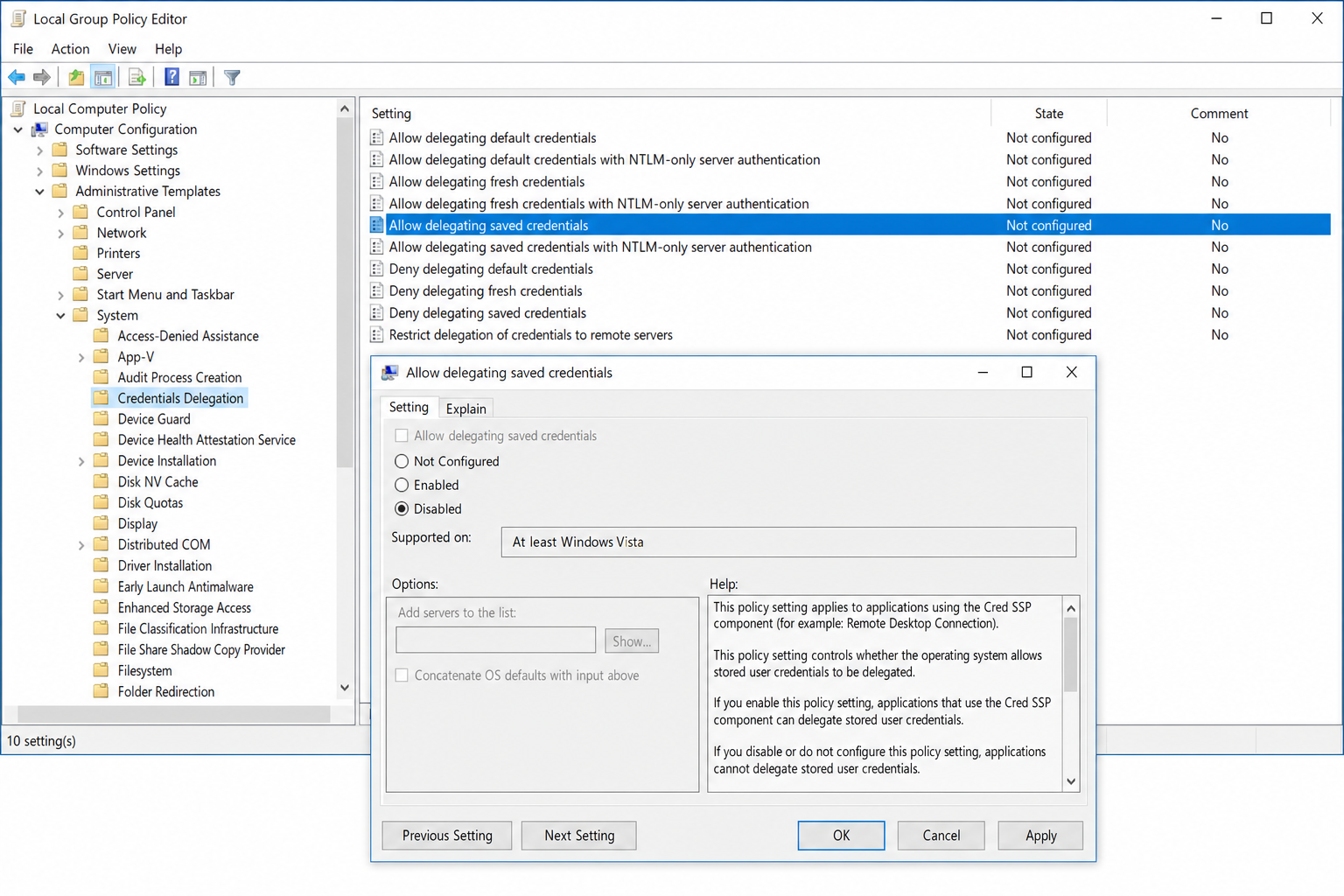
- Click Apply and OK on each dialog, then run
gpupdate /forcefrom an elevated Command Prompt.
This ensures the system won’t pass saved credentials to an RDP server, forcing interactive login every time, even if a credential is present in Credential Manager.
Troubleshooting: Common RDP Credential Problems in 2026
“Allow me to save credentials” is already greyed out
This means the Do not allow passwords to be saved policy is already enabled, either by your IT department via Group Policy or Intune, or by a previous registry change. If you’re on a work machine, you likely can’t change it. If it’s your own PC, check the registry key at HKEY_LOCAL_MACHINE\SOFTWARE\Policies\Microsoft\Windows NT\Terminal Services and confirm whether DisablePasswordSaving is set to 1.
Windows won’t remember RDP credentials even with “Remember me” checked
Check two things. First, open Credential Manager and look for TERMSRV/ entries. If they’re there but credentials still aren’t working, the username format may be the problem. Try connecting with .\username for a local account, DOMAIN\username for a domain account, or your full email address if the remote machine uses a Microsoft account. Second, check the Credentials Delegation policies in gpedit.msc (Method #4). If Allow delegating saved credentials is set to Disabled, that overrides the save checkbox.
RDP session hangs on “Welcome” or fails to reconnect on Windows 11 24H2
This is a known issue with Windows 11 24H2. The workaround is a network detection policy change:
- Open
gpedit.mscand navigate to:
Computer Configuration → Administrative Templates → Windows Components → Remote Desktop Services → Remote Desktop Session Host → Connections - Double-click Select network detection on the server.
- Set it to Enabled and choose Turn off Connect Time Detect and Continuous Network Detect from the dropdown.
- Click OK and run
gpupdate /force.
“Your credentials did not work”
Stale TERMSRV/ entries in Credential Manager are usually the cause. Remove them using Method #3, then reconnect and enter credentials fresh. If the error persists, check whether Network Level Authentication (NLA) is required on the remote machine. NLA requires credentials that match the remote machine’s account exactly, including domain or local account format.
Which Method Should You Use?
For most people, Method #1 (Group Policy) is the right call. It’s clean, reversible, and takes about two minutes on Windows Pro or Enterprise. If you’re on Windows Home, Method #2 (registry) does the same thing. Run Method #3 alongside either one to clear out any credentials that are already saved. Method #4 is worth adding if you’re locking down a shared or corporate machine and want belt-and-suspenders protection.